

This guide explains how to start factory OS image restore utility on a Dell laptop with Windows Vista.
Running this utility will erase everything from the hard drive and re-image it back to factory defaults.
In this particular case I’m restoring software on a Dell XPS M1530 laptop.
Let’s say your Dell came without recovery discs but you have to reinstall Windows because the operating system got corrupted or infected with viruses or spyware. What can you do?
There is a chance that your laptop has a hidden recovery partition and you can re-image the hard drive using files on the hidden partition. This guide may not work for all Dell laptops with Vista.
If the guide works for you, please mention the laptop model name and number in the comments after the post.
STEP 1.
Turn on the laptop and as soon as Dell logo appears on the screen press on the F8 key.

STEP 2.
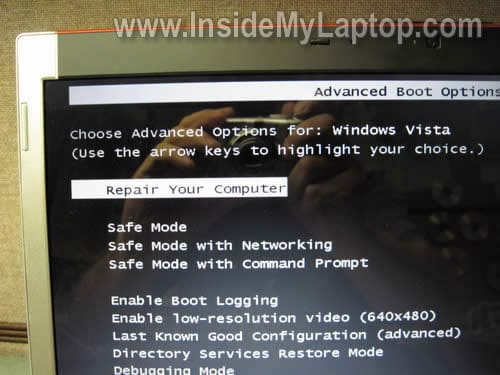
You should get a screen with advanced boot options.
Select the first option “Repair Your Computer” and press on the Enter key.
STEP 3.
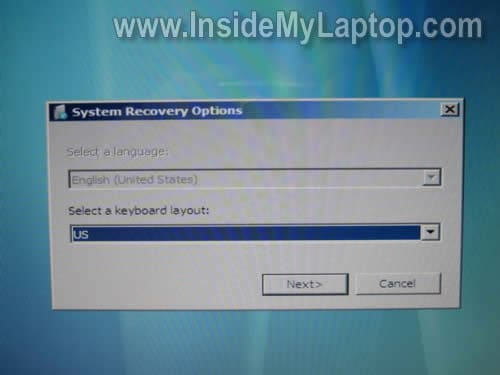
After a while the system restore option box will appear on the screen.
Select your keyboard layout and press on the Next button.
STEP 4.
At the next dialog box it will ask you for the user name and password.
Select your name from the drop down menu (you have to know the administrator password). Enter the password and press OK button.

STEP 5.
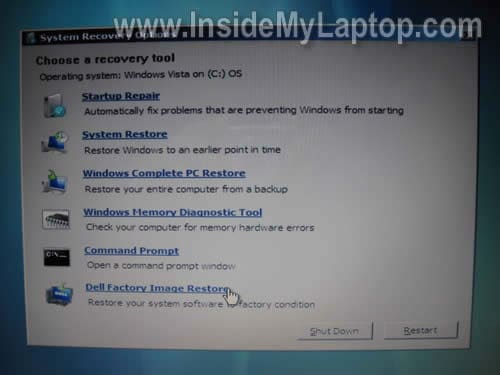
Click on the Dell Factory Image Restore option in the next box.
STEP 6.
Finally, you’ll get the Dell Factory Image Restore box. Click Next and follow instructions on the screen.
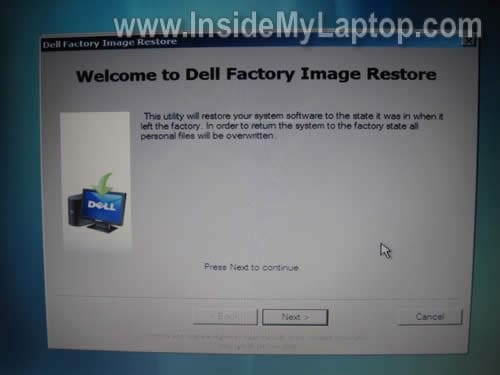
WARNING! Back up all personal files before running this utility. The hard drive will be reformatted and all personal files will be erased during the recovery process.
Ian
Your blog is just awesome!
Now, let me just ask you a Question hehe…
Do you know the name/model and where to get the screwdriver for new’s HP laptops?
And do you know if i can upgrade my ATi Radeon 3430 in my HP Compaq 6830s laptop, to a 3650?
Thx man.
IML Tech
Ian,
It’s torx T8.
Check your laptop specifications. If the video card is integrated into the motherboard, it cannot be removed or replaced.
Ian
Yes, it’s me again hehe, the motherboard model: HP – 30E9 Chipset: PM45/ICH9(north/south).
The graphics is dedicated and im nearly sure it’s MXM I or II.+
But what i am worry about is that the Mobo is blocked to only 1 model graphics card.
😉 Thx.
PJ
Instructions worked great. I have a Dell Studio 15 Laptop
Noel
I have an issue with Dell Studio.
I followed this guide and everything went as it said but after 20-25 minutes, it gave me an error that it failed to restore system. What other option do I have except using the disks?
Thanks
IML Tech
Noel,
It’s possible the restore process fails because you have a faulty hard drive or memory. I would run diagnostic tests on the hard drive and memory first.
luis
hey i have dell m1530 but the f 8 does not work on mind and i want to put it back to factory mode. when i put disc windows install it give me a error 0x80070002. how can i fix it
IML Tech
luis,
Not sure what this error means, but first I would run memory and hard drive test.
You can test memory with Memtest86+ utility.
You can test hard drive with SeaTools utility from Seagate (works fine for most hard drives).
carla`
Hi i tried to follow this i also have a dell xps m1530 but after pressing f8 i dont have the option of repair computer =/. my laptop has some serious virus and im going to sell it as spares and repair. but how do i go about deleting all my pictures etc? it dont stay on for very long. need help.
carla
x
IML Tech
carla,
There are a few different ways:
1. Remove the hard drive and smash it with a hammer. Sell the rest of the laptop.
2. Download Active@ Kill Disk – Hard Drive Eraser. Burn this utility on a CD disc and boot the laptop from that CD. Run the utility and erase all data.
3. Buy an external USB enclosure for your hard drive (most likely SATA but check it). Remove the hard drive from the laptop and install into this enclosure. Connect this enclosure to another working PC and access or erase pics.
vania
my don’t show ” repair computor”
Neeks2569
“performing factory image restore”
didnt expect this to work, after reading everyones comments on them having problems but to my surprise each step worked and im currently on the last step. i see the loading bar and above it says… restoring factory image
thanks man, ive had my xps 1530 sitting under my bed for like 2 years. had it built custom, paid over 2 grand for it, and i been using a shitty 200 dollar emachine laptop i had as a back up. finally get my baby back 🙂
Isisv33
Hello,
I have tried the f8 button but I do not get the repair option on the screen. When I try to use vista install disc and use f12 the computer just returns to the screen that says start window in safe mode, start window in safe mode with networking and so on. Is there another way to re-install vista using cd/DVD on the laptop ? I’ve tried the contol f11 and that does nothing. I’ve also been able to get a screen that come up and says path:\window\”Ect”\””\ windowstartup.exe
Then below that line it says “partition:1” then there is a line below that “80” then below the 80 it will give an area to type in.
When I change the boot sequence to the cd/DVD first the computer still goes back to start windows in safe mode, start window in safe mode with networking and so on.
I’ve done a window memory scan and there where no errors.
I called Dell tech support but they want to charge me $120.00 to tell me how to re-install windows.
The tech lady said there was a way to do a factory install or clean install. I just don’t have $120 dollars for Dell to tell me which keys to press to install Vista.
IML Tech
@ Isisv33,
When you press F12, it should give you the boot menu. Select the CD/DVD drive and press enter. If this doesn’t work, it’s possible your CD/DVD drive not working because it should boot from the disc.
Open up the CD/DVD drive and clean the lens with a cotton swab and alcohol. Make sure the installation disc is clean.
If the CD/DVD drive failed, here’s what you can try:
1. Download WinToFlash utility and create bootable USB memory stick.
2. Try installing Windows OS from the USB stick. I tried it once and it worked perfectly for me on a laptop without CD/DVD drive.
Isisv33
Hi again,
I wanted to give the information on the other screen I am an pull up . The other screen I get is Edit boot Options the line read.
Edit window boot options for:microst windows vista
Path: \windows\system32\winload.exe
Partition: 1
Hard Drive: 80
[/NOEXECUTE=OPTIN. “youcan erase or type on this line but no matter what I’ve typed nothing works”]
Then at the bottom of the screen it says Enter=Submit Esc=Cancel
Selena
I did the same thing but except for Step 5 where I am suppose to click display image restore but there is a pop up saying my factory image cannot be found. My laptop doesn’t come with a recovery disc. Please help me. Thank you.
marlene
im having problems with the step to include the password I have a long time I dont use my laptop and forgot it is there anyway i can recover it
segun
It worked for my laptop model dell xps L502x. Only that the option to be selected was Dell Datasafe Recovery and Emergency Backup. Thanks.
Molly
I don’t have the last bit dell factory image I have all the others apart from that?
HELP PLEASE
Mo
SPOT ON ….Thanks for your guide.
John
I have an Dell Inspiron 1501.
I tryed using F8 or even + F11 as everyone normally do. The Dell Factory Image Restore Partition is in my laptop hd. I can explore it but not access from the boot menu. When I start it, it goes direct to the windows menu, not allowing me to use the options that you gave on top of this page.
How can I solve this?
Please!!
IML Tech
@ John,
Maybe you press on the F8 too late? Restart the laptop and try tapping on the F8 right away.
Nandini
If i click on repair your computer it goes to windows dont go to the above screen can any one help me..on this
IML Tech
@ Nandini,
It’s possible the recovery partition on your laptop is missing/corrupted/damaged.
Also, it’s possible the hard drive is failing.
Turn on the laptop and press F12 when Dell logo appears on the screen. Select diagnostics and run it. Make sure all laptop hardware is working properly. If the hard drive failing you’ll have to replace it.
Joshua
On step 4 i had no other option in the drop down other than ‘administrator’ so i used that, when my Dell XPS 13 was done and turned back on it got to the log in screen and only has a blank user photo with ‘other user’ under it and requires me to type in a username and password, it says the username and password i had on the computer before restoring it says it’s wrong and i even tried ‘administrator’ as the username, ive tried restoring it 2 more times and nothing changed, i cant log into my computer at all, any ides?
IML Tech
@ Joshua,
Are you sure the restore process finished completely? Maybe you tried to login before it was done?
Normally, when restore is done, the OS will ask to to create a new user.
It’s asking you to login into an existing account and it’s not normal. Try running restore again and wait until it’s done completely.
Brian
it will not let me type in “administrator” in the user name field.. I can only select my name. once I do that It take me to but I not see the Dell Factory Image Restore option.. des this mean I not have it?
IML Tech
@ Brian,
What is your laptop model?
james
I HAVE A HP D4790y and there was a malware problem on it, I restored it to factory settings and now the image to logon won’t appear… Its in a “boot loop” I also don’t have the admins password so I can’tuse this either… Any ideas?
IML Tech
@ james,
I would test the hard drive and memory.
You can download Ultimate Boot CD which has HDD and RAM test utilities.
It’s possible your laptop didn’t restore correctly because of failing HDD or RAM.
Suzy
Hello,
I have an inspiron 1525, I can get to step 2. I see the option repair your computer, but when I use it, the computer just start normaly. Anything I can do ? Thank you
IML Tech
@ Suzy,
It’s possible your laptop doesn’t have Restore Partition. Do you have Dell restore disc by any chance?
If not, you can order one from Dell. When you get it, you’ll have to boot your laptop from this disc and follow instructions.
Matt H
Hello Everyone,
On some of the Dell machines we use here, you have to use a key combo. This is “ctrl + F8” at the bios “Dell” Screen. This should get you to the menu described above.
Good Luck.
Rebecca Bukala
my laptop was damaged somehow by A virus or I’m not for sure but if I do this well it restore my Windows software? Or do I have to reinstall the software myself?
IML Tech
@ Rebecca Bukala,
If you restore the laptop back to factory defaults, it will erase all software you installed AND all personal data.
It will be the same way you bought it.
Tyler
My laptop doesn’t have the Dell factory image restore option. Why?
IML Tech
@ Tyler,
Probably your laptop doesn’t have restore partition. You should be able to order restore CDs for for your laptop from Dell.
Alex
My laptop has a recovery partition, but the option you stated does not show up for my computer. Could you help me out?
IML Tech
@ Alex,
What is your brand and model number?
Alex
XPS M1330
IML Tech
@ Alex,
I’ve checked a few tutorials and they all say to use F8 key to restore the OS.
Dell website also suggests this option (step 3 in this guide).
Have you tried Ctrl+F8 instead of just F8 as suggested earlier by Matt H?
Alex
I can get to the restore screen, but nothing about doing a Dell restore shows up, and the default restore options don’t seem to work because the partition isn’t a .img
vicki
OK, the partition in question is not accessible because it is not the dell software? it was an oem disk from Microsoft that was put on as an upgrade. the recovery partion is on the drive, but no option to do a factory reset. so how do we do it, that is what we are all asking…help us, and none of the worthless dell speak of f8 or f12, the do nothing to actually help
IML Tech
@ vicki,
If your recovery partition doesn’t work you have the following options:
1. Order a set or recovery discs for your laptop from Dell. You’ll have to buy them.
2. Download Windows OS image via torrent and burn it on a DVD. It must be the same version as your laptop is licensed for. Probably Windows Vista/7 Home Premium. It can be 32-bit or 64-bit and I would go with 64-bit. NOTE: you have to download an OEM version, not retail. Not cracked/hacked, just a copy of OEM Windows OS installation disc.
After you install it on the laptop you should be able to activate Windows OS using license key from the sticker on the bottom.
3. Buy a retail version of OS and install it.
Alex
My dad brought home an OEM Windows 7 disk and I repartitioned my laptop from 120GB to 500GB, thanks for the support
nathan
Hi There
I have a Dell Vostro 1014 wins vista
When i push F8 it doesnt work
Bill
I hit f8 and get the Advanced options menu but no repair option. I would orders discs but my notebook don’t have a disc drive what can I do now. When trying to boot it up it says windows could not start because following file is missing or corrupt. \windows\system32\config\system
Arun
MY laptop is 6gb ram with1tb har disk and i5 processor and i felt like system is slow and decided to run the OS again. My recovery disk didnj’t work but it formatted the whole drive. And now i have installed the OS but i couldn retrive the old datas… Is there any possiblity to do so
IML Tech
@ Arun,
First of all, stop using this drive ASAP. Chances to get your data back are not very good. You can try running recovery software (GetDataBack for example) and scan the drive. Use option to scan for data after OS reinstall.
bedun
i can’t find “Dell Factory Image Restore ” why??????
IML Tech
@ bedun,
Was your hard drive reformatted at some point?
Was your laptop supplied with a recovery disc?
Leslie T
My husband has the xps L702X with Windows 7, he just had to do his quarterly password changes at work (which means he changes all of his passwords). He usually writes down his new laptop one for me since his had programs my doesn’t but he got distracted by our baby and he forgot to. Now since he only has the one account (I have no idea why he didn’t set up a separate one from the administrator), he can’t get into his laptop at all since he forgot what the new password is.
We get into the F8 screen to do the repair and try to log in for the factory restore but since we don’t have his new password we’re just going in circles.
He never set up a restore disc when he first got this laptop so we are trying to find a way to do a factory restore without a disc and his new admin password. Is there a way to possibly do that?
Brent
After I get to step 2 and press REPAIR YOUR COMPUTER
it brings me to the normal sign in page..
I do not get to step 3 – system restore option box doesn’t appear on the screen
Any help would be appreciated
Aaron Mason
Confirm that this works great on a Dell Latitude E7440.
Monique
I have a Dell utlrabook latitude e7250. I can’t remember my password and I want to just erase the hard drive without a disk or usb. is there a way for me to erase the hard drive without paying to do it??
jdog
thank you!it worked!!!!!!!!!!!!!!!!!!!!!!!!