


The following guide will explain how to disassemble a Sony Vaio PCG-K series laptop.
I created this guide while taking apart a Sony Vaio PCG-K25 model but I think you can use the following disassembly steps for all models in the PCG-K line.
The main reason for me to take it apart was replacing the broken power jack. Proceed disassembly on your own risk.
Before you start the disassembly process unplug the AC adapter and remove the battery.
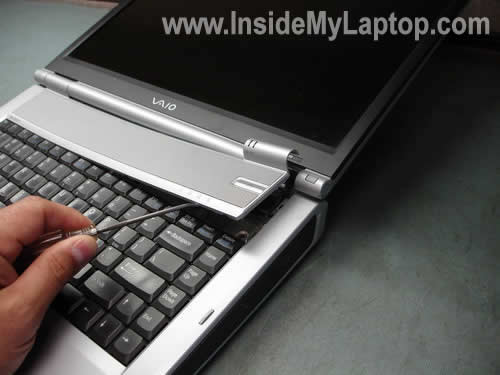
STEP 1
Carefully remove the keyboard bezel using a small flathead screwdriver. Remove it slowly, there is a flat ribbon cable connecting the power button board with the motherboard.

STEP 2
Trun the bezel upside down. The red arrow pointing to the connector on the motherboard.
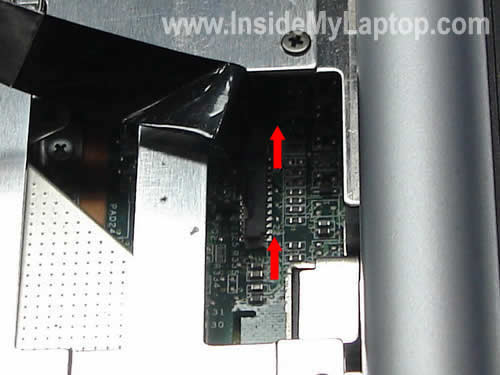
STEP 3
Unlock the connector by lifting up the cable retainer about 1-2 millimeters. Be very careful.
After the connector is unlocked, you can pull the cable and remove the bezel.
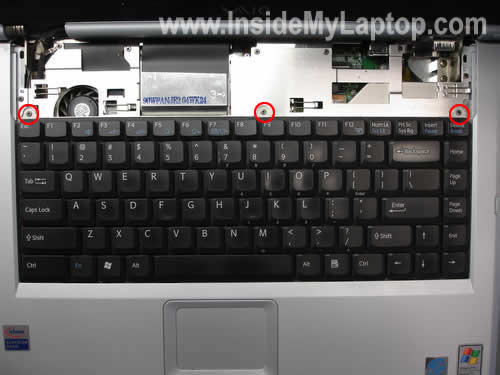
STEP 4
Remove three screws from the keyboard.

STEP 5
Lift up the keyboard and place it upside down on the palm rest so you an access the cable underneath.
Unlock the cable connector. Disconnect the cable and remove the keyboard.
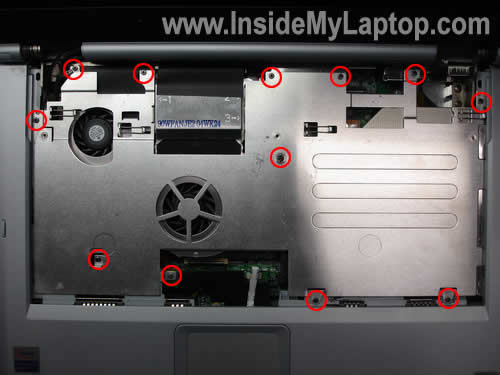
STEP 6
Remove all screws securing the metal cover.
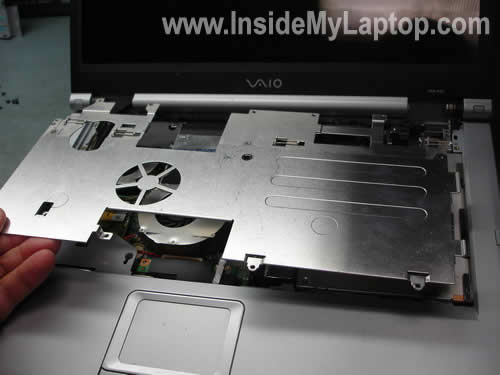
STEP 7
Remove the cover.
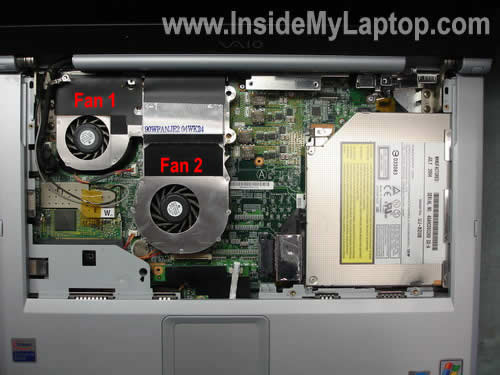
STEP 8
After the cover has been removed, you can access and clean both cooling fans. You can clean fans with compressed air.
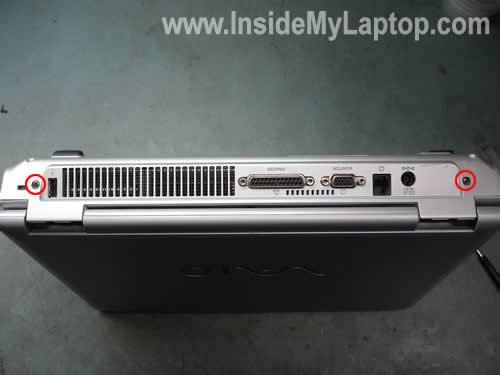
STEP 9
Remove two screws securing the display hinges to the back side of the base.
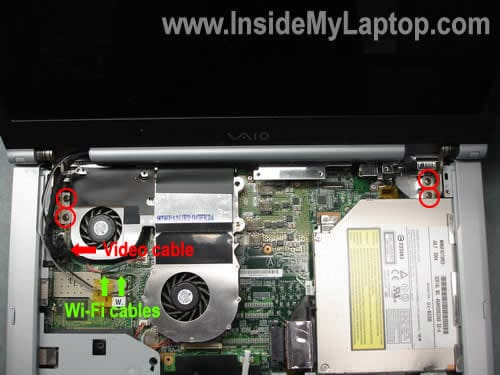
STEP 10
Remove four screws securing display hinges. Unplug the video cable from the motherboard. Unplug both wireless card antenna cables from the wireless card.
In one of the next guides I explains how to replace LCD screen with inverter.
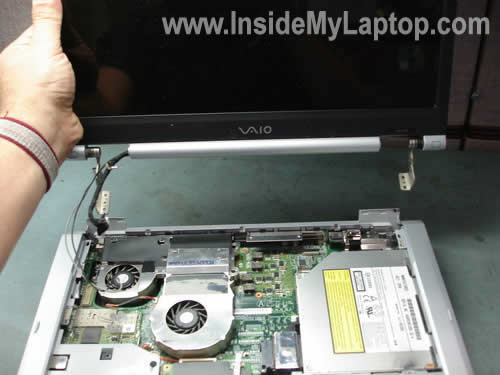
STEP 11
Lift up and remove the display panel.
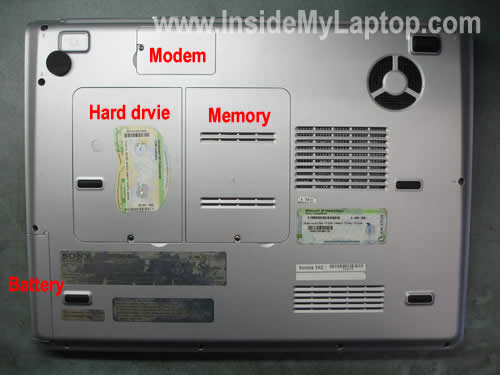
STEP 12
Remove the hard drive cover, memory cover and modem cover from the bottom.
Each cover is secured by one screw.
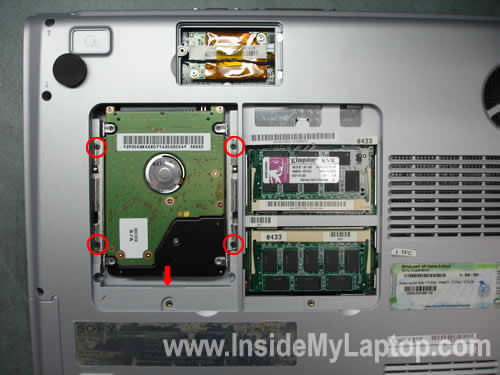
STEP 13
Here’s how you can remove the hard drive.
Remove four screws securing the hard drive caddy to the base assembly. Slide the hard drive down to disconnect it from the motherboard. Lift up and remove the hard drive.
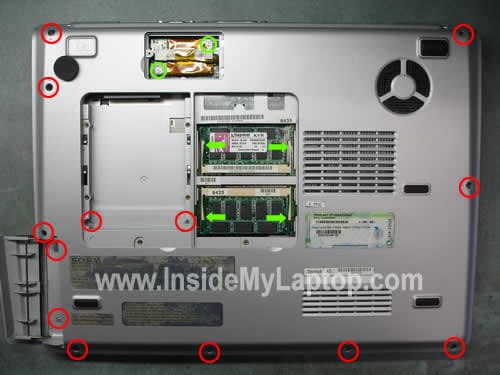
STEP 14
Removing memory modules (if needed).
Carefully spread latches on both sides of slot. The memory module will pop up at 30 degree angle. Pull the module from the slot by the edges.
Removing modem card (if needed).
Remove two screws securing the modem card. Lift up the modem card to disconnect it from the motherboard and unplug cable from the side.
Remove all screws from the bottom.
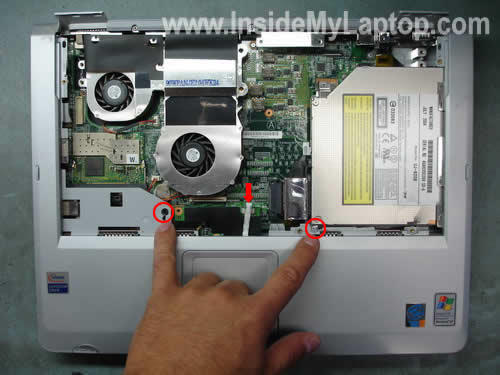
STEP 15
Remove two screws securing the top cover assembly. Disconnect the touch pad cable connector on the motherboard and unplug the cable.
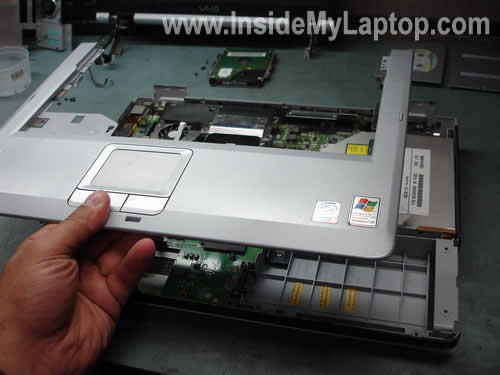
STEP 16
Lift up and remove the top cover assembly.
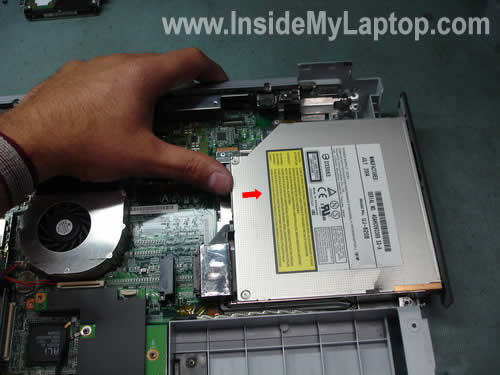
STEP 17
Push the CD/DVD drive to the right side with your thumb. Remove the CD/DVD drive.
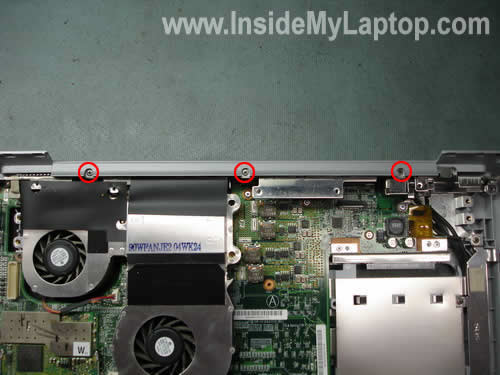
STEP 18
Remove three screws securing the plastic cover.
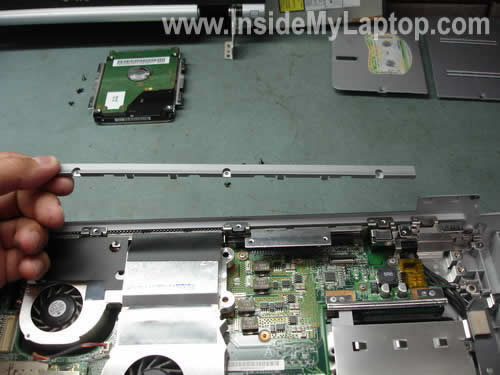
STEP 19
Remove the cover.
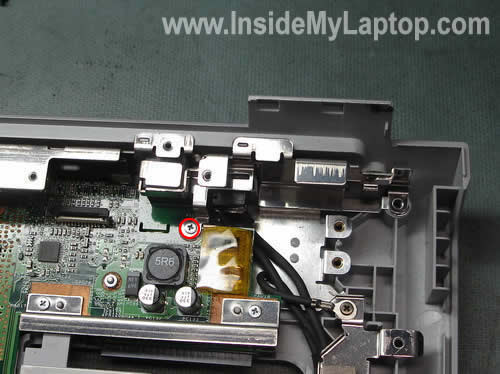
STEP 20
The power jack is hidden under the metal bracket. Remove one screw securing the bracket.
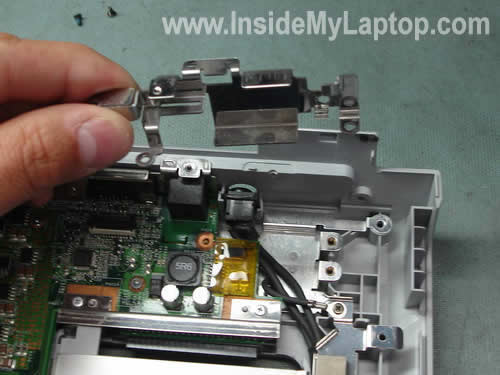
STEP 21
Lift up the bracket. Now you can access the power jack.
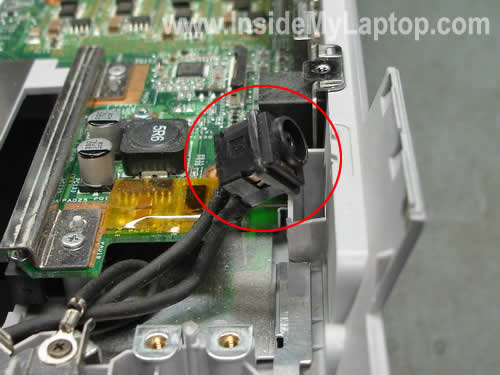
Release the power jack.
Now you can remove the broken power jack (unsolder from the harness) and replace it with a new one.
Loris
Very good step by step guide. I used it for clening the inside of my PCG-K315S. It worked well.
Just a problem, after putting it back together the laptop get powered up for only 1 second and then shuts down.
I tried several times, but the same happen every time.
Can you advise?
Many thanks.
IML Tech
Loris,
Did you remove the heat sink for cleaning? If you did, it’s possible you pulled the CPU from the socket. You’ll have to remove the heat sink again, open the CPU socket, reseat the CPU, lock the CPU and assemble everything back together.
If you remove the keyboard bezel and disconnected it from the motherboard, as it shown on the pictures 3 and 4, make sure the cable is properly connected to the motherboard.
Did you remove memory modules? Try reseating them.
If your laptop was working before you took it apart and is not working after you assembled it back together, most likely it’s some kind of connection related problem.
Dan
After reassembly, some keys didn’t work:
Enter
[
]
p
;
‘
/
backspace
numlock
pgup
pgdown
end
IML Tech
Dan,
Make sure the keyboard cable is properly connected to the motherboard. Reconnect the cable.
hero
This was fantastic!
I had the same problem as Loris; I was cleaning the insides and when I tried to turn it on I was terrified that it wasn’t booting, but it was just the cpu that needed to be re-encased. Thanks so much for this page, and the advice!
-hero
Justin
hi IML Tech..my wireless signal on my K115S laptop is very poor even though im in the same room with my router..its still low..what should I do?..is the wireless card the problem?..
please help..
thank u..
-justin
IML Tech
Justin,
First of all, test your laptop with another wireless router, maybe you can find one in a library or somewhere else. If your laptop works fine with another router, it’s likely that your problem is related to your router. Try downloading and installing the latest router firmware, it might help.
If you have the same problem with many different routers, there could be a problem with your wireless card or wireless software. Try reinstalling Wi-Fi card driver.
Shashank Saxena
It is realy help full, as i was tring to open from the back, but according to this guide, now it is clear that we have to open it from front.
Thanks again.
DEEPAK
I try to replace the LCD plastic case and front bezel using the guide above. Everything was done and also reassembled. I had removed the unit holding the wificable. But I am sure I recoonected it as it was before.
Now the laptop is not booting up. Can you suggest any help in getting this resolved.
Thanks for all your valuables suggestions in advance.
eddie
Hi, great guide I used it to replace my dc power jack on my pcg-k33. Anyways I put it back together and it wouldnt start. All that needed to be done is the cpu and heatsink to be reseated but now my screen doesnt even turn on anymore. And since I have a password on my user account I dont even know if it really starts up or not. The fans turn on and the seat hink gets hot to the touch. I just really need help. I made sure the video cable is connected tightly, I took it apart at least 5 times to try and fix it now. I checked the little button the lid presses when closed to shut the screen off, its not that. I am just really in need of any help. Thanks.
eddie
Deepak “I try to replace the LCD plastic case and front bezel using the guide above. Everything was done and also reassembled. I had removed the unit holding the wificable. But I am sure I recoonected it as it was before.
Now the laptop is not booting up. Can you suggest any help in getting this resolved.
Thanks for all your valuables suggestions in advance.”
when you press the power on button does the battery and power light blink? If so, or even if not its more than likely that you just didnt seat your cpu in tightly enough, try pressing down really hard on the cpu and starting the computer. If it starts let go of the cpu and take it all apart and try fitting it in tightly so it starts Up again.
Cameron
Thanks for the detailed directions for breakdown. I used it to replace the broken insulator (and wiring harness) on my Sony PCG-K45. I couldn’t have done it without your help, you are a lifesaver! No leftover parts except for a large “Elongated – C” shaped rigid metal wire which fell out of the keypad upon removal. it was the approximate shape and size of the “space bar” so I just tucked in up under there on re-assembly and away I went! Works fine though! Thanks again! 🙂
Penny F
Awesome!!! Just Awesome!! I bought my Vaio at a garage sale for $25 and having said this I have no room to fuss, BUT…. it has a replacement battery in it which it will run on for about 15 – 20 minutes, but the ac/charger is original and is for a 19.5 system. Now this gives me cause for concern, the charger plug has been jury-rigged and has a “replacement” tip on it, today my hubby was using it, and the jack pushed into the housing of the laptop. (hence my coming across your awesome pages) so I took it apart and found that the jack was easily put back into place, BUT….. it was also mis-shappen. upon inspection of the charge tip, I can see that it has melted the plastic around the tip and it is now larger than the hole in the jack (technicly a jill??) anyway this was the reason the jack had been pushed into the case of the laptop. NOW my question is should I replace the charger with a 14.5V, the battery, (can’t seem to locate a 19.5V sony offers places where a 14.5v is easily available) and should I also replace the Jack? Weehuu, that was a mouth full. Hope you don’t mind my asking, and Thanks a bunch in advance for your time!!!!
IML Tech
PennyF,
Nope, you should find a 19.5V adapter.
Penny F
So to help me clairify this in my little mind, the Sony A/C adapter (19.5) that came with the Vaio is the correct one. And this should charge a 14.5V battery in the computer without a problem…. I have ordered a new jack, due to the melt down, is it possible to replace the tip on the a/c adapter or should I replace it due to the melt down??
Sorry, I don’t mean to sound so dumb and needy , but I am new at all this A/C to D/C stuff, I have more experience with PC’s than Laptops.
Penny F
I re-read this “I have ordered a new jack, due to the melt down, is it possible to replace the tip on the a/c adapter or should I replace it(THE WHOLE ADAPTER) due to the melt down??”
Is it possible the adapter caused the over heat?
IML Tech
Penny F,
Technically, you are “not supposed” to replace the tip because it’s permanently attached to the power cord. But in real life, you just cut off the melted tip and solder a new tip if you can find one.
Check out here: http://www.computekinc.us/TheEndConnectors.htm
They have a few power tips available and one of them is for Sony laptops. Maybe it’s similar to yours.
Penny F
Again, I cannot thank you enough!!
but here goes THANK YOU!!!!!!!!!!!!!!!!!
Jorge
This is my question.
In this guide. At what point can I replace the two fans?
Can I do it in step 8?
Thanks.
IML Tech
Jorge,
Yes, you can. Both cooling fans are attached to the heatsink, so you’ll have to replace the whole heatsink assembly.
1. Unplug both fan cables from the motherboard.
2. Loosen three screws on the heatsink. They are marked 1, 2 and 3.
3. Carefully lift up and remove the heatsink assembly.
4. Clean old thermal grease from the CPU and apply new grease.
5. Install new heatsink assembly.
Ken
STEP 3
Unlock the connector by lifting up the top side of the connector 1-2 millimeters. Be very very careful. If you break any connector on the motherboard you are screwed big time. After the connector is unlocked, you can pull the cable and remove the keyboard be
For this one, what happen if I accidentally force the cable to be disconnect it and break the cable, would i be able to replace the cable and fix it?
Ken
http://www.impactcomputers.com/1-830-249-11.html
I found the cable on this website which seem to be exactly the same one, but i’m not sure if is the same. So, my question is, is this cable the right one for the power button cable? Please reply as soon as possible.
Jorge
What is this thermal grease, where could I get it. Radio Shack?
Thank you.
IML Tech
Jorge,
It’s a special compound witch should be applied on the top of the CPU before you install the heatsink.
You can buy it in Radio Shack. Search for Arctic Silver® Silver 5 Thermal Compound. This compound suppose to be a good one.
IML Tech
Ken,
I’m not sure how you can break a flat cable. You can break a connector but not the cable. Maybe I’m missing something?
You see what I see. I cannot tell if that’s the cable you are looking for. You’ll have to contact the seller for more info.
Ken
When i take apart the laptop, the power button cable was unattached to the connector with force by accident. So then i plug the cable back again and it only lights up once and then it will not allow me to press the power button to turn on the computer. So, did i screw up the connector? If i did, but I don’t see the connector has any damage, i mean the connector still stay on the motherboard and is fine. So, that’s why i was talking about could it be possible that some part of the cable was damaged because of the unattached the cable with force.
Ash
I used this great guide for the purpose of cleaning out the cooling fans (I cleaned out an astoninshing amount of dust and fur). My computer worked fine before I did this, but when I put it back together, I had the same problem as described above where when the power button is pushed, the power light blinks for one sec and then nothing. I followed the reccomendation for solving this problem and reseated all the connections. I found that the only one that was not properly seated was the memory stick cable. I also refit the fan (is the cpu on the underside of the fan?–mine is a pcg frv27). I did not apply new thermal grease. Now my computer will begin to start up, but only the power light stays on. It sounds like the hard drive is engaged just for a second and then stops–the computer remains on, but does not boot. I am almost there! Help!
IML Tech
Ash,
Did you separate the heat sink from the CPU during the laptop disassembly? If you did, it’s possible that you accidentally pulled the CPU from the socket. Remove the heat sink again, unlock the CPU socket, reseat the CPU and lock the socket. It’s possible that your CPU is not making good contact with the socket.
Check if the memory module is seated correctly. Reseat the memory module.
Ash
I may be misunderstanding something, but on my laptop, the cpu socket is attached to the motherboard. The cpu is soldered onto the underside of the cooling fan. I can see how to unlock the socket, but not how to reseat the cpu (as it is attached to the fan which completely covers the cpu socket) and then lock it again. Yet it must have been done properly when the computer was built. Is it possible to reseat the cpu while it is attached to the fan and the socket is locked–I can see no other way to do it unless I am missing something obvious. Is it possible to remove the cpu from the heatsink on the fan–it looks like it is soldered. It feels pretty solidly attached. Thanks so much for your help so far.
p.s. I just tried unlocking socket, reseating cpu/heatsink/fan structure without locking it, because I couldn’t reach it. It seemed to make a solid connection, but after reassembling, I’m back to the original problem. Again the lights blink once when the power button is pressed, then nothing.
Shawn
Very Clear Instructions here! I have the PCG-K23 model and my wireless switch use to light up when turned on. Now when I push the switch to the right (ON) the green light will not light up and I receive no wireless signal anymore. I don’t use the laptop much so it stays in the case stored in my closet. The switch is not physically damaged and still makes the “Click” sound when moved left to right. I used Sony’s ESupport yesterday but they were very limited in the help. They said it could be a driver issue.
I am thinking about taking it to Best Buy to have someone that has more knowledge than I take a look at it.
Any suggestions about the switch not lighting up anymore and not receiving wireless signal?
The wireless router is working fine because the family can still log on through it just fine.
Bruce
Have a PCG-K25 with an intermittent CD/DVD drive.
I can see that the flat mylar ribbon cable has some slices through it and when moving it around the drive starts working… let go and it fails.
I know the flexi mylar ribbon cable is not repairable but it must be replaceable… where can a guy find one though.
The Sony shops all want me to drop it of and repair it for me… I’m an electronics repair tech and this seems like a simple parts swap repair with a new flexi cable from the chassis to the CD/DVD drive. Any help?
gachet
Very good step by step guide ! I have a PCG-K315S.
I got some troubles with the screen.
When I power it up the sony logo come up but soon as windows xp loads the sreen gose black. Actually the windows/images are there but the backlight is off. It’s possible to see windows/images with strong light.
BIOS display is fine.
It works fine on external screen.
I’m prety sure that is not a driver issue. I get some very close behavior with XP instal CD: First, probably in VGA mode screen is ok and quickly the screen go black.
Have you any idea ?
IML Tech
Shawn,
First of all, I would try reconnecting the wireless card. Maybe it’s not making good contact with the slot. Clean contacts on the wireless card with pen eraser. If still no light, apparently you have a bad wireless card.
I don’t think it’s a driver related issue. I believe the wireless card LED lights up even before Windows loads. Not sure 100% though, maybe Sony laptops are different. I just tested it on a Toshiba laptop and the wireless LED lights up when I turn on the switch even when the hard drive is removed.
IML Tech
gachet,
I’m thinking there could be a problem with the screen inverter or backlight lamp. Will it work if you decrease/increase the LCD screen brightness with Fn+F5/F6 keys? Can you reduce the screen brightness in the BIOS setup menu, is there any settings for that?
Enter the BIOS setup menu and try reducing the brightness then start loading Windows. Will it work with reduced brightness?
gachet
Thank you for your responses.
> Will it work if you decrease/increase the LCD screen brightness with Fn+F5/F6 keys?
no
> Can you reduce the screen brightness in the BIOS setup menu, is there any settings for that?
No. This BIOS is very poor.
> Enter the BIOS setup menu and try reducing the brightness then start loading Windows. Will it work with reduced brightness?
no
I don’t think i’s an inverter or lamp problem.
I did somes tests with somes live-CD. For example with KNOPPIX (old one, 3.3 version) is working well : i.e. the screen is OK. This KNOPPIX can use all the height of the LCD.
I think there could be a problem with the display mode (VGA, SVGA, XVGA, ….) in the display card. With somes display mode everything is working.
With BIOS I get VGA display in the middle of the LCD.
IML Tech
gachet,
I think you are correct. If the laptop works fine with Knoppix, apparently this problem is not related to the inverter board or backlight lamp.
I’m thinking maybe your LCD screen cannot handle high resolution settings? I don’t think it’s the video card because the laptop works fine with the external monitor.
Try booting into Knoppix and set hight resolution on start up. As soon as initial Knoppix logo appears on the screen press F3 and at boot: line type knoppix screen=1024×768 depth=24
Using this command you’ll be able to use the screen in 1024×768 mode instead of 800×600
I’m not sure if it’s a good test, but I guess if your backlight fails when Knoppix runs in 1024×768 mode, it could be related to the LCD screen. It’s just a guess.
gachet
Knoppix (3.3 version) is working well with screen=1024×768 or screen=800×600.
I did more tests with Ubuntu live-CD. And after playing with many boot options, I find a solution. It’s working only if I deactivate APCPI (acpi=off).
So as it seems it’s about ACPI, I tried Windows XP without ACPI support (use “Standard PC” HAL). And it’s working well without ACPI support.
gachet
I did more tests with Ubunto live-CD with ACPI support. I seems that for Linux the lid is always closed. I alway get “closed” in file /proc/acpi/button/lid/LID/state (or something like that).
Maybe it’s a pb with lid contactor ….
I’ll try to test this one.
Taras
Hi,
I have a problem upgrading RAMS in my VAIO PCGK35.
When I add RAMs (2×512)all I get is 448 total. I tried different compatible RAMS and still the same problem. Used RAMs as recommended by SONY support and still it did not help. PC works but RAMs total stays exactly 448 instead of 1024.
What should I do?
gachet
Hi,
As I guest in my last message it was a pb with lid contactor.
I disassemble my computer and “clean up” the lid contactor. Now it’s working well (with ACPI support).
Many thanks for your help.
IML Tech
Taras,
It’s possible that one of the memory slots is bad and “cannot see” the memory module installed in it.
Test your laptop with different memory modules installed into different slots. If the laptop works fine with both memory modules in the slot A but not in the slot B, the slot B is defective. If that’s the case, you’ll have to replace the motherboard or use the laptop as is with only one working slot.
Gilberto Strapazon
Hi
Great guide here. Lots of usefull info.
I received as a gift a Sony PCG-k35, but the LCD probably has gone.
The screen keeps all bright (full white to gray) flashing. Sometimes the image comes ok, but appears this component is gone. I tried to reinsert the main flat cable in the LCD back area, and I noticed another small flat cable in the LCD circuit, but too thin and I really became afraid of trying to move it as appears to be hard fixed in place.
There’s a chance to be the LCD in fault of may the video card also cause this kind of problem?
Thanks in advance!
IML Tech
Gilberto,
It’s hard to tell. You’ll have to test the laptop with an external monitor. If external video works fine, apparently there is a problem with the LCD screen or video cable.
If both internal and external video fail, there could be a problem with the system board or video card.
Gilberto Strapazon
The external monitor works fine. I was in doubt about the card so your comment is right. I will go after a replacement LCD in my country.
Thanks a lot and Greetings from Brazil!
Santiago
Thanks a lot, I used it to change the dc connector of my pcg-k35, I noticed the metal cover in step 7 has the holes for the fans, mine doesn’t have them, I have been having overheating problems, could that be the reason?
Thanks again
Santi
Mike
Hi,
In reference to #39 and #41. I have a PCG-K25 doing exactly the same thing when I tried to upgrade the memory. I’ve tried different modules and I tried switching from one socket to the other. Each socket reads the same as the other so it is not a socket issue. Any ideas? Thank you.
IML Tech
Mike,
Did you check if there is BIOS update for your laptop? Maybe it’s a known issue and the latest BIOS release fixes this problem.
chris
Hi,
I have a PCG-K33 and I’m having the same problem as Gachet with the lid always thinking it’s closed. He said that he cleaned up the lid contactor? I don’t see a lid contactor anywhere on this laptop. I’m guessing that the lid open/closed sensor is probably built into the hinges. If that’s the case, did he just dip them in alcohol to clean the contacts?
IML Tech
Chris,
I don’t have this laptop in front of me and cannot take a closer look, but isn’t it in the hole for the display hook under the right touch pad button? I’m just trying to guess.
Nope, it’s not built into the hinges.
Cal
This is great information! Thanks for the posts and pictures, I know this takes time. I saw in a earlier post that removing the fan only involves removing the 3 screws on the heatsink. I have tried this, and the heatsink still feels pretty connected. My guess is that the thermal grease has turned into ‘glue.’ To get to it, I only removed the keyboard hood, keyboard, and the metal plate below the keyboard. Am I missing anything? Do I need to remove the display and strip across the top the reveal other screws? I really don’t want to apply extra force until i am certain there is nothing else that needs to be removed. I appreciate your help!
IML Tech
Cal,
I don’t have this laptop in front of me but I believe there are only three screws on the heatsink. I searched for a picture of this heatsink and I found this one: http://www.laptopking.com/fan/744914.jpg
I see only three screws.
I think you are correct. Overtime the thermal grease might turn into a very strong glue. Be very careful removing the heatsink because most likely the CPU will come out attached to the heatsink. If it does, separate the CPU from the heatsink with a flathead screwdriver, unlock the CPU socket and secure the CPU in the socket. Only after the CPU is seated and secured, you can clean the old thermal grease from the CPU. Even if the CPU remains in the socket when you pull out the heat sink, I would recommend reseating the CPU. Unlock the socket, make sure the CPU is seated all the way down and lock the socket.
I don’t think that have to remove the display. Removing keyboard, keyboard cover and metal cover should be enough.
Cal
Thanks for the replies!!
Vishal
Hi,
I’ve a Sony VIAO VGN-BX660P Laptop. The issue is when I use it for more then 5-10 minutes or so the right side of the laptop (right side of touch pad and below the key pad area) get heated very much making it uncomfortable to work. Even though the laptop get heated very much the system operation is very smooth. Please could you advice me ASAP as what might be wrong as I’ve stopped using it fearing it might develop some problem.
Thanks,
Vishal
Mike Munsil
Hah! Just replaced my screen. Thanks for the help; I appreciate it!
IML Tech
Vishal,
I don’t remember this laptop of the top of my head. Isn’t where the hard drive is located? Maybe this heat comes from the hard drive? Does it make any strange grinding noises sometimes?
Try cleaning the laptop heatsink with compressed air so the heat form the CPU/hard drive can get out. It could help.
Adam
I’m having an issue with the Sony Vaio PCG-K45 laptop where it will randomly shut down. I tried a different AC adapter, with/without the battery, and updated BIOS. I don’t think it’s overheating because it will sometimes stay on for two or more days, and other times for only two minutes, also, it never gets very hot. Anyone have any idea what could be causing this to happen? Thanks in advance.
IML Tech
Adam,
Could be bad memory. You can test memory with Memtest86+.
vince
Thank for the great guide, I was looking for something like this on the Sony site and could not find it “( anyway my problem is that the laptop fell off a table and now when I power it on it just stays on for a sec then shuts off. Can you suggest what the problem might be. So far I am on step 16. Any help would be greatly appreciated.
Thanks.
Vince
IML Tech
vince,
Check all internal connections.
In order to start any laptop with video, you need only three parts: motherboard, processor, memory.
It’s possible that when you dropped it, the CPU or memory module got dislocated.
Make sure the CPU and memory module are properly connected to the motherboard, reconnect them just in case and test the laptop again.
vince
Thanks for suggestions really appreciate it, hope that works…
Vince.
vince
Umm how do I get to the CPU I tried taking out the three screws at the top of the fans but it doesn’t seem to come off and I am hesitant of trying to pull it off at the risk of breaking it 🙁
Shawn_w
This is great. I came across this page because I am looking into upgrading a pcg-k23 for fun and because it is the only laptop I have. I was curious if you had any suggestions as to what motherboards/cpu/processors would work/fit this system.
Adam
Could be bad memory. You can test memory with Memtest86+.
I installed a brand new memory module and it still shuts off randomly. Any other ideas?
At this point I’m of the opinion it has to be a defective motherboard.
IML Tech
Adam,
I assume you are using the laptop on a flat surface and air intakes on the bottom are not blocked, right?
Unfortunately, your description sounds like a problem with the motherboard.
Shawn_w
Since you are on the topic of bad motherboards, any suggestions as to what motherboards will fit this setup. Preferably a board that would bring a k-series closer to being up to date?
Adam
“I assume you are using the laptop on a flat surface and air intakes on the bottom are not blocked, right?”
Yes, and I actually have it elevated off the table to ensure proper airflow. So far it has been idling for over 48hrs with it shutting off, which isn’t unusual. Like I said before, it can happen a few seconds after turning it on or a few days. This isn’t my laptop so I don’t know if it has been dropped, kicked, or had a liquid pour on it. It looks to be in fairly decent shape with no signs of damage to the shell. I could take it apart to re-seat the heat sink, but I really don’t think it’s overheating.
Enique
I have a problem only with the “7” key. When booting it beeps like it was being pressed… when windows loads completely… it continuos like “77777777…” until I pressed (hitting really) delete key, and then the 7 key is lost until the pc awakes or restart. I used this fantastic guide to disassemble it but the keyboard is one piece. Any ideas?..besides changing the keyboard.
Thanks
IML Tech
Enique,
Not really. You’ll have to replace the whole keyboard.
Crash
Hi, I updated my BIOS on my Sony PCG-K45 to see if I could get a bigger hard drive to work. Now I can’t get the one that I started with to work. BIOS dos’t show the right size of the hard drive.
Duncan Brown
Hi there
I found this great guide which i used to fix a customers laptop. (something i have never done before)
The LAPTOP kept shuting down after a minute or then even quicker, I gathered this was due to a fault Heatsink and fan, I replaced the Heastsink and fan module and i now have an issue with the laptop not powering on at all.
I have checked that evwerything is in properly but their seems to be no power at all.
Any ideas?
Many Thanks
Duncan Brown
Duncan Brown
Ok after taking it apart and putting it back together I now have life within the beast.
But I now have no led light on the battery power monitor in the upper right hand corner of the laptop, also the machine keeps shutting down.
Do you think this could be the memory or the motherboard?
Any suggestions would be grreatful as I have npo spare parts and do not want to buy some and try some before I fix the issue.
Duncan Brown
Duncan Brown
Ok me again,
I have got the power & battery LED working, but the battery light is flashing, i cannot remember if it should be solid or not?
If it should be solid i think it maybe a battery problem now.
Thanks again
Duncan Brown
IML Tech
Duncan Brown,
Did you reseat the processor after removing the heat sink? It’s possible that when you removed the old heat sink assembly, you accidentally pulled the CPU from the socket and now it’s not making good connection with the motherboard.
Here’s the correct way:
1. Remove the old/defective heat sink assembly.
2. Open the CPU socket and reseat the CPU. Make sure it’s seated correctly.
3. Apply thermal grease on the top of the CPU.
4. Install new heat sink assembly.
If the laptop was working before you took it apart, even though it was shutting down after a minute or two. But it stopped working after you reassembled the laptop, most likely it’s some kind of connection related problem. Something is not seated right or maybe a cable is not making good connection.
If you still cannot figure out what’s wrong, you can try this way. Disassemble the laptop again to the bare bone system. Leave only major parts such as motherboard, CPU with the cooling module, memory. Make sure everything is corrected correctly. If the laptop turns on and you get video on the scree, start assembling the laptop piece by piece. Test the laptop after each installed part.
Based on my experience. If the laptop will not start after reassembly, it’s ether bad connection between the CPU and motherboard, or between the memory module and motherboard. If all three parts are connected correctly, you should be able to start the laptop with video on the screen.
Crash
Hi,
Is there any way to undue a BOIS update on a Sony Vaio PCG-K45 Thanks.
IML Tech
Crash,
I guess you can downgrade the BIOS version if the older one is available for downloads.
I think you can download the older one and flash your laptop again.
Before you reflash the BIOS again, thy that. Enter the BIOS setup menu and load defaults values for the BIOS. Reboot the laptop and see if the hard drive is detected properly.
Duncan Brown
Thaks for the advice, I have the laptop powering on now but it still shuts down after 3 mins.
Any ideas.
Duncan Brown
Mario
Great DIY guide…
Even using a different model (pcg-frv27) i was able to sub out some different instructions and it works GREAT! Except 1 small detail… Upon replacing the hard drive, i recieved the infamous, NO OPERATING SYSTEM FOUND screen. I did all the steps in the follow-up questions and it still showed error. Finally after the 5th or 12th dismantlying i discovered that the OS will be read from the HD when not screwed in on the four ends. Kinda like free dangling out the bottom of the shell it self. I forgot to screw it on, and thats when it finally read, but that isnt functional or ergonomic, is there any step you could recommend to make it read normal?
IML Tech
Mario,
Very strange. Why did you replace the hard drive? Are you getting the same error with the old drive installed?
Maybe there is nothing wrong with the hard drive and there is a problem with the hard drive connector?
Mario
i am assuming at this point it is the hard drive connector on the board… is that possible to replace?
IML Tech
Mario,
I really doubt it. In most laptops the hard drive connector is soldered directly to the motherboard and I don’t think that you can replace or resolder the connector yourself unless you have equipment and skills for that.
Bob Manf
A++++++ Write-up. Fantastic photos !
I have a computer business. I ordered a keyboard and did a search. Came upon your site. Replaced keyboard and everything works perfectly. By the way. It’s a lot easier disconnecting the bezel ribbon connector at the bezel instead of reaching down to the motherboard. But if disconnecting from the mother board use the small end of a small paperclip opened up as a hook to lift the tab on the connector enabling removal of the ribbon cable. It also helps to keep the tab up as you insert the ribbon upon re-assembly.
Thanks again…. Bob
Inside Out Computers, Delray Beach, FL
mario
but is it possible to replace the motherboards ide connector? So i can take it to someone that does have the know how.
IML Tech
mario,
Maybe it’s not necessary to replace the connector itself. You’ll have to find a technician who can reflow solder joints on the connector.
By the way, maybe you can put something under the hard drive, for example a piece of pen eraser, so the hard drive is lifted a little bit and the connector makes a good contact with the motherboard. Maybe it will work this way? Can you close the hard drive door when it’s lifted?
Ash
Hi,
I ended up unseating my cpu when “fixing” my frv27. I have now replaced it and the computer starts up and works fine except for the video. The laptop monitor lights up a bright black (has power) and flashes during boot up, but never shows any information. An outside monitor works fine and shows the computer boots normally. Any suggestions would be greatly appreciated. Thank you.
IML Tech
Ash,
Try reconnecting the video cable. Maybe you accidentally pulled the video cable from the motherboard?
Ash
Tried it, and examined for damage, but saw none. Carefully reconnected the cable to the motherboard seating as deep as it would go without force. Looked uniformly inserted around all sides. Still the same as before. Before I ever took the laptop apart, the screen worked fine. Could I have damaged the cable or the lcd inverter?
IML Tech
Ash,
You said the laptop screen lights up (without video), so the backlight lamp and inverter works fine.
Did you try reconnecting cable on the back of the LCD screen? Maybe you accidentally pulled if from the screen while taking apart the laptop?
gary
Hello, this site was very useful in my fixing the broken power supply jack for my PCG-K45 Vaio, only I improvised a little and took liberty to install a flexible hard wired jack through the existing jack hole after I pulled it out with Pliers, took the old harness out an spliced the new one in, worked like a champ!!!! TAKES the strain off the Jack, TOO! Only problem is the cooling fan races like a bat outa HECK >and wonder if you could do a segment on how to relase the fan and apply new heat sink compund on the CPU fan assembly..GREAT SITE!!!!
Ernesto C
hi, thanks for displaying the step by step instructions. that was very helpful..well i know this is off the subject of tha laptop brands. but i just want to know if anyone has any information or considers on my problem that i had encountered. i have aN HP ZV5000 Laptop, i replaced the power socket due to a bad connection. i re-assembled all the parts back together and once i hit the power button everything turned on except for the screen. the laptop charges well now, but there is no disply at all. IF you can help me out i will greatly appreciate it. thanks
ben millen
Help!! ok my laptop has the power socket in a slightly different pos, anyhoo after replacing the power jack (last one broke) the laptop shows no life, it did turn on for about 5min but ran from battery and didnt recognise that it was plugged in?!?! theres a small seed of doubt that ive soldered the 2 power wires to the jack the wrong way round and i noticed under the heat shrink that one is red and ones black
does it sound to you like that might be the case?
im wiery to try the other ay round incase it burns it out
and advice would be very welcome
techman007
I have been an electronics tech for more than 22 years, and licensed by the FCC with my GROL. This information is so important because most manufacturers don’t want anyone to know the how to’s, or the fixes. The manufacturers want you to send your computer to them for repair. I want the take this time to thank the folks for keeping this information available. Thank you very much. You saved me around $140.00 bucks including the inverter.
sincerely yours
Dave aka techman007
Allan
This guide was awesome! Many thanks… I was able to clean out and re-set my heat sink (had my PCGK33 for ~4 years now)…
Lots of dust came out, also the thermal grease had turned into “cement” rather than glue (as a previous poster mentioned)… Had to use a small flat-head screw driver and hammer to separate the heat sink from the CPU!!!
Everything works fine now though… applied new thermal grease, fan speed & noise has decreased… many thanks!
Allan
PS: Hey Gary,
The CPU & heatsink assembly can be removed pretty easily while at step 8 (a few people posted above about this). See IML Tech’s post near the top… post #20
The catch is… if your laptop is somewhat old, the CPU most likely WILL COME OUT WITH YOUR HEATSINK. Mine did anyways. Once at step 8, the only thing needed is to remove the three screws on the heatsink assembly and CAREFULLY pull strait up. It will take a little bit of force to remove the CPU from its locked socket…
After you get them out, you have to separate the CPU from the heatsink. Be careful not to damage the mating surfaces. Also, after you get them apart, be sure to clean off the old thermal compound with some rubbing alcohol before applying new grease…
Foster
My Vaio won’t accept the password. After using it, i leave it came and tried to log on with the password it would not come on.
IML Tech
Thanks Allan,
If you have an older laptop most likely the CPU WILL COME OUT ATTACHED TO THE HEATSINK. You can carefully separate the CPU fro heatsink using a flathead screwdriver.
Winnewupp
Hey,
what a great guide!!!
Thanks for that 🙂
But now I have a little question:
My DVD-drive seem to be broken.
Now I want to replace it (Matshita UJ-820D), but I can’t find an inexpensive drive (for example at ebay).
There are a lot of other Matshita drives (UJ-820B), but not one UJ-820D.
Now I need to know, whether it’s possible to replace the drive with an other model (like the UJ-820B) or maybe an other manufacturers model.
Does someone here have experiences with this?
Thanks in advance,
Winnewupp
Chris
I just have to remove the screws labeled 1, 2, and 3 to remove the heat sink? Then I just pull up?
After that how would I clean the heat sink?
Then I will have to use a flathead to separate the heat sink from CPU. I will have to apply new grease? How much does this grease cost from where?
Thanks!
IML Tech
Chris,
Do not remove the heat sink if you don’t have to.
If your laptop overheats, try cleaning the cooling module (fan and heat sink) with compressed air.
Lift up the keyboard as it shown in the step 4 and spray air inside the fan until all dust is gone.
You remove the heat sink only if you want to replace it with a new one or apply new thermal grease on the processor.
Shawn Bosen
I have a PCG-K33 and I have had the same problem with opening the screen up and you see everything there, but no backlight. It had happened one time before and after shutting and closing it it came back up lit up. Someone here posted the lid connector made need cleaning or the backlight inverter. How can I clean the lid connector? I know its not in the hinges as you stated, and could be the backlight invertor, but kinda want to start with the basics first and then take to a tech for the inverot if all else fails?
TEM
First, no surprise that my K37 performance have become progressivly poor and has been oporating VERY hot.
The performance latency can be atributed to a failing and the 80gb HD finaly failed last week.
So before I perform a major disasembly and mess with the Heat Sync and Fan, I’d like to start by relaceing the dead 80mb OEM with a larger HD.
I spec’d out a Hitachi 250GB Travelstar 5K250 SATA 5400 RPM.
What concerns me is the power. The Travelstar 5K250 drive seems to meet the requirments of the K37(below).
http://www.hitachigst.com/portal/site/en/products/travelstar/5K250/
Power
5.0v
1.8W read/write
0.55W low power idle
Power Requirement
+5 VDC (+ -5%)
ï¦Startup (W, peak, max.)5.0
ï¦Seek (W, avg.)2.2
ï¦Read / Write (W, avg.)1.8
ï¦Performance idle (W, avg.)1.7
ï¦Active idle (W, avg.)0.8
ï¦Low power idle (W, avg.)0.55
ï¦Standby (W, avg.)0.2
ï¦Sleep (W)0.1
Should I look forward to plug, play snd walk away or…any issues I may run into???
Thanks
IML Tech
Shwan Bosen,
Probably it’s a bad inverter.
I’m not sure where the lid close switch on this model is located, apparently it’s hidden somewhere inside the case so you cannot easily access it.
IML Tech
TEM,
You are linking to a SATA hard drive? Are you sure that your laptop came with a SATA drive?
TEM
OK will I fat fingered the reinsatllation of the power ribbon cable (step 2 and 3)and need to oeder a new cable (I was careful and did not damage the break any connector or the motherboard) … any suggestions about where to order, part number and aprox cost for this?
IML Tech
TEM,
you can try sparepartswarehouse.com
They sell parts for Sony laptops.
TEM
Back to reinstalling a new drive into my K37. I ordered a Samsung 160GB “IDE” ( 🙂 ). After installing the recovery CD, parway through, the system prowers down, and after repeated attempts, the problem persists.
I can boot into the BIOS, and the systems stays on.
I can boot off a Linux CD, and the sytems stays on.
??? Install a HD, and atempt to recover, the system powers down.
Suggestions?
IML Tech
TEM,
Could be overheating. Apparently, the heat sink is clogged with dust and the laptop simply shuts down because it’s hot.
You can clean the heat sink with compressed air. Spray it into the grill on the back side of the laptop. It will clean it temporarily and should be enough for installing the OS.
If it helps, probably you’ll have to lift up the keyboard, so you can access both fans and clean it from there.
TEM
The fan does fully speed up withing one minute of turning on.
Will
try to blow out the dust!
Mark
I have a PCG K315Z with a 60gb harddrive, split into 30gb C & D drives. I want to install a 320gb Harddrive purely for more space. Do you replace it as shown in the diagram?
Also which 320gb Harddrive would be suitable for my model?
Another problem I’m having is very noisy fan when working, any ideas?
Padu
Hi,
My PCG K37 had issues similar to what TEM described. It will power up and stay on if it is on the BIOS screen. On Safe mode with Command Prompt too, it will stay on for a long time. When I boot up to regular windows XP, it will shut down after about 5 minutes and sometimes even before that. Will it be sufficient to try to blow out the dust without opening the laptop or should I try to open it first and then dust it?
Melissa
Instead of just changing the resolution to save time on battery …. the selection to disconnect battery was made are there any tips.. The computer will fire up and show a screen for a second and then it flashes another screen (which I do not have time to read) and then just shuts down. Any help with this biggie??
Sergio
Hello, I have a Dell latitude cpx I know is an old laptop but still works pretty good,and have a little problem with the keyboard, when I hit the A,F,B and some others keys they show with a number next to it like A1, B8, do I need to replace the keyboard? don’t know what to do.
Thank you
Crash
Hi,
I have a PCG-K27, and I can’t get keys-UIOPJKLM and the numbers-7890 to work. I had to load windows on the hard drive using another laptop. I went into the BIOS, and tried changing the setting for the keys, but no luck. Everthing eles seems to work ok. Thanks, Crash.
Caitlin
I recently replaced the Power jack and after having it replaced, i went to turn My Sony Vaio PCG-384L (specifically model VGNGZ140E) I get the error message “Operating System not detected.” When I go into BIOS, it shows that it doesnt detect a hard drisk drive. (It states “NONE”) I lost a couple of screws while fixing my Vaio, but they are only ones holding the back plastic shell on. What can I do to check to try to find out what is causing the problem
IML Tech
Sergio,
Most likely it’s just a bad keyboard but also could be a problem with the keyboard controller, which means you’ll have to replace the motherboard. I would definitely try replacing the keyboard first.
IML Tech
Crash,
Probably the keyboard is bad and has to be replaced.
IML Tech
Caitlin,
1. Make sure the hard drive properly connected to the motherboard. Could be just a connection related issue.
2. Enter the BIOS setup menu and try loading default settings.
Butch
Great step by step tutorial on dissembling. I am optimistic that you might be able to help me.
Currently my problem is that my sony vaio pcg k25 laptop system is running when I turn it on( I can here it) but the monitor is blank, (resembling a laptop not turned on). The last time I turned the system on,the monitor displayed multiple horizontal lines of all types of colors and when I restarted the laptop, only to experience a blank screen even though I can hear and am assuming the system is on and working.
I have inserted the self made sony vaio recovery disc into the CD rom hoping that the system migt reboot from the disc and it would fix itself but no luck.
My girlfriend has suggested it might need to have the battery replaced but I don’t know that for sure.
I will share with you that I recently bought an Acer 6930 to “testdrive” b/c the Sony Vaio has a wicked spyware/malware that I could not seem to remove. I was going to transfer all my data to the new Acer and start new from there.
I created an Acer backup recovery disc, forgot to label it and realised I had placed it in the Sony vaio CD rom by accident. Could that be the problem or is it a battery issue or something else.
Your suggestions would be greatly appreciated.
Butch
Angel
Brilliant step by step guide! Just remember which screws are which and where they go back lol. I followed this guide as my laptop was overheated and full of dust. Gave it a good blow out and clean but now it is back together again now i have found that on startup i get a continuous beeping and lots of ;;;;;;;;;;;;;;;;;;;;;;;;; continuously typed automatically??? Should i open up my laptop again and see if it’s somethin to do with the keyboard lead? Thanks in advance
Angel xx
IML Tech
Angel,
Looks like a stuck ; key. Have ever experienced a problem with that key before?
Turn on the laptop and tap on the ; key rapidly. Will it stop typing?
IML Tech
Butch,
That could be:
1. Bad connection between the LCD cable and the LCD screen or motherboard. You can try reseating the LCD cable on both ends.
2. Bad LCD cable. You can try replacing the cable.
3. Failed LCD screen. You’ll have to replace the screen.
Can you test your laptop with an external monitor? Can you get any video on the external monitor?
If the external video works properly, I think your problem is related to the LCD cable. Try reseating connections on both ends or replace the cable.
I really doubt it. Your description sounds like a hardware related problem.
J.
@ #113, Crash:
I honestly have no idea how helpful this might be, but I noticed the keys you mention are the ones affected by Num Lock. (I own a PCG-K25, personally.)
Anay
First of all let me tell you – this is the best site I have ever seen for PCG K23 help. Thanks a lot guys.
Ok, here is my problem. I disassembled my PCG K23 to the last step for cleaning. Undocked CPU from heat sink, cleaned fans and reassembled everything again (again thanks to all above posts). But now when I start my pc, the power and battery LEDs lite only once and nothing happens. I can stil charge my battery if i keep the supply. I did it 3 to 4 times so I hope docking cpu and heat sink would not be a problem. I also ported memory many times. Any ideas what could be the reason?
Thanks in advance
Erik
hey guys i have a pcg-k37 and well all of a sudden it would turn itself off, after about 30 seconds or so after booting up i would turn off…i open it up and it seemed that everytime i jiggled the dc charging board that plugs into the motherboard it would boot all the way but after 5 minutes it would turn off again 🙁
so my question is, could the dc charger board be responsible for this since it’s what supplies the motherboard with power??
this is what i’m talking about(http://www.pchub.com/uph/model/0–5642-1/Vaio-PCG-K23-parts.html) it’s called the dc charger board
cuz now it doesn’t even turn on at all, no power, power button doesn’t work, it’s dead 🙁
IML Tech
Erik,
Could it be a heat related issue? Can you see or hear the cooling fan spinning when the laptop is turned on?
chrias
I have a problem with my PCG-K35 shutting down whenever it feels like it. Sometimes it will run for 10 mins, sometimes 30 seconds. It will run for days in Safe Mode. It is not an overheating issue as I have cleaned it prior to this issue starting.
I thought it may have been a memory issue so I upgraded it to 2 512MB but it’s still turning off unexpectedly. I can’t even install the XP Service Pack 3 because of this problem.
I had reinstalled XP twice and it’s still doing it. The second time I had to try so many times because it kept turning off until it finally installed.
I did have the HD replaced prior to the warranty expiring so I don’t think that is an issue. I have run Avast and Malwarebytes Anti-Malware and it doesn’t find anything.
IML Tech
chrias,
Can you hear the cooling fan spinning? Maybe you have a faulty cooling fan?
Did you apply new thermal grease on the processor if you removed the heat sink for cleaning?
Does it happen when the AC adapter is unplugged and the laptop runs on the battery power?
Erik
umm..i’m not sure if it’s a heating issue, it seem weird because when ever i turned it on the fans would spin for a while and then stop when i got to the safe mode selections screen, and as i soon as i chose safemode and pressed enter to continue it would shut down….but then again there were times they didn’t stop spining, it would boot up all the way but after 5 minuts or so,it would turn off again…i really have no clue
chrias
Well, I tried putting on some new heat sink compound and blew out whatever dust was in the fans and cooling fins and it’s still shutting off on me. Sometimes I barely even gets to windows and it will shut off. It still runs perfectly fine in safe mode. I think it may be software related but I don’t know where to start. I’ve tried removing as much as I can in startup mode but it doesn’t seem to help. I’m ready to throw this thing out the window!!!
IML Tech
chrias,
Instead of starting the laptop in Safe Mode, try VGA mode. In this mode everything loads as usual except the video driver. Will it run fine in VGA mode?
The best way to eliminate software related problem is reimaging the hard drive back to factory defaults. Back up all personal data and run the restore CDs.
chrias
Forgot to mention that the cooling fans do work and it runs on straight AC power. I don’t know if it will do it on battery power as my battery is dead in the water.
chrias
I tried running it in VGA mode but it’s still shutting off. I did try reimaging the drive twice before and it kept shutting off on me during the process so I’m somewhat skeptical about doing it again and I’m at a loss here as to what the problem may be.
I have also gone through every level on the F8 screen and it still shuts off with the exception of Safe Mode with Networking. It will run for days so I take it that it has to be software related but I see no conflicts anywhere.
Btw before I forget I do appreciate all your help in this matter.
IML Tech
chrias,
I think you have some kind of hardware related failure. Maybe one of the devices is not working properly and when you load the device driver, this device fails. In Safe Mode Windows loads minimum drivers needed for basic operation, so your faulty device is not active and because of that the system is stable.
Here’s what you can try narrow down the problem. Minimize the laptop as much as possible. Disconnect all devices and cables and leave only those necessary to start the laptop with video. The bare minimum is motherboard (with video card), memory and CPU. You can even unplug the display panel and start the laptop with an external monitor. Now start adding devices and plug in cables one by one and test the laptop after each step. This technique will help you to find a faulty component in your laptop.
This technique is very powerful but it takes a lot of time. I used it this morning troubleshooting a Portege R500 laptop. It took me over 1 hour but I found the problem.
chrias
I also tried putting my battery back in and it won’t even charge at all. The charge light doesn’t even come on so it must be really dead. Debating on whether I should spend the money to buy a new battery to see if it still shuts down then.
I have also set the Power Management to not do anything so I know it’s not a hibernation issue.
IML Tech
chrias,
Do buy the battery at this time. First, find the problem as I mention it in my previous comment.
Crispo
This is such a helpful website!
I need to replace power jack as per the details above and am looking forward to diving in but hopefully without the dire problems some of you guys have had!!
My Vaio won’t work on battery – has anyone any ideas how to tell if it’s the battery that is the problem or the charging system? It’s a big gamble to buy a battery just to check.
Thanks
IML Tech
Crispo,
Unfortunately, the only way to find out which one is causing the problem is testing the laptop with another known good battery.
Robert
Hello,
I have a Sony Viao PCG-K23. It currently uses an external monitor because the laptop display is not working properly. If I look very carefully, I can still see a very dim -though almost totally dark – image of what’s on the screen. No manual adjustments are possible and I don’t think it has anything to do with the lid switch since I don’t see anything (on the laptop panel) during startup.
Given that my screen went bereserk with stray lines, etc, and then off completly during a thunderstorm, is it likely that I burnt the inverter board and/or back light? Is such a repair possible (separate from the presumably much more expensive screen itself) on this particular model?
Thanks,
Bob
so I’m not entirely sure what is the best solution, hoping you can advise on appropriate remedy & prices to fix.
I think I need the inverter board repaired/replaced. Also, potentially, the backlight needs to be replaced? ( I didn’y see any Sony K-Series inverters on your parts page.
Thanks
Bob
Crispo
Just completed the same repair myself. Went like a dream! Many many thanks for the advice.
In step 3 you can disconnect the ribbon cable at the bezel if you like which some may find easier to get to.
Cheers
Marc
Great step by step guide. I will be taking apart a k-33 tomorrow to replace the power jack. I will re-post once completed. . . wish me luck.
seng
Hi
my sony vaio K33 run good no problem ,after i replace the power jack. the window will not boot and stay at black screen with logo “VAIO” ,and “intel inside” along with a noisy sound “teng teng….keep going.
sometime the window start but the keyboad stuck on #5, #5 running never stop ,and the hard drive C can’t open files,when i clicked on anyone folder in programs files ,the folder open then change right away to folder ” my music & my picture” .and the computer noisy sound “ti. ti…….” keep going .Thanks in advance
Sterling
I have a k35 and I believe my “power jack “cracked. It does not have a full round plastic piece in the back. I believe portion of it has cracked out/off and I need to replace it. Does anyone have a good site to purchase this part or is ebay the best bet?
My problem is that the computer wont power up and I thought it was the battery. As everyone knows these models are like 3-5 years old. So I replaced the battery…and come to found out at geek squad they told me it was the power jack not being able to give the full attention from the adaptor.( Because the “power jack” is cracked.) Has this happened to anyone else?
I guess im going to have to do this write up and get the part off ebay. Anyone have any help or additional input would be great. Or if anyone has done this or had the same problem. TIA
Rick
The screen does not need to be unplugged just take the screws out of the right side of the screen .
Sterling
So I replaced the power jack. Now it still doesnt power on…They wall charger is green and then when I go to plug it into the computer it makes a wierd noise and the charger light goes off (black) then if I unplug the charger from the lap top it turns back to green on the wall charger.
I hear the noise repeat itself over and over after leaving the wall charger plugged into the lap-top. It seems like imscrewed….oh well at least I tried…if anyone has any tips please give me an email. Sterlin18@aol.com
Jay
Hello,
Is it easy to unsolder the old DC Jack from the wire harness? I can not really see in the pic. what or how it is to be desoldered. I looked on ebay for the wiring harness thinking it would be easier to replace both as a whole, but I can only find the DC Jack on there.
Any pointers on this step would be greatly appreciated.
Jay
IML Tech
Jay,
It’s not difficult for people with basic soldering skills. All you have to do is unsolder two cables.
LadyLindaK
This is an interesting site – I had no idea what the inside of a computer looked like! Anyway – my PCG-K23 has been getting very HOT and then shutting off. I assumed it is the fan (which now I realize – there are 2 fans) – but with some of the comments here – I’m not sure now. I did get a price of $50.00 from Best Buy to replace “the fan” – but I need to bring a replacement fan in with me. The computer has gotten very slow ….. so I paid someone to come out and service it ($150.00) …… it wasn’t much faster ……. now this. I’m beginning to think it might be cheaper to just buy a new laptop.
What do you all think?
IML Tech
LadyLindaK,
Why do you want to replace fans? Have you tried cleaning them with compressed air?
Could be software related problem. Maybe you have too many applications running at the same time, maybe you have a virus or spyware clogging the system, etc… Have you tried reinstalling Windows from scratch?
Kevin
Thanks for all the information. I was trying to install Vista on my PCG K315Z. The Sony website asked to flash the ROM hence downloaded their program and tried to flash it. Came up with an error and pc shut down. I could never make the pc start after that. Send the PC to Sony for repairs they had a standard reply the motherboard needs to be changed and ask for a exorbitant charge for it. I refused their service and brought a mother board from ebay. I have used this site to dismantle most of the items but still unable to remove the cooling fans which is also hiding the screws for the removing the monitors. could you please send some instructions to on how i can replace the mother board.
Thanks once again.
IML Tech
Kevin,
Apparently the BIOS got corrupted. If that’s the case, you’ll have to replace the motherboard.
I don’t have them. I was replacing the power jack and didn’t remove the motherboard. It’s possible thermal paste between the CPU and heat sink dried out and glued the heat sink to the CPU. In some cases you have to use some reasonable force to separate the heat sink from the CPU but be very careful. I cannot give you a good advice without looking at the laptop myself.
It’s likely that the CPU will come out attached to the heat sink. Carefully separate the CPU and install it back into the socket.
bill
i have a vaio pcg-k45 with a bad fan. how do i remove the heatsink and fans? i am used to seeing rather large screws holding the heatsink down but on this all isee are 3 small ones. are these all that holds it? thanks for your help.
Bounch
Oh my God,
I just took appart my PCG-K415S to clean the fans and now it doesn’t turn on anymore :
I’ve got no light at all, no sound, no nothing !!! The only light I have is the green led on the power supply … but nothing at all on the VAIO !
Please help me !
IML Tech
Bounch,
Did you remove the memory modules while cleaning the laptop? Make memory modules are installed correctly.
Bounch
Thanks IML Tech for your answer 🙂
No I didn’t remove the memory modules.
I asked a computer Tech today and he told me it might be the power ribbon (flat cable between the power button and mainboard ) which could be broken.
I’m looking for a PCG-K415s power ribbon now … If someone has any adress to get it.
Thanks
Lexi
I have a Sony Vaio PCG-K27 and I have taken my computer apart and put it back together several times without any problems. I found this website after frantically trying to figure out what I did wrong this time because my computer doesn’t turn on anymore. I had to get a new cpu, because somehow, I accidentally broke off one of the pins on my cpu when I got distracted. My minor question is: Does that mean that I need to put that grease on it? There is still a bit of it attached to the fan.
My major question is: How do I turn my computer on again? I reseated the new CPU several times. Everytime I try to turn my computer on again, it makes a very nasty sound near the dvd-rom and hard drive. I know that my hard drive is about to fail, however, it turns on in my mom’s computer (She has the same computer as me.). So that cannot be why it doesn’t turn on. I tried to turn my computer on with the memory and hard drive from my mom’s and the computer doesn’t turn on. I’m trying to figure out if I may have knocked the IDE connector out somehow, because that is the only possible cause that I can come up with to explain why the computer makes that nasty noise when trying to turn on.
This noise lasts for about 1-2 seconds. The fans turn on perfectly for that time and then slowly turn off. The power light turns on and then turns off in that time.
I will greatly appreciate any and all help. Thank you!
Joe
I’m having the same issue as Lexi. My laptop won’t turn on anymore. It does the brief noise for a second, but then doesn’t turn on. I replaced the fan using the instructions on this page.
Please help.
Thanks,
Joe
Tee
Hi
My PCG-K315S came without a wireless card, so i decided to install one. Stripped it and found the slot, installed the card and antenna. Now windows tells me that the hardware switch is in the off position. I cant for the life of me find???
Can someone tell me where this is? Could it be the jumpers next to the slot?
Please help!
Thx
IML Tech
Tee,
I remember reading about the solution for that but cannot find where. I believe you’ll have to short a couple of pins on the wireless card but I could be wrong. Try searching this direction.
Maria
Hello
Thanks for this great guide. I have a question: Did you try to change cpu with another more powerful but of the same specification? I have a pcg-k115b and I have already done the easy job: New hdd and more ram. I want now to change the celeron 2.8 cpu 533 478 with another mobile cpu 3.06 GHz 512/533 478pins. What do you think? Will be accepted from the mobo this changement?
Thanks a lot for your answer
DasShire
This is incredibly helpful- you don’t know how grateful I am, or how much love there is for you right now. ♥
Meteo
Instead of unsoldering the wire to the jack…I just ripped it out of the old jack. I guess I can still unsolder the guts of the old power jack and then solder the wire back on to the new one? If I can’t unsolder the gust of the old jack can I just cut them off. What does the wire look like unconnected to the power jack?
Thanks for the great directions…it’s a shame we all got stuck with a laptop which overheats and destroys it’s own parts. Already replaced the harddrive.
Keith
Hi
Got a weird problem with a PCG-K33. It will charge the battery up and the laptop will work for about 20 to 25 minutes roughly on battery and will not shut off. However when i try to run on AC, The laptop will turn on and run but will randomly shut off. I noticed however either running on Battery or AC the screen will sometimes “wobble” and that it will slightly get darker for a second or too. All the drivers seemed to load up fine. Any thoughts would be sincerly appreciated. Also this sight is PHENOMENAL!!
how to clean a fans?
Hi!
I want to clean the fans.I developt a 3 bolts,but a fans was not put out .
They had had some trick for put out a fans?
Derek
I have had a quick look at the intructions/photos and they look really useful and helpful.
However, I have a sony PCG-GRT995MP – do you know are your instructions for replacing the broken power jack for the PCG-K the same/similar for my machine ?
Would really appreciate some guidance before I attempt to dissemble my laptop to repair the power jack.
Many thanks, Derek
Camron
I have replaced the dc jack with a replacement and followed the instructions above to disassemble the laptop. When I did and put the laptop back together there is no video. I have retraced my steps twice over but still do not know what is wrong. Thanks for any help.
Bill
Can you tell me where I can get a motherboard for the PCG-K45 model of the Sony Vaio. The one I have here is dead. I need to get a new system board for this dead.
Geoff
pcg-415s problem,had this laptop for a few year now and found it to be an excelent machine except for the constant fan/overheating problem.
now the thing was goin a bit too slow so i decided to reset the laptop to its factory settings witch ive done before with no problems.during the process of the restore the it decided to switch itself of witch it had never done before so now i cant get the OS back on the H/D.
it keeps stopping 24% into recovery with the message “failed to read image file ” even when using recovery disc its the same.dont know whats happened. can i get the xp OS put in the hd and then just put the hd back in the laptop.
used all the pointers for cleaning inside spot on info.
cheers in advance
IML Tech
Geoff,
1. Try cleaning the recovery disc.
2. Run diagnostic test on the hard drive. Maybe the hard drive is going bad.
You can use Hitachi’s DFT test. Download an ISO image, burn it on a CD, boot the laptop from the CD. Test the hard drive.
erin
wow! I’m so glad I found this page, this has been a huge help. I have a PCG-K15 and I’m looking to replace the harddrive as the one I have now is the 60GB stock one and it fails a lot. Does anybody have a suggestion for what would be compatible with this computer? I want to go as big as possible without changing anything else.
thank you!
IML Tech
erin,
Do you know if your laptop has IDE or SATA hard drive installed? Most likely it’s an IDE hard drive but I’m not sure 100%.
If it’s an IDE hard drive, I think you can safely install a 160GB drive. I don’t know if the BIOS in your laptop can support larger drives.
erin
Thank you so much! It is IDE. I know what I’ll be doing this weekend!
amir mahdavi
hi i would like order motherboard for PCG-K115S sony vioa .
Muhammad Ahmed
Hi ….
Very help full tutorial ….. I tried before .. but did not succeed ..
thanks
Best Regards
roseyp
Thanks for the photos and step by step guide. I had to replace the power jack socket as the original broke. Thanks to this i got the job done in 30 mins and worked 1st time.
Brian
Thanks for the help. You boys saved me 300$
Lojack002
Found an easy and safe way to seperate CPU from heat sink on PCG-K Sony Vaio’s and possably will work for others . I used a straight edge blade ( type you shave with ) and positioned it between sink and cpu plate and gently taped it with handle of screw driver . Came apart with no problems . And thanks for all your info and veiws to help me work on my Sony .
Mike
So I’m retarded and walked away for a day after I disassembled the jack. Do you know which lug the red and black wire goes on. I’d hate to cross them and fry something. Tks.
M Barker
Sony VAIO PCGK23
My computer display does not stay lit. When I boot the computer the VAIO logo is displayed, and I can enter BIOS, both VGA & LCD will work normally, fully lit. When Windows starts, I can see the screen only if I shine a light at it, artificially backlighting it. I downloaded a driver from a Sony site, and after saving, installed it. The display is still out. I then uninstalled the driver, and hardware, rebooted, reinstalled, and all is still the same.
Subsequent Findings:
Safe mode, as well as other modes, will not fix problem. Also, in msconfig I Checked /SOS in boot.ini and could see the load process of drivers. This process ended with …WINDOWS\System32\DRIVERS\atisgkaf.sys then goes to a Windows screen. All these are lit and viewable on laptop LCD screen. Then, while the XP screen is on, Video is viewable on external monitor only, as laptop backlight turns off. (can still be seen if a light is shined on LCD screen.
I downloaded and installed ATI Radeon driver with no improvement. …\WINDOWS\system32\spool\drivers\color\sony_I65.icm is listed under display driver properties.
I also used the powerjack removal process to disassemble PCG-K23 down to the point where I could remove the video cable/Backlight cable (for testing) -ONLY. Now the computer does not have any Video/Backlight at all, as well as no VGA(Jack integral to board).
I know the power was not connected, as well as no battery present, during this process.
I am wondering if someone has any idea about this problem.
Ken Benton
Hi!
I just wanted to thank you for the great instructions here on replacing the power jack.
we did it this morning and doubt that we would have ever been able to without it.
Thanks again!
Ken Benton
Katie
Thank you for your wonderfully helpful tutorial! I replaced the power jack and cable on a PCG-K45 today, and without your help, it literally would not have been possible.
By the way, the PCG-K45 was just different enough to make it a little extra challenging. In particular, the hinge screws were a lot harder to find, and one on the left side was hidden under the housing for one of the fans…I can’t imagine how they ever assembled it in the first place. So the screen never came completely off. But the project was doable without removing the screen completely.
Thanks again–instead of a doorstop, we now have a working laptop again!
Ron Pistell
The information you provided was far more than I needed and consequently it took some time to pinpoint what I was looking for. However better too much than too little – but I would have preferred a specific answer.
Jai
@ Ron Pistell:
what a rude and ungrateful comment, was this post aimed specifically at you?
The info provided was extremely helpful, I also didn’t need the whole thing but who cares?! The article wasn’t written for my or your benefit alone!
Phyre763
I have a K35. I am having the same over heating problem as many others. I took my laptop to step 8 but I started reading ahead and did not see a step that involved the heat sink. I think the thermal paste has dired up an I need to replace it. How do I do this?
IML Tech
Phyre763,
1. Clean old thermal grease from the CPU and heat sink with paper towel and 99% alcohol.
2. Make sure the CPU is seated correctly. It’s possible you pulled it from the socket while removing the heat sink. Reseat the CPU and make sure the socket is LOCKED.
3. Apply a drop of fresh thermal grease on the top of the CPU.
4. Install and secure the heat sink.
More info here: https://www.insidemylaptop.com/apply-thermal-grease-laptop-processor/
Bennhurr
I have a K15, replaced my old motherboard due it won’t turn on at all, checked everything and all’s fine but somehow still won’t work and now replaced a refurbished K13,fortunately it works but there’s a problem. The Wi-Fi doesn’t work. It won’t receive or transmit. The switch at the front when you slide it to the right, the green light turn on but it won’t pickup any signal at all. How can i solve this?
David Gale
I have a Sony AR21S running (watching tele on it), a fizz like a fuse popping and dead. No response whatever from the power button whether on mains or battery. Battery charging light does not illuminate. Soemthing you have come across?
Fantastic site btw!
ALEXkhooba
very helpfull, i will trying to replace my wi-fi card and I wasn’t sure where to start and was nervious, but this article provided me with complete step by step details. This is Great… Thank you very much A++++++
Jerry
Thanks for the information and pictures re: removing the keyboard from my PCGK35. All went well. Why did I need to detach the ribbon (keyboard bezel) in order to remove the keyboard? It seemed as if I could have avoided this step.
In order to make sure it was a faulty keyboard, I removed the keyboard and used air to clean the board. Key number 7 did not function. When I reattached the keyboard, the same problem continued and I ordered a new keyboard. When the new keyboard arrives, I would like to avoid detaching the keyboard bezel if possible. I would appreciate your advice. Again thanks for your help and pictures.
Aaron
Hello i received one of these machines on trade and when I plug in the AC adapter I get flashing yellow LED on the battery indicator. Also it will run well on battery until it dies but if I plug the AC adapter in while it is running it will inexplicably shut down as though it lost all battery power. I replaced the battery charging board, reseated the CPU, and applied new thermal grease to the heatsink. I have 2 different adapters and 2 seperate batteries all with the same problem. What would you reccomend be my next course of action?
Tracy
You site is brilliant …thanks a million…I mangled the power jack and we have taken it apart as you showed ,,,,,,,can we connect it directly with the power cable .. because getting a sony part in Ireland will take forever.I have a pcg k315z. Also we cannot seem to remove the dvd . it will not budge .
again thanks for all the advice.
Bart
Hi,
I took out and cleaned my fan assy. in my sony pcg-k33, now when it starts up everything is fine until window starts to load. The laptop shuts off like the power button was pushed. Tried different hard drives, reloaded windows with recovery disk. Will stay on fine in bios setup, and took an hour to reinstall oper. system. However no mater what hard drive or oper. system, will shut down as soon go to start up. Even tried linux, no help. My thanks for any help.
IML Tech
Bart,
Not sure what’s going on.
Did you remove the CPU from the socket during the disassembly process? Did you reseat the CPU?
Maybe the CPU is making bad contact with the socket.
Did you try reconnecting memory modules?
Tom
Hi! if I just want replace a touch pad for my Sony pcg-k23, do I need follow steps 1-15, or you have difference way more simple?Thanks
Edd
Hi! Thanks for a wonderful post. I was wondering if someone could recommend what upgrades can I perform on my laptop. I already have a max of 1GB memory on my PCG K315S.
What’s the maximum hard drive supported, I am running windows xp sp3.
IML Tech
Edd,
It’s an older laptop and probably came with a 40GB IDE hard drive.
Most likely you can safely use a 120 or 160GB IDE hard drive. I’m not sure if it can support larger drives.
Take a look at ebay listings. Some offers 250GB and 320GB hard dives for Sony Vaio PCG-K315S laptops.
I think you can ask him about compatibility directly.
Lex
I can’t seem to get the metal cover from step 7 off. I have removed all the screws but it seems like its suck down on the left side. Any ideas?
Dean
I have had a couple PCG-K33 where the battery charge lights flashes but no charging takes place. The machine will not run on battery it is completely dead. I tried new battery. Do you think it is the internal battery board?
IML Tech
Dean,
Does it run from AC power?
Cheng
@ Lex, check carefully every single screw has been removed, there is one in the middle which is quite deep (and cannot be seen) which has to be removed, as well as all around the sides and one near the bottom left. It should come out easily with a little slide to the left.
Ah if only i had seen this guide earlier, i would have then avoided taking out so many screws trying to remove the heatsink! Anyway thanks to this guide and the comments below i had the courage to use some force to remove the heatsink after removing the screws, cleaned out all the dust and will apply new thermal paste to the overheating cpu. Hopefully it works without overheating now!
ANYWAY THANKS ALOT FOR THIS GUIDE.
Marcelo Muzzio
Hi, I have an old vaio PCG-K13 it stoped working suddenly. As some users posted here, the fan turns on for a second and stops but the power light remains on and the display remains with no backlight.
I followed this guide and removed almost everything: HDD, CDRom, Wifi, Ethernet Board, PCMCIA board, touchpad, keyboard, card reader, display and tried swaping the memory modules with no changes. I used a contact-cleaning spray on the conectors of the power board (the one left of the battery) and reasembled, with no luck.
I’ve tried removing the CMOS backup battery (the button style one) in an attempt of reseting bios information, but everything stayed the same.
I’ve cheked the cpu sits correctly in the slot, and I’ve cleaned the contacts.
As lost resort, I removed the CPU and installed it in a pentium-4 MSI board, and it worked just fine, so I believe the motherboard or the power board are broken.
There is anything else I could do to for this notebook? I’ve heard some Dell notebooks have a hardware diagnostics (power+fn key) but I didin’t find anything like that for sony…
Dean
Yes it runs fine on AC. I have bought a battery power board. I can put that in. Unless you have another thought?
Frank
Great site!!
The other day my PCG – K25 froze. It had to be shut down with the power button. Now it will turn on but there is nothing on the screen – totally black. I typed my password anyway, but nothing. I plugged a regular monitor and nothing.
Fans come on and react as the processor heats up. DVD player has power (can be heard when PC is turned on and will accept discs), wireless button shows power when turned on, HDD seems to spin up. USB’s, however, are dead (no light on mouse or memory stick).
I had this baby for 6 years and it has been great. Before I buy a new one, is there anything to be done? Thanks
IML Tech
Frank,
Could be just bad/loose memory. Do you have two modules installed? Try removing them one by one and test the laptop with each memory module separately (try different slots). If one of the memory modules is bad, the laptop with start fine when you remove it.
Frank
UPDATE – from post below.
I took out one of my RAM modules (remembering reading this as a solution somewhere) and it booted normally. I reinserted the RAM, but after a while in gave me the Blue Screen of Death indicating a memory dump and STOP error 0x0000001, and others similar. Rebboted and it did it again a little later. I took the same RAM module and have been running it with no problems (just quiet slower) and will troubleshoot it this way.
Frank
Hi,
Yes, I have done that and it seems that the culprit is the original RAM module. It is running good without it.
The RAM in there now is a Samsung, which i added less than two years ago. I want to replace the faulty RAM to get 1GB again.
Would it be better to stick to the same brand?
Is there a way to tweek the machine to accept more RAM – 1GB is the max stated.
Regards
IML Tech
Frank,
I’m glad it was that easy.
You should be able to use any brand, just make sure it’s a known one.
If 1GB is max, I doubt you can install more.
Marcelo Muzzio
Does anybody has a suggestion for my problem ? I don’t know what else to try… besides the dumpster
:-p
IML Tech
Marcelo Muzzio,
Sounds like a failed motherboard. Unfortunately, there is no much you can do to fix the problem. You’ll have to replace the motherboard but I would invest this money in a new laptop.
Marcelo Muzzio
Thanks ! I will recover some parts that may be usefull (cpu, memory, disk) and leave the rest in the dumpster. btw, great site!
Lexi
hey i have a weird problem my pcg k23 works completely fine except that after bios and start up the screen turns off. ive read about power inverter issues but ive tested it in bios screens for more than an hour so the screen is fine. im beginning to suspect the machine can tell thst its opened but the latch works fine so i think the button that tell the screen to turn off is pressed or this a software issue can anyone help me please also if i flas a light on it i can kinda read it (i tried an out side monitor and it that works fine.)
lexi
cant tell. are you there IML Tech??
Gus
Where I can found the cable that connect the the keyboard bezel to the motherboard
Gus
Correction – actually I need the flat ribbon cable connecting the power button board with the motherboard. Any info where to buy it will be highly appreciated.
Thanks
IML Tech
Gus,
Is it for PCG-K series? Try eBay.
Bill-S
Mine is the K23 which makes me wonder about the differences, I just bought a new motherboard off eBay because this system is notorious for overheating and burning out and mine did just that, the power jack and adapter are FINE, the motherboard is now a doorstop so I am further disassembling mine at present, but I am not sure how to avert disaster with a new board in place and the same threat lurking
IML Tech
Bill-S,
Maybe you should blow off the cooling module with compressed air regularly?
Bill-S
To add to earlier questions, RAM I bought is two sticks of DDR 333, which were BOTH 512MB and when running in the Sony only reported as 680MB or so, so there’s memory not being properly reported or detected. Have not seen this in other laptops so was not sure Windows Mem management was to blame. Sony’s recalled a number of VAIO laptops for heating and melting issues, look into if they can help at all, also recommend downloading ANY BIOS update possible for your model, it should also correct things if it’s the latest available.
IML Tech
Bill-S,
You can try updating the laptop BIOS to the latest version. This might help.
Also, you can try using different brand RAM modules.
Gerald Kandolf
Hi, does anybody who already upgraded their PCG-K to 1GB of RAM have any suggestion for RAM-brands? I have now tried Corsair and Kingston (2x 512mb), no matter what I try, I can only get 512MB reported in the BIOS and in Windows.
Exact model number is PCG-K115M, have already upgraded to the latest BIOS version available from the Sony website.
Thanks
IML Tech
Gerald Kandolf,
Try installing one memory module at a time into each slot. Make sure the laptop detects memory in each slot.
It’s possible that one of the memory slots is bad.
Gerald Kandolf
I have tried that too, it only reports 256 MB of the 512 MB on each module. So if I try only one of the new modules I get 256 MB. Same phenomenon in both slots. Could it be that as the K115M is one of the earliest of the PCG-K, that it only supports 512MB?
IML Tech
Gerald Kandolf,
I don’t think so. According to specification for Sony Vaio PCG-K115M (published on the official Sony website) this model supports up to 1GB RAM.
Maybe you must use PC2100, not PC2700 modules?
I know that PC2700 is backward compatible with PC2100 but maybe for some strange reason your laptop can properly detect only PC2100? This is just a guess.
Gerald Kandolf
Thanks for the quick reply, actually the modules I bought have all been PC2100 and are reported as such in CPU-Z. It also reports them as 512MB modules, but the BIOS and Windows can only see 256MB per module.
JoeC
I have a 5 year old Vaio PCG K45. Over the past several months, some keys on the right side of the keyboard have started to fail (no output from key press). First the END key. Now, the RIGHT ARROW and right SHIFT key don’t work.
I have seen online that individual keys are available for sale and replacement. One site had instructions for installing replacement keys, but not for removing keys from the keyboard.
I am competent with electronics repair but prefer to have instructions to prevent unnecessary damage. My questions are: Is key removal and contact cleaning advisable? If not, is key replacement preferable? Is keyboard replacement the only recommended solution?
Michael
My compliments for the disassemble guide!
I have a PCG-K315B which has become very slow lately but have not opened it yet to clean it.
I wonder if in my case it is only the dust in the fans etc. to cause this.
Can anyone tell me how much the regular CPU temperature should be?
Checking it with Everest, my CPU temperature is around 73°C
Thanks in advance and best regards,
Michael
IML Tech
Michael,
It’s possible. Maybe the CPU slows down because of heat.
Also, could be hard drive failure. Run hard drive test.
I don’t have the same laptop but I just checked CPU temperature on my Dell Inspiron 700m (with Pentium M 1.7GHz processor). It runs at 50-55°C
Apparently your CPU runs hot. Try cleaning the heatsink and maybe reapply thermal grease between the heatsink and CPU.
Michael
Ok, thanks for the advice and with cordial greetings, Michael
Adweek
BIG THANK YOU !!!
kim
Hi guys,
i was trying to clean my laptop and after assembling, it didn’t start. a yellow indicator comes up for a second and then it turns off.
could anyone happen to know what could be the problem?
thank you in advance
Veerendra Sehgal
I want to know that where the bios cell in sony vio pcg laptop. plz help me. thanks
Oren
Hi I just disambled my laptop as it seems to get too hot all the time. I have the PCG-K45, all seems very similar aside from that my metal cover doesn’t seem to have the fan openings!! will this be a reason? or the important opening is on the side? how is this even possible? what should I do?
many thanks for the great guide…
Steve Jones
I currently have 2 x 256mb memory sticks in my pcg-k415 and want to upgrade to 1gig. Did anyone solve the issues that many mention about increased memory not being recognised? I was wondering whether 2 x 512 or 1 x 1gig would be better? Any advice appreciated (and btw, what a brilliant guide. many thanks!)
LOUIS FERRARA
I would like info on a SONY VAIO VGN-T370P
STEP BY STEP HOW TO DISSAMBLY AND ASSEMBLY IF SOME ONE CAN HELP ME
THANKS
LOUI
brax
Hi all, I have got PCG-K415S,
I do not know, what is going on, but my power adapter is out of order, I have replaced it with new one, but after I tried to start it up, no effect, just power led light flashed. Do anyone know what to do to solve this anomaly? Or where is the problem? Already thanks.
IML Tech
brax,
If laptop will not start with a new AC adapter and the power LED flashes, most likely this is motherboard related failure.
Just in case, try reseating memory modules. Try turning on the laptop with each module separately. If it doesn’t help, probably bad motherboard.
devon
someone’s a thief
(Link removed).
IML Tech
devon,
Yes, he/she is.
I’ve seen that site before. They just took all my content and change watermarks on all pictures.
Well… it’s not going to work for hem/her. What a pathetic loser.
Mike Cooley
Sony laptop PCG8M1R which is also id as (PCGGRT100), 1GB ram, 320 GB HD
My problem. No power. Had PCLinuxOS 2010 installed and working as it should. Wanted to try and see if I could rHad power until I was trying a downloaded Sony file to get Nvidia to work better. System DVD RW-CD was reading the disk and just quit cold.
After waiting about 5 minutes or so I push the dvd ejector button and remove disk. Push on-off button. Nothing happens. Using a paperclip, I insert into the dvd drive release hole and the whole laptop powers off immediately. My charger checks out ok. The battery light earlier showed it to not need charging. I tried for several days to get a power on light.
I did the remove battery , hold down on-off button 30 second trick over and over. Nothing.
I have opened the laptop case at the speaker section across the top and look for loose wiring or anything looking unusual. Also did the memory removal, reinsert memory mentioned.
Question. Any idea what happened. If I think it is a reasonable price fix by me, I will be ordering the repair guide but I don’t want to spend much more than the price of the guide + any affordable small parts.
If nothing else, I think it is super of you techs to document to show others how to do these things.
Mike
IML Tech
Mike Cooley,
If the laptop just stopped working completely (no power light, no LED light, no activity at all, etc…), the first thing would be to test the AC adapter.
You said the charger checks out OK but does it work properly under load (when connected to the laptop)?
I’ve seen some AC adapter showing correct voltage when you test it with a multimeter, but failing when connected to the laptop. It’s not a common failure but possible. Find another adapter to test the laptop.
If another adapter doesn’t help, most likely this is motherboard failure.
Mike Cooley
I tried another power source charger. Nothing. Laptops are too expensive to work on anyway.
Back to 100% sanity on my desktop. LOL
Thanks.
Mike
Enzo in Berlin Germany
Hello my dear friends
i have these Sony Vaio PCG-K (european one) like these pictures above.prob: my “T” means “t” botton from the keyboard hangs sometimes.nearly everytime,it writes,but i have to hit it a bit harder sometimes.its an nearly unused pc about 6/7y old.and i am interested about the new price ,cause i paid 100 Euro .all is working very fine include video out .my pc has no wlan,is it possible to get some inside? i use an usb-wlan-stick, is working well.and after install win-xp new i did the Fn-buttons well too.there are no pics how to clean or serve the keybord.and i have less than 512 MB RAM (448MB its shown,why, about the graficcard lent some RAM?) cause siw says that there are 512. how much will cost 1GB RAM for it?does the BIOS works with 1GB RAM ?have the 2,8GHz pc.what means 334MHz written after? if someone has an idea or best some pictures too, please be so kindly to send me a help to:
solex1700@yahoo.de
many thanks from “Enzo” from Berlin in Germany
Hankzee
Have a Sony VGN-FZ180E, and just ordered a CMOS battery. I’ve repaired several hundred laptops, but try as I can; I’m unable to find any schematics so I’ll “take it apart” without much problem. I found some, but not for this model.
IML Tech
Hankzee,
Check out this guide: https://www.insidemylaptop.com/take-apart-sony-vaio-vgn-fz220-repair-power-jack/
I think that’s what you are looking for. The CMOS (RTC) battery shown in the step 14. You’ll have to remove the top cover in order to replace the battery.
Enzo in Berlin
Hello u cant give me an awnser for my questions ? please try to do ! il have an look back to here in some days! thx Enzo
IML Tech
Enzo,
This sounds like keyboard related problem. You’ll have to use the keyboard as is or replace it with a new one.
Yes, if you have Wi-Fi antenna cables installed. The wireless card slot located under the keyboard. You can see it in the step 9, on the left side from the cooling fan. You can remove the keyboard and take a look at the slot. Do you have Wi-Fi antenna cables in there? If yes, you can install internal Wi-Fi card.
Keyboards are not serviceable. If your keyboard goes bad, you replace it with a new one.
That’s right. 64MB used by the video card.
Yes, it should work with 1GB RAM (two 512MB sticks).
Frustrated
Hello,
I have a PCG-K25 that has just started acting up. Laptop boots up, gets to Windows logo and just freezes (the little scrolling bar underneath the logo moves about 3 times). When it freezes, I noticed that the LED for the memory slot is illuminated (just to the left of the wireless switch). Laptop is completely un-responsive until I hold down the power button to shut it off. I can get to the BIOS just fine. Starting in safe mode also seems to work fine (or used to).
Thinking it was a virus or something, I used the recovery disks I had made years ago. Problem now is that the OS is not completely installed, as when it re-starts to finish the OS installation it just freezes at the windows logo again. Safe mode no longer works, as now getting error message of “the system has not been installed†or something like that.
I am thinking it is an issue with the pro media memory slot itself (hardware). Since I can’t get into device manager via safe mode to disable it, is there a way to physically disable it so I can try again. Thanks in advance!
ekau stephen uganda
Hi
Iam technician handling many problems including laptops
I have sony laptop model pcg-3G5L
When its displaying it shows Small lines on the botom sreen
Can any one give any Advice please
IML Tech
ekau spephen uganda,
What kind of lines? Vertical, horizontal? Are they flickering? Can you make them go away by moving the display?
Also, did you check your laptop with an external monitor? Do you see same lines on the external image?
atif
dear!! i have a sony vaio laotop k 33 i want to ask that how to disable the function of that Fn key??
momo
hi there
i have a sony pcg k45
we tried to clean the fan1 nd fan 2 and its successful. do we need to remove the processor sticked to the fan so we can put it back to its exact position were having a hard time putting it back.thanks and more power
david`
is there an easy way to find out if my sony vaio pcg k215m has a wireless card inside it with out taking it apart an also how easy would it be to put a wireless card inside the computer thanks
Ren
Hello IML Tech,
I have sony vaio pcg-k23, the problem I’m having is that, cannot see my HDD. Went to bios to check the Primary IDE= None. So I bought a new HDD to make sure its not the HDD but unfortunately it’s the same result. Tried to open the laptop based on your pix and by the way its awesome- to reset my bios by pulling out the cmos battery for 15 min then put it back but still the same result. Do you have any idea how to resolve this?
Thanks
gjdgjd
246 Frustrated.
Had a similar problem – not my laptop. Maybe I got lucky but I found that inserting the appropriate memory card permitted the thing to boot (would not boot without the card). Once in windows I disabled the slot in device manager and it seemed to work OK – obviously the slot does not work. I have not tried it (not my machine) but I have seen reference to the fact that sometimes you can leave the card in whilst booting and then once you are booted you can use it as normal (remove/replace the cards as you need them) but you must have a card in when you boot it. I have also seen that, in the most severe cases, you have to leave the card in AND disable it in Device Manager (obviously the card slot then cannot be used). If you are game for it I have also known people simply diassemble the machine (as above) and simply remove the thing! I am no expert but it seems to be an issue with the “card inserted or not” detection when booting. Hope it helps!
Enzo from Berlin Germany
hello Mr. “IML Tech” 🙂
THX very much for ur awnser ! very kindly to help me ! i found all here! and in youtube i found nice films how to clean my “T+t” button on keybord.Now it works fine, just replace,clean it ,and put back ! and there are some more films to screw the hole sony laptop.maybe u want link some films here? i have become now the original software CD from my friend,drivers an so on.anybody needs the iso?and what about was the price of these mine sony? i didnt found anything…
thx have a nice day ! Enzo from Berlin Germany
Scott Beck
I have a Sony Vaio PCG-8R7L laptop. The hard disk was not recognized after defragmenting it. A friend said that I needed to replace the disk. So I bought the new part and without seeing your description I disassembled my PC. I figured out how to remove the bottom screws and found the keyboard latches and removed the keyboard. Unfortunately, I didn’t disconnect all of the cables and tore the one that connects the built-in mousepad at its creased fold next to the motherboard. I had hoped that I could still salvage the computer by using a USB mouse instead, so I installed the new hard disk in its mount and reassembled everything. The new hard disk had no OS installed on it, but I thought I would be able to load an OS via the internal DVD drive. When I powered on the computer, the disk spun, the display showed the VIAO logo, and ctl-alt-del could cause a re-boot. It seemed like all was OK. However the DVD drive tray wouldn’t open and without that device I couldn’t install the OS. I guess that the cable I severed was also distributing power to the DVD drive. Is this correct? If not, have I screwed up something else? Maybe you could also tell me where to buy a replacement cable. I hope the laptop part isn’t too expensive. Thanks.
Bev
Have a Sony PCG-9SIL laptop and the screen is not working. Tried an external monitor and that
works fine. Do you think it is the back light? If so — where can I order a replacement and can you illustrate how to replace on the laptop?
arnie
hi can some help my laptop is sony vaio PCG-5KFP and im having a problem in my keyboard sometimes it continues to type the double U and sometimes it can be type..pls help me…
musta'in
dear sir,
i have sony vaio PCG-4L9P.
how to diasssemble it.
thank you for you help.
Enzo from Berlin
Hello @ all
have the (european) VAIO PCG-K215M.works fine ! i want tell u that at the beginning working with it ,the DVD runs real bad.one day i search (deep) on SONY VAIO website and i see an updatefile for the DVD ! i exekute this file and my DVD was reading and writing WELL !!!
many luck with urs .wfr thx Enzo
P.S. anybody knows the original $ / € price since 6 / 7 years ago ?
Jerry
I was wondering is there a plug in for you to add a built in webcam i didnt see any spots on the mother board and i seen someone asking about installing a os just pick up a external dvd drive or there are many usb intall options out there now and i know the pain of sony and ribbons they are the worst desigh for a computer on the planet hate them every time i take a ribbon out always folds or one pin bends is there a stripper for these things i tried with razor blade and something always goes wrong a clip breaks or ribbon tears arggghh any way also ive installed windows 7 on it a 32 bit because cpu only supports that version where can i find drivers for the model sony website only has xp drivers and i get some stuff to operate but put 2 gigs of ram in only reads 1 gig and i would like to say thank you for all your hard work on showing how to take these laptops apart ive purchased alot from ebay saves me a ton of headaches and was there a battery update doesnt seem to charge now and ive seen before batterys wont charge without the right driver thanks again and hope helped
ilyas
Hi
i need help. i have screwed at step 1,2 and 3. my flat ribbon cable is now broken/ripped. i need a new one but i dont have any clue about the detail of the cable. Please help
thanks in advance…..
Catherine
Is there much difference between disassembling the K model vs. the L model? We have an L model and just want to make sure we know if there are any surprises waiting for us. Oh! One more thing – is a desoldering pump necessary? Your pictures, diagrams, and explanation are very helpful. Thank you for taking time to supply this information to others! God Bless!
Matt K.
Thanks for the help figuring this out… I had my suspicions about how it would all come apart, but it’s always nice to see it all mapped out for you before you go down a new road…
When I powered it up after re-assembly, I had a problem! The system booted ok, (or at least it looked like it started to, and I know I heard the startup noise, and I don’t think I heard it’s shutdown noise… However the system was dead (off & would not come on) when I came back to it…) I tried a few things before discovering that it would power up momentairily if I un-plugged it and plugged it back in… Further (frantic) troubleshooting revealed it was the power button/light/speaker ribbon cable we un-plugged from the motherboard… (It wasn’t plugged back in properly.) Why didn’t you say to unplug the other end and leave the ribbon cable attached to the motherboard???
Michael
Hi. Great guide! I did not dissesemble my sony PCG but I do have a troubleshooting question if you dont mind. Recently, I dropped my computer (it fell no more than an inch). Now, when I power it on, it turns on, the fan starts, the fan increases in intensity, and the system shuts off. Windows itself does not load, and the screen does not turn on. I believe that the windows installation is unplugged but thought a proffesional like yourself would have a better idea as to the cause of the problem. Any feedback is appreciated and welcome. Thanks for your time.
IML Tech
@ Michael,
I would check RAM modules. It’s possible one of the RAM modules popped out of the slot when you dropped the laptop.
Try reseating RAM modules and test the laptop again.
Barnabas
Great Site, thanks. My question is regarding the DVD-ROM drive removal from a PCG-K23 model.
I purchased this laptop new and am familiar with its operation; it has not been operated for 4 years. I recently restarted and began to use it but have determined that the DVD drive is bad. A You Tube video shows a similar model disassembly requiring only that the hard drive be removed and detaching 2 screws below the hard drive that connect to the DVD drive, popping the door open with a paperclip then slipping out the drive. I tried this method but the DVD drive does not budge.
Your description has more disassembly. I would prefer not to take a chance on breaking something or a part that is in all probability unavailable. Should I be able to pull that DVD drive out with a more solid tug (tried this with a small duckbill plier; no dice) or take a shot at your disassembly?
Thanks in advance. I am amazed you are still taking questions for such an older machine.
Barnabas
Update: 5 minutes later. After finishing my earlier post I took a closer look at the laptop screws and solved my problem: One of the case screws attaches to the DVD ROM. This explains why your disassembly instructions show the DVD case to slide out easily. Once I had removed the screw the DVD slid out easily.
Just another example of how helpful your site has been; I only need to type a question and the scales fall from my eyes. Thanks!
Cosh
I have 2 Sony PCG K315both around 5years old and they have both started to shut down randomly. Sometimes when I switch on the the fan starts and then I hear the disc start and then the disc stops but the fan keeps going. Usually the laptop starts OK and then shuts down after a few minutes and very occaisionally will stay on for a few hous before shutting down-when this happens the fan stops and the power light goes out. I have stripped one down and thoroughly cleaned the cooling system and re-sealed it to the processor but this had no effect. I guess that this might be a component that has become unstable, probably a a capacitor as it has affected both laptops at about the same age. Has anybody else experienced a similar problem ? Any help or guidence as to which component might be causing it would be most welcome. Also can anyone refer me to a web site where I can get a circuit diagram-not just a schematic – for a similar motherboard?
Terence Cheng
Dear Sir,
I have a very old laptop Sony Viao CPG-Z1VA model 591L and would like to replace the damage hard disk. I did unscrew the back of laptop case but could not remove the cover. Therefore, would you please guide me how to do it so that I can replace a new hard disk. Thank you very much for your helps and appreciated.
Regards,
Terence Cheng
IML Tech
I’m not familiar with this model but most likely there are some screws under the keyboard. You have to remove all screws under the keyboard. Only after that you can remove the cover and access the hard drive.
Here’s the laptop diagram: https://www.manualslib.com/manual/161187/Sony-Vaio-Pcg-Z1v.html?page=8#manual