


In the following guide I explain how to disassemble HP Pavilion dv6500, dv6600, dv6700, dv6800 notebooks. In this particular case I’m taking apart an HP Pavilion dv6700.
I believe this guide will work for some other models in the Pavilion dv6000 line.
Turn off the computer and unplug the AC adapter.
STEP 1.
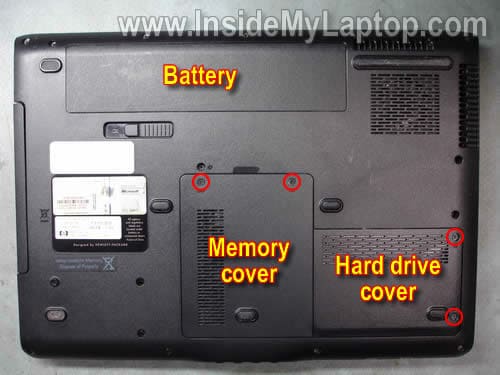
Remove the battery.
Remove four screws securing the hard drive and memory (RAM) covers. Remove both covers.
STEP 2.
Lift up the right side of the hard drive assembly to disconnect it from the motherboard.
Remove the hard drive assembly.

STEP 3.
Remove both memory (RAM) modules.
Disconnect two antenna cables (black and gray) from the wireless card. Remove two screws securing the wireless card to the motherboard. Remove the wireless card.
By the way, in this step you can access the CMOS (RTC) battery.

STEP 4.
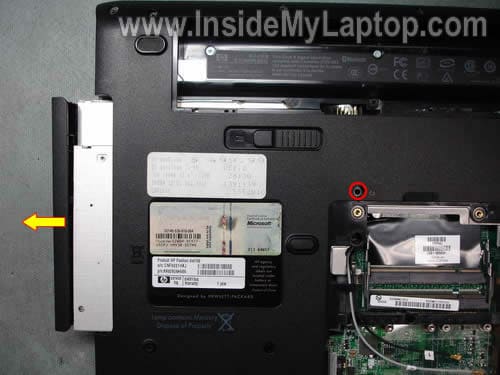
Remove one screw securing the CD/DVD drive to the notebook.
Pull the CD/DVD drive from the notebook and remove it.
STEP 5.
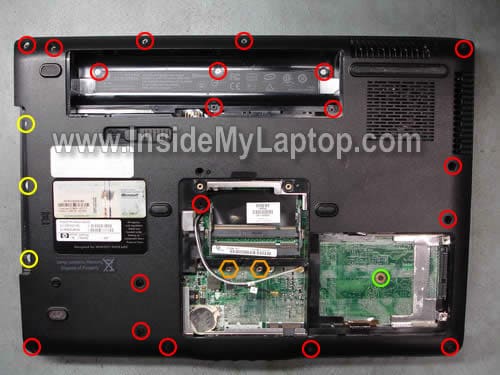
Remove all screws from the bottom.
Do not forget:
– three screws in the CD/DVD drive bay (yellow).
– one screw in the hard drive bay (green).
– two hex studs under memory slots (orange). Use 3/16 nutdriver.
Mark all removed screws somehow so you don’t forget their location when assemble it back together.
STEP 6.
Carefully lift up the right side of the power button board cover.
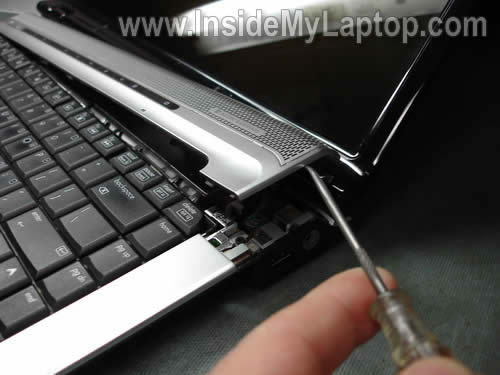
There are two cables connected to the motherboard. We’ll disconnect these cables after removing the keyboard in the STEP 8.
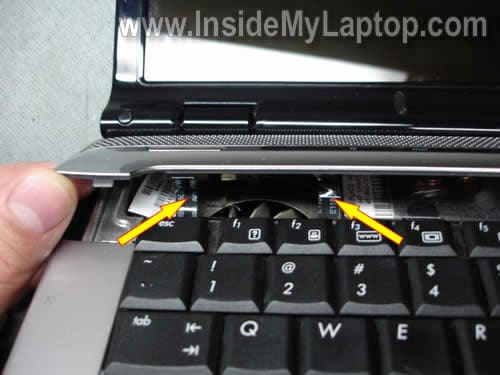
STEP 7.
Now, when the power button cover separated from the top cover, you can remove the keyboard as it shown on the picture below.
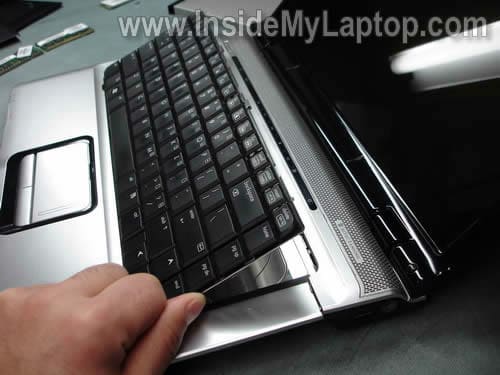
STEP 8.
Carefully disconnect the keyboard cable from the motherboard.
For more detailed keyboard removal instructions please follow this guide dv6000 laptop.
These instructions should be identical for HP Pavilion dv6500, dv6600, dv6700, dv6800 series.

STEP 9.
Disconnect two cables running from the power button boar cover.
There are no locks on these connectors. Simply pull both cables from connectors.
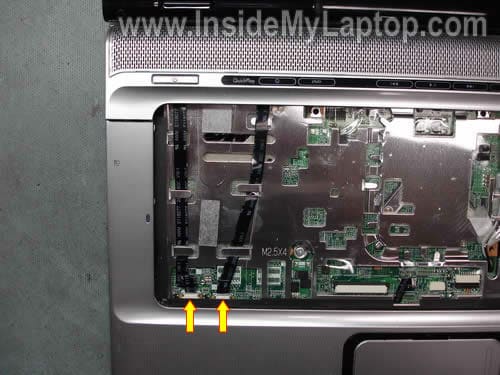
STEP 10.
Turn the cover upside down and disconnect one cable from the power button board.
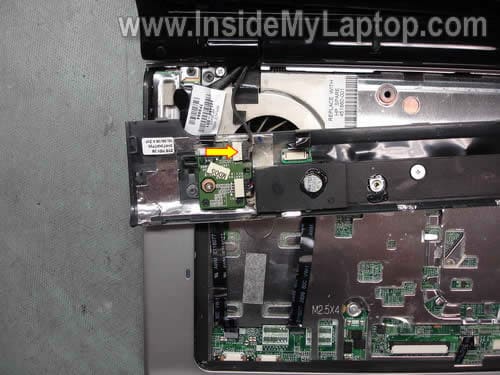
STEP 11.
Remove the cover.

STEP 12.
Disconnect the video cable connector from the motherboard.
This connector is located close to the left display hinge.
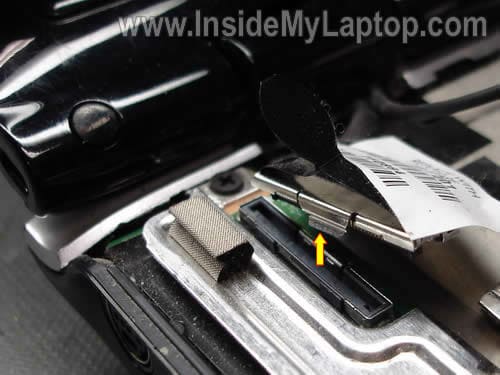
STEP 13.
Pull both wireless card antenna cables through the opening in the top cover. Unroute both antenna cables.
Remove two screws securing the display assembly hinges.
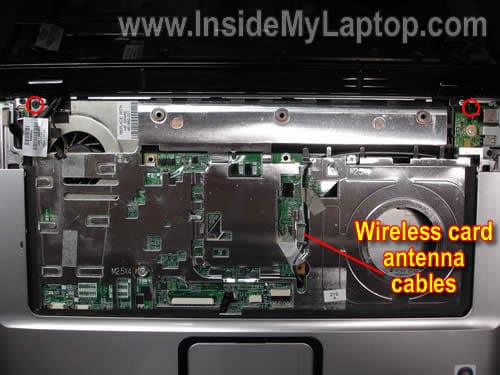
STEP 14.
Lift up and separate the display assembly from the notebook base.
In one of the previous posts I explain how to remove the LCD screen from an HP Pavilion dv6000.
These instructions should be identical for HP Pavilion dv6500, dv6600, dv6700, dv6800 series.
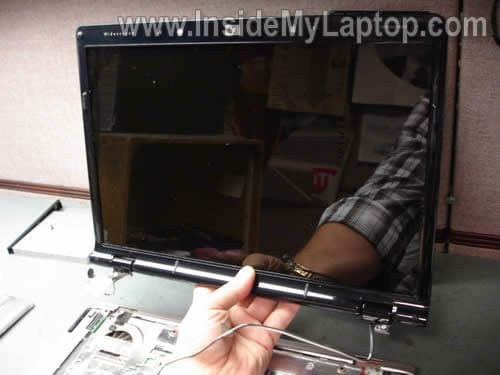
STEP 15.
Remove five screws securing the top cover assembly.
Disconnect the touch pad cable from the motherboard.

STEP 16.
Start separating the plastic cover from the notebook base. You can use a piece of soft plastic (I’m using a guitar pick) to separate the cover from the base.
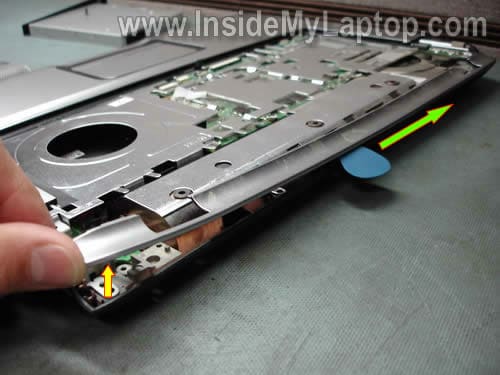
The cover has been removed.

STEP 17.
Separate the top cover assembly from the bottom case.
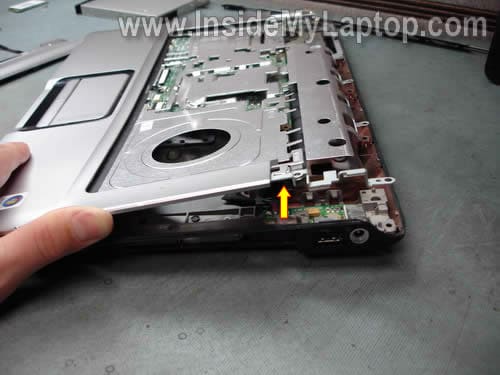
Again, as a case cracker I’m using the same guitar pick.

STEP 18.
Remove the top cover assembly.
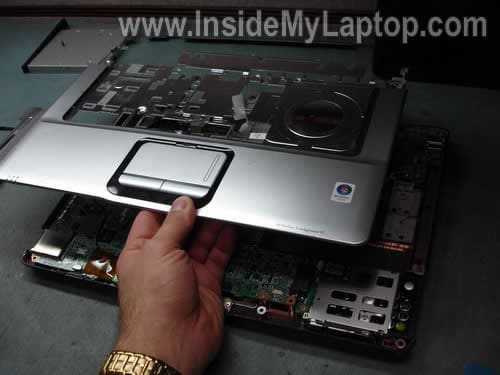
The top cover assembly has been removed.
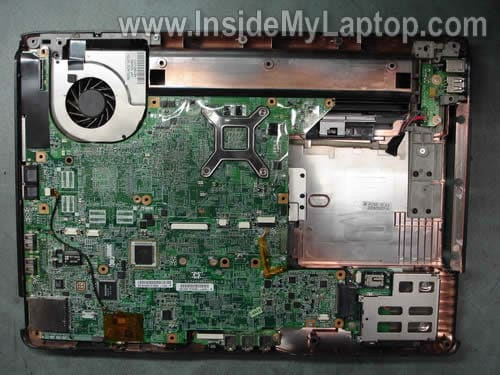
STEP 19.
Disconnect the Bluetooth module cable from the motherboard.
Remove two screws securing the Bluetooth module.
Remove the module.

STEP 20.
Remove four screws securing the express card slot.
Slide the slot board to the right and disconnect it from the motherboard.

STEP 21.
There is only one screws securing the motherboard to the bottom case.
Remove these screw.
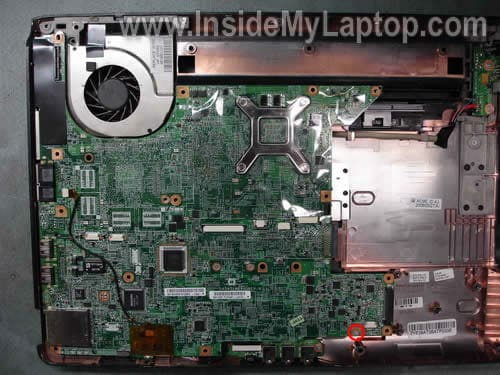
STEP 22.
Start removing the motherboard as it shown on the picture below.
When the motherboard is lifted up, disconnect one cable from the audio board.
There are two more cables connected to the motherboard and we’ll remove them in the next step.
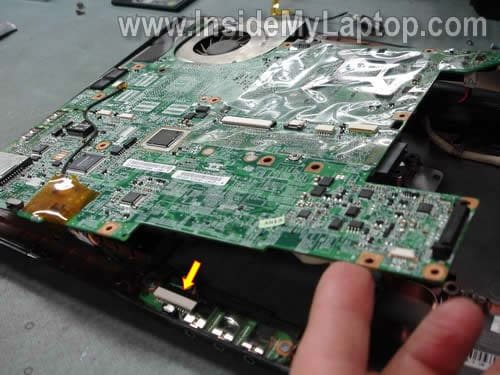
STEP 23.
Turn the motherboard upside down and disconnect two more cables.
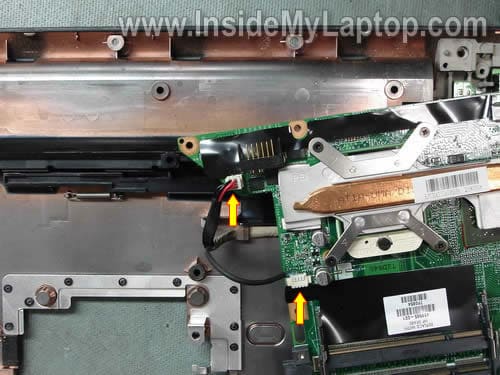
STEP 24.
The motherboard has been removed.
The audio board and power connector board are still connected to the base.

STEP 25.
Loosen four screws securing the cooling assembly (heat sink and fan) to the motherboard.
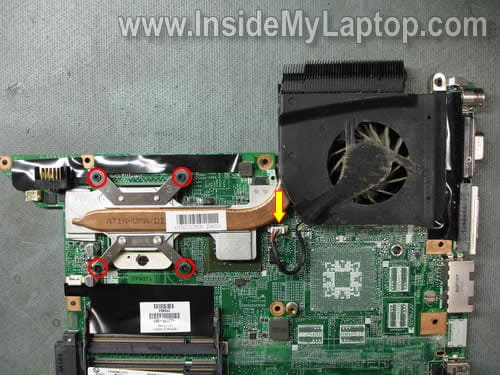
STEP 26.
Lift up and remove the cooling assembly.
Now you can access the processor (CPU).

In this model the power connector (DC power jack) is not soldered directly to the motherboard.
The power connector is mounted on a separate board.
If the power connector fails, you can desolder it from the board and replace with a new one or replace the entire power connector board.
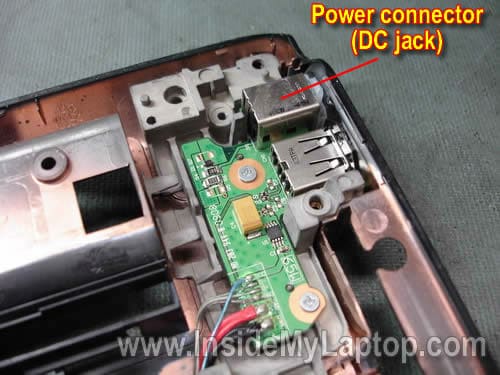
Johnny
Thank you for posting this tutorial, I hope i will manage to change the CPU without any problems following this instructions.
Mike N
The power connector on my dv6426 has stopped working. What are the steps to replace the power connector board? Do i need to unassemble all the way to reach the power connector board?
IML Tech
Mike N,
The power connector board located under the top cover. You’ll have to remove the top cover as it shown in the step 18.
You’ll be able to replace the power connector board without removing the motherboard if you can unplug two power board cables shown in the step 23.
Ian
If I need to detach/reattach my sound card, is that possible with a 6500 is it too integrated into the motherboard? Windows can no longer detect any sound hardware (it’s not the driver, trust me I tried) so I think I need to check out a hardware solution. Either replugging it to make it detect new, replacing it if possible, or getting an external sound card.
Kumar
Hi, the fan on my dv6426 seems to be running slow and the temperatures are high. Can you tell me how to clean the fan from inside? I can dis-assemble the laptop. I dont want to touch the processor as I dont have thermal gel. I dont have compressed air, I will use a q-Tip. Thanks.
IML Tech
Kumar,
I would really suggest using canned air or air compressor. It’s not necessary to disassemble the laptop completely.
You can remove the keyboard and the bezel and get access to the fan as it shown in the step 10.
After that just blow compressed air into the fan until it’s clean.
Emmanuel
Hello, I’ve been having some problems with my dv6000
At some point it wouldn’t start and I noticed that when I turnet it on it was trying to read ( I suposse) something on the SD card port, because the blue led was shining brightly. Then I procedded to force boot the laptop because it would keep rebooting itself always trying to read something from said port. Finnaly when the led would’t turn on it would start normally. Sometimes it took me up to three tries so the laptop started. Yesterday this changed, it would not stop trying to read something from the port (again I’m guessing) sometimes I would insert a card and it seemed to fix the problem, not this time. I’ve tried to force boot (keep pressing the power button until it yeah, you know what I mean) several times but it’s not working. I stumbled here googling how to dissemble my laptop, thinking that if I somehow disconnected the port it would work again. I read it all and before dissasembling my laptop decided to consult a tech first. Any comments will be greatly appreciated.
and excuse my grammar or not using proper terms, for english is not my first language.
Cheers!
IML Tech
Emmanuel,
I don’t remember location of all LED lights on this model off the top of my head. Does it have a dedicated SD card LED? Maybe you are confusing it with a hard drive LED?
I guess there could be a problem with the hard drive and the LED is on all the time because the laptop is trying access the hard drive. Just a guess.
By the way, if you have a problem with the SD card and it’s preventing the laptop from starting properly, there is not much you can do besides replacing the entire motherboard. The SD card slot is soldered to the motherboard.
Ian
Do I need to clarify the particulars of my question above?
Emmanuel
Lap Tech:
I own a dv6000 and no, the sd card port its on the left side of the laptop. And I am not confusing the hdd led with the port led. I’ll take my laptop to a tech and see what they can do. And if not I’ll save all my stuff from the HD and save for a new lappy. Thanks.
IML Tech
Ian,
If I need to detach/reattach my sound card, is that possible with a 6500 is it too integrated into the motherboard? Windows can no longer detect any sound hardware (it’s not the driver, trust me I tried) so I think I need to check out a hardware solution.
Yes, I believe the sound chip is soldered to the motherboard.
Even though the sound control board (volume wheel and audio jacks) is a separate unit, I believe the main sound circuit is located on the motherboard and replacing or reconnecting the sound control board will not help.
External PCMCIA audio cards are very expensive.
Greg A
Great step by step directions. I’m a professional tech, but not with HP. They don’t provide manuals, so it’s nice to have the steps in the right order so you’re not snapping off bezels, etc. because there were two more screws you didn’t know about. Changed a motherboard in less than an hour.
Thanx!!
Jared
I have an HP Pavilion dv6000, among several problems like my battery not working from the first day, to my screen having 6 or so lines that always show one color. The main issue currently is my DVDRW Drive. It worked at one point but now when I place a dvd in the drive nothing happens. When I locate the drive from “my computer” and double click it, the dvd tray opens and it says insert a disk. If this does not happen then the dvd or installation disk just spins inside and the drive makes some constant whining noise every 10 seconds until I eject the disk in frustration.
Any advice?
Fabio
Great Tutorial. Helped me alot while disassembling mine dv6000. Thank you!
Tiffany
I have a sticker stuck on my cooling fan of my hp Pavilion dv6000. I am having problems getting to the cooling fan and removing it. Can please help me?
victor
My Hp dv6600 just stopped working one morning. It cut off when I was in the middle of doing something. Now it won’t even turn on or do anything. When you press the ON button it comes on for less than 5 seconds and it cuts back off. Can you please help me diagnose what it would be and how I can fix the problem??? and also how I may test my Hard drive if it didn’t crush since my laptop won’t come on
IML Tech
victor,
First of all, test the AC adapter. Find out if the adapter outputs correct voltage.
It’s possible that your laptop doesn’t start because the AC adapter is dead and the battery doesn’t have enough charge to start the laptop.
Carla
Thanks for great diagrams. I’m stuck on step 3 because I can’t get the RAM cards out. Any suggestions for that?
Do you think I am right in hoping that removing and resetting the RAM cards and hard drive I might help my computer work? The problem is that it won’t boot. The “Startup Repair” details say (under #6) “NoHardDrive.” Also, when I try bootrec.exe under the administrator:X:, “/rebuildbcd” and “/scanOS” both reply that “Total identified windows installations: are zero; and the “/fixmbr” and “/fixboot” reply “cannot find path.” So, I am concluding that the computer isn’t recognizing the hard drive or my installed Windows Vista. I don’t have reinstallation discs for Vista and I see I can order them from HP, but would they work if my computer doesn’t recognize my “C” drive. (I never saw any reference to an X drive before this mess.)
IML Tech
Carla,
I would test the hard drive. Enter the BIOS setup menu and search for the hard drive testing utility.
Usually HP has HDD testing utility in the BIOS for business models. Not sure about regular retail models. Take a look in the BIOS for the hard drive testing utility and run it.
Carla
I found how to remove the RAM cards on your instructions for the HP6000. I removed and reset the RAM cards and hard drive and nothing improved. Any suggestions on previously posted problem?
Ahmad
Outstanding Help For Hp Notebook , It Really Helped Me To Change My Mouse Left And Right Buttons , By The Way I Have HP dv6810us , Thanks.
Kobus
Thanks for the great presentation of taking the laptop apart.
What cables or ribbons are responsible for sound? I want to make sure I connected it correctly.
I have an HP Pavilion dv6000 and I replaced the motherboard without any trouble.
I have then installed Windows 7 an since then I could not get my sound to work.
Everything looks like its working. The green bar on the sound jumps up and down when music is playing but no sound coming from the speakers or earphones.
IML Tech
Kobus,
Maybe you forgot to connect the audio board shown in the step 22?
Edwin
Just want to thank you for the step by step instructions, I’m going to need them to fix my wife’s laptop. Currently my wife’s laptop will not start. I have found a trick to getting it start by wrapping it in a heavy towel or blanket and just letting it run. After about 30 minutes it usually starts. There’s a issue with the battery, but I’m replacing that.
Another issue is with logonIU.exe and rasman.dll. I’m getting a error that logonUI.exe unable to locate component (rasman.dll). I look in the system32 directory and it’s there. I speculate it’s a virus, and have some decent anti-virus and malware software, it located some trojans, and malware, but it didn’t help anything. Any suggestions on what it could be and how to fix it. And I also have learned that the DV6000 has a heating issue. HP put some cheap motherboards in these laptops and once they get heated, the cpu gets unseated. Bad thermo paste use I think. This can be fixed by using a blowdryer, or heatgun and a couple of peenies.
Anyway. your instructions will help me fix that issue, i hope. Can you tell me if there are any good replacement motherboards for the dv6000? I would really like to get rid of the one currently in the laptop.
Thanks for you help,
Edwin
IML Tech
Edwin,
No, I don’t have any source for that.
You can search for a new motherboard by the part number which could be found on a sticker in the memory compartment.
Find the part number and google it. I’m sure you’ll find lots of offers.
Ryan
I have same problem as Carla. I took the HD out and it ran great with my desktop. None of the setting in the BIOS was incorrect. What else could be the problem? I am currently opening the laptop up looking for any obvious broken hardware.
It broke when I laid it down, it was shutting down, I put the left side on the ground and let my hand slide out from under it…drop height of about 1/2 an inch….
IML Tech
Ryan,
What exactly is your problem? The laptop will not boot?
Did you check both memory modules? Maybe one of the modules popped up from the slot. Try reconnecting memory.
Kobus
If I forgot to connect the audio board shown in the step 22 like you suggested, will this cause my onboard speakers not to work? Isn’t that board only for external devices like headphones or microphones?
IML Tech
Kobus,
Not sure about that.
I think that sound chip is integrated into the motherboard and technically this board shouldn’t affect external speakers, but I’m not positive 100%.
I just looked at the official service manual for dv6000. Maybe you forgot to plug the speakers?
Take a look here:
http://h10032.www1.hp.com/ctg/Manual/c01035677.pdf
It’s on the page 5-30.
IML Tech
Kobus,
It’s kinda strange. In the service manual the speaker assembly in a Pavilion dv6000 is shown as a separate module but according to my pictures it’s attached to the cover above the keyboard. It’s confusing.
Make sure both cables shown in the step 9 are connected to the motherboard.
Also, check all cables shown in the step 10 (not just one pointed by the yellow arrow). Make sure all cables are properly connected.
Kobus
Thanks for the effort but my sound still doesnt work.
I checked all caples in the steps above and everything looks fine.
I think it might be a software or windows problem.
Thanks anyway
bautz
Hi, nice guide!
I have an HP dv6630, and 2 days ago stopped working.
It seems like a video card issue.
The monitor show a lot of artifacts, strange numbers and letters, also on the bios screens.
I post you a photo of the Boot menu (pressing esc at the very beginning of the boot, so I can take a photo):
http://www.postimage.org/image.php?v=aVrJJcJ
(it’s possible to read “Boot Menu” at the center of the screen)
What could it be? Could the video card be broken or whatelse?
I have to try to open my laptop?
Thank you in advance
IML Tech
bautz,
It looks like the video card failure. Unfortunately, the video card is integrated into the motherboard and the whole motherboard has to be replaced.
Just in case, test your laptop with video on the external monitor. Can you get any image at all? Is it garbled too?
Also, try removing memory modules one by one. Test the laptop with each module individually. I doubt it will change anything, but try anyway.
bautz
Thank you for the fast answer.
I checked with an external monitor, but it doesn’t work, it stays black (once upon a time it worked), and the laptop screen boot up flickering.
It’s like the video card output doesn’t work.
I’ve found googling that dv6000 laptops suffer of the video card chip detaching from the motherboard. I hope to solve.
Anyway, I’ll test the ram modules.
Sol
Hi,
I have dv6600. Yesterday I disassembled it to clean the fan. When I put it all back together and turned it on, the display would not power up…and the system seems to be powering up but all processing stops withing the first 3 seconds as the hard disk light stops blinking.
If display cable is not hooked up properly, can it stop the system from loading the operating system? I already checked all the cable connections and they seems ok…Could anyone help? What else should I check?
IML Tech
Sol,
Did you remove the heat sink for cleaning? Maybe you accidentally pulled the CPU from the socket. If that’s the case, you’ll have to reseat the CPU.
Also, check memory modules. Maybe one of them is not connected correctly. Try reseating both memory modules.
Sol
I never took out the cpu from its socket but I’ll chk again….also, I didn’t take away any heat sinks…but the one on top of cpu is completely gone anyway. I already reseated both RAM chips but to no avail….
Chris
Brilliant guide, a few days ago my HP DV2630EA died with the infamous nVidia chipset problems on the G84 and G86 – graphics corruption, even in the BIOS – making the laptop useless.
After using the towel trick (wrap the laptop in a towel, turn on minus hard drive, leave for one hour to allow system to get VERY hot – hot enough to remelt solder on graphics core and fix problem), I dismantled my laptop using your guide to replace the default thermal pad on the graphics chip with a copper spacer (from eBay) and some AS5.
I have now put the laptop back together and she’s now doing just fine. Thanks for the guide, even if the design of my laptop is slightly different to the one shown above.
Cheers!
bautz
@Chris (comment 40)
How did you fix your nvidia problem?
I think I have a similar problem, but I have a HP dv6366ea.
Can you link me a guide or how to to solve that?
Removing the hard drive, starting the pc in a towel and let it run for 1 hour it’s enought to solve?
Thanks
IML Tech
bautz,
I believe this model fails because the video chip separates from the motherboard. I think Chris did the trick in order to re-flow the video chip.
There are many different DIY-tutorials for fixing video problems in HP Pavilion dv2000, dv6000, dv9000 series notebooks.
Here’s one of them:
http://www.youtube.com/watch?v=3MGvJCMQFis
here’s another one:
http://www.youtube.com/watch?v=bnkQNmKauEc
Not sure if it works, never tried it myself. Proceed on your own risk.
Henry
I have a hp dv6245 lap top. When I was using it the other day it powered off and would not come back on. I attached the the power cord to it and plugged it to the outlet, the blue light at connection at the lap top came on but noting would come on. When I pressed on the power button board cover, (Altec Lansing label area) that section would light up but would not do anything else when pressure was put on the power button board cover. Is it possible that there is a wire loose. I took the lap top to the Geek squad, they said it was probably the motherboard. Is this true.
IML Tech
Henry,
Video failure is a known issue with dv6000 series.
First, I would try reseating memory modules. If you have two modules, try removing them one by one.
If the laptop still has no video even when only one (either one) memory module is installed, probably this is the video chip failure.
HP knows about this problem and you can get a free repair from HP if your laptop qualify.
Producr
Well, I just spent an afternoon preparing my kitchen counter as an operatory, procuring the blow torch with which to use as the prime instrument and began disassembling as shown above. The aim is to reflow the video chipset on the dv6000 motherboard. Hopefully the result will be a fully functioning computer when the procedure is completed.
The motherboard is now removed and shielded with foil to isolate the loose chip and protect the surrounding components from the heat. I now train the torch on the chip and slowly heat it up to the required temperature of 210 degrees to remelt all the solder underneath it. I use an inexpensive infrared thermometer to monitor the progress. Once reaching the critical temperature, I shut off the torch and let it cool. I reassemble the computer using the directions above in reverse and Whammo! a fully functioning computer! Thank you for this post, a $10 fix for a $400 problem. for additional info on reflowing the video chip go here…
http://www.youtube.com/watch?v=bnkQNmKauEc
Rick B
I just got done replacing the motherboard following your guide, when I hit start she came right up or at least I thought. I’m getting an error now on start-up that reads “104-Unsupported wireless network device detected. System Halted. Remove device & restart”
I have no idea what it’s talking about, there’s nothing in the drive. Ever heard of this or know what to check?
Rick B
Guess I should have mentioned, its an HP DV6436nr, I’m thinking the motherboard is not compatible with the wireless card or vice versa….
hassan
Hi,
I have a dv6174ea. The system clock is not running, just runs from 10-11pm then goes back to 10 again.
I opened up the panel to replace the battery but instead of a silver button battery it had a black connecter attached to it with red and black leads coming out of it. what is this thing?
I’ve had my motherboard replaced a few times.
Cheers.
name
Thanks to the author for such thorough explanation!
I should mention that my pavillion dv6600 has lost sound both from speakers and from audio-out.
Kobus may just have the same trouble – dead audio.
As for me, I use usb audio card instead.
DK
Thanks for the guide. Helped a lot! It’s a real shame you have take your whole laptop apart just to clean and grease the cooling component.
Mine (dv6970ej) didn’t have thermal grease applied to the VGA either, just as Producr mentioned.
IML Tech
DK,
Maybe you didn’t have any grease applied to the VGA chip because instead of thermal grease HP uses thermal pads?
DK
Nope. They applied a pad to what I assume is the chipset (sits between the CPU and GPU chips anyway), but the only thing that stood between the GPU and cooler surface was air.
Kol
Thanks for the helpful guide. I used this to strip down a friends HP DV-6552ea Pavilion laptop.
His laptop had suffered the famous no display problem that can only be solved by either heating the nvidia chip up or replacing the motherboard. I tried to heat it up and took all the precautions whilst doing so, but the laptop failed to turn on afterwards which shows the important of using a thermometer of some sort to gage the temperature whilst your working.
There was a thermal pad in between the heatsink and the nVidia chip – and it still overheated. I removed this pad and air-dusted the entire inside of the laptop. I then noted that the heatsink does not sit flush with the nvidia chip, and therefore used a British one pence piece (with some thermal paste either side of it) and placed this on top of the nvidia chip. I cleaned up the dried up paste on the CPU/heatsink and applied fresh to it. My original intention was to get a small square piece of copper which i did, but the depth was wrong. I think it needs to be atleast 1.5/2mm. After replacing the motherboard, the cpu temp is now 26º/32º (core #0 and #1) and the Nvidia chip is at 56º steady which is fine.
Paul J.
I recently replaced my motherboard with a refurb from an Ebay retailer. Double and triple checked the HP documentation and my old motherboard’s serial #’s to make sure I was getting the right one.
Well, everything starts fine, but I also get the 104 Error. Unsupported wireless network device detected. It pulls a total system halt at this point until I remove the adapter.
Seems there might have been different revisions of the board released. I hope with all my might that a BIOS flash will do the trick. Sad thing is, that’s how the last board fried 😉
Anyone know which chip on the board is the BIOS chip, in case it fries again?
Paul J.
Just thought I’d post back with results for the good of all. I flashed the BIOS to the latest version using WinFlash (holding my breath the entire time), and now I no longer get any complaints from the BIOS about the wireless adapter.
Installing Win7 now….
Rick B.
I did the same thing with the Bios, flashed it & the error stopped. Computer came up & ran beautifully, for about a month. Now it’s right back were it was with the replacement motherboard??? Will not start up again, just recycles through the initial procedure only. This is ridiculous, I guess the motherboard I bought must have been a used one (did not buy from HP) I’m going to try one more but if that does the same thing I’m trashing this piece of crap laptop.
Alex
hey there!
Thanks a lot for this awesome HowTo!
I have a similar problem with a HP Pavilion dv6545eg:
Some weeks ago the original power supply broke with a loud pop and bad smell.
i got a replacement PSU by acompany called “hama” which is supposed to suit for this model (19.5V, 4.72A). It worked fine until two days ago, when the battery went out – Windows shut down. And the notebook could not be turned on again since.
When pressing the Start-Button NOTHING happens – no screen, no fan-noise.
As long as the battery is attached to the notebook, the blue LED at the front blinks 3 times when pressing the Start-Button. Nothing else. (If i interprete this right, this indicates an empty battery).
When the power supply is attached, the blue Power-LED (ring) at the Power-input is on. Still nothing happens when pressing the power button.
If both is battery and PSU are attached, it doesn’t seem that the battery is being charged. I’m not sure though – but the LED at the front doesn’t indicate the charging, all LEDs besides the one at the power input are off. still the Battery-LED blinks again 3 times when the battery is attached.
I followed your steps to disassamble the notebook, because i thought it might be a bad soulder-spot around the power-input or a broken lead to the mainboard.
but i do find 19.5V at the mainboard – power input-spot (next to PR9, PR10).
is there supposed to be any voltage at the battery-pins, when the battery is disconnected? i couldn’t find any – maybe there’s the problem?
soulder-spots look fine tough, and i can’t really figure out the schematics – i guess the charging voltage is dependend on electronics on the mainboard and the battery-pack itself.
Any suggestions furthermore?
I wonder if the notebook would work with a full charged battery… just don’t know how to get my battery charged without the notebook working…
Don’t really want to spend €400,- for HP repair, rather buy a new notebook.. but with what money?
Anthony
Thank you for the tutorial, it is very helpful. I do have a question though, does the hp pavilion-dv6700 and the hp pavilion-dv5000 have the same lcd screen?
Sparkybhoy
What a very professional guide indeed.
I found this as I was looking for information on how to add an internal BT module to my DV6525em, I was of course hoping in might be easier to access, but if I read the guide correctly, you need to strip the laptop down to the very basics and remove the MOBO?
I’m hoping there is an easier way or maybe I’ll just go for a mini USB one lol.
IML Tech
Sparkybhoy,
I believe in your HP Pavilion dv6525em notebook the Bluetooth module mounts under the top cover. It’s not necessary to remove the motherboard but you’ll have to remove the top cover.
Take a look at this service manual for HP Pavilion dv6500, dv6600, and dv6700 Entertainment PCs.
The Bluetooth module is shown on the page 79.
Akmal
That was a very nice guide.
The reason I came upon this was I was looking for information on fixing BIOS issues on my laptop.
My brother was updating his laptop’s BIOS when it crashed (or stopped). Now when you try to turn it on, it turns on for about 5 seconds and then shuts off. Nothing comes on screen, you hear the fan turn on, all the little blue lights on the laptop console come on and then it just shuts off. Since the BIOS update was interrupted or what have you, this seems reasonable.
He sent his laptop to me and said if I can fix it, I can keep it.
The laptop is a HP pavilion dv6604nr. What do you recommend I do to get my laptop back in working order?
My only guess is to replace the eeprom but if that’s the case I don’t know how to.
SusiHukka
Great help, a DV6827eo got hit on it’s side and twisted the GPU a bit, thus distorting the image on its own and external screen. With this guide I was able to dismantle the laptop to that point that I could straighten the GPU. Thank you very much. 🙂
Bill S.
IML Tech,
Fantastic guide! Got me through poking around inside a DV6119US tonight – got a question – the two thinner cables that run off of the power button daughterboard to the mainboard – are either of these audio cables? I ask because the laptop in question has no sound coming out of the onboard speakers.
Thanks in advance.
IML Tech
Bill S,
Take a look at the step 9. I believe the right arrow points to the speaker cable.
You can see that cable connected to the speaker assembly on the step 10.
Steve Harter
Great Resource, my HP laptops have usually lasted about 2 years before something goes awry.
So the DV 6000 I have had only one year has become terribly noisy and the fan runs so loud I can hardly concentrate. It doesn’t sound like a bad bearing it just kick starts at a hi rpm and doesn’t stop until I shut down the system.
Could you provide a reason or suggestion on how I might salvage this machine?
Thanks again for this impressive site. If I can find a solution it would be worth a contribution to your cause, otherwise I’m stuck with a new laptop……..next time not an HP.
Thanks,
Steve H
IML Tech
Steve Harter,
It’s possible the cooling fan runs at hi RPM because the heat sink is clogged with dust. The cooling fan runs full speed trying to cool down the heat sink.
Find an air compressor (or use shop-vac blower) and blow air into the fan intake on the bottom of the laptop. This will remove most dust from the cooling module.
Test your laptop again.
Bill S.
Thanks, LTG. Still a no-go on the sound. I’d wager the button board is hosed. The laptop won’t power on through the main power switch (did with some fiddling last night, but won’t now), so I reckon it’s the whole breadboard up there.
Thanks again! I am so buying your DVD next month!
Joe
IML Tech – Thanks so much fo these awesome directions. I was able to replace the motherboard on my HP DV6700. After I put the new motherboard in the laptop it is not powering up. Any suggestions?
Thanks in advance,
Joe
Khalid
The two USB ports on the left side have gone bad one after the other. The first one was out of order some 7 months ago and the second one just last week.
When I inspected it I found out that the rightmost contact pin of the four in the USB port has gotten loose and slide inward. This is what has happened to both ports. I think this contact pin carries one of the two terminals of the 5 DC current. I use a 3G data card for Internet connectivity often and I always notice that the data card gets hot and maybe the line also gets heated making the soldered point connecting that contact pin to the motherboard or something else melt and thereby resulting in the contact pin slide inward.
Therefore, please suggest a solution. I don’t want to use USB replicator, but want the USB ports on my laptop repaired or replaced. Could it be possible I have the loosened pins soldered or the USB port jacks have to be replaced with a new one? If they have to be replaced, where can I buy the jacks and how much do they cost?
Thanks.
IML Tech
Khalid,
Unfortunately, both USB ports on the left side are soldered directly to the motherboard. If USB ports are broken, they have to be replaced.
It’s necessary to remove the motherboard, desolder damaged USB ports and solder new USB ports (if you can find them).
Where can you find new USB ports? I don’t know. They all are different.
I guess you can take a closer look at the damaged ports, and if you find any number printed on the ports try searching on Google.
Another solution would be searching for a similar damaged motherboard somewhere on eBay and use USB ports from that board.
Alternatively, you can use a ExpressCard54 USB adapter. You have one ExpressCard54 slot.
IML Tech
Joe,
1. Make sure the CPU is seated correctly and LOCKED in the socket.
2. Make sure memory modules are seated correctly.
Raul
“STEP 9.
Disconnect two cables running from the power button boar cover.
There are no locks on these connectors. Simply pull both cables from connectors.”
I recommend disconnesting at power button board cover insteed(other end). Mine power button and speekers doesnt work anymore, because did like STEP 9 says.
IML Tech
Raul,
Disconnecting those cables shouldn’t damage the laptop. If your speakers and power button doesn’t work, check the cable connection.
Maybe you damaged the cable while disconnecting it.
Trevor
I was just curious if you remember how long it took you to take the motherboard out and put it all back together again.
IML Tech
Trevor,
About 30 minutes to remove the motherboard and 30 more minutes to put the laptop back together.
J
If anyone is having troulbe with the fan seemingly running constantly at full speed, you can try updating the bios (aside from cleaning the computer). The bios regulates things like the fan’s rpm’s and I noticed an improvement on mine after updating. You can find the more current versions of the bios for your model at hp’s website.
Art
can anyone please tell me where the fuses are on the mother board of the dv9626us and what they look like?
andrewt
great step by step guide
my question is about the power connector…i think
my laptop wont turn on so i went and got another power connector board.
took it apart and put it all back together….and still nothing
im wondering what else it could be?
when i plug in the power cord the blue light doesnt turn on.
IML Tech
andrewt,
Maybe bad AC adapter? Did you test the adapter to make sure it outputs correct voltage?
andrewt
yes
i have used my ac adapter on another hp dv6000 and it seems to work just fine.
i plugged the adapter into the power board while it was not attached to the motherboard and the light went on thinking “what if its the motherboard.”
anyway, detached, the blue light turns on, attached, no light.
IML Tech
andrewt,
Sounds like the motherboard failure.
andrewt
boo
sucks to be me…..
Isaac
Thank You!
With your help, I was able to remove a faulty sound port thing. It’s great to have a working computer again!
marshallD
water dripped on my dv6 while it was turned on and it now will not power up the blue light still comes on when i plug in the ac adapter any idea on where i should start looking for failure point is there a fuse or breaker in such an event?
edd
i have a dv6000 and ordered new mobo but when connected back up the same chip started smoking, it was labeled r381 on mobo next to chip about an inch above wifi slider bottom left of mobo. why would this happen, only have mobo, ram cpu and fan etc and power switch and dc power connected as you shown.
Dave
I have one in for repair. The conection from the AC adapter to the DC input jack was wiggly. The barrel of the AC adapter was the problem(if eventually fell right out). I guess this is fairly common from what I have been reading.
Sean
My power jack for my hp dv6700 broke and im atempting to replace it. I got my laptop taken apart no problem. Now though i cant desolder the power jack from the board. Im using a 40 watt iron at 900 degrees and this solder will not melt. I’ve searched all over for an answer and havent found one. The only thing i can think of is that the solder HP uses has a higher melting point than 900 degrees. Any thoughts?
Marc
My screen on my DV6700 has gone faint from a lil water damage. The laptop comes on with no problem, except for the screen is faint, I can see the home screen just not as it once was. I was told that it was the backlight and now I am or want to attempt to fix it myself. I just needed to know if the problem could be something else or not. If anyone could give me a lil insight that would be great. And also if it is the backlight, where can it be found. Thanks!!!
IML Tech
Marc,
It’s hard to tell what is causing the problem without testing the laptop with another working display.
Did you spill water on the keyboard or LCD screen?
If you spilled on the keyboard and the screen light went off after that, it’s possible you damaged the motherboard.
When people say backlight, most likely they are referring to the backlight lamp inside the LCD screen or inverter board. The backlight lamp is located inside the LCD screen. If the backlight lamp goes bad, the entire LCD screen has to be replaced. The inverter board mounted under the LCD screen.
Menippos
Thank you so much – you have been a life-saver!
Following your instructions, I took everything apart and I found that the cooling assembly was packed with lint, making this laptop shut down due to thermal within 2 minits from boot.
Now it’s cool and happy.
Thanks again, mate!
Asad
Beautiful, taught just like a teacher.
ray
I have a small problem… The connector that goes to the power board broke on my laptop. I can solder the wires to the back of the connector but I dont know what color wire goes where. The picture is not clear enough to see… can you help me out?
Chunt
Thank you, Thank you Thank you!
I had to replace my power jack which meant removing the MOBO.
Now back up and working.
Thanks!
blinderpr
Thanks for the tutorial I haved a few doubts about this and with this guide I changed a motherboard quickly thanks a lot………………………….
Mbace
Can you show me where is the BIOS chip ?
chris
hi
im putting my laptop back together and im having a problem.. where ever i put the battery or the power cord the power just turns on the fan run for a sec then then turns off but the power still running through. if i press the power buttom to start it up nothing happes and screen is always black.
any ideas on where i went wrong and how to fix this with the issue that im having? i know i put all cables back together. please help.
Many thanks
mg
chris:
this is a common problem with the motherboard. you most likely did nothing wrong. there was a huge recall on the 6000 series a year ago, i missed it myself. the motherboard has gone bad. it could have happened at any time. you can call HP and attempt to deal with their customer support, or you could go buy a new laptop. I’m going with the latter.
Deniz
Hello,
I just disassemble my hp dv 6700 to clean its fan but afterward I couldn’t reattached the touch pad cable to the motherboard. To remove to cable from the motherboard, I just pulled it. There wasn’t any pin or something to press first to free the jack. Did I made something wrong? Because right now, the cable that I pulled off just don’t fit well. Its like there should be some pincer to hold it there. Please help me out.
angel
i have never attempted this before but i am so fed up with hp’s customer support that i no longer trust hp to fix my laptop. i came across this after arguing it out with hp who keeps telling me to spend another 90 dollars on a third ac adapter/power cord when they are failing to comprehend the jack is loose and has been since i bought the laptop. anyhow, after seeing this, i am printing it out and going to use it to try and guide myself through taking apart the laptop and re-soldering the loose power jack. also another issue i have is with the laptop getting hot. is it safe to use a can of air to clean the dust out of the laptop or will this cause damage? please let me know before i begin tearing into this. worse thing that will happen is i will have to buy another laptop… and to be honest, when i do i know for a fact i will not buy another hp. lol.
Steven
First off I want to say great step by step instructions. I am having a problem at step 17. When trying to lift the face plate up, it seems that there is something still holding it down. The hold seems to be coming from under the mouse plate. Now i see you are using the pick as a “case cracker”. Are you actually breaking what is holding the face plate to the motherboard. I am just afraid that I will try and pull it off and that was not what you were doing. Thanks for your help!
IML Tech
Steven,
Maybe you forgot to remove two hex studs shown on the step 5?
No! I’m not breaking anything. The pick helps me to separate the top cover from the base.
Hara
Keep up the good work! This is the first time I can say : what a clear instructions!!
Can you help me with one issue?Which kind of screwdriver did you use to open those special 2 screws in step 5 ??
please help me with this, I’m almost there 🙂
IML Tech
Hara,
I’m using Craftsman 3/16 nutdriver.
oneate7
I was removing the touchpad from the motherboard and the cable came undone from underneath it, not from the motherboard itself. i’m having a terribly hard time getting back in. is it even possible to fix?
IML Tech
oneate7,
I guess you’ll have to remove the top cover as it shown on the step 18, connect the cable back in place and put it back together.
Hara
Hi
I opened the two special screws (hex) finally. Now I have put back everything, I have one problem, the wireless card is not present in networkconnection, and the led of the wireless switch , is orange, even if I switch the wirelles to on.
I opened back the wirelles and put it very good in the place, then screwed it back and putted back te wireless cables in correct position, but not ok.
Can someone help me?
IML Tech
Hara,
Why did you take it apart? What was wrong with the laptop?
al
I disassembled my DV6500 and cleaned the fan, put back together and powered it. There are 4 beeping sounds and the power light blinks, all other lights stay on, the computer does not start up. What could it be?
Thanks!!!
IML Tech
al,
1. Check memory modules. Make sure memory modules seated correctly.
2. Did you remove the heatsink for cleaning? Did you separate it from the CPU? Maybe you accidentally pulled the CPU from socket. Try reconnecting the CPU.
3. Check all internal connections.
Robert M
This step by step is incredibly helpful. I am removing my cooling assembly & I have a question about the steps that require a cable to be disconnected (Steps 3, 8, 9, 10, 22 & 23). How do you re-attach these cables. If sodering is required, I want to make sure I have someone who knows how to soder available to help me when I go for this. Thanks a ton & excellent job on the instructions!
IML Tech
Robert M,
No soldering required whatsoever!
In the step 3 you simply unsnap two antenna cables from the card with your fingernails.
In the step 8 the connector has two parts: base and locking tap. You carefully lift up the locking tab, release the cable and pull it from the connector.
In the step 10 you pull the black male connector from the white female base.
Take a closer look at all connectors before disconnecting them. It shouldn’t be difficult to figure out how to disconnect them. Again, no soldering required.
Brian
First, thanks for all your effort in putting together these wonderful step-by-step tutorials. I’ve worked on many a tower PC over the years, and they’re all “pretty much the same”, but laptops are entirely different animals. Every manufacturer has a different way to put these together and that’s often the case within the same model range!
I have someone’s PC where I absolutely know the problem is a loose power jack on the power board just from the behavior I’m seeing. If one slightly wiggles the power jack (and it’s loose) it reseats and will work until bumped again. It’s gotten worse, though, and I’d like to solder it back on the power board. The soldering aspect is not the problem.
While your full disassembly instructions are quite clear, I am wondering if there are any shortcuts that can be taken if the only thing that one wants access to is the power board. I’ve read through the instructions once, but am still uncertain as to whether there are any corners I can cut or whether I really must disassemble everything just to get to the power board.
Thank you in advance for any light you can shed.
Brian
Simon
I received a HP pavilion but it would not turn on.
After following your guide (quality) I discovered that the cable being pointed to in step 10 is missing from the socket.
I can’t find it to save my life.
This explains why it won’t turn on, but I don’t know what to do now.
Could you help explain where the other end might run to so I can trace it back and plug in back in?
Mac
Is there any website showing documentation on how to reassemble the laptop step by step like it showed to disassembled it?
Rick
Hi,
Thanks for this wonderful tutorial.
It was very helpful.
My problem is that after I put my dv6715nr back together, the sound system won’t work. I checked and double checked the only audio cable, shown in step 22 above. It is connected. Yet, nothing. The windows audio logo on the far left corner of the tray doesn’t even appear. Neither does hardware device section shows the presence of audio device. So, I reformatted the hard drive and reinstall with factory install dvd. Still nothing. The installation process says it can’t find the audio device. What is going on?
Other than the audio, everything works fine.
Any ideas or suggestions?
Thanks.
Niraj
This is a great article. My laptop is not charging my battery. Do you think it is a problem in motherboard or in power connector as shown in step 26.
Note: My battery and power adapter both are working fine.
IML Tech
Niraj,
First of all, try reconnecting the battery. Maybe it’s just not making good contact with the motherboard.
It’s hard to tell which one is causing the problem without looking at the laptop but… if the laptop works fine when AC adapter plugged but will not charge the battery, most likely it’s the motherboard problem.
patrick campbell
Great walk through…. saved me hours of faffing adn mucking about. Thanks very much!
PENNIE
Nice job…your instructions were right on…saved me time and heartburn
Philip
If these instructions work, I will definitely give you a donation. Thanks.
Miso
After removing both the memory and hard drive covers, I found it really difficult to pull the hard drive out of its slot. Not sure if I missed something but I’m literally breaking a sweat trying to pull it out. I’m surprised nothing’s ripped yet. Am I doing something wrong or should I continue to try and pull it out? Thanks. :]
Carl
Nice guide. but i got one question, if i just want to apply some thermal compund over the cpu, do i have to go all the way down to step 26?
Miriam
Hello. I was left with a dv6500 that has a cracked screen and it would be cool if I could remove the monitor all in all and run it as sort of a media center since it still works. Do you think it would be possible?
EDWARD-05
HI sir,
could you give me a pdf file form of manual how to replace/ diassemble to clean the fan of hp pavillon dv6 1299. i would be very great ifd you help me.
Mike
Well done for this and other tutorials on this site. Please donate to him.
Jack
great tutorial. Spot on and saved me heaps of time.
Ed
Great guide. Saved me much time in fixing my laptop. Many thanks for taking the time to do this.
Sian
Hi there,
I have an HP Pavilion dv6500 and I want to open it up either to clean the cpu fan, or replace it if it’s had it! Do I need to follow every step in the disassembly, or do I only need to go to a certain step?
Thanks,
Sian
Mike
Hey,
I have a problem, I’ ve disassemble my HP Pavillion dv6675ep, I followed your instructions and I clean my computer fan and I assemble my computer back again.
The problem is: I click to power On my HP and the HP quick launch buttons don’t show up, the blue light that indicates that computer is On lights and the blue light of the card reader also lights and the wireless red light also lights, but the computer keeps like that!!!! The HP computer doesn’t light up, stays black, doesn’t appear even the BIOS…
Help meee!!!
Regrads,
Jon
Joe Coleman
My computer is having a graphic card problem. can you dissemble the graphic card replace it with a new one? or how would you go about fixing the graphic problem?
Jon DeBolt
Amazing walk through, very easy to understand. I was able to install a new motherboard into a laptop for a friend with this article. You saved me a lot of time and frustration. Thank you!
Sachin Naik
Hey very useful informaion.
In my dv6000, there is a wireless provision but it does not have bluetooth facility. I can connect it to Wi-fi connection but not to cell phone or any other blue tooth device. Can it be installed in?
Jon Fleming
Excellent guide! FYI my Pavilion dv6500 had three coax cables to the wireless card: black, gray, green.
IML Tech
Jon Fleming,
You have three cables because you have a better Wi-Fi card installed 802.11 a/b/g/n which requires an extra antenna cable.
Menippos
And once more I used your instructions (couldn’t remember the screws positions) to change the heatsink altogether (50 bucks for the whole thing – rather expensive), because due to previous heat problems, the fan had problems and got stuck for good.
However, I messed one thig up: As I was trying to disconnect the wireless antenna cables, I used – probably – rather too much force and ripped the whole thing off of one of the connections. Now I need to go buy me an external wireless adapter, because I believe that this is unfixable. Thankfully, these wireless sticks come quite cheap nowadays.
IML Tech
Menippos,
Most likely your wireless connection can work with only one cable connected. Make sure it’s connected to the main contact on the wireless card.
Raash
Thanks a lot for the instructions w/ pictures. I just want to clean the fan and I have to remove nearly all the parts. Just the thing I hate about HP laptops. Also, where the hell are speaker connectors? I’ve been getting “No audio output installed” error and I want to check if it’s lose or not. Anyone of you know lol?
IML Tech
Raash,
First of all, test your laptop with headphones. If there is no sound in headphones, most likely your problem is not related to speakers.
Jazz Cook
I’m having a bit of a problem…my internet isn’t working. Nothing shows up on the
Do I have to get one of those wrist straps if I’m replacing my wireless card? My computer will identify that the card is there but nothing shows up under Network and Sharing Centre.
IML Tech
Jazz Cook,
First of all, take a look in the device manager. Do you see network adapters (Ethernet and Wireless) in there?
If both adapter appear in the device manager but not in the network connections, this could be software related problem.
Last week I had two laptops with very similar problem. I tried reinstalling drivers, removing entries from the device manager, run winsock fix but nothing helped. I had to reinstall Windows on both laptops.
Here’s what you can try. Boot the laptop from a live Linux CD (try Ubuntu Linux) and see if you can use Ethernet and wireless in there. If both network connections work fine in Ubuntu Linux but not in Windows, this is software related problem.
Your data on the hard drive still should be fine.
Kijik
Amazing. I found what was wrong with the motherboard with ease, thanks to this teardown guide. Thank you so much!
Tiago
I can’t get the top cover off because the touchpad seems to be glued to the board :S theres no visible screws also 😐 any help would be much apreciatted.
Tiago
Nevermind, silly me, didn’t notice the 2 orange ones.
June
Great guide. Can the sound board be removed and replaced?
tootyzooty
Thanks for the walk through would have been extremely difficult had I tried this on my own.
John
Great step by step coverage! I have the DV6500 and there were a few differences from the one you showed but nothing too far off. My question is the heat sink compound was only on the CPU area. There is a foam pad over another area that looks like it should have the heat sink compound also. I don’t know what the item is called but it is next to the CPU. Should I remove the foam pad and put the thermal compound on it also?
Tiago
Is the cable (one on the left) going from the power button to the motherboard also passing sound? cuz my cable broke and now i cant power up or get any sound on the speakers
IML Tech
Tiago,
How do you know the laptop has no sound if you cannot power it up? 🙂
I don’t remember off the top of my head, but it’s possible that the cable also connected to the laptop speakers.
I don’t have this unit in front of me and cannot tell for sure.
Mona
Hi IML Tech,
I have a dv6130, and need to replace the power button ribbon (on the left). I am unsure of how to release the old ribbon and install the new one, specifically regarding the connectors. From the manual I can tell you that the top one is a “ZIF” connector. I don’t want to mistakenly use force or pull something and cause damage to either the cable or the connectors.
Also, since I am replacing one ribbon, does it make sense to replace the other one as well?
Appreciate your help.
~Mona
IML Tech
Mona,
Here’s how you unlock the connector on the power button board:
https://www.insidemylaptop.com/images/Acer-Aspire-5610z/lapatop-disassembly-17.jpg
You move the brown clip about 1-2 millimeters away from the connector base. Do not separate the clip from the base, it must stay connected to the base.
On the picture I linked to, the connector shown in the unlocked position.
After the connector is unlocked, you can pull the cable.
I believe it’s a different type of connect on the motherboard side. There is no locking clip. The connector has a tight slot for the cable. You simply pull the cable from the connector.
I don’t know your reason for replacing the first ribbon cable. If the first cable is damaged but the second is fine, do not replace the second cable.
mujib
hello, my pc doesn’t give sound. i do not understand what is the problem. in fact, it gives sound in head phones. how i fix the speakers?
IML Tech
mujib,
There is a small connector inside the headphone jack. When you plug headphones, the plug pushes on the connector and the sound switches from external to internal mode.
It’s possible the switch got stuck in the internal (headphones) mode and because of that there is no sound from external speakers when headphones unplugged.
Here’s what you can try.
Very quickly plug/unplug the headphones plug into the jack. This might help to release the switch and fix your problem.
JoeDell
Your site rocks.
I have a dv6700, dropped a few times due to unsupervised toddler.
When booting, I hear some spinning of fan or drive or both, but get an immediate blank white screen. It stays like this.
Any clues on where to start?
Thank you.
Joe
diviassi
On step 10 what is that cable called becuase I need to replace it cuz the yellow and blue wires came off……
Need help asap
IML Tech
diviassi,
This cable is part of the video harness. If this cable is damaged, you’ll have to replace the video harness.
Take a look at this guide: https://www.insidemylaptop.com/remove-replace-lcd-screen-inverter-hp-pavilion-dv6000-laptop/
Liam
Hi an adaptor power cable that was the wrong polarity was plugged into my HP DV6000 there was a pop, but the computer kept running and fully functioning on battery power untill the battery went flat. The Battery would not charge and the computer would not run of power.
Any suggestions on what I Should Look at fixing is therwe a fuse on the motherboard? I’m sure Iread there was one that was about the size of a standard resistor. I Have a Bit of electronics knowledge Eg.can find my way around my multi meter. Any hinjts would be so appreciated.
thanks Liam
IML Tech
Liam,
It’s hard to tell. I guess you’ll have to remove the motherboard and look for some visual damage on the motherboard, somewhere close to the power jack.
Usually fuses located close to the jack too.
A blown capacitor maybe???
Steve
Hi,
My caps lock button does not display the blue led light anymore. The caps lock works great but the blue led light does not work. I replaced the keyboard, updated the drivers and bios. I’m stumped. Any ideas?
Thx
Johnnyâ„¢
Same problem here … I have an dv6500 exact model dv6654us and i’ve used the caps lock very few times .. the LED worked great but now it doesn’t the caps lock function works but the LED doesn’t. The other LED’s including Num Lock are working perfectly. Is there a problem with the Caps Lock LED on these models or is Just Bad Luck ? Is there a Solution to this? THX and GOOD JOB !
Michael
hi there i have a dv6700 and i need to get at my fan as it has something stuck in it(by the sound of it) is there anyway to get at the fan without taking all of the computer components out as i do not wish take it all out please help
IML Tech
Michael,
Unfortunately, there is no easy access to the cooling fan.
When you remove the keyboard cover as is shown in the step 9, you get limited access to the cooling fan. Maybe it would be enough to remove the object from the fan. If not, you’ll have to go though all disassemble steps.
robbin
Hey, I tried the guide, but now the screen won’t work. All cables seems connected, what could have happened?
IML Tech
robbin,
What did you try to do?
How far did you disassemble the laptop?
First of all, check memory modules. Make sure they are seated correctly.
Ashley
Hello.
My dv6500 series died last spring. I want to go in an put in a new motherboard. How do I know what motherboard to buy? Should I just check ebay? Also, I may try to de-solder parts on the motherboard and just replace the graphics chip and other things, including adding more memory. How do I know what specific parts to buy? Can I buy just anything and put it in?
The newbie says thanks! =D
IML Tech
Ashley,
I wouldn’t spend much money on this laptop. There are no new motherboards out there, they all refurbished. A new motherboard is expensive.
Really? Please teach me how you do it. 🙂
No, you cannot de-solder the graphics chip.
Kevin
Hi, I just disassembled my Hp dv6500 to clean out the fan, which was making a lot of noise. Now the laptop works fine, but the charger died after I plugged it in. The light on the charge port does not come on and the charger itself is making a beeping sound. I was not wearing an anti-static wristband while working on the laptop, but I was touching metal every now and then, though not as often as suggested. The problem now is whether or not the laptop will fry a new charger? Your comments on the situation please.
P.S. Wonderful write-up, looked difficult after the first read through, but wasn’t so bad after all, Thanks for you help,
Kevin
IML Tech
Kevin,
Maybe the AC adapter failure just a coincidence.
You’ll have to try another adapter.
Eddie
Hi, thanks for great instructions, it is very useful.
i have a question regarding my compaq F500, when I turn on the laptop, sometimes it comes on straightaway, sometimes not.
i have tried to do this method, by tapping Esc+F1, or Esc+F1+F12 at the same time, and it might work, but mostly it will takes awhile to see the text and to load the Windows, I really dont know what happened, I tried to contact HP, and they gave me few suggestions to do, but none work.
Can you help me please. I am very appreciated you expertise. Regards Eddie
IML Tech
Eddie,
It’s hard to tell what’s going on without testing the laptop.
Enter the BIOS setup menu. Do you have the hard drive testing utility in the BIOS? Run it. Maybe the hard drive is failing.
Also, try removing memory modules one by one and the laptop with each memory module separately. It’s possible one of the memory modules is going bad.
Stephen
Yesterday I followed all the steps to clean the fan, but when I finish to ensamble everiting the laptop doesnt give any signal, just turns on and the fan runs, but not beep, not bios and not video
Brian
Do I have to follow EVERY STEP to get to the fan, or can I skip some steps?
Mustafa
Steps was really easy for me. I would like everyone some tips while disassemble the laptop.
1-Put a plain paper to your desk and stick on it with some tape.
2-Simply draw a basic view of the screws. I mean, you can draw a diagram and state where the screws are and put every screw onto paper and therefore you will not have to remember which was belonged to which hole.
3-Never take parts from device quickly, they usually still connected to the laptop with some sort of wires.
4-Take pictures or images of your every action to remember what you have don.
5-never rush. You might trash your laptop if you want to repair it quickly.
Thanks
Mike
Excellent ‘how-to’. Took apart my DV6375, baked the mobo to re-flow, laptop video working again perfectly!
One suggestion: can you label the places where the black screws are shorter (w/ blue thread tights) versus longer (w/ red thread tight)? Had a tough time remembering which went where.
BRIAN
So I followed all the steps to clean the fan. I put everything together and now it won’t power on! I checked the connections for the power button and it’s all sitting right. Before I did all this though, my power button wasn’t working, but I was always able to turn it on by touching the quick play button. NOW I CANT TURN IT ON. PLEASE PLEASE PLEASE HELP.
Brian
Disregard the last email. The cables in step 9 were frayed, but I fixed this by sanding one down. I mutilated the other one. It wasn’t the power button that turned it on but the QuickPlay button. Weird.
Anyways, the cable in step 10 is broken. The black tiny wire got disconnected. What is the purpose of this cable?
David
I did all the steps and I ended up with the problem stated below about not being able to turn on my laptop. I checked all the wires and tape wires nothing is damaged and all of it is fit in perfectly. Please reply me with a possible solution ):
David
I managed to get it to power up reading the previous comment with the guy who can’t use his power button but can power up his comp with the QuickPlay. Somehow my computer is really slow and my computer freezes every 5 seconds on Windows XP.
I tried to clean my fan with a duster so I followed the steps up til taking off the top cover and put it back together twice and I still have the problem.
Colin
Your walk through is the best I’ve found. I had an overheating problem with my dv6870us (thats the entertainment model w/ webcam and fingerprint reader), I dealt with HP customer service, who told me to flash the bios, of which I did to no avail – recommend this for anyone with this model, the bios flash actually fixes a known issue with bios not making fan to run at correct speed, or speed up at certain temp.
Except for a few things, that could help other people with my same model.
Webcam / microphone wire – Disconnected in step 13 with removal of wifi antena wire, connector is seen in step 13 picture, right most on main board, just left and lower from the wifi antena wire run.
Fingerprint Reader – Disconnected in step 18 with removal of top cover assembly. The wire connects to lower right corner of motherboard near PCMCIA slots.
After dismantling, and reassembling my laptop, it gave me no sign of life other then power button illuminating, I then removed power and battery again, and removed bios battery for 30 seconds, replaced battery and all power, same result except the media bar powered on along with power light. I then powered down, removed memory multiple times (expecting memory issue) with same result. Took me swapping the memory in each slot to get the computer to power back on regularly.
Also, the hard drive, seen being removed in step 2, I cut the black piece of plastic off of it level to the area where it covers the pins, When I took apart my laptop i realized that plastic was covering the vent for the hard drive entirely not allowing any air flow at all.
Chaz
Hello,
My dv6500 has also failed. When turned on it tries to start up for several seconds, shuts down for ~10 seconds and then tries to start up for several seconds etc. To get it to stop continuing this start stop cycle I have to unplug the computer and remove the battery. I am hoping you have seen this problem & fix before -Thank you in advance
Kiriantris
I am having the exact same problem as Chaz. It happens even when all i have hooked up is the motherboard, processor and its heatsink/fan. I think the board is toast.
Gilbert
Hi to all. I just need your advise on what i am going to do. I have my HP Pavilion dv6700. The flow of the system is good. I just got a problem with the LCD. Each edge becomes white but not the whole screen. I dont know why this happened. Do i need to replace this LCD? or can it be repaired? I think due to overcharge, that is why it occured? The LCD is still functioning but i hate to look at it as it has little white each edge of the screen. Can this be repair?
Please help me. Thanks. God Bless.
Rich
Amazing guide…thank so much!
I have a dv6500t and have two questions:
1. Anyone know how I would go about removing the display trim located below the lcd and behind the power button board cover? The part can be seen in this ebay auction. Mine is cracked and needs to be replaced.
2. My lcd screen goes black when I shut the lid to save power. Sometimes when I open the screen back up the lcd does not turn on. Other times it flickers and stays on or flickers and turns back off. To resolve, I have to continuously open and close the screen until it stays on. Any ideas?
wayne mayes
i have a hp pavilion dv 6700. when you press the on button the lights come on and then goes off.
IML Tech
wayne mayes,
Sounds like motherboard failure, most likely known graphics chip failure.
Manfire
How do you unplug the connector in step 10? I have pulled and pryed it until it distorts but it won’t unplug. I think I have been using way too much force and don’t want to break it. Is there a lock tab some where or do you have to grip it a certain way?
IML Tech
Manfire,
Which connector are you talking about? There are three of them in step 10.
The one pointed with a red arrow is a regular male/female connector without any locking tab. You just grab the brown piece with your fingernails and pull it from the white base.
JC
Great site!
I do have a question, I have a HP DV9500 and a couple of months ago the resolution went all the way to the basic (4 colors) and it shows Code 43 in the NVIDIA graphic. I found a link that says I should deinstalled the drivers and installed new ones. For some people it didn´t work,but for me it worked perfectly…. at least for a few weeks. Now the same problem, but i find it odd that sometimes i turne the laptop and everything looks great, as it should, and other times only the bad resolution… plus the last weekend it even start with a black monitor. So why do I get these 3 variants although i never do anything different when i turn my laptop on? Do the towel trick work in this case?? And why a few months ago did the deinstalling areinstaling of the drivers worked and now it won´t??
Thanks for your support!!
chris
hi i have a hp dv6500 its running at 74c (temp) how do i clean out the dust from the fan etc. thanks
IML Tech
chris,
Here’s the easiest way.
Buy a can of compressed air and blow it into the fan grill on the button. After that blow into the grill on the side.
Switch direction a few times. This should take care of your problem.
Jim
Great info and many thanks!
I have a HP DV6700 (DV6871US) which started to have an on and off fan noise recently. 5 days after the initial noise, it now becomes extremely noisy, quite loud with chattering noise. Do I need to replace the entire heatsink/fan assmebly or just the fan?
Should I buy the OEM HP parts or are aftermarket products as reliable?
Any good dealers to buy the parts from?
Thanks in advance.
IML Tech
Jim,
You should be able to replace just the fan.
You can find a new replacement fan for Pavilion dv6700 on ebay.
Kari
I have followed your “How to disassemble HP Pavilion dv6500, dv6600, dv6700, dv6800 notebooks.”and it worked beautifully. However when my husband tried to use the dvd drive it won’t work and there are no lights on it. There aren’t any directions in your “How to…” of any connectors or power cords, wires etc that had to be disconnected on removal or on re-install.
Any help would be greatly appreciated.
Thanks
IML Tech
Kari,
I’m not sure why the DVD drive stopped working. There are no cables between the DVD drive and motherboard. Maybe the drive not plugged in correctly?
Try reconnecting the DVD drive. Just remove it from the laptop and put back in. All you have to do is remove one screw and pull the drive out.
Try this first.
Rich
IML Tech,
Any help for my question posted below and reposted here:
I have a dv6500t and have two questions:
1. Anyone know how I would go about removing the display trim located below the lcd and behind the power button board cover? Mine is cracked and needs to be replaced.
2. My lcd screen goes black when I shut the lid to save power. Sometimes when I open the screen back up the lcd does not turn on. Other times it flickers and stays on or flickers and turns back off. To resolve, I have to continuously open and close the screen until it stays on. Any ideas?
Any help would be GREATLY appreciated.
IML Tech
Rich,
Did you read the instructions at all??? It’s shown in the step 16.
Could be bad connection between the video cable and LCD screen or monitor.
Could be bad video cable.
Possible inverter or backlight failure.
Kari
Thanks for the response on my dvd drive. I tried what you said and it still isn’t working. after taking it out and putting it back and verifying it seated, then installing the screw I rebooted and I did see a yellow light on it come on when starting computer. So I know it is getting power.
Then I was unable to locate it in hardware devices and it wouldn’t open. I opened it with emergency open hole and then inserted a dvd and closed it. I believe it was spinning but no lights and no auto play and not in hardware or Computer screen. Only showing my C: and D:
What do you suggest next? reinstalling software/drivers or buying a new drive? Or something else.
thanks
Kari
btw Your site is great and I tell everyone about it as well as posted on Twitter(and I donated to you after I was successful in using your step by step) Just wanted you to know I do appreciate what you are doing for us poor folks who can’t afford to send it to a shop. 🙂
IML Tech
Kari,
What happens if you press on the eject button while the laptop still in BIOS. Will it open up?
If the drive opens up in BIOS but not in Windows, there is a chance the drive is corrupted.
You can try this fix from Microsoft.
Try starting the laptop from a bootable CD. You can use Windows installation disc, live Linux CD, etc…
Does the optical drive works fine when you boot from a CD?
If yes, most likely this is software related problem. Try the above mentioned fix from Microsoft.
Kari
Thanks
I tried rebooting and it did open when I pushed it during bios. I have not had a chance to try booting from a cd yet but I will.
I went to the link you gave me and it wont run on my computer. It just keeps telling me not for this computer.(I will have to try again and give you the actual error message.)
I will get back to you when I get further.
Kari
IML Tech
Kari,
What OS you have installed, Windows Vista or Windows 7?
Jon
Hi IML Tech,
My CPU Fan is failing. I can hear the fan rattle when it spins sometimes. I was wondering, does the dv6500 have to be completely disassembled to replace the fan?
Thanks,
Jon
Jim Nail
The reason for disassembly of my HP Pavilion DV6000 is because the display was black. no VGA output from the external connector either. In step 10 you say to turn the cover upside down and disconnect the cable from the power supply board. I didn’t have anything connected in that connector. I wonder why? Is it possible different variants of this laptop power the display differently? The display was working and all of a sudden stopped.
Melissa
When i turn on my laptop the screen is white with pixilated verticle colored lines.. does this mean my video card has went out.. also is the video card seperate or is it attached to the motherboard? thanks
Kari
So sorry I took so long to get back to you. I had finals and was all wrapped up with that. It has Vista in it and now suddenly today when you push the power button the lights come on and go right back off and it won’t boot up. So the DVD drive issue is on hold and I am searching your previous posts for info on that.
I believe I have seen some in my browsing here and didn’t want to bug you until I looked for a bit.
I will update this as soon as I have researched my end more. 🙂
Thanks again, you have been great.
Kari
p.s. with Holidays here, don’t know how much I will do.
Merry Christmas.
Desi
i opend the laptop per ur instruction and reconnected…but now nothing appears on the scrreenn…i reopend and doubled the connection and its fine….but i don’t even get blink hard drive sign.
Dubau Noël
Hello,
I’m a french owner of a HP DV6500 laptop ; two days ago black screen. I saw on various forum that it could be a problem caused by the GPU morning.
After the reading of several testimonies I hesitate on the diagnosis :
– I tried to connect an external monitor ; nothing !
– When I power on, all leds light on, the DVD drive is sought, the fan runs and no more activity after 2 seconds ! if it was only a problem of the GPU, the hdd would boot normally, no ?
So I ask for your opinion : would it be possible that CPU warms in the point to put the motherboard in safety ? To add some thermal dough would it be necessary?
Hope in an answer ! Thank you !
Noël
IML Tech
Dubau Noel,
No, the laptop will not boot if you have a problem with the GPU.
1. Try reseating memory modules. This could be memory failure. Try removing memory modules one by one and test the laptop with each module separately.
2. If reseating/removing memory modules doesn’t help, most likely this is motherboard related problem (probably bad GPU).
Dubau Noël
Thanks IML Tech for your answer
– I had done the resetting of memory modules ; with those in place and others I had !
– I’ll try the trick you gaive the link.
– When I said in my description that the fan ran on boot, I forgot to say that it stopped after 10sec.
Noël
Dubau Noël
Hello,
My first name is Noël, and is the french word for Christmas ; and it’s Xmas to day and you’re Santa Claus indeed !
I was not enthused by the solution proposed on Laptop Repair, but lost for lost, I tried it ! And it works on this DV6500 !
It was more for the honor or the sport, because I had already got back the data. But I have just reinstalled Vista since the partition of recovery .
Hoping that it will help it the others! Thank you!
Noël
Greg
Hi, I’m having problems with my dv6500. I keep getting code 43 and for my graphics card (Nvidia geforce 8400m) I have tried to reinstall and update drivers, but the computer keeps saying software cannot load. Is this a hardware failure? do you have any advice? also if I were to replace it, where would i find the graphics card? thanks a lot
Zach
Thank you for publishing this tutorial. It was very useful in taking my DV6500 apart to repair the DC power jack.
Unfortunately I didn’t pay close enough attention to your instructions and I didn’t unlock the keyboard connector before I removed the cable. After I reassembled my computer I found I only have a partially functioning keyboard. Now I’m just hoping that a new keyboard will fix the problem and that I didn’t tear up the connector on the motherboard.
Any thoughts?
IML Tech
Zach,
Does the keyboard connector look damaged?
Maybe it’s just bad connection between the keyboard cable and motherboard.
Try reconnecting the keyboard cable. Make sure it’s seated correctly.
Kieron
Hi and happy new year to you all.
my question is can you replace a graphic card on a dv6104ea(dv6000)?
many thanks
IML Tech
Kieron,
No you cannot. The graphics card integrated into the motherboard and cannot be removed/replaced/upgraded.
Corange
Hi there,
The fan on my dv6500 was being unusually noisy and turning on/off a lot, but now it seems to not be running at all.
Do you think the problem has escalated from using compressed air to replacing the fan?
My machine is still running, but it gets relatively hot. If it was summer, I probably wouldn’t be running it at all!
Thanks in advance! 🙂
-Corange
Austin
@ kieron
if your having problems with you screen, then most likely your gpu chipset has come loose from your motherboard. try to fix it likes this.
1)remove the hard drive and battery and plug in ac adapter
2)cover all the vents with packaging tape
3) wrap in a towel with screen up
4)run computer for one hour wraped up
this cause the gpu to slightly melt the tin-alloy connectors on the processor and re-attach them to the motherboard. its a temporary fix, but you can remove all the componnents and it IS POSSIBLE to resauder the chip back to the board for a permanent fix
Constantinos
Hi there!
first of all thanks for your great instructions on how to disassemble the dv6000. I wanted to ask if there is a way to change the fan cause its very noisy and annoying!
thx for the time
IML Tech
Constantinos,
You can replace the entire cooling assembly (heatsing and fan) or just noisy fan. Either way you have to disassemble the laptop and remove the motherboard.
You can find a new replacement fan on ebay.de, just search for “dv6000 fan”.
Dennis Jansen
Hello.
Thanks for your guide. It’s really good. However I’m having trouble with step 17. The top cover is stuck just above the touchpad. Is that held by a screw or can I safely pull it?
Thanks,
Dennis Jansen
IML Tech
Dennis Jansen,
Did you remove two HEX screws shown in the step 5? They are located under memory slots.
Constantinos
Thank you for the response. The thing is that i would like to upgrade the fan since it has been running very loud from the first day i bought it thats why i was looking into some “aftermarket” solutions..
IML Tech
Constantinos,
It’s possible your fan was defective from the first day. A new fan shouldn’t be noisy at all. I would suggest using original factory replacement fan which is designed for your laptop.
Noel (Not French ;)
Hi.
A while ago I took apart my DV6500 as per your instructions. Kudos! Very clear and helpful.
However, I didn’t go down all the way to clean the fan. I didn’t have enough time, and was worried about a few of the final steps – and breaking my machine.
However, lately the noises my fan has been making have been unreal… like a clanking sound from a horror movie. And the temperature inside has been averaging about 60. (Core 63, CPU0 and one around 50-60. Sometimes though, they all 3 have spiked up to near 70.
So… I took it all the way apart to clean out the fan and everything else.
I was very careful, don’t see what I could have done wrong… but now when I turn it back on the fan doesn’t work and it won’t fully boot. It boots and about 2/3rds of the way into loading Windows it just makes a clicking sound and shuts off.
The fan not working leads me to beleive it’s auto-powering off to protect the computer, but I’m not sure, and just this morning I tried to turn it on without the power cord, just on battery power and it just wouldn’t work at all.
I was going to take it apart again and check to make sure everything is intact, and working fine.. maybe test the fan with a battery and 2 leads, but now the 2nd problem of the battery start up has me thinking I should just bring it into the shop.
I use this computer A LOT and I rely on it. Although I backed up most of my files before taking it apart, I really need it to work, or a new computer soon. (The one I’m typing on is my mother in-law’s POS.)
Not to be selfish, or suggest that my needs are at all more important than anyone else’s, but if you gave a quick reply I know I could breathe much easier knowing how to fix it, or what to do… or even if I should bite the bullet and buy a new machine.
I know you have a lot of needy fans, and are a very busy person – so if you can help me out I’d have no problems giving you a modest donation for all the work you do to help all us in need. 🙂
Thank you very much for reading my long post, and thank you in advance for the help to myself and others.
With much respect,
Noel
IML Tech
Noel,
I think the cooling fan just died. Most likely the laptop shuts off because the cooling fan doesn’t work and laptop overheats.
It’s not your fault. From your description it sounds like the fan was dying before disassemby and touching/cleaning the fan killed it completely.
Try replacing the fan.
It should fix the problem. You know how to disassemble the laptop already. 🙂
By the way, if you need a quick access to your data, you can use an external USB enclosure. Here’s how: https://www.insidemylaptop.com/recover-files-from-broken-laptop/
Cam Porter
Is there a way to remove the left mouse button without taking out all the other stuff before hand? My DV2000 (14 inch screen model) has started to wear out on me bit. It still works, I just have to press it down twice as hard to get a click out of it. Does the mouse button pop out like a keyboard button or is it totally different? Thanks,
Cam
IML Tech
Cam Porter,
The touchpad button is different from a keyboard key.
Moreover, the touchpad button is a part of the top cover assembly. If one of the buttons is broken you’ll have to replace the entire top cover assembly.
Jon
Hi IML Tech,
Excellent guide! Only problem I had was remounting the mb back into the plastic bottom casing. Some fidgeting got it in there eventually, although no idea how it happened.
Here are some things I have learned that may or may not be of use to you. 1: the fan can vary depending on the equipment. If you have the nvidia card, the gpu has cooling pipes as well, so the fan is gated differently from the ones pictured. 2:the cooling unit has to be removed to replace the fan. The fan has four screws mounting it into the cooling unit, one screw is hidden on top under the black tape. 3:The mechanics of the fans are all the same, if you bought the wrong unit fan like I did, the mechanics of the fan can be swapped out by removing the black tape on top and pushing the center indentation to pop out the fan blades and mechanical unit as a whole to swap plastic housing. 4: The hex nuts are a bit of a pain to remount, so I screwed the wifi card’s screws into the top of the hex nuts and used a philips screw driver to put them in. Use a pair of needle nose pliers to hold the hex nuts from unscrewing, for retrieving the screws for remounting the wifi card. 5:last but not least, a credit card or one of those grocery store keychain discount cards works beautifully for separating plastic trim from the body without damaging anything.
Cheers,
Jon
Juan
First, great work with the instructions!!
I have a question, mi dv6113 is dead, when I connect the ac power, I just get a very tiny flash of the blue led arround the power conector (like a fraction of a second) and nothing else ( i alrready checked the power supply and it is fine).
How can I tell if the failure is on the power board or the motherboard?
Any other things i should look for?
Thanks in advance.
CapnRis
Excellent guide, very helpful. My only problems disassembling were getting the motherboard out of the casing (the ports along the left side were catching) and one or two connections the motherboard didn’t want to let go (having extremely short fingernails doesn’t help here).
A quick question, if you would be so kind: I used this guide to disassemble and reassemble my fiancee’s dv6700 laptop to check for any loose connections causing the problem it’s having. The problem is that after it was accidentally knocked off a bed, it will not power up; the LED around the power plug and the middle LED on the bottom-left (the AC power light) light normally, and when the power button is pressed, every other LED on the top (the other two status lights and multiple lights along the power button cover) blink for about one second and then shut off again. No disc spinning, no fan sound. Removing the battery and attempting to start it on AC power alone resulted in the same effect, nor did reconnecting everything. Any ideas?
IML Tech
CapnRis,
It’s possible that one or both memory modules got dislocated. Try reseating memory modules and test laptop after that.
Maqsood
Hello
1st sorry for my poor English and my spell mistake.i have HP pavilion dv6700. when i turn it on its on all lights blinks and off after 1 second and no display and automatic on and off after 3 second but no display.i disassemble notebook with your instruction and putt off its processor and install it back . laptop is on but after 1 day its off again and doing it automatically of and on again. please tell me what can i do. is it processor faulty? or any other problem?
IML Tech
Maqsood,
Maybe one of the memory modules is bad? Have you tried reseating memory modules?
Try removing memory modules one by one. Test your laptop with only one module (either one) installed.
WolfoEso
Hello IML Tech. I have HP Pavilion DV6810EM, I disassembled it and cleaned it. Than I assembled everything back. I have the same proble like Maqsood. I cannot turn it on. I checked it and everything is on right place. RAM is good because before it was working without no problems. Do you have any idea how i solve this problem ?
My next question is> If it is possible to change processors . AMD TURION X2 64bit TL-60 for AMD TURION X2 64 bit RM-70 ?!? Or it is in BIOS preconfigured ? Same question is with RAMs, if i can change 1Gb RAM for 2 Gb Ram … Because I have 2+1 and i want 2+2 … Thanks a lot
IML Tech
WolfoEso,
Most likely this is some kind of connection related problem. Check RAM again, make sure both RAM modules seated CORRECTLY. Try removing RAM modules one by one.
How did you clean the laptop? Did you separate heatsink from the CPU? Did you remove the CPU? I’m thinking maybe you accidentally pulled the CPU from the socket?
Not sure about that. You’ll have to check specs for both CPUs. If specs looks similar (except speed and maybe cash memory), I think you can upgrade it. You’ll have to compare specs closely.
Yes you can.
WolfoEso
Did you separate heatsink from the CPU?
Yes
Did you remove the CPU?
Yes
I’m thinking maybe you accidentally pulled the CPU from the socket?
It is not first time what I cleaned computer or laptop. I am very gently to this fragile components. And yes I took out CPU from the socket. Than I put it back, I gaved him some fresh warm conducting paste and covered with heatsink.
Haroon
Hi ,
Somehow after opening and closing the powerboard above the keyboard my microphone don’t seem to be working. I can see them on my skype but does not record my voice. any solution please?
IML Tech
Haroon,
I believe the microphone cable connected to the board which is mounted under the keyboard cover.
Probably when you removed the keyboard cover you disconnected the microphone cable.
You’ll have to remove the keyboard cover again and check the cable. Make sure all cables shown in the step 10 are connected correctly.
Jim Nail
Please a response is appreciated. Second Post. The reason for disassembly of my HP Pavilion DV6000 is because the display was black. no VGA output from the external connector either. In step 10 you say to turn the cover upside down and disconnect one cable from the power button board. I didn’t have anything connected to that connector. The display was working and all of a sudden stopped. Is there any alternate power cable for the LCD display?
IML Tech
Jim Nail,
There has to be some cables connected to this board. At least one flat ribbon cable which runs from the power button board to the motherboard and speaker cable. How can you turn on the laptop if the power button not connected to the motherboard?
What happens when you plug the AC adapter. Do you see any LED light turning on?
What happens when you push on the power button? Do you get any activity on the laptop at all?
If the laptop shows activity, disconnect the video cable from the motherboard. After that connect an external monitor and turn on the laptop. Can you get image on the external monitor when internal screen unplugged?
Sam C
since the graphics card is removable is it upgradeable?, i know a lot of people will automatically say NOOOOOO! thats impossible, well has anyone tried it ever ? like trying to find a similar chipset and installing the drivers?????????????
Mike
Hi IML Tech,
I have this model DV6700 and did something stupid. My power adapter broke at the jack and I decided to be cheap and rewire it. Well, I bought the jack and verified the positive and negative wires, rewired the thing and darned if I didn’t have a momentary brain fart. I mistakenly switched the positive and negative and only noticed after I plugged in the adapter and got no blue light on my laptop. I fixed my wiring malfunction, re-plugged in the adapter, got my blue light and charged the laptop overnight. Woke up this morning and still got the blue light but laptop is D E A D. Did I royally screw this laptop up by switching those wires and plugging in the adapter? Thanks for your help.
P.S. Prior to this laptop worked just peachy.
DrZ3D
thanks it was very helpfull
Dom
Yeh I did the same thing as Mike in post 245….. I got this thing down to the motherboard (thank to this tutorial) and it appears and smells like it burnt up a circuit or so on the motherboard. Is this what will happen if polarity is reversed on dc power connector? Thanks in advance!
Dekatrace
I have the DV6700 and have problems with it getting hot, I assumed it had a case fan but looking at the picture here it may be the cpu fan, its in the top left of laptop and has a blue light where the fan is.
It doesnt seem to spin but the laptop works ok just the left side feels burning.
I am using it as we speak, and have used it playing WOW on mid settings for like 10 hours a day sometimes and it doesnt crash and HWmonitor reports temps of 60 degrees for the GPU and about 55 for CPU
I feel some air coming through but its a pathetic amount.
Any advice on repairing it is appreciated since I would love to play it in bed and read books and comics and play games.
Evilware
Really good tuto, congratulations and thanks for taking this time. I disassembled on yesterday and it was good, however 2 thin screws were left alone…:P I do not see them on the pictures either. They were supposed to be near the cable that connects the DC jack to the Mobo but I did not remember where exactly. Regards.
Paul
Thanks for these instructions, I had a go on my own, but this really helped locate all the tiny little screws hidden away, nice one!
ComputerOSupport
Hi, your tuto was perfect, thanks. I have a couple of issues after re-assembly. The lights are all on and all blue. Did I hook something up wrong? Also, Previously spoke to HP and they said my motherboard was bad and needed to be replaced. I sent out for new one and it is still coming up with the same error at startup “NO TPM OR TPM HAS PROBLEM”. This was suppose to be solved with new motherboard.
Can anyone offer assistance? “HELP”
IML Tech
ComputerOSupport,
In order to start the laptop with video you need three main components: motherboard, processor and memory. If these three components connected correctly, you should be able to start the system.
Did you install the CPU correctly? Did you lock the CPU socket? Did you install memory correctly?
If you cannot figure out what is wrong, disassemble the laptop again and start adding parts one by one. Test after each step.
Not sure what this error means. I googled the error and looks like a lot of different HP laptops having exactly the same problem.
T.Baker
Hello IML Tech!! I missed…..the step where you unplug the SD Card Reader……..that is the only reason I am dissasembling my laptop. I didn’t see it in the instructions……I am trying to do this to reset the card reader so my computer will boot up. referenced to these instructions. I know this is for a home computer but. There has to be a way….. can you help?? http://h10025.www1.hp.com/ewfrf/wc/document?lc=en&dlc=en&cc=us&docname=bph07910
yay
Hi! I have dv6500 and it doesnt have picture.. When i start it, it only lights up the blue lights ontop of kkeyboard and the cd-drive makes clicking sound all the time. The fan speeds up like it does on normal startup and then it slows down to normal.. What to do?
IML Tech
yay,
Try removing the DVD drive. Turn on the laptop without DVD drive installed. Can you get any image this way?
Josh Ackerman
Hi there, I really want to thank you for posting these excellent instructions! My son and I just finished replacing the CPU fan with great results…. EXCEPT the fact that the sound is not working now. I don’t recall seeing too many references to sound in the disassembly, apart from the Altec Lansing cover with speakers that we removed and re-installed. I know there a lot of variables in a situation like this, but can you think of anything obvious we may have missed? We double checked the re-attachment of the three cables to the Altec Lansing cover.
Thanks again!
Josh
IML Tech
Josh Ackerman,
The speaker cable connected to the power button board shown in the step 10. The speaker connector is on the left side from the speaker (below the connector pointed with yellow arrow). Make sure this connector plugged correctly.
Also check connections for both cables shown in the step 9.
Can you get sound when you plug headphones into the audio jack?
Check device manager. Does is show any errors, exclamation marks for the sound?
Make sure sound is not muted.
bern
I’m trying to remove the wireless module from a dv6700 system board, but the 2 screws holding it in seems to be stuck, I don’t want to damage the module, is there a trick to getting the screws out? they seem to be locked in place…
IML Tech
bern,
Not really. Just use a screwdriver with good grip.
bern
thanks, didn’t want to go too hard… It worked thanks again
Renee
After following all of the steps to disassemble an HP pavilion 6000, I get to the part of removing the top and it is stuck. I cannot see anything holding it but something around the trackpad area appears to be the culprit. Do you have any ideas?
Vince
I was looking and couldn’t find any older comments regarding my issue so here it is. My HP Pavilion dv6500 sometime starts and works fine; however sometimes it will start and the screen will have lines and be greenish yellow. I have tried hooking it up to multiple other external monitors when it happens and they do not work either. So when the laptop screen functions everything is good, but when it goes bezerk so does everything else.
vince
My HP dv6500 has a greenish screen with lines. I have tried multiple external monitors to confirm whether it’s the screen or not. When the problem exist, no external screens work. The problem is becoming progressively worse and I currently own a rock.
What’s the Fix?
ScottTheCompBoy
Awesome teardown, thanks! My DV6700 just died one day, I was left with a notebook that would flash lights for one second and then power off. After much tinkering, baking was the answer. I disassembled the laptop and removed the motherboard. Heated my kitchen oven to 375 degrees. Baked the motherboard on a cookie sheet for 4 minutes. I believe this resoldered the GPU back to the motherboard. After baking I tested and now I am writing this message on my HP dv6700! Hope this helps, HP wanted $400 for a motherboard replacement.
Csyfjks
My dv6607rs is doing the same thing, when u press the power button the lights come on for a few seconds and then it turns it’s self back off, I took it apart and found the cooling fins mostly blocked. So I’m going with the soider contacts Maby of melting, what other problems might there be? If I do bake it, Should I leave the processor in?
TheresaKL
I recently replaced the keyboard on my laptop HP Pavilion DV6985se and in the process somehow managed to damage the power button cable. I swapped it with the cable for the quick play bar as a temporary fix (and ordered in some new cables) and in the process of doing that somehow managed to break the plastic piece that holds the cable in the connector for the quick play bar. Do you know where I can find that little tiny brown plastic piece? Are they retention clips or what are they even called? (I see the cables hanging from the top bezel in the picture between step 11 and step 12–those are the cables I am referring to and they are being held to the beige/off white connectors by little brown plastic pieces–what are they? where can I find them)
blane
Thanks. I used these instructions to replace a motherboard on a DV6636nr that had a bad hard drive controller card. The instructions were perfect! The computer is now working great. One note, the way kept track of which screws went where was to use a muffin tin (pan) and took little videos with my phone with little notes. To reassemble, I just followed/watched in reverse order. I am sending you a thank you donation!
Chris
hey guys, just wondering if theres an easier way to get to the cooling fan. my dv6000 has been struggling with overheating issues every once in a while and ive never cleaned it out. id like to try this first, but damn is this a lot of work just to clean dust out! is there an easier way other than literally disassembling the entire laptop to get to the fins?
IML Tech
Chris,
Try cleaning the cooling fan without laptop disassemble. Blow compressed air into the fan grill on the bottom of the laptop. After that blow air into the grill on the side.
Jose
My DV6700’s integrated webcam seems to not function anymore. It seems like it cant locate it or something. Whenever I open or close my laptop (basically just move it around), it makes the noise when you plug something into the USB and then it says it can’t recognize whatever is “plugged in” or its plugged into the wrong port or something, so I’m guessing theres something loose inside?
Thank You
IML Tech
Jose,
Probably loose or damaged webcam cable.
The webcam connected to the motherboard as a USB device. When you move the display, the laptop “think” you plug or unplug this devices.
1. Try reconnecting the webcam cable on both ends – on the webcam module first and then on the motherboard.
2. Try replacing the webcam cable.
Jose
Ok Thanks for your help!
John
Hi,
About 2 minutes ago it sayed my laptop (dv6000) was installing drivers for my webcam and than my webcam started working. and than it stopped 🙁 anyways what do you think i need to do to fix this problem that im having?
IML Tech
John,
Are you installing the correct driver downloaded form HP website?
Delete webcam from the device manager and try reinstalling the driver again.
Frank Flores
I have a dv9617. I press the power button and the LED lights flash on for a quick sec and nothing happens, power goes off. I changed power supply and battery. Same thing. I’ve tried holding power button down for a minute then inserting power supply and get the same thing. any ideas?
IML Tech
Frank Flores,
Possible motherboard failure.
For any further troubleshooting it’s necessary to disassemble the laptop and remove the motherboard. After that test voltage on the DC jack. If the motherboard gets voltage from the AC adapter but doesn’t turn on, most likely this is motherboard failure.
anthony
hi, you are great! very helpful, but i would like to ask for further assistance. i have a dv 6700 model with a “strange” problem. when the power supply is connected. the indicator on the jack is blue as it should be but theres no power and the notebook does not come active. it can be turned on only when the battery is plugged but still the battery is not charging. i tried and changed the board with the ac jack with another from dv 6000 series but the problem still exists. furthermore, i tried the 6700s jack (board) on to my dv6000 and it turns on happily. so i guess theres no failure at this particular circuit? What could be the problem? if we have a mobo failure why does it work normally when supplied by battery? How can i test the mainboard? Excuse me for this large post, i tried to be specific so you can understand. thanks in advance.
Anthony.
IML Tech
anthony,
Sounds like motherboard failure to me.
Sorry, cannot answer these questions. I don’t fix motherboards on the component level.
anthony
dear sir,
forgive me for re-posting. i have now checked previous posts and found out that there is no solution for my problem. It is annoying that the problems caused by reversed polarity at most of cases due to the HPs power supplies broken cables. Is there any way i can find the diagram of the motherboard to check the power circuits? (there is no smell or other signs of damage thow) its a pity to recycle a laptop in good condition. no graphic card problem, processor ok,memories good, hard disk ok. everything else good. thanks again, you do great job here! Congratulations.
Dr. Ediie Monster
Hello,
Thanks for the detailed how-to. I was able to disassembly my Pavillion 9500, clean the fan, reassembly it and could even build a little robot with the parts left 🙂
Tracy Angerstein
Hello! I find yur instructions very helpful. My problen is my HP Pavillion Dv6700 is going to a gray screen and sometimes will flicker my desktop, and go back to gray screen. Could you please help to fix this problem. And do I have to completely diassemble the entire laptop to fix.
Please help, I depend on this laptop for home and small business use. Thank you for your time!
Tracy
Jim
I have a suggestion and a question…
First my suggestion; On Step 5 print out the picture showing the screw locations. As each screw is extracted place it in its respective place on the print out. Now you know exactly where each screw belongs.
Now to my question. I just acquired from eBay a used palm rest. My left mouse button collapsed so I had to by the palm rest. Anyway are there any steps that I can bypass in the tutorial to remove and replace the palm rest?
Thanks
Jim
adie
on my pav 6500 i can’t seem to get the top cover off my laptop it seems to be stuck on something but i can’t see what and it is pulling the motherboard every time i try and pull the cover off. do you know what it could be stuck on?
chris
hi,. i’ve successfully taken the computer apart and put it together again, but i have two extra blue screws! could you please help?
joe
the two blue screws go behind the battery
Dan
To adie. In case you havent figured it out the most likely cause, if all screws have been removed, is you may have left the TV tuner standoffs in (even if your model does not have a tv tuner). This is located next to the wireless card. It is two hexagonal silver standoffs. They go through the motherboard and screw into the top chassis. Very common to skip over them. I still on occasion forget them and I have replaced too many mobos in these to count.
larry burns
My laptop has had overheating issues and I began noticing more recently (can’t remember when, could be a few months or a year ago?) that it would sometimes give off a burning smell if I run a lot of programs or keep the laptop on for a long time
I tried disassembling the laptop and didn’t notice any parts that seemed burnt, but I’ve only removed the cover on the bottom. I could one of the fans, and it appeared really dusty. I got to step 5, but gave up, because I need to get remove the hex studs. The dim of them are 2mm, not 5mm, right? I checked a few nearby stores, even Home Depot, but none of them has it. But a local computer repair store could remove it. Is it worth it? I don’t feel comfortable with someone touching my laptop.
Anyways, by getting to step 5, I was able to get an air compressor to blow away alot of the dust on the fan. But the temp of the laptop still varies from about 120-160 Fahrenheit
After cleaning the fans a bit, I ran the laptop for 30 minutes or so and could smell the smoke fume again when I sniff close to the laptop. Both the bottom covers to the Memory and Hard Drive were hotter than the battery and cover below the fan.
Do I need to dissemble the whole laptop again, and this time get to the Heat Sink and clean it thoroughly and/or regrease it? Where can I get a tool to remove the studs in step 5?
IML Tech
larry burnes,
I heard that HP addressed some thermal issues with HP Pavilion dv6000 series with one of the BIOS update.
Make sure you are running the latest BIOS version and try updating if not.
If it doesn’t help, you can try applying new grease on the CPU I guess.
larry burns
Perhaps I am looking for the wrong size of the hex stud remover? The thread is 2.5mm but the head diameter is 5mm. What kind of Nutdriver should I look for?
IML Tech
larry burns,
It’s 3/16 nutdriver.
clair cabose
hello i have a DV6500 and my cd rom drive isnt working. it wont even open. and my webcam isnt working says that it isnt connected even when i type webcam in the search box it doesnt come out. i was told to buy part number 449903-001 to correct the problem. is this accurate? please help
IML Tech
clair cabose,
This is part number for the laptop motherboard.
Kanenas
Great article, thanks.
I am having a sound problem on my dv6000 (distorted / fuzzy sound both from the built-in speakers as well as the headphones output). No drivers problems since I tried with 2 OSes and bootable linux distributions. I even replaced the audio board and still the same. Any ideas what can be causing this problem?
IML Tech
Kanenas,
The audio chip built into the motherboard. If you having a problem with sound with 2OSes and Linux, this is motherboard related failure.
Larry
Replacing a touchpad in my DV6000 and a black rubber band type o-ring fell. Does anyone know where this goes?
Rajan
Hi,
I have HP Pavillion DV6000 model.
Its battery is dead and need replacement.
Due to busy schedule I was not able to get it replaced and was using the laptop
on AC power every time.
As of result, some thing wrong happen to it.
Now it is not powering ON.
On applying AC power, adapter is giving a sound (low level, leakage type).
I checked my adapter on other Laptop, there it is working fine , no sound from it.
So, something is wrong inside the laptop.
Kindly suggest what will be the reason of this fault.
Regards,
Rajan
IML Tech
Rajan,
While testing your AC adapter with another laptop, did you remove the battery from that laptop? It’s possible your AC adapter didn’t make that buzzing sound because you had a good charged battery plugged it.
Test your AC adapter with another laptop again but this time remove the battery. Will it run from AC adapter when the battery removed?
If yes, probably the AC adapter works fine.
If the AC adapter works fine with another laptop but starts making noise when plugged into your laptop, most likely there is something wrong with the laptop motherboard. It’s shorting the adapter I guess.
Ideally you should test your laptop with another known good adapter. Just to make sure it’s not the adapter failure.
max
I updated my webcam drivers but it still doesnt work it worked once and than stopped it worked for about 5 minutes and than it stopped can it be my webcam is disconnected?
IML Tech
@ max,
Could be bad connection between the webcam module and cable. Try reconnecting the cable, make sure it’s plugged correctly.
Kit
Thanks for guide, I had forgotten how to assemble laptop that I disassembled 4 months ago.
max
Could be bad connection between the webcam module and cable. Try reconnecting the cable, make sure it’s plugged correctly.
how do i do that?
IML Tech
@ max,
Remove the screen bezel as it shown here: https://www.insidemylaptop.com/remove-replace-lcd-screen-inverter-hp-pavilion-dv6000-laptop/
The webcam located right above the LCD screen. Check the cable. Make sure it’s plugged correctly.
Max
@ max,
Remove the screen bezel as it shown here: https://www.insidemylaptop.com/remove-replace-lcd-screen-inverter-hp-pavilion-dv6000-laptop/
The webcam located right above the LCD screen. Check the cable. Make sure it’s plugged correctly
@ IML Tech
I did all of that took off the bezel checked if the connection was ok and i unplugged it and replugged it and turned my laptop on and it didnt work. I than unplugged it when my laptop was on and it made a noise when you unplug your usb and than i replugged it and it made the sound of something getting plugged in, do i need to change the webcam itself or does it have to do with drivers?
max
I did all of that took off the bezel checked if the connection was ok and i unplugged it and replugged it and turned my laptop on and it didnt work. I than unplugged it when my laptop was on and it made a noise when you unplug your usb and than i replugged it and it made the sound of something getting plugged in, do i need to change the webcam itself or does it have to do with drivers?
viewer
Thank you. This is helpful
yoshi
TO FIX BUZZING GET SOME 3in1 grease at home depot and an air cleaner and some black ducktape. theres a great video on youtube of an isreali or brisith fellow follow his guide. clean ur gpu fan and removie the fan from the metal pin and regrease it !! SOLVED!! get thermal grease ect reinstall… i did the copper piece mode cutting some old old copper heat sinks and using them w the thermal grease as described…. does this help!!! it worked on mine instantly!!!!! if u take ur left hand and slide it on the bottom of the lap top on the other side of the lap top power button and feel those vents. push up really hard on the button to kinda catch the fan… this is where the noise is comming from …. thanks for ur help!!!
Kanenas,
I am having a sound problem on my dv6000 (distorted / fuzzy sound both from the built-in speakers as well as the headphones output). No drivers problems since I tried with 2 OSes and bootable linux distributions. I even replaced the audio board and still the same. Any ideas what can be causing this problem?
The audio chip built into the motherboard. If you having a problem with sound with 2OSes and Linux, this is motherboard related failure.
calvin
wow much easier than i thought and im a genius on this stuff
John
I have the dv6700 and it boots up and then immediately shuts down and repeats the process until battery is removed. All of the lights and fans turn on briefly. Do have any possible solutions? Thanks.
Tom
My power connector (DC jack) is loose and laptop battery will not charge. to replace the jack requires full disassembly of the laptop. Couldn’t one just “hardwire” the the battery’s DC input pin(s) ? I have extra power supplies. the red wire is the positive lead and the output resgisters 18 -20 volts on my volt meter. i just don’t know the polarity of the brass pins or tabs that insert into the battery. if i knew this polarity, couldn’t i just connect (solder?) the power adapter output wires to the appropriate battery tab(s) and bypass the DC jacK? let me know what think.
Alternativey, what to you think of these online repair services that promise DC jack replacement for a fixed $100 fee, including shipping?
Thanks for alot of great info on this blog.
Tom
raja
Excellent Article Friend,
D'Arcy
thanks it was really helpful!
Bill
have dv6700 and the wireless switch on the front left seems broken. nothing happens when slide it. there is no tension on it, it is just sliding freely. The wireless is always on. what steps to I need to follow to get to the switch and if something actually broken (as opposed to something fell out of contact) can I get parts?
IML Tech
@ Bill,
The wireless switch soldered to the motherboard and it has a small plastic pin which is engaged with the plastic slider on the front of your laptop. Most likely the plastic pin on the switch is broken and because of that there is no tension when you move the slider. I doubt you can buy just the wireless switch and honestly it’s not worth fixing. Just use it as is.
If it’s always ON, you should be able to disable Wi-Fi though software. I wouldn’t take it apart because of that.
Bill
sorry, should have been more specific. I assume I have to follow steps 1-11. can I skip 12-16 and resume 17 and 18. after cover off is it accessable or does motherboard have to come out? Can’t tell from your photos.
Silviu
Hello,
I followed your instructions to disassemble a Pavilion dv6500, I dismounted to remove dust. When reassembling no worries, all the screws had their places. When starting the PC, it lights up but no display, I checked and re-checking everything is properly mounted. Do you have an idea? I do not know what to do, I’m lost. Thank you in advance. You can contact me by mail:)
IML Tech
@ Silviu,
Most likely something is not connected properly. Check connection between the video cable and motherboard.
Stan
Too bad this kind of laptop does not have the same Mic connector (From the display) on the motherboard as a HP Compaq nf227ea.
Dismantled a HP Compaq nf227ea (CQ70-210ED) and I was not able to disconnect it, I finally cleaned the CPU cooler as far I could without disconnecting the cable because I did not wish to break it…And since there’s another issue now and really need to disconnect it I am already fearing the cable.
Bill
yeh, thanks. I did put a link to the wireless on desktop and can disable it. but the blue light stays on and I assume it is still powered up, even though not functional. so thinking it still is battery drain. but if part of motherboard then not worth it like you said. I don’t hear anything rattling around so maybe the broken piece still in the switch. thank you. have bookmarked your site in case need to take it apart in future.
Stacy
Thank You So Much for the wonderful pictures. I needed to see where the cords labeled 1 and 2 went and searched the net for pictures like yours. I’m up and running again! GREAT PAGE! THANKs…….
Silviu
Hello,
@IML Tech
Thanks for your answer, I checked the connection between video cable and motherboard, its ok. After that, without remounting the computer, I tryed to start it… the computer started well, when assembled the computer do not start… Very strange ! Any idea ?
Thanks again.
George Douglas
I have an HP dv6000 laptop with a broken screen. I purchased a used complete screen and lid assembly. The new screen/lid assembly has a video camera and my old one does not. What is the easiest way for me to change the screen with the least possibility of damaging my laptop? If that means not activating the video camera that is okay. Thanks.
MarcGM
Thank you! It is a splendid post!!! The website, is fenomenal, too.
Need Help
First of all, I would like to say that your website is very nice! Good job! Anyway, I have a question, my dv6000’s touchpad and left click are not working anymore after I accidentally poured water to it. My question is, what do I need to buy to replace those? Do I have to buy the top cover only as shown at step 18?
William Stephaniuk
Followed your step-by-step procedure-great pictures especially the colored highlights. Everything went well and i resolved my problem bent ( loose) power connector housing on Pavilion dv6500. Thanks for posting this online.
hp dv5
there is a power problem in my laptop hpdv5. My laptop is not switched on after pressing a power button using a battery and a charger. please help me to get rid of this.
Dean
Hi..
Here’s my problem..I got a HP Pavilion dv6500…
1)it doesn’t seem to be charging..when I plugged it there’s a blue light but there isn’t any warmth on the battery side..and when I unplugged it it won’t on..
2)there’s nothing on the screen when I switch it on with the adapter connected..
What is your best solution for this problem other than getting a new laptop..
Please advice…thanks…and your website is great!!
Jude
I wanted to say thanks so much! I never took a part a laptop before and I needed to replace a CPU fan on my wife’s computer. It was over heating because the fan did not work any more. I read through your very well written step-by-step procedures and it was a breeze! You saved me $600 from me having to go buy another laptop like my wife was pushing me to do. But everything works and I am thankful for your website. I will pass the word!
Lodewijk
I would like to thank u so freaking much!! My fent made an aweful noise, so i cleaned it using your guide and it works perfectly!
So keep up the good work and thanks once again.
Greetz
Otoniel Torres
Thanks for your awesome tutorials!! You make the work easier!
HELP
Followed the instructions to replace a keyboard, but now the sound from the speakers wont work unless you try moving the power button board cover where the speakers are at. Any way to solve this issue.
IML Tech
@ HELP,
Probably bad connection between the speaker cable and board.
Take a look at the step 10. There is a power button board attached to the cover. It has two connectors (the top one pointed with a yellow arrow). The bottom one is the speaker connector.
Make sure the cable is plugged correctly.
Marco
Hi! I’ve a problem with the cooling fan: suddenly has started making a fastidious noise.How can i resolve this problem?
IML Tech
@ Marco,
Replace the fan.
Henrik
I have a DV6000 that gives no sign of life apart from the blue ring next to the AC-jack when the ac-adapter is plugged in. Any advice?
IML Tech
Henrik,
First, try reseating memory modules. Try removing them one by one. Test the laptop with each memory module separately.
If it doesn’t help, try removing hard drive, DVD drive, wireless card and turn on the laptop.
Still no image? Probably this is motherboard failure. HP Pavilion dv6000 has known issues with the graphics card failure.
pyzormic
pls how do i install a bluetooth module…….i read about it…..but i dont know how to install it …and where its located…..can help me with images…my computer is hp pavilion dv 6700 without bluetooth..
thanks for your help
Mike
Great site. My daughter has a 3 year old dv6500, that always had bad batteries as soon as the 1 year warranty expired and ran hot (I checked, the battery she got is not covered by any of the current recalls). Earlier this summer, the laptop got very hot while running on wall power and suddenly smoke came out of the power supply. I assume I should just toss this piece of junk, but I will look into replacing the power connector too. It did run after the smoke incident on battery power until the 20% charge ran out. So I doubt the motherboard is damaged.
And no, I am not going to spend big bucks on fixing this laptop or buying new batteries…
If you have any tips, I would be glad to hear them. Also if anyone has heard of any of the class action lawsuits or recalls continuing, that may be good to hear about.
Onat
After disassembling the computer and disassembling the heatsink and replacing the thermal paste and cleaning the fan, I have reassembled the whole thing but now the screen doesn’t power on. there is activity on the fan, even on HD but there is nothing on the screen. What could be the problem? Please help.
HatingOnHp
So…anyone have any clues about this : Followed this guide (Excellent by the way, was easy to follow and made it damn easy) and as much as I hate to admit it I baked my motherboard in a desperate attempt to resolder the bloody nvidia chip, having no heat gun and no money. So I cooked it at 385 for 8 minutes like it seems most people on the web did in my situation. Decided to hook the monitor, the dash, and the power supply to see if it actually did anything for the poor thing. Well…it doesn’t start up for a bit with a blank screen and then restart ad infinitum now….In fact…all the mobo lights turn on, the fan spins up and nothing shows up on the screen (so far like before the computer cookery).
Except now instead of restarting over and over it just sits there and the power light starts to blink.
Anyone have any idea on what I should do next? Because I’ve tried asking my dv6000 and it really doesn’t say anything, it just sits there and blinks at me….
Joe
any idea about a dvd/cd drive that appears then disappears and appears and disappears over and over ? when it disappears it doesnt show up in device manager or “my computer” but when it reappears its there. Anyone have this issue and can solve it?
Bernard
HP blows. Their product is garbage. My motherboard died out of no where after 17 months.
JJ
I have an HP Pavillion DV6500 and I cannot remove the battery. The battery release is jammed, thus preventing the battery from sliding out of the battery compartment. I tried following the illustration, but I still can’t get the battery out. Now, the battery is not charging; which probably indicates that the battery contacts are not in properly interlocked.
Any suggestions?
Thanks, JJ
IML Tech
JJ,
Here’s how I removed jammed battery.
1. I slide the switch into open position if possible.
2. I insert a plastic stick between the battery and laptop case.
3. I lift up the battery with some force.
This is how I do it. Proceed at your own risk.
Paul
I have an HP Pavillion DV6000 and I have removed the wirelss card, I need to order another one. I am having trouble finding the same one. What informaion should I look for to find a compatible card?
Thank you,
Paul
IML Tech
@ Paul,
If you want to find exactly the same wireless card, you should search by the HP part number. Look at your card. There should be a white sticker with HP part number. It will look something like this: 441090-001 (could be a different number but in the same format). This is HP part number. Google it or search on eBay. You’ll find it.
Elizabeth
I’m having an odd problem after taking apart my dv6700 for cleaning. It was running pretty hot and overheating so I opened it up to clean all the dust out of it. I’ve done this before and it worked great. This time, the computer boots up fine, loads Windows, gets to the user screen, and won’t let me select anything. I have 2 user accounts, the computer let’s me click on them and the buttons light up when I click on them but it won’t load past this screen. In the lower right corner theres also a little power button that doesn’t do anything but light up when I click on it.
Do you have any idea where the problem might be? I took it apart again and checked all the wires to make sure everything was nice and tight but its still doing the same thing.
Not sure if its relevant, but when I was cleaning I found a small spot of what looked like corrosion on the motherboard and I cleaned it off with a little bit of alcohol.
IML Tech
@ Elizabeth,
It’s a very weird problem. What if you boot laptop in Safe Mode (click F8 when HP logo appears on the screen to select Safe Mode). Does it work fine in Safe Mode?
Maybe the Enter key on the keyboard failed. Try to login with an external mouse. Also, you can try to disconnect internal laptop keyboard and try to loging with an external USB laptop.
I guess it could be relevant somehow but it’s just a guess. Was this corrosion over some small components? Maybe you accidentally removed some tiny component while cleaning the motherboard?
In order to figure out if this is hardware or software related problem, you can try booting your laptop from Ubuntu OS (live Linux CD). If everything works fine in Ubuntu but not Windows, this could be software related. Maybe you started laptop disassembly while the laptop was in sleep mode and it corrupted the OS somehow.
rabin
i dissambled and then reassembled the DV6700 for cleaning the fan. now the computer turns on, fan rotates but the screen stays black with no sign of life. please suggest.
IML Tech
@ rabin,
First of all, make sure memory modules seated correctly. It’s possible one of them or both not installed properly. Try reseating memory and test the laptop.
If still no video on internal screen, test it with an external monitor.
If video appears on the external monitor but not internal, check connection between the video cable and motherboard.
Guthix
Is it required to remove the screen to get the palm rest thingy and the touchpad off? or do i HAVE to take the screen off too?
IML Tech
@ Guthix,
Yes, it’s necessary to remove the display panel in order to remove the top cover assembly.
Basically, you have to go though steps 1-18.
Lazarus
I’m having a problem with the reassembly. At step 13, i need to pull the antenna cables back in the laptop. Thing is, i don’t recall where they came trough.
I have a dv6500 which is a bit different from the one being used here.
Can anyone tell me where the cables need to go?
Lazarus
Never mind, I’ve already figured it out.
ValerieL
I have an HP Pavilion Entertainment PC dv6835nr and I’m having two issues that I hope you can help me with. First is the issue with the screen. It is not working properly and is very dark. If I hold a strong flashlight up to the screen I can see that windows loads as well as the icons and so forth. Is this just an issue with the inverter and can changing the inverter fix the problem? I’m currently on the laptop using an external monitor. Second problem I’m having is with bluetooth. I am 100% positive my laptop has bluetooth capability however it’s not showing up in settings whereas it did before. Please tell me how to make it reappear. I am thinking the drivers are messed up but I cannot find where to download the driver. Please help. I truly appreciate it!
IML Tech
@ ValerieL,
I cannot tell without testing the laptop with another backlight lamp or inverter. Both have very similar failure symptom – no backlight.
If you have to guess, try replacing the inverter board first.
Take a look at the device manager. Can you see the Bluetooth adapter in there? Is it enabled?
Bailey Schorr
I was somewhat (well a great deal really) of a fool when I dismantled my laptop. I have a DV6700 like the one you disassembled. I went through virtually the same steps as you without the guide you have here, and I did not label my screws. On top of that over time I have lost a couple of the screws. My question is this: Can I get a guide to where the screws go? The screws have their own labels (black screws painted red/green, silver painted blue etc.), so I would be able to determine where the correct screws go if I had a reference to the original placement.
I would also like to know where I can go to get replacement screws for the ones I have lost (to ensure that everything is fully secure). I am rather embarassed to have handled the job so poorly, especially on a somewhat expensive laptop (at the time). I would be greatly appreciative of any help I could get from you.
IML Tech
@ Bailey Schorr,
Take a look at this service manual for HP Pavilion dv6500, dv6600, and dv6700 laptops.
Disassembly instructions start at the page 45. All screw locations are mentioned in there.
Guthix
Ah, okey, thanks. But now i have another problem, the notebook i disassembled is a HP Pavillion DV6500 (6610eo) and i tried switching motherboards between that and another laptop, it didnt work so i changed back, when i took the old motherboard and had assembled the entire laptop again it didnt start either, any idea why it wont start?
IML Tech
@ Guthix,
There is no way I can tell you what’s wrong without testing the notebook.
Check all internal connections. Make sure the CPU, memory seated correctly, all cables plugged correctly.
Guthix
All that was correctly seated, still dont work, :c
Might as well just throw it away then :C
Raul
Hey i bought a reburbished fan/heatsink but the blue thermal pad is cracked and the small one its off alignment and was thinking about switchin my old fan/heatsink pads is that ok? Or do i need new ones?
whas thinking about buyin artic silver to stick the pads and to apply it to the cpu is that ok? should i apply it to the nvidia chip too? pls reply ill donate.
IML Tech
@ Raul,
Yes, you can do that. I’ve don it many times before.
Do not apply arctic silver on thermal pads, just install them as is.
You can use arctic silver for the CPU though.
Guthix
Unless you know of any other problems that might be, everything was/is correctly seated but still :C
I’ll give it a last shot today, if it doesnt work, well, then, i’ll just throw it then :3
Ken
what the main cause of my hp laptop dv6700 that cant be power on only the lights blink (blue lights keyboard )
but when i clean the ram it works and when i shut it down and open again it wont work again my ram is only 1gb and using windows 7 .. maybe thats the reason ? if i need to add ram/memory for it ? or use an XP to meet the requirements?
IML Tech
@ Ken,
It’s possible the RAM module is failing. Maybe you should test the laptop with another memory module.
Raul
But how are they going to stick if the top looks like band aid, and can I use artic silver for the nvidia chip? Do I have to add the artic sil to the pads or the chips?
Raul
Tech But how are they going to stick if the top looks like band aid, and can I use artic silver for the nvidia chip? Do I have to add the artic sil to the pads or the chips and a little or alot? also i wanted to know if most fans just need to be cleaned for them to work again or they burn because mine its a year old and when I pulled out didnt looked dirty thnks and please reply.
IML Tech
Raul,
If thermal pad doesn’t stick anymore, just buy a new one.
New thermal pads for HP Pavilion dv6000 laptops available here on eBay.
You don’t have to add arctic silver on the GPU chip because you are using thermal pad.
You can use arctic silver on the CPU (processor) chip.
If the fan doesn’t spin at all, probably it’s bad and has to be replaced.
Raul
Ok thaks so I decided to order artic silver 5 with their 1 and 2 step bottles as well. so is it ok to add step 1 and 2 solutions on gpu and blue pad too to clean them? then use coffee filter?
as for the fan it does spins but very slowly and a guy that checked my laptop said it was prob the fan because he said at start up it doesnt run fast then slow its just slow all time.
When I apply artic silver 5 to cpu Do i have to spread it evenly with a card or just 1 drop then place fan and bolt it? thnks..
collaz911
hey tech, i have hp pavilion dv6500 GM816AV entertainment notebook with fingerprint scanner.
I’ve installed windows 7 with all the right driver for each hardware and it worked for a week or so then one morning i got the BSOD page_fault_in_nonpaged_area, turned it off then back on and it was ok but then another BSOD with memory_management then another which is irql_not_less_or_equal then many more BSOD’s until a while after i powered on the laptop the fan kept running at 1 slow pace and the laptop just freezes after a bout 10 to 15 mins. or so. ive tried everything, checking the ram checking the hdd reinstalling windows but it even freezes when installing that so now i have no computer basically. i need some advice please Im a noob when it comes to software so help would be much appreciative. thanks.
IML Tech
@ collaz911,
Could be hard drive failure.
What if you boot the laptop from live Linux CD (Ubuntu Linux for example). Will it freeze after 10-15 minutes?
Also, you can run hard drive test. I use Seatools utility (from Seagate site) for testing hard drive. Works well with many different brands.
Raul
Hi tech does the pavilion 6809wm has jumpers or dipswitches ? after installing the fan it asks me for phoenixbios password thanks. im removing the battery cmos for now
Rich
Hi I have a problem with my dv6600. I installed a game, and used nvidia inspector to set up the profile for it. The game started but I realized I hadn’t set up my wireless controller so I exited the game. For some reason my USB hub 4 the controller wasn’t being recognized. I did a restart. I was fixing another computer so I came back in 10 minutes and it was still logging off. So I shut it down. Ever since then the screen has not worked. My guess is the nvidia inspector changed my bios settings. I took out the WLAN battery to no avail I can’t seem to be able to locate the CMDOS connector. I know the computer is working bc I can put it on standby with the keyboard. And when it’s running I can hear the fan. I know that the game didn’t damage my card bc I play crisis 2 and skyrim for hours without issue. Any suggestions would b appreciated
IML Tech
Rich,
Can you test the laptop with an external monitor. If there is no problem with the graphics chip, the laptop should show the external image.
NOTE: it might be necessary to disconnect the video cable from the motherboard in order the laptop detects the external screen properly.
Did you try to remove the battery and unplug the AC adapter for a while?
william
how to in stal windos xp and whene try to in stal it dos not find hdd but hdd works
IML Tech
@ william,
Try reconnecting the drive. Unplug it from the motherboard and plug back in. Maybe it’s just poor connection between the hard drive and motherboard.
Can you see the hard drive in the BIOS?
rabin
thank you very much for your response (previous response no. 349). now the computer works well but the screen is very Dim and its very hard to read or identify the icons. please help.
IML Tech
rabin,
Is it dim like there is no backlight at all?
Make sure the video cable connected correctly. Try reconnecting the cable.
If the backlight still works but it’s very dark, try increasing the screen brightness.
Hold down the Fn key and at the same time tap on the F8 key.
Ayres
Thank you for your instructions, it was very helpful.
michael warren P,
Sirs,
Thank you for the information. I thought removal of the Optical Drive, CD-Rom Replacement was going to be forcing a complete disassembly. You’ve given me the necessary confidence that a simple screw and plug in on the rails will do just fine for the unit. Thank you.
michael P.
Des Moines, IA
michelle
hi. ive just bought my daughter a scond hand pavillion dv6700 for christmas. it has a nearly new 9 cell battery on. the fan is quite noisy and it has turned itself a few due to being too hot. would there be a problem with the fan? are they noisy on hps (i have an acer which is really quiet)?
thanks
IML Tech
@ michelle,
The fan should not be noisy.
It’s possible the laptop turned off because the heatsink is clogged with dust and the CPU overheated. It’s possible the fan is running loud because of that.
I would suggest cleaning the heatsink with compressed air. Just blow air into the fan grill on the bottom until all dust is gone and test the laptop again.
Happy
So I re flowed the MB and I’LL BE it worked although when I put it back together I now have no sound of wireless. so apart ill be taking it to check all connections I did find another thread about the quarters . So any ideas on the other components not working ?
IML Tech
@ Happy,
Apparently the GPU reflow didn’t work 100% because failed Wi-Fi and no sound are two symptoms of failing NVIDIA chip.
I guess you can try it again but if it doesn’t work, it’s time for a new laptop.
Happy
Ah I guess ill try again,Thanks Ill let ya know
Happy
well it was all for none.The second attempt didn’t help fix anything further so the MB is toast.
This tutorial did help me so much I just wanted to thank you for your help and knowledge.
Keep up the great work, Thank You
megadro
Hey,
Fan of my laptop was making noise therefore I decided to unmount and clean it. I used your instructions. I only removed the rams and my hard drive and I only came until step 12.
I didn’t go further.
I blew the dust around the fan at that step. Then I mounted back in the reverse order.
Now when I start my notebook I see the power comes to the leds but there is no response from the buttons, nothings on screen, I cannot feel any action in my hard drive 🙁
What could have happened and how can I fix it?
IML Tech
@ megadro,
What happens when you push on the power button? Can you hear the cooling fan spinning? Can you see LEDs turning on?
If the laptop turns on but has no video check both memory modules, make sure they are seated correctly.
If the laptop doesn’t rurn on at all, make sure the power button cable plugged in correctly. Check connection on the power button board itself and motherboard. It’s the left flat cable shown in the step 10.
bernard
good day,
sir, i just got me a pavilion dv6000 which i was using for about 2 months now, it was a hand-over, until the time it did not turn on, instead a long beep followed by two short beeps sounds every time i turn it on.. what could that sound be? can you show me hot to fix it?
thank you in advance and more power!
IML Tech
@ bernard,
First of all, I would check memory modules. It’s possible one of the modules failed and this causing the problem.
Try removing memory modules one by one. Test the laptop with each module separately. It’s unlikely that both modules fail at the same time, so if one of them is bad the laptop should start properly when you remove it.
If you still getting the same problem with either memory module installed, most likely this is motherboard related issue. Probably failed video card. HP Pavilion dv6000 has a known issue with the GPU failure.
James Murphy
Dear IML Tech,
I was just curious, if my blower fan went bad, do i have to take apart any of the front of the device, such as keyboard,etc… or can this blowing fan be accessed and replaced by just removing the screws on the back
Also, while i am taking apart this computer, is there anything else that can or should be done to improve my computer ??
Appreciate your help
IML Tech
@ James Murphy,
Do you mean the cooling fan?
No, you cannot access it just by removing screws on the back. The cooling fan is mounted inside the case UNDER the motherboard.
You’ll have to go though all disassembly step and remove the motherboard as it shown on the step 25.
Only after that you’ll be able to replace the cooling fan.
1. Clean up the heat sink assembly from dust.
2. Apply new thermal grease on the processor.
Stefan
Hello , i have a hp pavilion 6500, and i disconect the 2 cables black STEP 9.
Disconnect two cables running from the power button boar cover.
There are no locks on these connectors. Simply pull both cables from connectors.
and i can not put back 🙁 damn it … can u help me ?
IML Tech
@ Stefan,
Those connectors do not have locks. You’ll have to carefully push both cables into the connectors. That’s it.
Each cable should have a blue rigid piece of plastic attached to the very end. This piece of plastic will not allow the cable to bent while you are inserting into the connector.
Thom beck
great instructions, only missed the two nuts above the wifi module, these hold the cover on.
IML Tech
@ Thom beck,
Didn’t I mark them with orange octagons in the step 5?
Lukoto
Hi,
I have problem to recognize my DVD rom and I need to reseat data cable. Where will I find it or what have I open on my laptop to do that? I didnt notice on your pictures here.
IML Tech
@ Lukoto,
There is no data cable between the DVD drive and motherboard. The DVD drive plugged in directly into the motherboard.
Try reconnecting the drive as it shown in the step 4. Just remove the drive and reinstall it back.
Test the laptop after that.
What do you mean the drive not recognized? Does it appear in “My Computer” at all?
Lukoto
No, it doesnt appear in “My Computer”. It suddenly completely disappear one day. When I start comp, DVD drive is running and green control light up but after Windows start, it is completely gone. When I tried boot from it, system leave a message “media test failure. check cable” or something like that. So that is why I think drive has a power but no data connection with Windows. Thanks for your answer so far.
IML Tech
@ Lukoto,
Sounds like your DVD drive failed.
The only way to be sure is testing the laptop with another working DVD drive.
I think you’ll have to replace the drive.
Lukoto
So, I just tried what you advise and follow step 4. Unscrew the screw pull the drive off and after that seat it back. No result, drive still doesnt appear. What could be problem else?
Wayne M.
I have the “blank screen” problem. Best Buy quoted me an outrageous price for repair. My question is, where on the mother board is the “Nivia” chip located and is it reasonable to try to replace it? I have soldering experience and in fact recently repaired my Sony Wega TV (with the help of Internet gurus) also for a blank screen.
In addition, I wonder if there is another compatible chip that would work in its place and be more reliable. We really don’t need top of the line graphics performance. We don’t do any gaming and although the laptop supports TV (acts like a DVR) we haven’t used that either. We did pay a lot of bucks for this and part of my reason was to support an American company and trust in HP’s reputation (grrrrrr). Thanks.
IML Tech
@ Wayne M,
The video chip soldered to the motherboard and you cannot replace it at home.
Dennis DeRenzo
These were excellent instructions. I managed to take apart the who dv6700 in minutes. Only bad part is I broke the push connector for the wire next to the power button wire. Any idea if it is possible to fix that?
John
After replacing therminal paste on gpu and cpu i have problems with video. My laptop starts up lights come on but screen is black. WHen connected toTV thru HDMI it works fine,win starts as normal. Temp is fine, much lower than it was before. I don’t know what it could be, checked all screen cables. Is it screen inventer that needs replacing? DO i need new screen cables?|THanks
IML Tech
@ John,
If the screen lights up but shows no video, this is not inverter related failure. When inverter fails, the backlight goes off but it looks like in your case the backlight still working.
Did you try reseating LCD cable connector on the motherboard? Sounds like it’s either bad connection or possible video cable failure. This is just a guess. Cannot tell what is wrong without testing the laptop with spare parts.
BKohli
I have replaced faulty motherboard of my dv6700 using instructions above, Now the laptop powers up, all lights are on, i can hear the fan, DVD drive works but i don’t see anything on screen.
The new motherboard that i brought doesn’t have the nvidia card, is that the reason for no display?
I tried resetting the LCD cable but of no use.
IML Tech
@ BKohli,
The video card is built into the motherboard, isn’t it?
BKohli
I believe i am confused here, my original motherboad had NVIDIA card, the new one doesn’t have it. I am confused, if that’s the reason for no video.
Or nvidia is just a graphics enhancer and video card is always built into motherboard.
What else could be the reason for no display?
Thanks in advance
@ BKohli,
I have replaced faulty motherboard of my dv6700 using instructions above, Now the laptop powers up, all lights are on, i can hear the fan, DVD drive works but i don’t see anything on screen.
The new motherboard that i brought doesn’t have the nvidia card, is that the reason for no display?
@IML Tech The video card is built into the motherboard, isn’t it?
IML Tech
BKohli,
I don’t know all dv6000 models but I believe they all have integrated video.
The NVIDIA chip built into the motherboard.
In order to test the motherboard you’ll need the following: motherboard, CPU, memory and power button board.
Do not attach anything else. Connect an external monitor and test the system. Can you get video on this barebone system?
If not, one of the parts is failing. I cannot tell why you have no video without testing the laptop.
Adam
If you are having trouble with your screen turning on after replacing your motherboard, try removing the CR2032 coin-cell battery found under neath one of the first panels in the early stages of disassembly. Replace the battery after about 10 minutes and the screen should work fine.
HatingOnHp
So, it works! Hurra! It was working with everything hooked up disassembled, went and put it all back together.
I love this guide! Thank you very much for taking the time to write it up with pics and all.
I love the guide so much in fact that I’m now about to take it apart again to see what cable/connection I missed that makes it so I get no power at all now, not even a ring of light around the plug, just a nice very soft chirping noise that freaked me the hell out and inspired me to not try plugging the cable in again till I redo everything in this guide again 😀
ps. Baking it to reflow the stupid BGA that hp decided was a ‘good’ idea did work it seems, for now at least. I figure I came out ahead, I had a dead computer that I had no money to spend on, so its not like I was tempting fate or anything.
HatingOnHp
As an aside note, when putting everything back together, one should always make sure that the psu -> mobo plug is plugged in the RIGHT way. Amazing what a little thing like no power from the power supply does (or doesn’t do) for you 😀
Again, great guide!
Markus
Hi.
Started dismantling a dv6700 model to access a faulty wifi switch, (got as far as Step 8) then decided to simply remove the wifi card (shown in step 3) and then use a spare usb wifi adaptor to access the internet instead. Reassembled all – apparently OK.
Trouble is the screen does not operate at all. Tried removing/replacing the CMOS battery as suggested by Adam – without success.
Any ideas?
I’ll be very grateful for all suggestions. (It’s my daughter’s laptop and she freaked when she saw it in parts – said i should have sent it to ‘an expert’. Mind you, she didn’t offer to pay for repairs!)
Many thanks.
markus
Quick follow up to my last post.
I removed one of the RAM modules and lappy booted up fine with regular screen OK. Reinstalled second module an all is still OK.
So screen issue is solved.
Now have problems with dodgy ethernet card (methinks) – but that is a question for a differnt forum.
Thanks for your patience.
Brandon
1. What is the connector right next to the touchpad ribbon? I have that plug, but nothing to plug in.
2. is the ribbon attached to the touchpad also the ribbon for the Left/Right mouse click?
IML Tech
@ Brandon,
Probably this is connector for the finger scanning device. Not all models have this device. It’s optional.
Yes.
Jeremy
Excellent technical document. The only thing I would add is close up pictures of the screws, so that it’s easy to tell which screws goes where. I had torn my wife’s laptop apart quite some time ago and only recently had funds to get a re-manufactured motherboard. Stupid NVidia. Your document was extremely helpful in putting it back together. I would add that it people are tearing these laptops down to this point, they really need to remove the piece of foam that is between the graphics processor and the copper heat tube that runs over top of it. Then replace that pad with a copper shim and put heat grease on both sides of it. This should keep the graphics processor from overheating.
Ivo
Hello there this was very helpfull but I’m having problems with the 2 screws which are colored orange in picture at step 5
How do you get these 2 loose?
A quick reply would be very much appreciated
Thnx in advance Ivo
Ivo
Okay nevermind my last post I fixed it with a pair of tweezers
Sorry for the double post guys
Great guide you have!
Keith
Ok I’ve got a question that is driving me crazy. I wiped my hard drive and re-installed windows vista on my dv 6700 (6875se). After I got everything installed again I decided to break it down to about step 11 to really clean out all the dust in it. When i got it all back together I noticed that only one speaker works. The left one. I am not sure if this was from me taking it apart or a problem with software. I updated all the drivers and opened it up again to make sure i didn’t leave anything unplugged, but I cant pinpoint the problem or find much online to help me. Does anyone have any ideas for a solution?
IML Tech
Keith,
Test your laptop with headphones. If only left headphone works, this is not speaker related failure. Check audio settings. Make sure the balance set correctly.
David
I’ve the same issue as Keith.
Only the left speaker is working.
I’ve already exhausted all configuration options within Windows.
Now, I did notice that when testing the speakers with the built-in Windows utility, pressing the TEST key is supposed to play a sound on each speaker in turn.
In my case, and I’m sure in Keith’s, BOTH sounds will play on the left speaker.
Clicking the little right-hand speaker icon itself will return a sound through the left speaker.
Michael
Hi guys. I have a question. Any one of you can answer this for me, it’s really simple.
I opened up my dv6700 to replace the power button board. I successfully did that, however, I have two problems. You know those 2 black ribbon cables that connect the power button board to the motherboard?
Which way do those two cables go in? Do they go black-side up or white-side up? And is it the same for both ends of the cable?
Baz
Great tutorial, managed to take my entire HP DV6707us apart and put it back together several times.
I was having the same problems as a lot of people with the DV6700 series – the laptop would power up, the LEDS and fan would come on, then would shut down after a couple of seconds and start the process all over again about five seconds later. Tried changing the processor, it worked for the first time (brought up the HP screen) and I thought I had the fix, however when I shut it down and restarted it began the same recycling series again. Didn’t really feel like putting the mobo in my Mom’s new oven, so after trudging through various forums I came up with the following fix:
1.Take the laptop apart down to the motherboard and remove the fan, processor and cover. This should uncover the NVidia chip (between the fan and the processor).
2. Blast the chip for about 30 seconds with a hot hairdryer.
3. While still warm, put an English penny over the chip, then put the original foam heatsink back over the penny. Put the processor back in and screw the fan back onto the motherboard.
4. Re-assemble the laptop and it should come back with a bang….. I’d recommend however reconnecting the screen, power sections and keyboard and checking if it boots, before you put the whole thing back together.
I did this today and have restarted the laptop a few times since then with no problems. It seems to take a couple of seconds longer to boot than normal but that appears to be the only difference. I don’t know what did the trick – maybe it was the penny, or the hairdryer, or both… I’m sure a US or Canadian one cent would work as well. Maybe the coin pushes the chip down onto the mobo, or just acts as a heatsink. I’m not really tempted to take the whole thing apart again and experiment! Might not last at all, but at least I’ve got internet back and have learnt my lesson and will back up my files from now on.
Mahendra Kothari
Dear Sir,
I thank for putting this info on web. I think I will be able to see whether my pc wireless card which is not working is broken or the antenna is broken.
I really really appreciate this detailed information.
Rickyvb
Question you may or may not be able to answer. I have a DV6629wm (dv6000) which has dropped the audio drivers a few times now. I have never had a laptop drop a driver unless the hardware failed. I was wondering if this was the case.
I am running Window XP SP3 on my laptop. It came with Windows Vista.
Like I said. I had the audio working correctly by manually installing the Conexant Drivers. When a video was playing with media player and I hit Mute. Drivers where lost. This is the 4th time and now there is no detection at all of the Sound Card.
Have you had any Issues with the Sound cards on this model in your experience and does this sound like a Hardware Failure to you?
Any help would be great! Thanks in advance. = )
Rickyvb
Here is a little more info for you.
This is the Software I used for XP SP3 at http://h10025.www1.hp.com/ewfrf/wc/softwareCategory?os=228&lc=en&cc=us&dlc=en&sw_lang=&product=1842155
Here is the Driver I used with success originally.
First was the Microsoft Universal Audio Architecture UAA Bus Driver
Located here for your viewers. http://h10025.www1.hp.com/ewfrf/wc/softwareDownloadIndex?softwareitem=ob-47284-1&cc=us&dlc=en&lc=en&os=228&product=1842155&sw_lang=
Then Came the Conexant High Definition Audio Driver
Located here for your viewers. http://h10025.www1.hp.com/ewfrf/wc/softwareDownloadIndex?softwareitem=ob-45570-1&cc=us&dlc=en&lc=en&os=228&product=1842155&sw_lang=
After forced install, Audio Worked perfectly. DID work that is. As stated earlier, The drivers where dropped and the system can no longer locate the Audio Device. It keeps installing legacy drivers and other factory XP Drivers. The sad part is it thinks everything is ok with no ! marks anywhere.
I have tried to uninstall and re install the Conexant Drivers. No success.
Jonathan
Thanks for posting. Used it on a DV6500 to replace power jack. Thanks
Porgos
God bless you man!
Mural
Thanks for the detailed info and screenshot. You helped me to figured out in under 15 Minutes that my keyboard has roasted the connectors at my notebooks motherboard.
Greetings from Austria 🙂
Lawanna
Hey thanks this was great! I just wish I had started reading it BEFORE I just began to take my pc apart all willy nilly. I needed to replace the power connector dc jack (this is my 2nd HP/Compaq laptop with this issue but thats another conversation for another day). I figured I could just go in and remove a few screws to replace it. Um no. I had to totally disassemble the whole thing. Wish me luck putting it back together in working order!
t2alton
I have an Hp dv6630 and I just replaced the motherboard. The blue LED’s come on for about 3 sec and then shuts down. This process is continuous…. I recheck the cpu and heatsink, with compound, connections. They appear good. My monitor doesn’t come on either…. Any suggestions as to where to start troubleshooting?
IML Tech
@ 12alton,
Do you have another AC adapter for test? It’s possible the AC adapter is defective.
t2alton
My apologies… I forgot to mention that I am using an ac adapter and I have a fully charged battery….. I purchased this new motherboard because of this same problem with I had with the orig……. I may have received a defective motherboard……
Peter
Hi
Followed your guide to try to get my sisters laptop quieter, it roared like a jet!
Now it is as quiet as new! Removed alot of dust at the heatsink and cooler.
Thanks alot for a great guide!
Sarah
Hi this is a great guide. I want to just get in to check the power connector DC jack, as my laptop will not charge. Is there a quicker way to access just that section of the laptop or is this the only way to get proper access to the power connector?
Thank You.
IML Tech
@ Sarah,
It’s necessary to disassemble the laptop.
You can go through steps 1-13 to remove the palmrest assembly. After that you’ll be able to see/test DC jack.
Also, you can go though steps 1-23 and get access to the DC jack cable where it plugs into the motherboard. Using a voltmeter you can test if the power gets to the motherboard.
Sarah
@IML Tech
Thank you. I’ll give this a go at the weekend, hopefully it will save me from having to buy a new laptop!
namlee
May i know the name of the two cables shown in step 9 to 11.
IML Tech
@ namlee,
Left: power button board cable.
Right: LED board cable (could be media board cable).
Chris
I have an HP Pavilion Notebook dv6662 which I understand is in the dv6500 category. I have an intel processor T5250. The computer is getting very hot so I think I need a fan. Does this computer have two fans? I ask because the fan(s) is/are always revved up when the computer is on. I wonder if there are two and one of them isn’t working which is causing the one that is working to work very hard. Do you have the part(s) that I need? If so, how much, shipped to Phoenix AZ? As I’ve researched this, it appears that HP made computers in this model series with both Intel and AMD processors. Once again, mine is Intel.
Thank you.
IML Tech
@ Chris,
I believe your laptop is similar to one shown in the guide. It has only one fan.
It’s possible your fan works hard because the heatsink is clogged with dust and the laptop overheats. Take a look inside the heatsink. Blow off the dust and test the laptop again. If the fan spins, probably it’s working fine and you don’t need a new fan.
Depp
Hi,
This is a great guide you have published.
Recently I have a problem with my hp dv6700 limited edition laptop.My display is not showing.
So I went to repair shop and the guy over there told me that it’s motherboard problem and nvidia is the cause for this problem.He told me to get a new intel motherboard without nvidia(as nvidia creates problem to the motherboard). i’m not sure whether to invest such a huge amount on the motherboard when the problem is about the display
Should I go for the motherboard without nvidia as the guy said.(if there’s any such thing)?
Also please tell me the made of my motherboard
Thank You
Steve Davis
Where does the wire labelled 3 connect to the main board?
Axel Hållén
Great guide!
P.D.
Thank you, this was a fantastic guide for dv6500 motherboard replacement.
Uberdroid
Thanks! This is such a very good guide. I’ve seen some of these from other sites yet not as thorough as this one.
By the way, i have a sound problem and have an “x” mark in my sound volume icon. Also “No Audio Output Device is installed” error message appears. I’ve exhausted almost all fix there is and been convinced that maybe i do have a crappy audio device. I have an HP Pavilion dv6700 (dv6910us model) and i’ve been wondering if an AUDIO BOARD (Step 24) is the same as what my model specs says as INTEGRATED Sound Card? IF SO, if i could replace my Audio Board then i could have a working sound? IF NOT, may i ask your recommendation (aside from buying external cards) so i can get my sound back?
More power and thank you!
Thomas
Hello!
Very good explenation. Is it possible to remove the graphic chip on my own? It is soldered, as I know. Can I find a description of how to do it here? Thanks very much for your answer.
Best regards.
Thomas
mrf
hi IML Tech,
i have one HP pavilion dv6700, if power button is press light display but goes off immediately.
what can i do to resolve the issues.
Thanks
IML Tech
@ mrf,
First of all, check the AC adapter. It’s possible the AC adapter is dead and the battery doesn’t have enough charge to start the laptop.
If the AC adapter is OK, this could be the DC jack failure or motherboard failure.
You can try replacing the DC jack board. If the problem still exist after that, most likely this is bad motherboard.
Newton Silva
Great help, easy to follow.
Thank you so much.
Brian
I have a Dv 6305 NR – TL50. Is the motherboard the same as a DV 6500?
angel
Very good tutorial, the used language is clear and easy. The supported images is nice and well explained. Thanks a lot for this tutorial. Best regards Angel.
emailtodeep
Hello IML Tech,
What a fantastic guideline for disassemble HP Pavillion DV 6 series laptops. Really appreciate your efforts on this.
Can you please help to resolve a Noise issue with my HP Pavillion DV6700 Limited Edition.
When i Power On the laptop, its make a constant noise ,some time that erratic noise stop by itself.
Due to the FAN noise,laptop gets overheat as well.
I heard there is a NIVIDIA GRAPHIC chip installed on board which is a root cause if this issue on this particular model.
iskas
thanks alot.
Bhanu
Thanks for giving step by procedure to dissemble and assemble laptop. Can you help me regarding bluetooth module cable. Where to connect bluetooth module cable on motherboard for hp pavilion dv4 series?
andy
Thanks for this detailed guide! I need to disassemble my DV6910us laptop to replace the BIOS chip. I am wondering if you could help me locate where exactly that chip is located on the motherboard?
Again thank you this guide will be very helpful!
cees spaltman
Good afternoon,
The fan/cooler from my HP Pavillon dv6500 (it says also dv6570ed on the sticker on the backside) doesn’t work anymore. Tried to get it fixed by some computer repaire firm. After more than 2 months they told me that this part was no longer for sale at HP.
Can you confirm this? And if this is true can you help me in finding a (probably) no-mark fan which I can build in my HP laptop.
Mayn thanks for your reply.
Kind regards, Cees.
nosmo king
Thank you for an OUTSTANDING illustrated guide! Better than the factory service manuals I’ve seen for a lot of electronic equipment!
I have a dv6000 with a power problem. I’ve tried some things with no change; I’ll give you a lot of details so you’ll know what I’ve already tried.
1.) When first received (used), it was completely dead, no response from power button.
2.) When I plugged in the power brick, the plastic ring around the DC connector lit up blue, and the AC (lightning) symbol on the front left corner lit up blue. I let it charge for ~ 12 hours.
3.) When I press the power button, all nine blue LEDs on the bezel come on for roughly one second, then they all go off (and the speakers click).
4.) I disconnected the power brick, running on battery only; exact same symptoms as in #3 above.
5.) I re-connected the power brick, and removed the battery; exact same symptoms as in #3 above.
6.) I found (somewhere online) instructions to disconnect AC and also remove battery, then hold down power button for 30 seconds, supposedly to discharge “something”? I tried that, then re-connected the power brick, and pressed the power button. Exact same symptoms as in #3 above.
7.) I have noticed that if I very gently touch the bezel, either on top of the Power LED, or on top of the DVD LED (but without pushing the power button!) I get the exact same symptoms as in #3 above.
8.) I also tried the power button test, with the hard drive and the RAM removed; I get exactly the same symptoms as in #3 above.
BEFORE I dive in, do you have any suggestions as to what might be causing this failure? I have read that some laptops have a “lid closed” switch, which forces the machine to power down. I would suspect something similar here, except that I cannot find a “lid closed” switch anywhere on the bezel. Does the dv6000 have such a switch?
Again, THANK YOU very much for your outstanding documentation, and thanks in advance for any light you can shed on this strange failure mode.
nicola
I have the same problem! The documentation is very clear! Thx!
Md Mohsin
Thanks alot,Can any please tell me how to heat the VGA chip so that It can solder back in place???
David Jones
In step 10, you show the ribbon cables where they attach to the motherboard. Do the contacts face up (towards keyboard) or down (towards the motherboard) looking at the picture?
It has been so long since I took it apart, I am not sure. I believe I broke one of the ribbon cables so I need part number to get another. I did figure out that if you have a remote control, it will turn on a computer with bad ribbon cable.
Thanks for any feedback.
IML Tech
@ David Jones,
Sorry, I don’t remember. It’s been a while since I disassembled my last dv6000 laptop.
Take a look inside the connector. You should see pins on one of the sides. These pins should be facing the contacts on the cable.
Also, those cables should have some memory. Usually, the cables will position themselves correctly.
You should be able to find them on eBay. Just search by the cable name (power switch cable for example) and laptop model (HP dv6500 for example).
Jeff Matt
Hi, I had given my laptop to HP service center to repair (reballing) my nvidia graphics card. On getting it back, i realized that my RAM had been reduced from 2GB to 1GB! When I took it back to them, they said that they had accidentally missed putting in 1GB RAM stick.
When I asked them why they had taken the RAM sticks out of their slots in the first place, they said they had to in order to get to the graphics card.
Now, I would like to know if it is indeed necessary to remove the RAM sticks in order to get to the graphics card to perform the repair, or not.
Please let me know.
Thanks.
rui
thanks for your help. good work. in the hp dv6500 to replace the fan/heat sink i need to dissemble almost everything like you show or is there a faster way? thanks
Yann
Hello
My HP Pavilion DV6500 doesn,’t start. Laptop receives power for adapter but when holding the on/off switch all the led’s light up for a very short time. Is this a power problem or is the motherboard damaged.
Thank you for your reply
ram
thanks ,But i need m/b repair diagram
IML Tech
@ ram,
Do you mean the motherboard circuit diagram? What is your laptop model? I think I can find dv6000, dv6700 diagrams.
Tarun
Hi
I need to verify my sound card connection. But it is very complex to reach to sound card. Is there easier way to check sound card.
Surya Varanasi
Very helpful description with easy to follow instructions. I was wondering where I could find the detailed motherboard wiring and layout (physical layout) of a HP DV6500 motherboard, which I am trying to troubleshoot for the power supply.
Any help will be appreciated
Troy
Thanks alot, I disassemble my laptop and clean up it. The fan noise is gone, it seems that the whole world is in a silence!
Just a question, when I have assembled my laptop, I find there is a white screw. I have no idea where should it be. But my laptop work well without it.
Patricia
My screen keeps going black. when I turn on the computer, the screen that reads which F button to push flashes on but then the screen stays black. Sometimes the mircosoft logo will appear, and sometimes it gets to the sign in screen….then goes black. The computer is still on just not the screen. This morning I got it to completely load, moved the screen just a touch and the screen went black. Yesterday I closed the lid, turned it over and “tapped” the back of the computer LIGHTLY! I then turned it on and everything worked. But not this morning.
What could this be?
MickieCZ
Hi all !!!
I have NB with the same board. Pavilion dv6700 (6815nr). I have a problem with the power supply. From the battery all works ok. If I plug in the charger, only the blue LED around the connector start shining more intensive (on the battery shine only on cca 25% with compare power plug in), but the LED what indicates charging do nothing. Also the system doesnot react if plug in the power, or not. If I get the battery out, the NB do nothing – only again after plug in the power starts shining the blue LED around the connector. I checked if the electric power is going onto the board. Yes, on the board after the board connector (white 4pins) is 19V in right polarity. I was trying to test a transistors if not damaged, but it doesnot looks like. I do not have any schematic, and experiences what it should be. My battery is empty now, no charging. Can anybody help me? nVIDIA chip is new, changed (2009/15 manufactured). Thank you for any idea. Best regards to all from Prague, Michal
Aileen Newman
I have removed the hard drive assembly and would like to get all the data on it transferred to my pc. What is the best way of doing this? I have bought a sata cable but I think it is the wrong type as I cannot see how it will connect to the hard drive. Any help would be great!
PATEL
thanks for this valuable information. i really appreciate your honest work.