

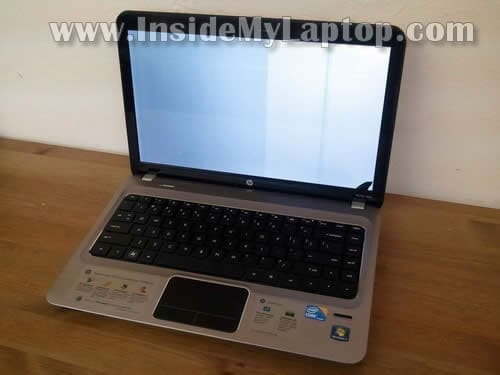
In this guide I explain how to disassemble a HP Pavilion dm4 laptop.
I’m doing this disassembly in order to replace damaged screen. Unfortunately, in order to replace it in an HP Pavilion dm4, it’s necessary to remove the display panel first.
I’ll split disassembly instructions in two posts.
In this post I explain how to remove the display panel and in the next one I’ll explain how to replace the screen.
Before you start make sure the computer is turned off and battery removed.
STEP 1.
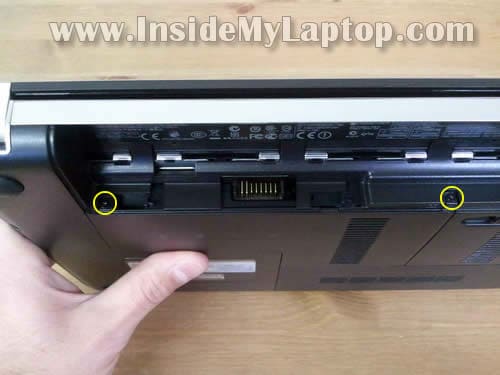
Remove two screws securing the memory cover in battery compartment.
STEP 2.
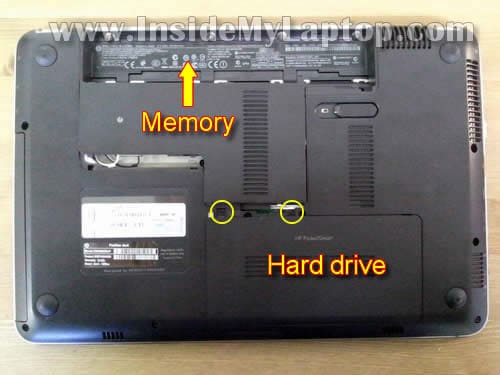
Slide and remove the memory cover.
Remove two screws securing the hard drive cover. Remove the cover.
STEP 3.
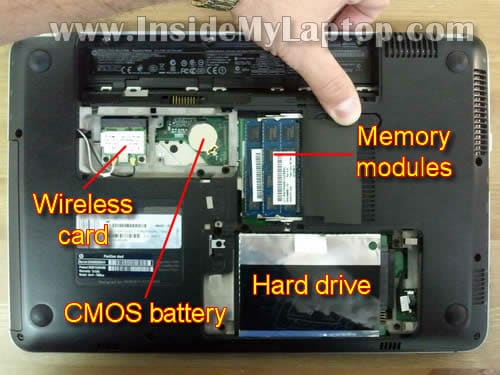
When all covers removed you’ll be able to access both memory modules, hard drive, CMOS battery and wireless card.
For the purpose of my guide it’s not necessary to remove memory modules, wireless card and CMOS battery.
STEP 4.
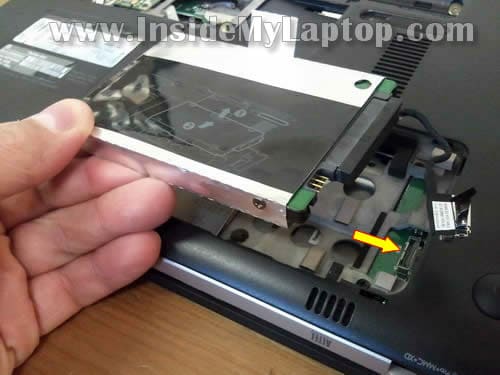
Disconnect hard drive cable from the motherboard.
Remove the hard drive assembly.
STEP 5.
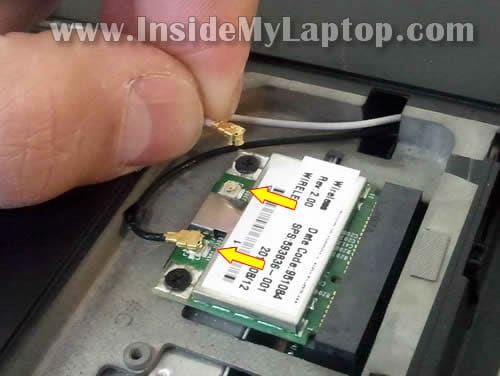
Carefully disconnect both antenna cables from the wireless card.
Again, we’ll leave the wireless card connected to the motherboard.
STEP 6.
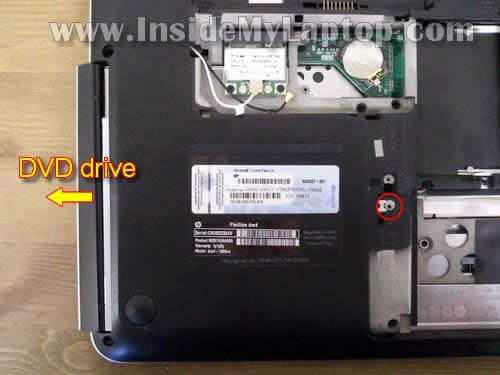
Remove one screw securing the DVD drive.
Slide DVD drive to the left and remove it.
STEP 7.
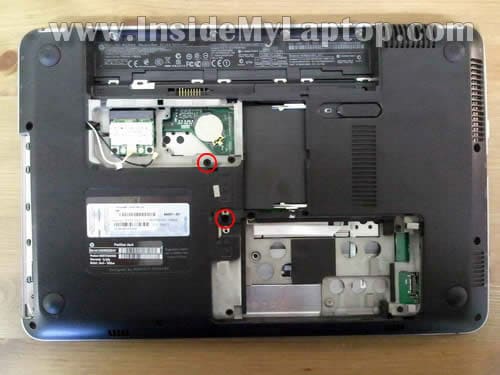
Remove two screws securing the keyboard.
STEP 8.
It’s very tricky removing the keyboard from a HP Pavilion dm4 laptop. There is no way you can do it from the top without damaging the keyboard.
Here’s how I did it.
In the DVD drive compartment there is a hole and you can use it for removing the keyboard.
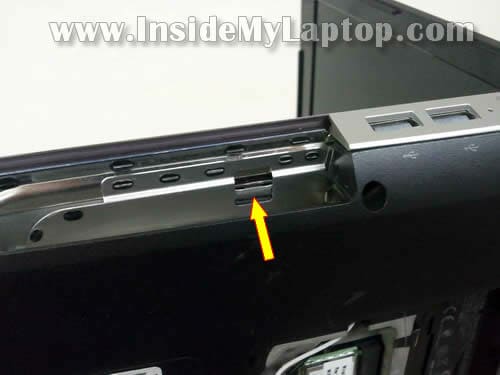
Very carefully push the keyboard through the hole in the DVD drive compartment. I’m using a thin plastic tool for that.
After the keyboard separates from the top cover you can continue removing it with your fingers.
To make it more complicated, HP glued the keyboard to the top cover with double sticky tape. 🙂
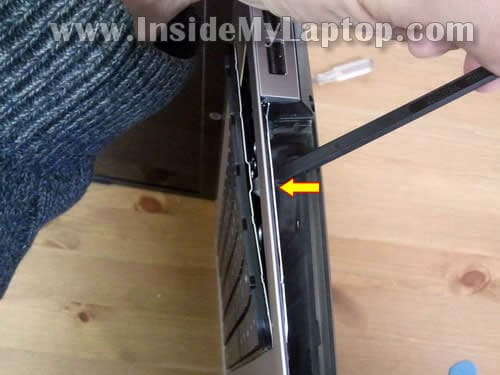
STEP 9.
Continue separating the keyboard from the top cover.
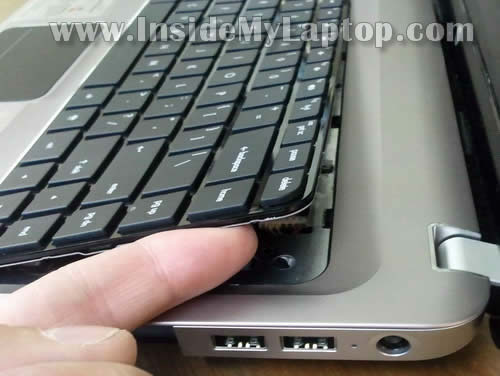
STEP 10.
Finally, lift up the top side of the keyboard and flip it upside down on the palm rest.
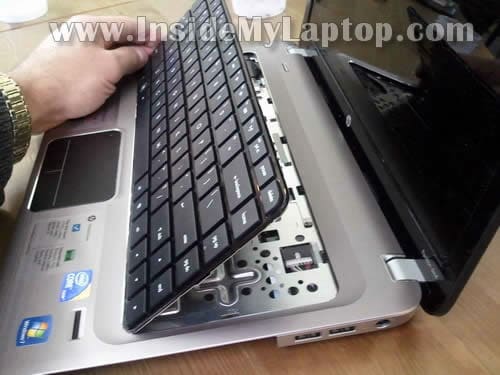
STEP 11.
Now you can access the keyboard cable and disconnect it from the motherboard.
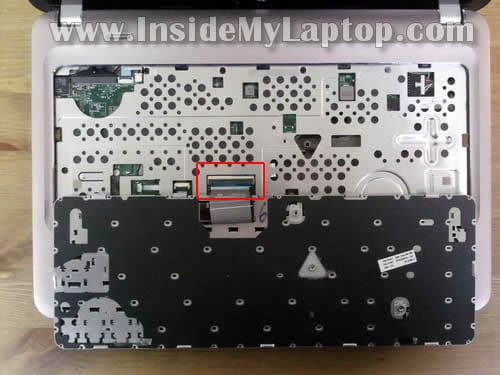
STEP 12.
The keyboard connector opens up as it shown on the picture below.
Carefully open the brown tab at a 90 degree angle. Do not separate the locking tab from the white base.
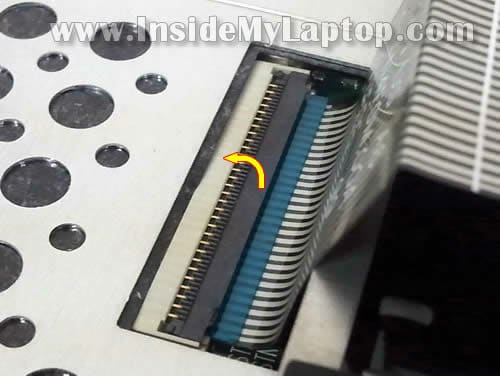
On the following picture the keyboard connector shown in the unlocked position.
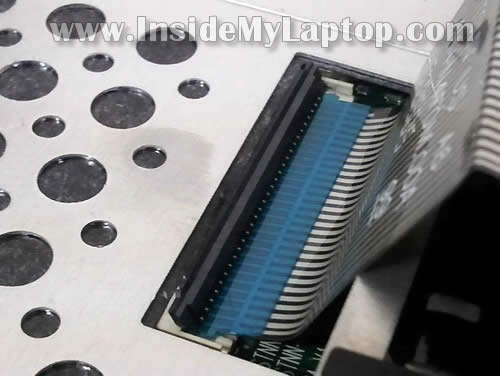
STEP 13.
Now you can pull keyboard cable from the connector and remove the keyboard.
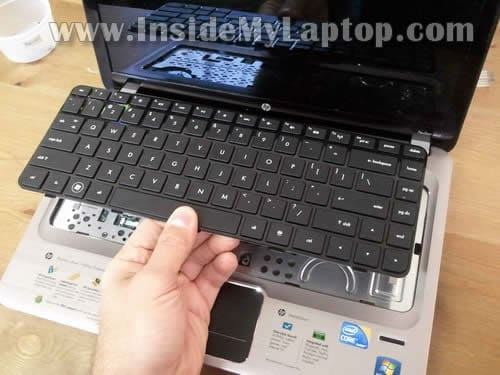
STEP 14.
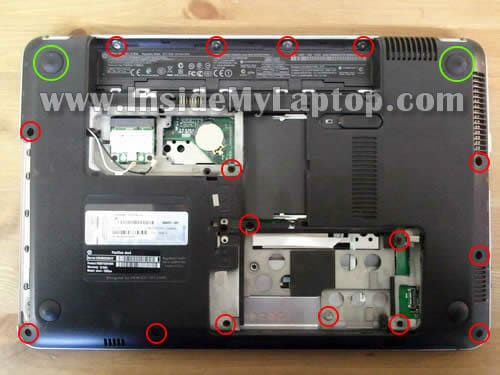
Remove all screws from the bottom of the laptop.
There are two screws hidden under base feet (green circles).
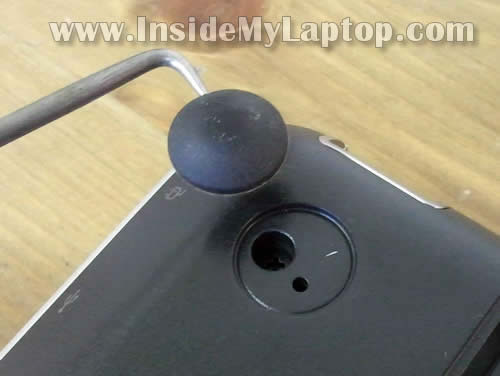
Remove the rubber foot with a sharp object and remove the screw.
STEP 15.
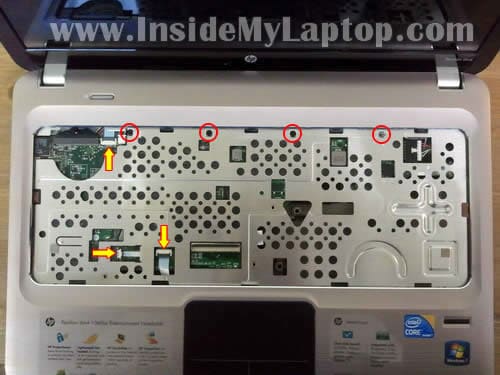
Remove four screws securing the top cover.
Disconnect three cables. Use same technique as in the step 12.
STEP 16.
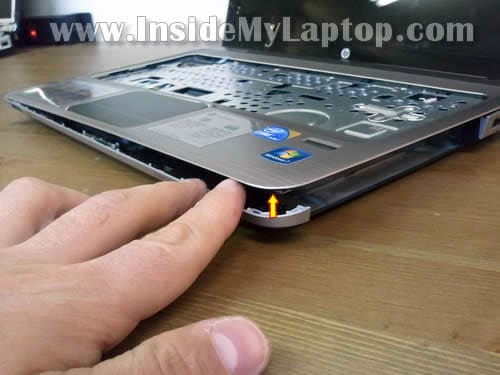
Carefully separate the top cover from the laptop base.
Continue removing cover with your fingers.
STEP 17.
The top cover has been removed.
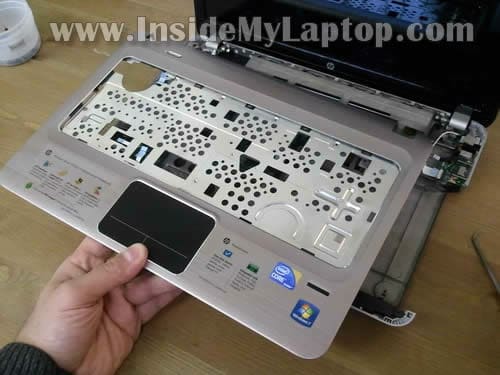
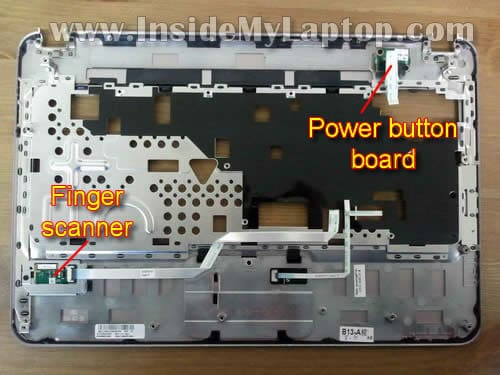
Here’s the opposite side of the top cover.
Here you can access and remove (if needed) the finger scanner and power button board.
STEP 18.
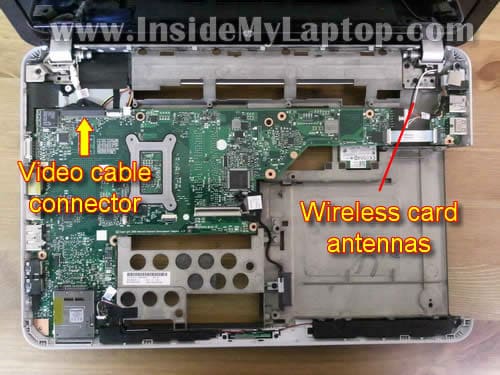
Disconnect display video cable from the motherboard.
Pull both wireless antenna cables through the hole in the bottom cover.
STEP 19.
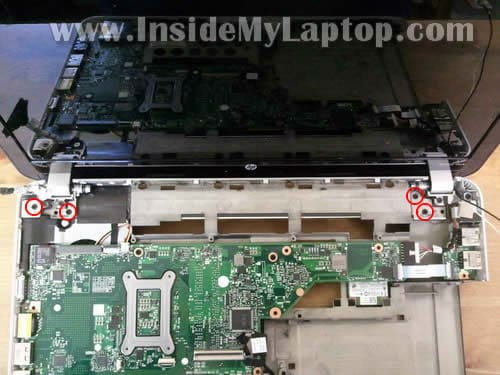
Remove four screws securing display hinges.
STEP 20.
Now you can separate the display panel from the base.
The display panel is ready for the LCD screen replacement.

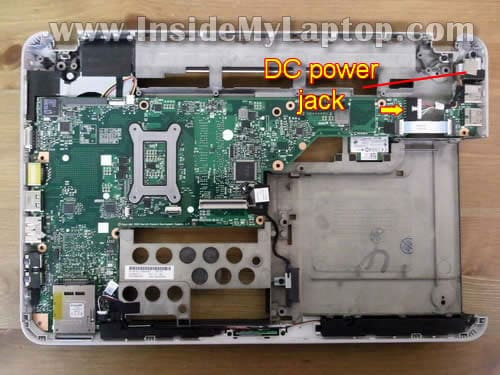
Here’s the laptop base with the display panel removed.
In a HP Pavilion dm4 laptop the DC power jack is not soldered to the motherboard. The jack is attached to a power harness.
If the DC power jack goes bad you simply unplug it from the motherboard and replace with a new DC jack.
Dorian
This is exactly what i was looking for, thanks so much. However I also have a crakced lcd and cant find the other artice you said you’d write, if it’s not up do you think you could do one, and if there is one alreadypoint me in the right direction? thanks a lot for this.
IML Tech
Dorian,
The LCD replacement guide hasn’t been published yet. I plan to finish and upload the guide tonight or tomorrow.
IML Tech
Dorian,
Here it is. Just finished the LCD screen replacement guide for HP Pavilion dm4 laptop.
https://www.insidemylaptop.com/replace-lcd-screen-hp-pavilion-dm4-laptop/
Alex
YOU ARE MY HERO. OMG!
Can I ask you for a huge favor.
The speakers in the dm4 suck, they barely produce any audible output. The volume is extremely low on these speakers. Is it possible to mod this computer, to remove the speakers, and in the same spot, put speakers that are a bit better?
Is there anyway to contact you via email?
Kishan
^^^^^ ALEX!
THANK YOU! LOOKS LIKE IM NOT THE ONLY ONE! The speakers suckkkkkkkkkkkkkkk! There has to be a way to replace with something else!
206
How funny that I ended up visiting this site again.
I first visited earlier this year when I had to take apart my Sony sz320 and followed your post. Now I am back because I wanted to take apart my HP dm4 and bam here it is..
Thank you very much!
handy novice
I just did it following your instructions. Took 1 hour 40 minutes and that was taking it easy as i’ve never done this before. Putting back together goes very fast.
excellent instructions – all i’d add is that a tweezers helps for cable connections on the front side
And to no way diminish this tutorial (as it’s superbly made) but the relative ease with which this task is done I think is testament to the engineering thats goes into these things. I couldn’t have figured it out alone, but once shown it becomes obvious, almost intuitive — the design/ mechanics are that clean and straightforward.
great tutorial, cheers
Dorian
Thanks so much, both parts explained everything perfectly and were super easy to follow :]
Ted
Wow! This guide was amazing! You saved me. I needed to replace my screen and voila it worked. I am not the very handy type and your clear beautiful instructions worked. Thank YOU!
Gregg
Very Nice! This is a Great tutorial! Walked me right through…We have done many LCD’s but this one was a B—-! Thanks for your GREAT work !
IML Tech
Gregg,
Thank you!
Yes, this model is not an easy one for the LCD replacement. You have to remove the display first.
Trevor Huxham
Thanks so much for this great breakdown (pun intended)! I might have to do surgery on one of this generation of HP laptops, and wasn’t sure how one might access the screen. This is a lot of stuff to do just to get to the LCD! Thanks!
Travis
Steps 9-13 saved the day. I was convinced I had ruined my laptop. Thanks a bunch.
Tara
I have an hp dm4 laptop and on the side it has a monitor hook up. I bought a tv a few moths ago that has pc input. I have hooked the tv and laptop together a few times but then i havent for a couple month, so i tried last week and it wouldnt work
IML Tech
Tare,
Here’s what you can try:
1. Connect your laptop to the TV.
2. Turn on the laptop and wait until it boots to the desktop.
3. Set you TV to the right input channel. Probably it will say PC or something like that.
4. Using Fn+F4 key combination set your laptop to output video to the external monitor (TV). Hold down the Fn key and at the same time pres on F4 key until you get image on the TV.
Tara
Hi again, Yes i tried your insructions and still nothing comes up. Could I have installed something that is perventing it from showing up on the tv also? or is the hp file I could download to help fix the problem? I just dont understand it worked perfectly a couple months ago and now the tv just remains blank.
IML Tech
Tara,
I doubt this is software related issue.
You didn’t mention that your laptop worked fine with TV before.
Maybe the cable is defective? Have you tried a different cable?
rob
Hi. My video cable connector came loose from the motherboard in the process. Is this fixable? I know it will probably require soldering which I will have to enlist help for.
IML Tech
rob,
I’m not sure if this is fixable.
David
THANKS SO MUCH! You just saved me $250. Assuming I can do this without destroying my laptop lol.
issa
hi! i was just wondering what steps i need to take to clean my fan? my laptop’s been extremely loud lately and it’s been getting pretty hot so i’m guessing there’s a lot of dust in there. using compressed air doesn’t do much, i feel like it just blows the dust around in there. thanks!!
IML Tech
issa,
If compressed air doesn’t help much, I guess your heatsink completely clogged with dust.
If that’s the case, you’ll have to remove the fan for cleaning. It means you’ll have to disassemble the laptop as I showed in the guide, remove the motherboard and remove the fan.
In this model the cooling fan mounted deep inside the laptop, under the motherboard.
jackMc
Worked for me!!! Thank you!!
Eric
Great instructions! I’m a laptop repair tech and I usually can figure out how to disassemble laptops but this one was tuff. Great site! and the link to get plastic tools was very helpful!
Icot
Thank you for the information. I had to change my keyboard and It was really useful!
Steve
I agree with some of the other comments that the HP dm4 is more difficult than most laptops to disassemble for replacing the LCD. As an electronics design engineer and someone who takes just about everything apart, I got pretty far but got to a point where I was concerned I might break something. I did some quick searching and came across this guide. Great info, useful annotated photos, and good detail. I’m impressed! I only wish more “guides” had this level of quality information. (Come to think of it, more user’s manuals out there would benefit as well.) Thanks!
Hamilton
Hello.
I need to replace a bad DVD drive but when i get at the part to slide the DVD (Drive+bracket) out of the notebook, it’s getting a little hard (like the bracket was stucked inside after going a few inches to the left ) and I get a little afraid to force a little more. It is ok to do that ? is there any latch or something besides the only screw that secure the DVD bracket inside the Notebook ?
I get HP service guide PDF document for this model (c02615687.pdf) and at page 60 It’s doesn’t show anything like a latch to release the DVD + Bracket set.
Thanks
Chris
I got this far in taken it apart, but my problem is my webcam is just slightyly lowered to where when i skype half of the screen is covered by the ring around the screen, i need to adjust the camera and move it up slightly, not sure not to get the casing around the screen apart to get to the webcam?? Can anyone help with this?
THANKS!!!!
danyal
I have a hp dm 4 (1101) few days ago i was playing games on it suddenly smoke started to pour out of sd card slot and flames came out of the vents, now whenever i turn it on sd card slot get extremely hot i disassembled it but there was no burn or anything
can anyone plz help me
Navneet
Hi,
I have a hp dm 4 (1100) . Now its fan is making too noise and system is getting heated and switching off automatically.
I could follow all steps in given example but, could you also include some stepes to reach to fan by removing the motherboard as well on your site..?
thanks in advance. excellent steps.
Jon B
!!!!NOTE FOR PEOPLE HAVING TROUBLE WITH STEP 6 BELOW!!!!
THANK YOU THANK YOU THANK YOU!!!! I’m pretty savvy when it comes to software but not as much in the hardware world. Your clear concise directions made everything a breeze to get a new keyboard installed and my machine cleaned out. Your work is appreciated.
RE: Step 6 The DVD drive getting stuck when trying to remove. It seems that some of the models weren’t put together as as well as others. The retaining bracket for the dvd player (the silver metal piece) pops out a little too much on the opposite side you see when the laptop screen is on the table and the bottom is facing you. I solved this by placing the laptop on one of it’s small edges (DVD drive facing up) holding the laptop with my feet (lol) pulling upward with moderate force while working the drive back and forth.
You’ll most likely see a little damage to the retaining clip. This can either be replaced or use a dremel like tool to remove the non necessary part of the bracket so it won’t catch again.
I hope this helps someone.
Cheers!!
J
Jay
Has anyone been able to use a lighted keyboard on the DM4T?
Taskeen
I need hp dm4 LCD please advice where i get and price iam in pakistan karachi
IML Tech
@ Taskeen,
Check out ScreenCountry.com
They have very good prices on new LCD screens and ship them worldwide.
Azam
I have dm4t . First I had one of the display hinge broken that exposed the video cable connecting the screen with base. Later I noticed the display flickering. If I press the video cable it stops flickering but display is still bad. It appears I have replace both hinge and the video cable. Hinge I can buy online but where can I get the video cable, Its not ribbon it is round wrap of and feel of multiple tiny cables. Please help
IML Tech
@ Azam,
Did you find my display disassembly guide?
https://www.insidemylaptop.com/replace-lcd-screen-hp-pavilion-dm4-laptop/
I’m not sure which cable you are talking about but there is only one video cable. It’s running though the left hinge.
Is this the cable you are looking for?
What is your full laptop model number?
Azam
Yes, that is the video cable I am talking about. It appears to be damaged by stretching. Where can I get it? My laptop is dm4t-1000
Mat
I was wondering, is there any possible way to use a graphics card with this computer? Would I have to replace the whole motherboard? If so do you have any suggestions?
Thanks!
IML Tech
@ Mat,
Are you asking about installing a discrete video card into this laptop?
You cannot do that. HP Pavilion dm4 comes with an integrated video card. It’s embedded into the motherboard.
Joel O
very well explained
Mat
Yeah that’s what I was wondering, is it possible if you replaced the motherboard?
IML Tech
@ Mat,
Technically yes, if you can find a compatible motherboard with better video card.
But I’ll doubt you’ll find a better one. You’ll have to do research.
Vikas
Hi I found your site very helpful, and it instilled in me the confidence to replace the LCD screen on my dn4-1160us by myself. I acquired the screen from laptopscreen.com – very reasonably priced/excellent customer service. Unfortunately while removing the cables (Step 15) for the mousepad the locking tab (which is white in color unlike other black locking tabs) came off, the right facing arrow in your diagram. . Any tips on how I can put it back? It is very tiny. The black receptacle bottom is still secured to the motherboard, Is there any tip on some other way of securing the cable?
I was able to replace the LCD screen and am stuck assembling the computer back. Thanks for your help. Merry Christmas.
Vikas
Besides my mousepad not working, my screen doesn’t work either,I can see a glow when I power up the laptop but nothing displays on the screen, could I have damaged the video cable? Or is the screen bad?
IML Tech
@ Vikas,
It’s hard to tell without looking at the laptop. Could be just bad connection between the video cable and LCD screen. Try reseating the cable.
Why did you replace the screen? Was it broken? Did you have image on the undamaged part of the screen? If yes, try installing the original screen back into the laptop and see if you can get the image. If the original screen works but the new one doesn’t work, probably the new screen is not good.
Vikas
Hi,
Thanks for your advice and concern. Fortunately, today my LCD screen is working again, probably the video cable wasn’t connected properly. I will try to follow your tips on connecting the touchpad cable. While reopening I also broke my finger print sensor. I am using a USB mouse and am able to work on the computer. Thanks for the awesome site.
Regards,
Vikas..
John Coleman
I like the detailed instructions very well presented.
Mike
Thanks for the guide. Just bought dm4-2191US from Staples. I was wondering if
1) there are better replacements for the speakers on this laptop? and
2) The keyboard can be replaced with backlit keyboard from somewhere?
Thanks guys.
IML Tech
@ Mike,
I don’t think so.
There is no backlit keyboard mentioned in the official service manual.
Chris
Is this a similar process to replace the fan? If any, what kind of extra steps are needed?
IML Tech
Chris,
Yes, it’s a similar process.
You’ll have to go though all disassembly steps except steps 19 and 20. It’s not necessary to separate the display panel from the laptop base.
But you’ll have to remove the motherboard because the fan is attached to the bottom part of the motherboard.
It shouldn’t be very difficult if you were able to get to the step 20. 🙂
vicki
I have a HP Pavilion dm4-1065dx and for some reason, the following number keys *sometimes* don’t want to work:
12347890 mute
I already upgraded the BIOS but that did not fix the problem.
Have you heard of this issue before on this model of laptop?
Is it recommended to replace the keyboard?
What is recommended as the best solution to fix this problem?
Thanks for the great instructions too! Not sure if I will do the repair myself. I might hire someone who has more experience with hardware repair.
Thanks in advance!
vicki
Gomulkaaa
I’m basically stuck at Step 8, as above. I’ve removed the screws, but I can’t live the keyboard off. You suggested pushing it through the slot under the CD-rom drive, but can you please clarify this step? Should I try to push upwards on the metal strip that’s visible through the hole, or in the direction to toward the left of the laptop. Thank you very much in advance.
IML Tech
@ Gomulkaaa,
Push upwards until one side of the keyboard lift up a little bit and you can continue removing it with your fingers.
Make sure all keyboard screws on the bottom are removed.
deby
This is good information, I wish I had a schematic. My internal fan gave out just as I was in the middle of working on an important project. I have an engineering background, so can you tell me where I can find a fan for HP pavilion dm 4 1064us? Is the fan located on the bottom half of the board on the left side? I think it may be partially visible on figure 19?
IML Tech
@ deby,
I believe HP Pavilion dm4 notebook might have two different fans. One fan for motherboards with integrated video card and another one for motherboards with discrete video cards. I think most dm4 laptops have integrated video cards.
Take a look at this service manual for Pavilion dm4 noteboks. The manual has disassembly instructions and list of all parts.
Cooling fan part numbers shown on the page 20. Here’s a quote from the manual:
This is correct. The fan located under the motherboard. It means you’ll have to go though all disassemby steps and after that remove the motherboard. Shouldn’t be difficult.
Power
Hi IML Tech:
Would you also be so kind as to put picture that indicates the location of the fan and how to get to clean the fan?
Thank you very much for your nice step by step explanation!
IML Tech
@ Power,
The cooling fan mounted under the motherboard. After you go though steps 1-18, you’ll have to remove the motherboard.
Here’s official service manual for HP Pavilion dm4 notebook.
You’ll find motherboard removal instructions in there (page 84).
Before you took it apart. Have you tired cleaning the fan with compressed air? Blow air into the fan grill on the side. This could be enough.
Power
Hi IML Tech,
Thank you for your kind quick reply!
I didn’t try compressed air blower, is it like a hot air blower? Is it specially for cleaning laptop fan?
Is removing everything too difficult and not advisable? I have only ever opened up to the hardisk and found that it is not so difficult.
Thank you very much.
IML Tech
@ Power,
You can buy a can of compressed air in any local computer or home improvement store.
It’s not difficult if you pay attention to details. But if you’ve never done it before it could be tricky.
Power
Hi IML Tech,
I dissembled it only to find out that the fan is actually not really very dusty. Haha. Maybe it is the fan driver problem? Do you know where can I check my fan driver?
p.s. I now have a few screws (4) remaining, and I do not know where it was supposed to be driven, Haha, hopefully the laptop is still okay and working.
IML Tech
@ Power,
There is no fan driver. The cooling fan controlled by the motherboard.
zezayer
When taking the laptop apart, has anyone noticed if the dm4 motherboard have any SATA headers that are not already used (for DVD, HDD and eSATA)?
I would love to add an mSATA SSD to the laptop (and there is physical space and screw holes above the battery) but it would need another SATA header.
Thanks.
IML Tech
@ zezayer,
It’s not a desktop PC. There are no extra SATA connectors.
damselindistress
I need instructions on how to replace the top cover of my dm4 2070us laptop. I’ve replaced the LCD screen, but the cover is dented / damaged and I need to replace it if possible. Does anyone have instructions on how to do that.
IML Tech
@ damselindistress,
Did you mean the LCD back cover?
It will be necessary to remove the display panel from the laptop first.
Look at this guide: https://www.insidemylaptop.com/replace-lcd-screen-hp-pavilion-dm4-laptop/
fuat
hi,
Thank you so much for your explanations. They are very helpful. I had problem with my graphic card so I replace my motherboard but after replacing, the laptop does not power on. I press the power button the light is blinking that is it. No power. Would you help me please?
Thanks
IML Tech
@ fuat,
There is no way I can tell what is wrong. This could be just connection related issue.
Make sure the motherboard installed and connected correctly. Check all cables. Make sure your AC adapter outputs correct voltage.
vamsi
haii this is vamsi ,i had a problem with my laptop the link between display panel and laptop base. was displaced how can i replace it.
Joe Devlin
It is not true that you have to completely disassemble the DM4 laptop to replace the LCD screen. The screws holding the screen in place are on the lower left and right of the screen. They are hard to get at, but with a good sharp screwdriver of the right size you can get them out. My daughter did a tutorial video of her replacing her screen that I have posted in the Reviews Section of my Youtube Channel. YouTube.com/podtactics
It was her first time replacing a screen and she was nervous doing so, but as the video shows it worked.
Venky
Hi,
My dm4t-1000 the hinge needs to be replaced. It is not even the hinge – the hinge cover that lets the panel slide in properly when closed is broken (don’t know how ). The practical problem is the panel is loose (will not stand still) and it can not be closed cleanly (well aligned) without some effort. I do not see any problems with the hinge (but hinge covers fell off !). Might as well replace the hinge and hinge covers.
Question: How is the hinge cover secured? Glue? This cover plays a role by arresting the hinge moving out while closing it looks like. Any idea
Danny
I followed the steps to get to the cooling fan and everything works great and no more overheating. The only problem I had when putting everything back together is the wireless internet does not work anymore. Any suggestions on how to check if its the wireless card????Thanks
Michaela
Hi My daughter accidentally spilled bubbles on the keyboard. The key board still types but the wrong letters or numbers. Would I be able to clean the keyboard from the inside or would I have to replace the keyboard entirely? Thanks
IML Tech
@ Michaela,
At this point it’s hard to tell.
Here’s what I would do:
1. Do not use the laptop. Unplug the AC adapter and remove the battery ASAP.
2. Remove the keyboard and inspect the laptop for any liquid damage.
3. If the motherboard appears to be clean, let the keyboard to dry thoroughly.
4. Install the keyboard back in place and test the laptop. If the problem still there, you’ll have to replace the keyboard.
Michaela
I let the keyboard dry thoroughly. I have not opened the laptop to inspect. I have been using an external keyboard.
IML Tech
@ Michaela,
If the laptop works fine with an external keyboard but the internal keyboard types wrong letters, most likely the laptop keyboard was damaged.
You cannot fix it. You’ll have to replace the keyboard.
sean
so im on step two and im totally stuck now.
the screw in the left side wont budge and ive stripped it not. the screen on the right comes out all the way to end but then it doesnt come out. if i keep twisting it then it just keeps twisting but it will not come out no matter what. please help me i just bought 140$ worth of parts.
IML Tech
@ sean,
Loosen screws as much as you can. After that slide the cover with the screws still attached to the cover.
sean
Is there a difference between dm4 2000 and 1000?
Cassio
Hi,
A few months ago, I was disassemble my HP Pavilion dm4 laptop to clean the cooler. At this time I didn’t know about this website and I was doing it by myself without helping. After push the keyboard through, the brown tab of the keyboard connector broke in the left side (pin) and the white base was damage too. Now I have I keyboard that doesn’t work anymore. Do you know if the HP assistence can fixed it, once the white base is part of mother board?
Thank you!
Cassio
Or maybe, can I fixed it myself, can I?
rafael
Hello , my HP pavilion dm-4 goes on but do not start; I took it to a Computer Tech, his opinion motherboard is damaged, and went to a second Tech, same diagnosis. They are recomending to change the motherboard. Please help me? what do you think. Thanks
Truefire
Hi rafael,
I’d suggest just replacing the computer – it may be cheaper and less tricky than replacing the motherboard.
Samuel
My new hp dm4 just went blank last week on starting it. Could motherboard replacement help?
Chantel
Hy,my laptop looks like the 1 in the pic,what causes the lcd to do that?
IML Tech
@ Chantel,
Probably LCD screen failure.
Sergio
Hi,
My HP Pavillion motherboard stopped working and I was at wits end to see what to do. I finally found a website advising on how to reflow the solder. I took it apart, placed the motherboard in the oven at 200degrees for 8 minutes and put it back together and hey presto it worked!
I am honestly chuffed.
Happy fixing!
Jeff
Thank you for this great tutorial!
pramod vc
really helpful…. tks
Steve
I have successfully replaced the LCD display on my DM4 about a year ago when the power seat in the car crushed the top frame of the computer and cracked the screen.
Worked fine for about a year so far but now the screen has a flicker/black 2″ wide vertical band from top to bottom of the screen, it’s about 2″ in from the right side of the bezel. When you press down on the right top side of the screen it goes away, as soon as you let up pressure it comes back. Looks like the left side hinge is broken and I am assuming the video screen harness is being pulled causing the problem. If I just replace the hinge and ensure the connection is tight do you think that will correct the probelm or will I need another new LCD display screen?
Thanks
PS Thanks for the great instructions.
Ali
hi, I have the same problem. i opened my laptop to clean it, but now that I’ve cleaned it doesn’t turn on. in fact it turns on and then suddenly the fan goes nuts and caps Lock starts blinking and the screen doesn’t show anything. it doesn’t respond at all and i have to shut it down. what should I do????
IML Tech
@ Ali,
Check memory modules. It’s possible one of the modules not seated correctly inside the slot. Reseat both memory modules and test the laptop again.
jayesh
thanks
sin
Hey spilled some tea on my laptop and now want turn on should I scrap it and buy a new or can it be saved
S.Patel
My daughter’s laptop was dropped a while ago, but keep working. All of sudden one day, I received a call that the keyboard stopped acting up. I knew I was in trouble. I started google search and saw your site with detailed instruction on how to disassemble HP Pavillion dm4. I ordered the keyboard and followed the instructions. I tell you it absolutely worked great. I can’t thank you enough. Please keep up the great work.
Once again, thanks.
S. Pâtél
Francisco
Hi,
I have a HP Pavilion Dm4 1111tx with a broken right side (facing the LCD screen) monitor hinge. I’ve noticed your tutorial shows how to dissasemble the monitor/lid and suppose from there it would be rather easy to replace the hinge.
The point is I’m having a hard time to find this spare part online to fix my laptop. Do you know the part number reference or can you indicate any website where I can find it for sale?
Thanks in advance,
Francisco
Mikko
@Steve: a flicker/black 2″ wide vertical band from top to bottom of the screen, it’s about 2″ in from the right side of the bezel. When you press down on the right top side of the screen it goes away, as soon as you let up pressure it comes back. Looks like the left side hinge is broken
I have the exact same problem. If you read this anymore, can you tell me if you have fixed that or not? I’m thinking of buying a new hinge and a new LCD module.
And thanks for the grreat tutorial. This is very useful!
Jeremi
What of the fan? Is possible to access it? Please email me concerning this.
Rachit
is it possible to replace the normal screen with a touchscreen one
Zak
Hello, I have a question for you sir. Actually, first of all, thanks for this nice tutorial. The question is the following: I take care of my dm4 very well, but I use it alot. I tend to click on the left mouse button on the keypad alot. Cant say I push too hard, but I use it extensively. Today I have noticed that the left edge of the left mouse button on the touch-pad, collapses, It does not “pop back up”. If you press it in the middle, or the right corner, it works fine. I was wondering, what is the problem, and what has to be replaced to fix this? Please be so kind and give me some advice. Thanks,
Zak.
IML Tech
@ Zak,
The touchpad button is a part of the palmrest assemble. The easiest way to fix the problem is replacing the whole palmrest assembly. You can see it removed in the step 17.
A new replacement palmrest assembly (with touchpad and buttons) available on eBay.
A new palmrest assembly is relatively cheap and easy to replace.
Jerry Kelly
I have andm4-1160us. I have a broken battery access slide. How do I get the battery out? Otherwise the laptop is great, just worn out batter. The slide lock mechanism has fallen off. Thanks for any guidance. Jerry
IML Tech
@ Jerry Keylly,
Sorry, there is no simple answer to your question. It depends on how the latch failed. You can try prying it out with a small screwdriver and at the same time sliding the latch. Maybe the latch will engage while you lifting up the battery. This is just a guess. I cannot see how it’s damaged.
Jerry Kelly
About that battery with the broken latch. Sorry to bother you. I was over thinking. I took dremel tool and cut out the bottom of the battery pack without cutting batteries. Then I just squeezed it out of the latches. Took less than 5 minutes. New battery went right back in. Thanks again.
dzanmark
Hi, Please help me. I had a broken hinge and have disassembled my dm4 laptop to put adhesives on it. But after I re-assemble and turned it on the monitor will only work for few minutes and will turn to black screen and then log-in screen every once in a while, so i would have to re-log again though it retains the last session. But this information is very helpful for me to review the assembling procedure because I still have 4 remaining screws that was placed back on the laptop. And I think it is a lose-contact problem. Please give me some suggestions on how to solve the screen problem.
Thanks
jeff sipp
I have a pavilion dm4 2015dx and the locking tab (brown) is broke. Do you know how I can get a new one?
Thanx, Jeff
jeff sipp
Opps i didnt give all the info in my previous post. My brown locking tab for the KEYBOARD CABLE CONNECTION if broken. Any clue where to get a new one?
Nathaniel
Wow this is great! I may need to use it soon 🙁 My dm4 stopped booting and I dont know why. When you press the power button, the button lights up as does the wifi button and the caps lock button blinks. I hear noises of hardware doing stuff but I’m not sure if the primary fan is working. The screen is black throughout. Nothing else happens. It’s likely a hardware issue. I replaced the BIOS chips battery on a hunch but no dice. The caps lock button continues to blink. That’s it. Any ideas?
C
Do you have to take the computer all the way apart to change the DC jack?
IML Tech
@ C,
Yes, it’s necessary to remove the top cover assembly as it shown in the step 17.
After the top cover removed you can access and replace the DC jack harness.
christian campodonico
Thank you dude, it helped me a lot, i didn’t know how to take out the keyboard from the laptop, now i’ m done.
Riiin~Son
Thank’s a lot for this tuto !
It helped me a lot =P
micky
from where i can buy used or refurbished parts for HP DM4 2070 us
the hinges and back of LCD screen the metal front
Crash613
Thanks!!!
Broken hinges almost meant the end of this awesome computer. Best Buy wanted over $200 to fix the hinges and a local shop wanted a similar amount. They actually told my wife it would be $100 per hinge. .. as if it would me so much more work to add the second one once the machine was apart!
After finding this site, and a trip to e-bay (@micky) I was able to replace both hinges for $10. That’s right TEN DOLLARS!
thanks a bunch!
Ian
After following this, I think I damaged the Video Connector Cable, as now when I turn on my computer the screen is blank. I have it on, and am experimenting with it, moving the cable around, and the screen fluctuates from off to black (but on?), but I can’t get it to display anything. Is this probably the cord or did I break something on the motherboard where it connects? On the motherboard, there is the line of metal lines where it connects, plus 2 little gold/copper ones on the side. One of those gold/copper pieces look damaged, suggestions??
IML Tech
@ Ian,
Did you have a chance to test the external video. Does your laptop shows external image?
Laura
How do I replace my fan? I dont seem to see it here in the instructions and I have to pay, like, 100 bucks to have it done. thanks!
Laura
Hi again, i see where you say that I’ll have to remove the motherboard and that I follow all steps but 19 & 20… I already have my replacement part… will I need anything else other than a screw driver to do this? Do I need paste or anything?? I’m really not THAT savvy and have only replaced my keyboard other than this, so all the help I can get would be appreciated 🙂
Syed
Thank you so much for this article! Really helped me solve my laptop issues
Mary Ella
would you happen to know what the height and width of the hard drive is? thanks!
IML Tech
@ Mary Ella,
It’s a regular 2.5″ SATA hard drive.
Width: 69.85mm
Height: 9.5mm
manuel
hello , wath is the number parts for the internal speakers to this machine ? thanks
IML Tech
@ manuel,
Search on eBay for “DM4 speakers”. There are lots of them.
Hugo
Hey man, cool tutorial!
Was just wondering what kind of screwdrivers you used (size and shape)
Cheers
IML Tech
@ Hugo,
For all repairs I use Wiha screwdrivers shown on this page.
The primary screwdriver is Wiha PH1x60 (it fits most screws on most laptops). The secondary on is Wiha PH0x50, it’s good for smaller screws.
Tim
Thanks so much
khasan
Tahnks, The material have done with excellent, The material understaning was very easy.
Fuat
You don’t need to disassemble anything to replace the screen, just two screws at the front-bottom ends of the screen covered with black stickers and you’re in the panel. You do need really thin/small screw-drivers because of the spacing, but saves you from disassembling the whole thing.
However, this is great for replacing other stuff. Nice work.
IML Tech
@ Fuat,
You are correct. It is possible to remove the bezel without separating the entire display assembly. I’ve done it before. But if someone has no experience working with a laptop, it will be very hard for him/her to install the bezel back in place correctly.
Neuekind
Message for post 128, Fuat, I need to repair the broken hinge mechanism (left) of HP Pavilion dm4. All posts I saw say that I have to remove all parts before I can have access to the hinge, as this illustration. What do you mean by “You don’t need to disassemble anything to replace the screen”? Would you explain with more details? Maybe use some photographic illustrations? Thank you so much.
Neuekind
Hello, IML Tech, Is there a simpler way to disassemble the HP dm4 for the purpose of repairing the broken hinge mechanism (left side)? Do you have a tutorial for the procedures? Thank you so much. Your tutorial is excellent.
IML Tech
@ Neuekind,
There is no simpler way. The hinge is mounted to the laptop base and display cover.
In order to replace the broken hinge you will have to:
1. Separate the display from the base as it shown in the step 20 in this guide.It means you’ll have to go though steps 1-20.
2. Take apart the display panel and remove the screen as it shown in the step 10 in this guide.
Only after that you’ll be able to remove the broken hinge and replace it with a new one.
SAB
Does anyone know where I can buy a replacement hinge (left side for this DM4 Laptop?
IML Tech
@ SAB,
New hinges for HP Pavilion dm4 available on Amazon for about $20 for a pair.
Gwar
Excellent!!! I could change the keyboard!
Bram
The laptop from my daughter has had water damage.
After drying laptop works again, but……there is one annoying problem.
When typing the letter “t”,”t5″ appears. This also applies to the letter “y”, then “Y6” appears. And “[” then appears “[-“.
With the help of the instruction on this site I’ve replaced the keyboard, but this has not solved the problem.
Is there anyone who can help me to solve this problem?
Thanks in advance!
IML Tech
@ Bram,
Apparently water got inside the keyboard connector and damaged it. I cannot tell if this is just bad connector or the keyboard controller is bad.
You can try cleaning the connector inside with a tooth brush and 99% alcohol. Also, apply some contact cleaner inside the connector.
Test the laptop after that.
If the problem still there, most likely the damage is permanent and you’ll have to use it as is. It’s not worth replacing the motherboard.
Also, you should be able to use it with an external USB keyboard.
Bill Parkey
If I just need to replace the left hinge cover (the hinge itself seems fine, just the silver plastic hinge cover is broken) do I still need to go through all of the disassembly instructions you listed as though I needed to replace the actual hinge? I have superglued the hinge cover twice and it usually lasts a couple of months but then it breaks again. I see that I can purchase replacement HP DM4 laptop model hinge covers online via eBay but if I have to take apart the whole laptop to install them then I will probably just keep super gluing. Let me know if all the disassembly is still required and thanks for your help in advance.
IML Tech
@ Bill Parkey,
For the hinge cover replacement please check out the screen replacement guide.
The hinge cover secured to the display back cover with one screw and in order to remove the cover you’ll have to remove the screen bezel first.
It’s possible to remove the screen bezel while the display still attached to the laptop. It will be harder to install the bezel back but again, possible.
You can refer to this video tutorial how to remove the bezel.
Robert
If I just want to remove the screen and Trash it do I need to go through all of the steps or do I need the screen if I am going to use a large stand alone monitor? I do not mind if the hinge is still attached to the keyboard base.
turbik
hello, (I’m French and I am sorry for faults)
I have a pavilion dm4 edition beats, but I have lost the drive cable dur.Je wanted to know if you had the reference
thank you in advance
kind regards
IML Tech
@ turbik,
Are you asking about the hard drive cable? What is your laptop model number?
HP Pavilion dm4-???
turbik
Hello, IML Tech
Yes I speak HDD cable, and the model of my pc is Hp pavillion dm4-3060sf
thank you for answered
IML Tech
@ turbik,
Here’s the service manual for your laptop.
Unfortunately, HP doesn’t mention the hard drive cable part number in the manual. They say the cable is a part of the hard drive hardware kit with part number 669066-001 (page 20 in the manual).
You can try searching for dm4-3000 hard drive cable on ebay. I found one and I think it will work for your model.
turbik
hello,
Lament to bother you but I can not find the cable you tell me.
best regards
jason
my friend has a pavilion dm4 and she says about a year ago took her laptop into a shop to fix the hinge now a year later she told me since then the screen turns on its black but the external hookups work fine, so I told her ill look at it and see about fixing it I work on computers a lot is there a lid switch on it and if so where is it located I cant find it? or do you think it may be the video cable?
GC
Hi,
Very nice page.
I own a DM4 and indeed my DC power jack has a problem. Where can I buy one and what is the model number?
Josh
Hey Guys!
Wonderful jop on this HowTo… just wondering if there is any way to remove and replace only the fan on a dm4, without having to remove the whole cooling unit, including heatsink etc?
Looks like theres a replacement part for just the fan… will this work? And how can I remove it from the cooling unit?
Thanks very much in advance!
IML Tech
@ Josh,
You can replace just the fan but.. you still have to remove the whole cooling module first.
The fan is attached to the heatsink.
Tom
Great step by step. It looks like this is the only process to clean my fan for HP pavilion dm4-1165dx. Is there a complete tutorial like this that gears toward fan cleaning/replacement? I was about to add some RAM and thought I would do a quick clean on it. What materials should I have ready besides basic tools? I have seen these guys at my shop, resembles alchemy.
Hope so, thanks for your time.
Jonty
Great tutorial on disassembly of DM4. My problem is the USB port adjacent to power jack became unseated and retracted into the case when a USB stick was accidentally knocked and now the port can’t be used. From the tutorial it looks like I would have to go to step 18 to re-seat the port. Do you think it is worth the trouble doing this repair or would a small USB hub work just as well. Thanks
Ahmad Mubarak
Great tutorial. Please I disassembled my dm4 to clean out the fan which was super noisy, but now that I’ve replaced all the parts, I can’t get the display to come on. Any suggestions please. Thanks.
Hammad Naeem
i can’t explain in words how to thanks you…..this helps me alot….save my time and…free to tension…….
thanks again..
muhammad munawwir
very thank you for the detail,
Goaty
Thanks! One note…my dm4 did not have double sided tape on the keyboard underside. Date of internal components is mid 2011 so techs prob got annoyed as well.
Ben Myers
Well done! Way easier with photos as a guide instead of the not-very-clear drawings in the HP service manual.
Kate
My finger print scanner popped off from the frame and I don’t know how to fix it. Is there a way to fix the problem??? Thank you so much in advance!!!
Gary
Thank you. With your help, I was able to disassemble my HP Pavilion DM4 to lubricate the fan. My DM4 was slightly different in where some of the screws were located, but I wouldn’t have attempted this without your very detailed instructions. It was still an absolute pain getting to the fan underneath the motherboard, but it’s now working and quiet as the day I bought it four years ago.