

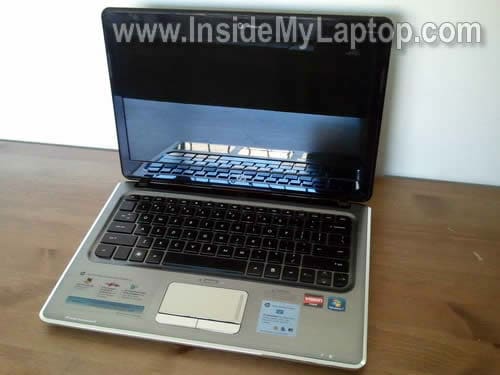
Today I explain how to disassemble a HP Pavilion dm3 series notebook.
In this particular guide I’m taking apart a HP Pavilion dm3-1035dx Entertainment Notebook but the guide should be the same for all other models in Pavilion dm3 line.
Before you start, make sure the computer is turned off.
Removing the hard drive, memory modules, wireless card and CMOS battery shown in steps 1-7.
STEP 1.
Remove the battery.
Remove five screws securing the hard drive and memory covers. Remove both covers.

STEP 2.
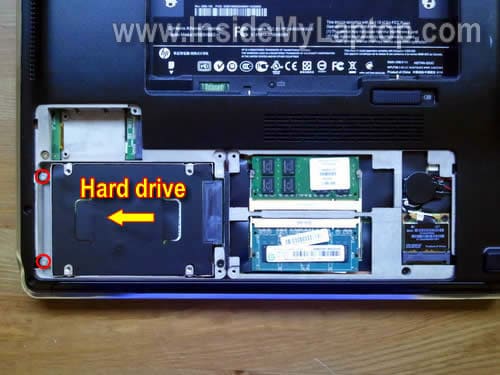
Remove two screws securing the hard drive and slide it to the left to disconnect from the motherboard.
STEP 3.
Now you can remove the hard drive.
As you see, it’s a standard 2.5″ SATA hard drive.

STEP 4.
Remove both memory modules.
In order to remove the memory module you’ll have to follow two simple steps:
– carefully spread lathes on both sides of the slot until the memory module pops up at a 30 degree angle.
– pull the memory module from the slot by the edges.

STEP 5.
Disconnect both antenna cables from the wireless card.
Remove two screws securing the wireless card.

STEP 6.
Remove wireless card same way you removed memory modules.

STEP 7.
Disconnect the CMOS battery cable from the motherboard and remove the battery.

Removing the keyboard shown in steps 8-12.
STEP 8.
Remove two screws securing the keyboard on the bottom.

STEP 9.
Push on the keyboard through the openings in the battery compartment.

STEP 10.
Lift it up as it shown on the following picture.

STEP 11.
Carefully lift up the keyboard and access connector underneath.
In order to remove the keyboard you’ll have to disconnect the cable first.

On the following picture the connector shown in the locked position.
Lift up the right side of the brown clip so it opens at a 90 degree angle.

On the following picture the connector is shown in the unlocked position.
Now you can pull the cable from the connector.

STEP 12.
Remove the keyboard.

The best way to find a replacement keyboard is searching by the HP part number.
In my case I had two different HP part numbers: 580687-001 and 573148-001. I guess both part numbers are compatible.

Removing the top cover and cooling fan shown in steps 13-18.
STEP 13.
Remove marked screws form the bottom.

STEP 14.
Remove six screws securing the top cover assembly.
Disconnect the top cover cable (left arrow) and touch pad cable (bottom arrow).
On some HP Pavilion dm3 models you’ll have to disconnect one more cable – the Bluetooth module cable.

On the following picture you can see the top cover cable disconnected.

On the following picture you can see how to open the touch pad cable connector.

STEP 15.
Start separating the top cover assembly from the bottom.
You can use a thin piece of plastic (I’m using guitar pick) as a case cracker.

STEP 16.
The top cover assembly has been removed.

On the following picture the notebook shown with the top cover removed.

STEP 17.
Remove two screws securing the cooling fan.
Disconnect the fan cable from the motherboard.

STEP 18.
Remove the cooling fan.
The cooling fan part number is printed on the white sticker. In my case the part number is: 580696-001

By the way, in HP Pavilion dm3 the power jack is not soldered to the motherboard. The jack attached to the power harness.
When the power jack fails, you can disconnect the failed jack harness from the motherboard and replace it with a new one.

Leon Kehoe
I own this laptop, I want to install a Wireless-N module, do you know if this is possible and where I can find one?
IML Tech
Leon Kehoe,
Not sure about that. I believe that Wireless a/b/n card requires three antenna cables and you have only two installed.
Gareth
I’m wondering would it be possible to upgrade the gpu or cpu like say I got the model with the amd processor would I /or some one with experience be able to install another cpu from the same amd line? please say yes……………I really want this laptop
IML Tech
Gareth,
You cannot upgrade the GPU chip. It’s integrated into the motherboard.
It’s possible to replace the CPU. You’ll have to research if there is a faster AMD processor compatible with your motherboard.
Kris vs
Do you have a link to replace the screen for this computer as well?
IML Tech
Kris vs,
Download this service manual for HP Pavilion dm3 notebook.
LCD screen removal instructions start on the page 59.
I don’t think it’s necessary to separate the display panel from the laptop base.
Mike
I have the same laptop, and I was wondering, do you get some overheating where the memory is stored or is it just me? I’m thinking of returning it to HP because it is still under warranty.
IML Tech
Mike,
Not sure what is overheating in that area. Maybe the hard drive?
Run your laptop with the hard drive cover removed. Is the hard drive very hot?
Mike
No, its not the hard drive. The overheating occurs on the area covered by the sticker that says “Designed by HEWLETT PACKARD” on the bottom of the laptop. That area gets hot after I use the laptop for about 1 and a half hours.
IML Tech
Mike,
I don’t know what can generate heat in that area.
Val Reyes
Hello there,
Great instructional!. However, do you have documentation on replacing the LCD screen for this notebook?
Many thanks.
Val
IML Tech
Val Reyes,
I haven’t created my own LCD replacement guide for this model yet, but you can use the official HP service manual.
Here it is: HP Pavilion dm3 service manual.
The LCD screen removal instructions shown on the page 59.
I don’t think it’s necessary to separate the display panel from the laptop base as it shown in the service manual.
It’s possible to remove and replace the LCD screen while the display still attached to the laptop base.
Simply remove two screws securing the bezel on the bottom, remove the bezel and replace the screen.
Val Reyes
Many thanks for your reply.
Johann
Hello .
My dm3 has a broken screen. How can I raplace it ? Or is it to expensive ?
IML Tech
Johann,
I linked to the HP Pavilion dm3 notebook service manual in comments 6 and 12.
The service manual has instructions for replacing the LCD screen.
You can find a new LCD screen on Amazon or eBay.
Marius
Hi there! Nice guide you got here. I have the same exact model. I am planning on getting an internal bluetooth card for it but I am unsure as to where to install it. I noticed a vacant mini-pci slot, can that be used?
Chris
so where is this power jack? it’s not so cut and dry just remove it and replace it from… where? I’ve been looking and looking and the closest thing I can find is for s DM1 model but the pins don't match, the one from the DM3 just has 6 pins, side by side, no two rows about it.. so where do I get a replacement? Hmm? Before I forget where all these damn screws go .. like, pronto! Please, anybody help?
lance
Hi! i just passed my warranty expiration date and out of nowhere my power switch got broken. Tried opening it but i got scared and stopped in the part of the hard drive.I removed the power switch and saw that something got disconnected. Also some of the tooth or lock of my power switch is chipped. I need help in how to fix this. Do i need to buy a new power switch or i just have to attach the old one. And if i do, can you guys give me instructions on how to do it. any advise would be appreciated. Thanks!
Lance
IML Tech
lance,
I don’t understand your question. What power switch you removed?
Matt
I was also wondering about how and if you could install an internal bluetooth card. There is an open slot right near the hard drive. What is its name?
Manny
The sliding power switch on my laptop broke. After removing the cover, I can see that the switch is no longer attached to anything. However, I am uncertain on what I actually need to replace. Do I need to buy a new USB/Power board or do I need to replace the plastic switch. Could you show a picture of how the external switch is actually linked to the USB/Power port board, so that I can see what actually broke? Thanks.
James
Yes, my hp power switch also broke and appears to be missing something. I cant seem to find the small piece that broke off. All i know is the lever doesn’t move and power wont come on
Gustav
I am also having the same problem with the power switch… if you have any ideas on how to fix it please share. And thanks for this guide!
SJ Pratt
Hey IML Tech!
Great site, excellent step-by-step.
Unfortunately, I have the “next gen” dm3. The “dm3-3110us” to be exact. This has a significantly different internal layout, and significantly different external underside access.
My problem is that in the process for “top cover removal”, on page 46 in the Service Manual Step 6 says, “Remove the three Phillips PM2.5×6.0 screw that secures the top cover to the computer.” It does NOT show where these three screws might be, and they are NOT visible in the diagram or in the laptop itself. Well, maybe one of them is. But the only other ones visible appear to be holding something (maybe the thing I’m trying to replace, the WLAN half-card) UNDER the top cover, and seem to be in capture mounts anyway, so won’t remove.
And the reason for the entire exercise (I was almost there when I ran into this issue) is to get a TRUE 802.11n Wi-Fi card installed. The miserable Broadcom 4313 WLAN/Bluetooth combo card that HP installed is only capable of 72Mbps max. (This may technically make it an N-spec card, but what were they thinking?!?)
Any help would be appreciated!
Mara
Thank you so much for the step by step
I have a problem with my laptop, is getting really hot and so bought an usb base fan cooler for it and at first is worked fine but now even though it has the extra fan keeps getting hotter that is really annoying to type because is so hot, do you know how can I fix this problem? Do I need to change the internal fan?
Thankx
Mara
Joboy
Thanks for this instruction. Its very helpful. Got a problem with my Laptop after exactly a week when my 1 year manufacturer’s warranty expires. Seems Keyboard has a mind of its own that even at start up/boot several keys were pressed hence can’t finish windows boot without an issue. after several times trying, was able to see the windows log on field but since several keys are pressed without me touching the keyboard yet, my password is automatically entered. Did restore to factory settings but to no avail. Problem still exist. Wondering if this is a hardware issue. Oddly this happens after the warranty expires. Did you encounter this issue before? how did you go about it? Is this a normal occurrence for this product?
Did try doing the solutions I found in the net but nothing works. That is why I’m thinking of taking the unit apart thinking that the keyboard is the problem.
If you encountered this previously, hope you can share the solution to solve this issue.
Thanks
Joboy
Thanks for this instruction. Its very helpful. Got a problem with my Laptop after exactly a week when my 1 year manufacturer’s warranty expires. Seems Keyboard has a mind of its own that even at start up/boot several keys were pressed hence can’t finish windows boot without an issue. after several times trying, was able to see the windows log on field but since several keys are pressed without me touching the keyboard yet, my password is automatically entered.
Diana
Just a quick note on disassembly:
At step 15, there was stickum on the ribbon cable going to the power/charge and HDD lights that pulled the cable loose (front right area of case). Only caused a few minutes aggravation, but hope it helps someone else.. Thank you for a great site!
Melissa
What do I do If I want to replace the LCR screen? I’ve already opened it up. but I’m not sure how to remove the LCD from the metal frame connected to the hinge.
IML Tech
@ Melissa,
Check out this service manual for HP Pavilion dm3 notebook.
The manual has step-by-step disassembly instructions. The LCD screen removal instructions start on the page 61.
Marty
How do I know if the power jack fails?
Felix
Hi
It is a very helpful procedure. I had a problem with a power plug that was loose. I opened the laptop Pavilion dm3 and fixed it. But… when I assempled it again it does not start. No sign that the hard drive works. What should I check?
Thanks
Bahruzito
Hello,
I tried to clean up my laptop especially fan from dust. I did everything as written on HP’s manual for dm3. I did not know that it was possible to do it without taking off the screen. So i did take off it. Cleaned the laptop, then assembled again. But the display is black. I Laptop works since i can hear. However, the light of hard drive is not on too. I guess i either assembled the hard drive wrong or there is a problem with display panel cable. And may be both of them. I thing the screen woud brighteen at least no matter the hard drive works or not. I check to run win XP from CD rom which resulted in the same black screen. So i am almost sure it is the problem with display panel cable. Just to remind you that everything worked perfectly before disassembly. Could you please help me about this problem. What else can cause this problem?
Thanl you in advance for help and direction.
IML Tech
@ Bahrusito,
First of all I would check memory modules. If the laptop turns on but the screen remains black, this could be memory issue.
anon
Dear Mara,
If the laptop is getting too hot maybe its the time for you to clean the fan and replace the thermal paste/compound to a better quality one. I had the exact same problem as yours, and after cleaning the fan and replacing the thermal compound, surprisingly the overheating problem is gone just like that.
Hope this helps.
-Aisya
carla10
Hey IML Tech,
I see that there are some posts in regards to the power switch on the right side of the laptop, that you did not answer. I too have the same problem, and am hoping that you can help. I took the laptop apart and can see that the switchc is not connected to anything, which is why it is not powering on. Do you have any information on ow to fix it? I would truly appreciate it.
Thanks,
CJ
IML Tech
@ carla10,
What switch are you asking about?
If it was disconnected before you disassembled the laptop, probably it’s not related to your problem.
bryan dickenson
your site is very helpful and I will be glad to make a donation if you’ll tell me one thing. how do I remove the motherboard so the new DC power harness can be plugged in. Since the plug is on the bottom, I can’t reach it without removing the motherboard. thanx.
bryan dickenson
nevermind. the service manual showed me what I missed. the fan holder screws and the secondary board screws. now it’s out and I thank you
Zabrus
Thanks a lot!
Very Helpful
MikeIOW
We have the same problem as Mike (way back in Oct 2010 !) with overheating.
With laptop open it appears that the WLAN (wireless) module (Step 7) is running super-hot !
However, even running it with that out, there is still super-heating going on. Thanks for this thread, we tried completely opening and cleaning it all (certainly some dust), but still it is hot.
Any ideas ?!
thanks
IML Tech
@ MikeIOW,
Maybe you should try replacing thermal grease on the CPU?
Also, make sure the cooling fan spins when the laptop is hot. There is a chance that your fan failed.
Jr
Just wondering how to get the usb ports on both sides replaced…Read the service manual, and it only shows the one part available…does it work on both sides?
sanmi
my hp dm3 the screen is displaying white,
and i try to change the screen he still showing white.
wat do i do on board.
thanks
jason
My power switch(the the slide on the right to turn on the laptop) isn’t turning on the laptop so i opened it up and i find that it is not connected to anything, its just sliding freely as that is the reason i can’t turn on my laptop, how do i fix this
Thank you
IML Tech
@ jason,
Right now I’m fixing a laptop with the same problem. I removed the top cover to take a closer look at the switch. It looks like the pin on the switch is broken and the power button moves freely because of that. I’ll be replacing the power switch board.
Sash
Hello people. I have just cleaned my laptop as per the instructions.
After putting it back together, there is just a blank (black) screen. I have rechecked the cables and everything is connected.
All I wanted was to clean the fan and heatsink. There was some muck sticking on the heatsink itself. So I removed the fan and cleaned it. I didn’t remove the heatsink itself.
Any guesses?
Thanks
IML Tech
@ Sash,
How it’s not starting? No power at all? Or the laptop turns on but there is no video?
Check memory modules. Make sure memory seated properly. Reconnect memory modules just in case and test the laptop again.
Sash
Hello again. I did Check the memory modules and I checked again. They are seated properly.
When I switch it on , there are no keyboard lights. There is no hdd light (which is next to power light) which use to flicker when switched on. And at the same time the screen remains black. There is no startup logo either. I can at least feel the fan is working when switched on.
I also tried resetting the bios as stated on hp website for such scenario.
Still no luck.
Sash
Hello once again.
Good news. It’s working again. Just reconnected all the cables and put it back together. Still cannot pin point what was wrong. It could have been the hard drive cable or the keyboard. Cannot think of any other thing.
Thanks for putting up such a brilliant blog. It helped greatly.
Jim
Hi, my dm3 suddenly failed. The power light led is on and when I test all usb ports they have power but the on/off switch does not activate the dm3 at all. ie no fan, no boot up, no screen, no nothing ! Any suggestions, I have taken my dm3 apart using your excellent directions.
IML Tech
@ Jim,
Maybe memory related failure? Have you tried starting the laptop with each memory module separately?
Jim
Thanks, tried your suggestion on memory, inserting each 2G module in separately but no luck, no life at startup,cold dead. Any other suggestions ?
IML Tech
@ Jim,
I think I know what it could be. I could be wrong but it’s worth checking out.
The power switch could be broken. I fixed a problem like that just recently.
The power on/off button located on the right side of the laptop. Inside the laptop this button engaged with the power switch mounted on the USB board. You can see this board on the step 16.
It’s possible the pin on the switch is broken and the USB board has to be replaced.
It’s necessary to remove the top cover from the laptop and take a closer look on the power switch.
Manu
Thanks for this!
In step 15, when removing the cover, I was stuck some time. There’s a clip on the bottom right side I couldn’t get off easily. Finally, what I did was start removing the cover from the top, and push down to remove that clip.
Otherwise it run perfectly
Thanks again
Ed
The display is very sensitive on the position of the top, possibly ‘noise’ in the connecting cable. How do I get the that cable that connects the top to the base
Tibbi64
I wanted to put a 1 TB hard drive in mine. But this is the hard drive I have, http://oyendigital.com/hard-drives/store/NN2-54-1000-STO.html. It was a mini external drive. Its a laptop hard drive but its too thick. Would any 1TB sata laptop hard drive be too fat?
Thanks,
Vidar
My speakers are not working anymore. You can use headphones in the 3.5 connection, but no sound from the speakers. I have W8 and W7 installed and either works. I was watching youtube, and all of a sudden, there was no sound. So I did not dropp it, and I don´t think its a software-problem. Hdmi-sound works too.
I´m getting ready to take my Dm3 apart to investegate. Do you know where the soundcard is, or is it on the motherboard? Any ideas?
luis
my keyboard connector clip is broken do you know if it can be replaced???
Anj
Great instructions and pics how to disassemble the dm3. My computer wasn’t turning on, the spring action on the power switch stopped working. I took the computer apart, behold the pin broke from the power switch. Right now have a temporary fix to switch it on. But will get the proper part and replace. Thanks for the info. It helped!
Mike
Same thing as Sash happened to me.
Decided to disassemble the laptop to clean the fan.
I put everything back together but when I turn the computer on, the screen remains blank.
The laptop starts, the HD runs and the fan turns but the screen remains black.
Any suggestions?
Mike
I tried reinstalling the memory modules and it worked.
éthanks
Eddy D
Any chance we can get a separate disassembly procedure for the dm3 3000 series. The internal structure of the laptop is different than from what is outlined on this guide. Thanks.
Ingmar Karlsson
Thanks for the hint pressing out keyboard from battery compartment, in my case the keyboard was very hard to get off.
If you are skilled in smp soldering, it´s possible to change only the Power switch(available on e-bay) instead of changing the complete usb-board.
Janet
the right hand speaker is not working but the left one is fine,
help.
IML Tech
@ Janet,
Make sure the balance configured correctly.
Also, test your laptop with headphones. If both headphone speakers work properly, but externally you get only the left speaker, the right speaker is defective and has to be replaced.
Grateful123
Where can I get a power jack replacement? How much it may cost? Can someone also show a diagram or pic about the functions of all the battery pinouts?
IML Tech
@ Grateful123,
Have you tried searching on ebay? It cost about $10-20.
Kamran
Hi
I was wondering, in the picture where you exposed the hdd, whag goes in to the slot to it’s side?
Jason
I have no power on computer no light no power light indicater when plugged in either it worked fine yesterday please help tell what part could of failed thanks.
Osvaldo
Hi, i have a problem similar than Sash. When i start the laptop, i hear the fun working but i havent video, the system doesn´t wake up.
Its possible that i need to “Reballing” my GPU chip? I do the same that Sash but can´t start de laptop…
Thanks !
gunasekara
suddenly my dm3-1020 laptop went black screen when i on you tube. fan sound is there mouse fad light is there and power light is there. i checked memory card no problem hard disk ok i tryed external monitor no repply. what will be the problem please advice me.
thank you
gunasekara
IML Tech
@ gunasekara,
If you have no internal or external video with a known good RAM, most likely this is motherboard related failure.
crystal
i tried opening it up to clean the interior, after puttin them all back together, the screen is not working. may i know what may have been the cause of it?
crystal
its okay i found the mistake, put back both the memory thingy in the wrong place, swapped their position and the screen is working again ^^