

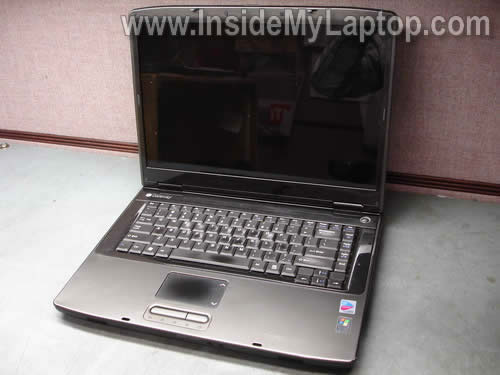
In this guide I explain how to disassemble a Gateway MX (Model #MA2A) series laptop. To be precise, I’m taking apart a Gateway MX6650 model.
The main purpose of this repair is replacing the base cover.
In my case a piece of the base assembly where the right hinge connected broke off.
Let’s go through the disassembly process step by step. Before you start, turn off the computer, disconnect the AC adapter and remove the battery.
STEP 1.
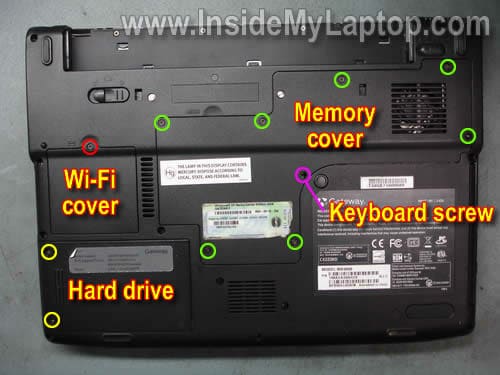
Remove two screws (yellow) securing the hard drive assembly.
Remove one screw (red) securing the wireless card cover.
Remove seven screws (green) securing the memory cover.
There is one screw on the bottom (pink) securing the keyboard. You can remove this screw now or in the step 8.
STEP 2.
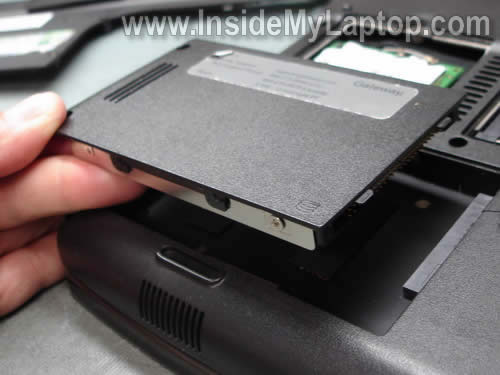
Slide the whole hard drive assembly to the left to disconnect it from the motherboard.
Lift up and remove the HDD assembly.
STEP 3.
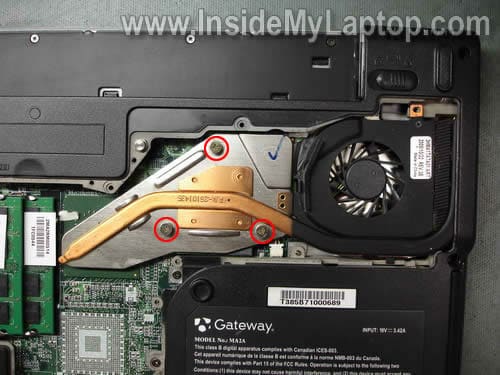
Loosen three screws securing the heat sink.
STEP 4.
Carefully lift up the heat sink assembly and disconnect the cooling fan cable from the motherboard.

STEP 5.
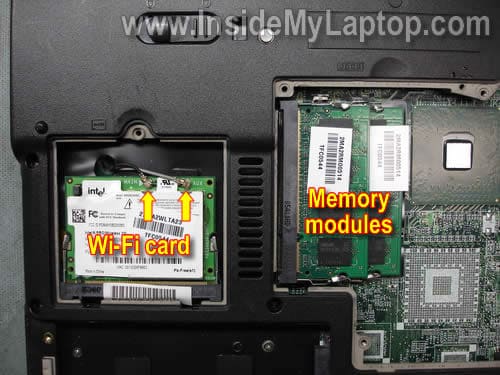
Remove both memory modules.
Disconnect two antenna cable from the wireless card.
STEP 6.
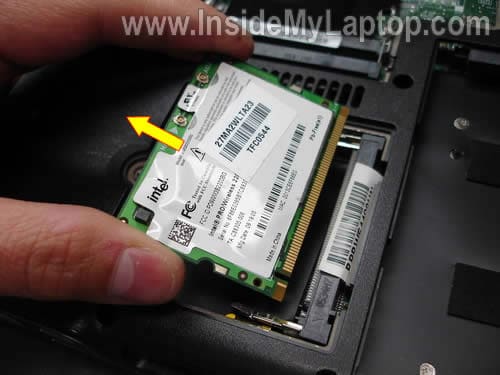
You remove the wireless card same way as the memory module.
Spread metal latches on both sides and when the wireless card pops up at a 30 degree angle, pull the wireless card from the slot.
STEP 7.
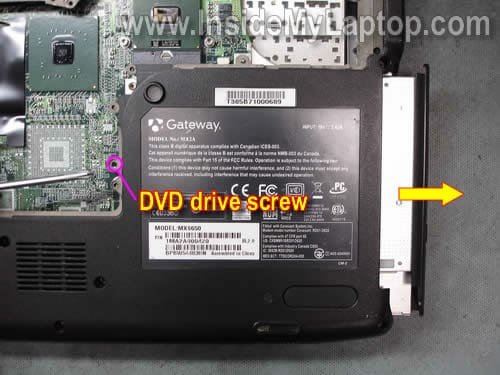
Remove one screw securing the CD/DVD optical drive.
Pull the CD/DVD drive to the right and remove it.
STEP 8.
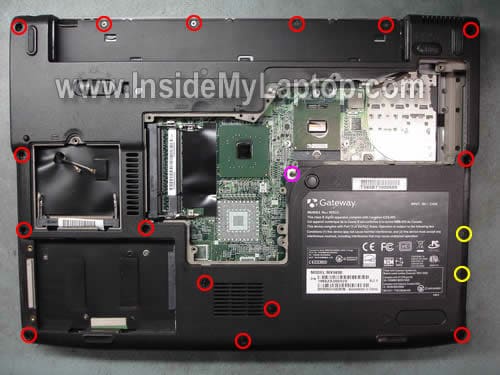
Remove all screws from the bottom of the laptop base.
Do not forget two screws (yellow) located in the CD/DVD drive compartment.
STEP 9.
Remove two screws from the back side of the power switch cover.
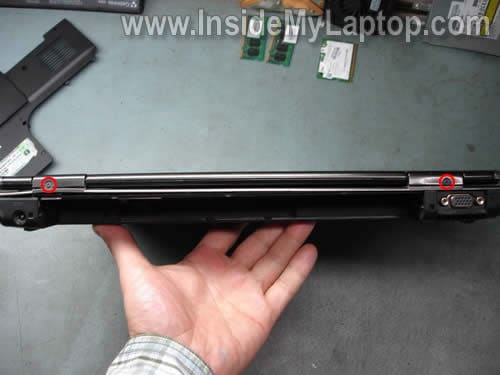
STEP 10.
Carefully lift up the power switch cover with a screwdriver.
Continue removing the cover with your fingers.
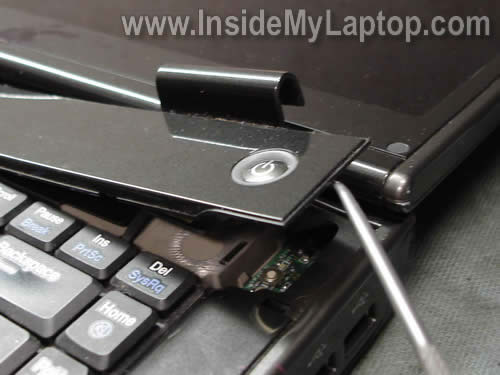
STEP 11.
The power switch cover has been removed.
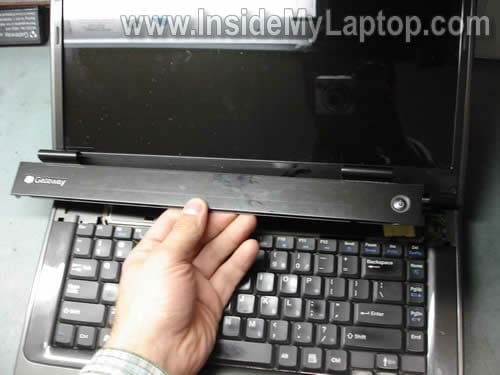
STEP 12.
Lift up the keyboard and place it upside down on the palm rest.

STEP 13.
Now you can unlock the keyboard cable connector.
After the connector is unlocked, you can pull the cable and remove the keyboard.

STEP 14.
Disconnect the LCD cable connector from the motherboard.
Pull the wireless card antenna cables through the opening in the top cover.
Remove four screws securing the display assembly hinges.
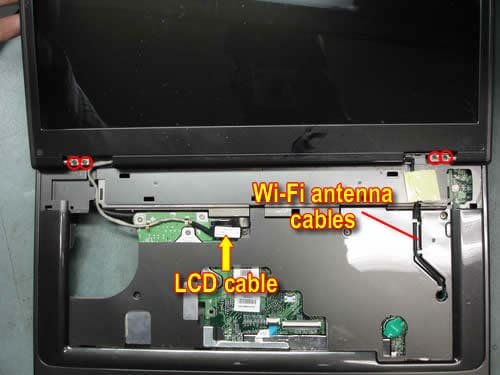
STEP 15.
Remove the display panel assembly from the laptop.
Here’s how to remove the screen.
It’s not necessary to separate the display assembly from the base in order to replace the screen.
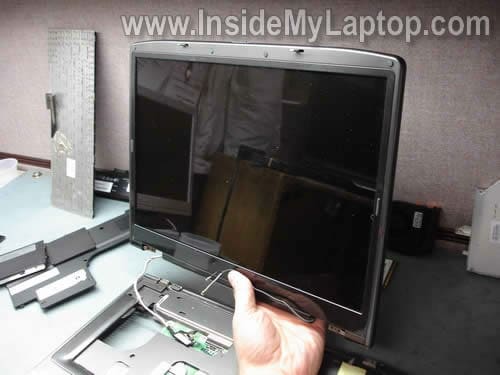
STEP 15.
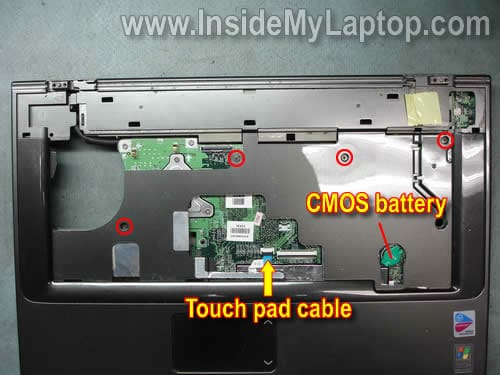
Remove four screws securing the top cover assembly.
Disconnect the touch pad cable from the motherboard.
The CMOS battery can be accessed and replaced in this step.
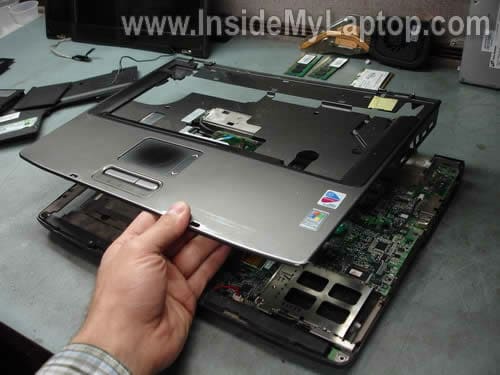
STEP 16.
Carefully lift up and remove the top cover assembly.
STEP 17.
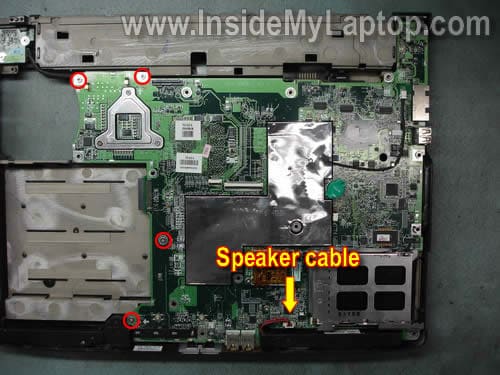
Disconnect the speaker cable from the motherboard.
Remove four screws securing the motherboard.
STEP 18.
Carefully lift up the motherboard and disconnect the VGA board cable from the other side.
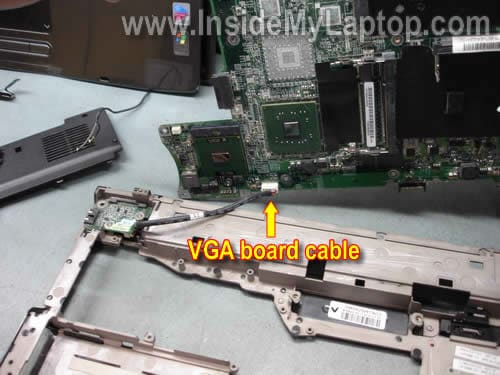
STEP 19.
There is nothing on this side of the motherboard except the CMOS battery.

STEP 20.
The processor (CPU) is located on the other side.
In order to remove the processor you have to unlock the socket.
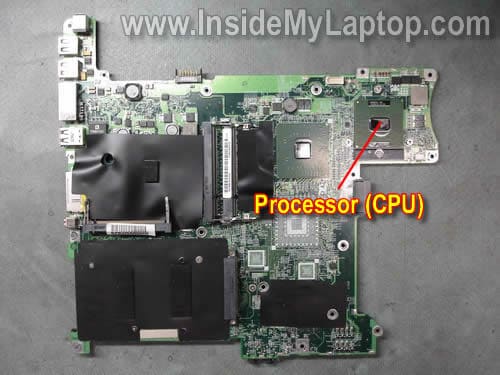
STEP 21.
Remove two screws securing the VGA board.
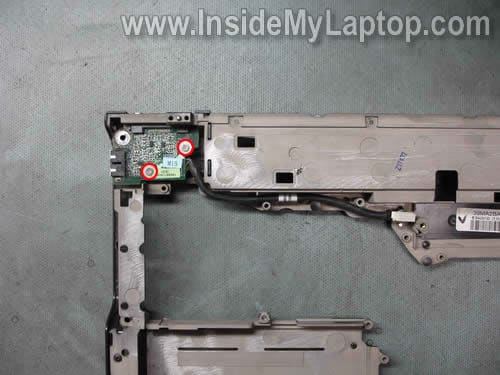
STEP 22.
Remove two hex studs securing the VGA board on the back side of the base.
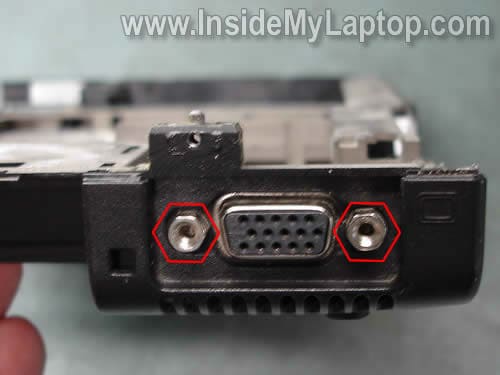
STEP 23.
Remove the VGA board.
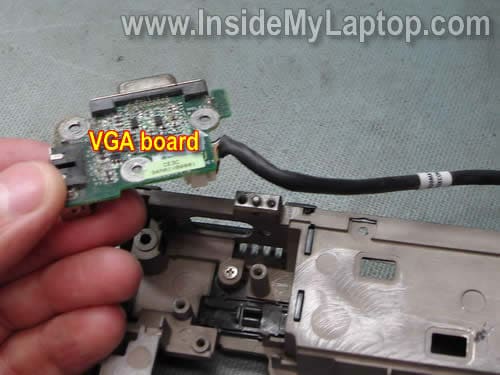
STEP 24.
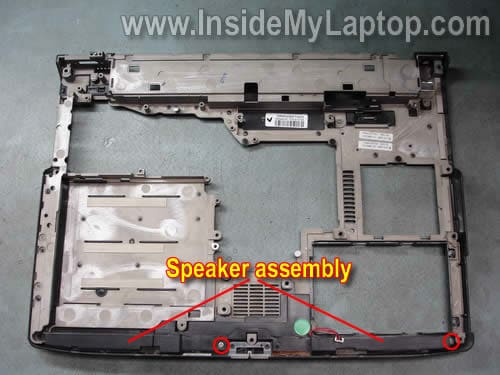
Finally, remove one screw securing the speaker cover assembly.
Remove the speaker cover assembly.
Now you can replace the damaged base cover with a new cover and assemble everything back together.
Sn3akyP3t3
The Gateway MA8 is almost exactly the same for location of screws and parts with deviation beginning at step 15. Great job and thanks!
Brad
Very similar to emachines E725. Thanks!
Michael
The back cover, at least, of the MX8711 is a bit different but this site was very helpful in preparing me to give the inside a light dusting/cleaning in order to prevent overheating. Thanks!
Bryan
Great step by step presentation. Don’t get any better than that.
Wanda
I have a Gateway MX3220b, the lights on the laptop comes on but the laptop doesnt start up. The fan inside doesn’t start up either. I have replaced the motherboard completely and still no joy. Is there any possible solutions for this problem?
Any advice would be greatly appreciated please
Thank you
IML Tech
Wanda,
You need three major components to start a laptop with video: motherboard (with video card), processor (CPU) and memory.
While troubleshooting the laptop, you have to minimize it as much as possible. Removed battery, dvd drive, hard drive, keyboard, modem, wireless card, etc….
Leave just motherboard (I assume the video card integrated into motherboard), CPU and memory. Try turning it on.
If replacing the motherboard didn’t help, most likely you have bad CPU or memory.
Did you try replacing memory? If you have two modules installed, try removing them one by one and test the laptop with each memory module separately. It’s very unlikely that both memory modules are bad.
If still nothing, probably it’s bad CPU, but… I cannot tell you what is wrong without testing the laptop.
Ethan
the problem might have something to do with how your computers getting power. If your laptop has a separate board for the dc jack you might have to replace that.
antoinette
So my VGA went out on my computer, so I followed your steps and took it out and replace it. Now that I have put it back together, my computer won’t even turn on at all. Any suggestions…
Lance
I have a gateway M-6843 that i need the power jack repaired. Should i try and use this as reference? it’s similar but not exact.
IML Tech
Lance,
I think all Gateway laptops kinda similar. Take a look at other Gateway laptops in this category: https://www.insidemylaptop.com/category/5-gateway-laptops/
Mark
MX6453 – nearly exact
StephenB
This is a good resource – this procedure is similar to an MX3225.
MelissaH
My gateway works perfectly till I load WOW, then the video crashes. This just started happening. It’s always worked fine with WOW before. The video is also crashing with other programs that have run fine before. I get a video error message then the whole thing crashes. I have a Gateway MX6128 with onboard video. I would appreciate any advice.
IML Tech
MelissaH,
Try reinstalling the video driver if you haven’t done it yet.
Try cleaning the cooling module. It’s possible your problem is heat related. It’s possible the cooling module is full of dust and the graphics card overheats.
Buy a can of compressed air and blow it into the fan grill on the bottom and side of the laptop. Cleaning the cooling module might fix the problem.
Alternatively, you can remove the fan cover and clean the cooling module.
Matt
MX6426 is very similar this article was very helpful
Jesse Taylor
I have a m-6888u, but this was very helpful. Thanks for putting this guide together.
Carlos
Thanks a lot for this guide, very very usefull for my gateway mx6216. I have an issue with the cooling fan. I don’t know how its works, but I try to explain the issue. I notice that when I turn on the mx6216 laptop the fan begins to work, but in about 3~4 seconds the fan turn off and remains off. This issue begins yesterday when I pull out the memory modules to put in another laptop for testing purpose. Then when I put it back the memory modules to my laptop and clean the area of the memory and fan with a compressed air can, the laptop turn on normally but the fan turn it off in 3~4 seconds. I change the memories carefully with an antistatic strip cable. How can I active back the cooling fan. The rare thing is that I turn on the laptop for 5 hrs with the fan not working and the laptop not shut down or freeze for overheating, simply not overheating. How can u explain that???
Please any comments, help , suggestion, repair, diagnostic will be appreciate. I don’t if this behavior of the cooling fan is normal in this laptop. is possible that when temp reach a specific number, the fan begins to work???Let me know if you know something about. Thanks a lot
-
mx8711
Pemacht
thank you very much this help me a lot!!!! 😀
OpticalDrive
These instructions work for a MX6920 too.
Dorothy
I realize most of these posts are from quite a few years ago but I recently had a friend with a MX3215 that seemed to have inverter issues. Of course I thought, 5.00 for an inverter, nothing to lose..ugh. He was going to use an external monitor anyway.
I ended up with an inverter that had bent pins or I bent them ( I was careful but one never knows. ) at the LCD cable end. In playing one too many times, a few of the small wires on the LCD cable broke..double ugh!
So then I thought OK I will order an inverter with cable – cheap – but then I realized that the cable attaches in a small area near the left hinge that looks like the whole top of the laptop would need to be separated to access.
I was wondering if you could verify as to how I would access that area.
IML Tech
@ Dorothy,
I think you are correct. In order to replace the display cable on a Gateway MX3215 laptop it’s necessary to remove the top cover assembly.
This laptop is a little bit different than one shown in my guide but the disassembly procedure should be pretty similar. You’ll have to remove the top cover as is shown in the step 16. After that you should be able to rout the display cable correctly.
Dorothy
Thanks. So I would have to do all #1 through 16 steps to get the top off?
Laptops are very complicated vs desktops ;=)
Thank you again
IML Tech
@ Dorothy,
You are correct. It’s necessary to go through steps 1 through 16. It’s possible your laptop will be a little bit different but general disassembly steps will be similar.
Dorothy
HI again. Well I got lucky. I kept looking at the replacement part and it made no sense I would have to disassemble the whole thing. It is different in that the small piece that I thought had the wires jack into it was actually a block that just lifted up from its board on the mx3215. Had I sent a picture, I am sure you would have told me that..ugh. access with just the power button cover removed and of course the bezel to get to the inverter. So no major work was required ..whew. I was not up to a total 16 steps as I was sure something else might go wrong. ( meaning I would break something! ;=) )
Thank you for making me think. I hope when the part arrives, it works. But no matter what, I just wanted the chance to know one way or the other.
Support
Thanks, was able to direct a customer to this page. It helped him solve an easy problem.
Michael Khan
Thank you very much, could not have repaired the unit without your detailed instructions. Thanks again!
Jose
Hi I Have a Gateway MX3225 – the internal wireless not working, so was using a belkin pc card with no problem until i replaced a keyboard (2nd replacement friends with coffee 🙂 it detects network fine but when trying to load browser it gives waring about 2 wireless devices and then does not connect
I was thinking about disconneting the non working wireless card will it boot ok without it – and would you reccomend that as a fix attempt – thanks great instructions here
Jose
well this was interesting – right after writing the message i decided to reboot the wireless modem (wife had no access to her ipad mini) when i did and she had access decided to reboot the gateway to see if it was a resource draw on the wifi and during boot it detected the external wifi as a new piece of hardware (on the mx3225) and then proceeded to work fine connecting to the internet (hope this makes sense)
hope this explanation makes sense – if so beginning to think problem was the external wifi device
not being recognized by the mx3225 (or maybe a mix of devices i have a old power pc, the mx3225 and an ipad mini on the wifi wireless and i remember in my research reading something about a mix of N and G devices)
well anyway it works – thanks for listening 🙂