

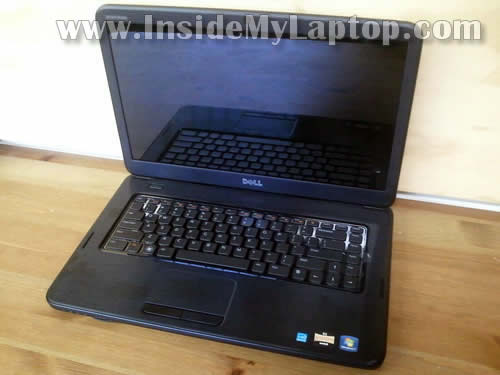
In this guide I will show how to disassemble a Dell Inspiron 15 M5040 or Inspiron 15 N5040 laptop.
There are no service covers on the bottom of this model.
In a Dell Inspiron M5040/N5040 all major internal components (such as memory, hard drive, DVD drive, wireless card) are mounted INSIDE the case.
Also, this guide will work for Inspiron 15-N5050/3520.
In order to access them it’s necessary to remove the top cover assembly.
I will go through the following disassembly steps:
STEP1-7: Disconnecting and removing the keyboard. Accessing both RAM modules.
STEP 8-13: Removing the top cover assembly. Removing the DVD drive. Accessing other internal components.
STEP 14: Disconnecting and removing the hard drive.
STEP 1.
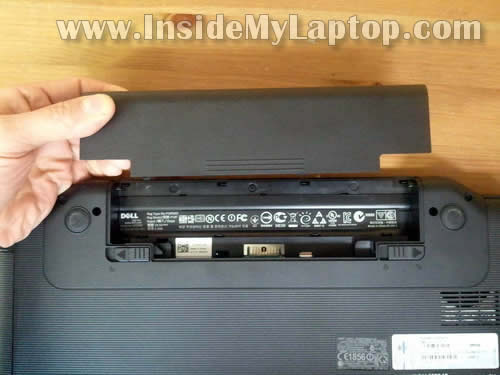
Make sure the computer is turned off. Remove the battery.
STEP 2.
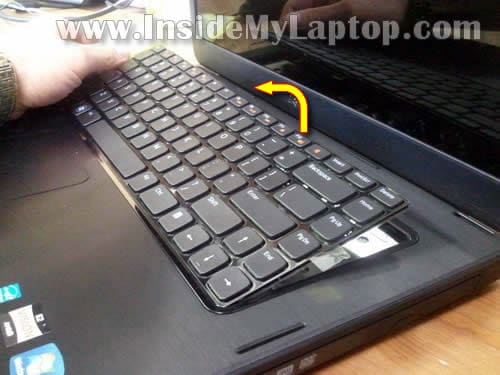
The keyboard is secured by four latches on the top.
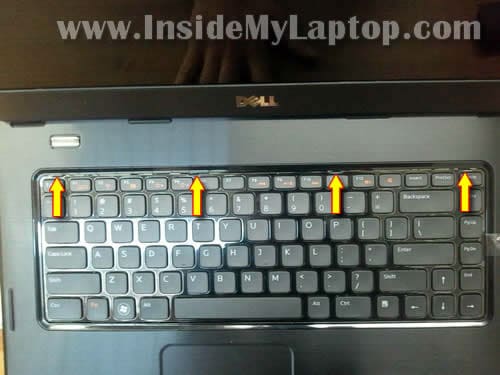
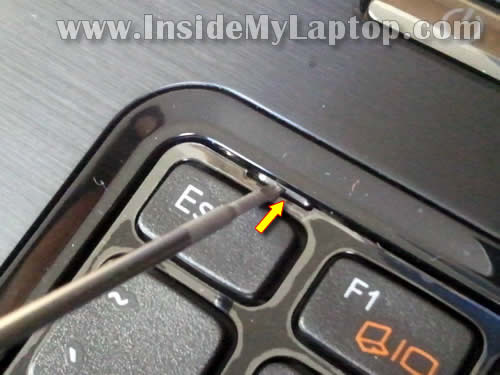
Push the latch into the case using a small flat head screwdriver.
At the same time lift up the keyboard a little bit so the latch doesn’t lock back again. Do the same with three remaining latches.
STEP 3.
After all latches are unlocked you should be able to lift up the top side of the keyboard and turn it upside down on the palm rest.
STEP 4.
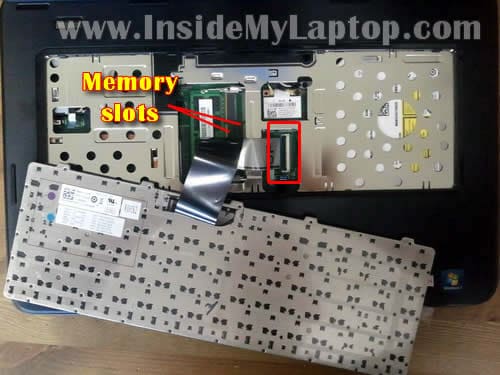
The keyboard connected to the motherboard via a flat ribbon cable.
It’s necessary to unlock the connector and release the cable before removing the keyboard.
By the way, both memory slots are located under the keyboard.
STEP 5.
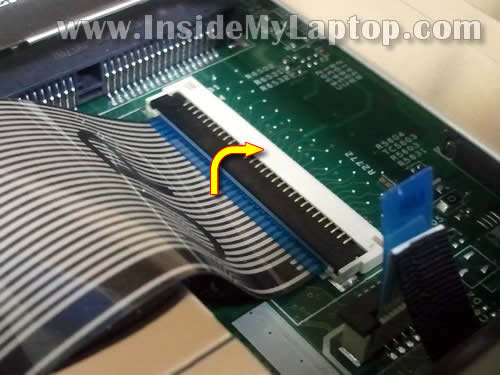
Here’s how to unlock the keyboard connector.
Carefully lift up one side of the locking tab with your fingernail. The locking tab will open up at a 90 degree angle.
STEP 6.
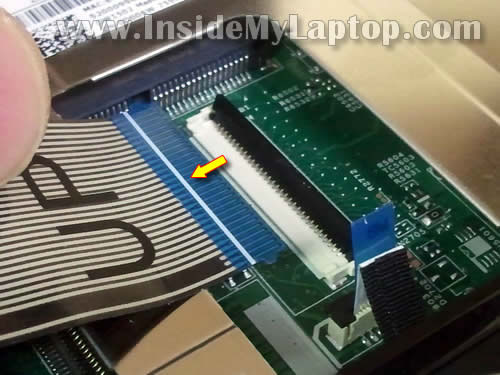
On the following picture the connector is shown in the unlocked position.
WARNING: the locking tab must stay connected to the white base.
Now you can pull the keyboard cable from the connector.
STEP 7.
Remove the keyboard.
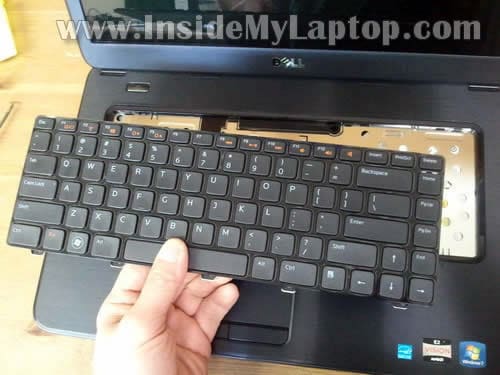
STEP 8.
Remove screws from the bottom.
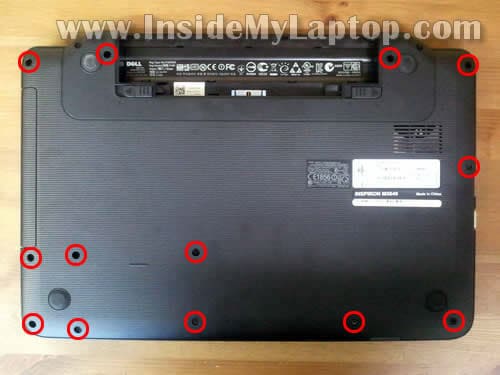
STEP 9.
Remove one screw securing the DVD drive.
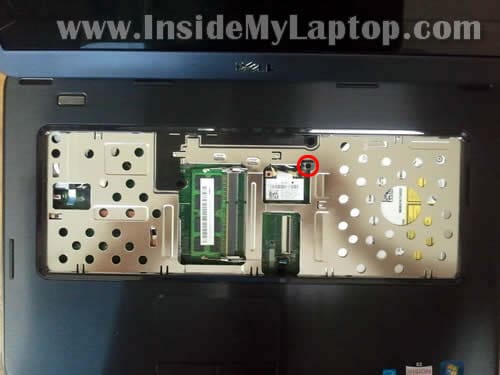
STEP 10.
Push the DVD drive from the laptop case using a screwdriver.
Pull DVD drive and remove it completely.
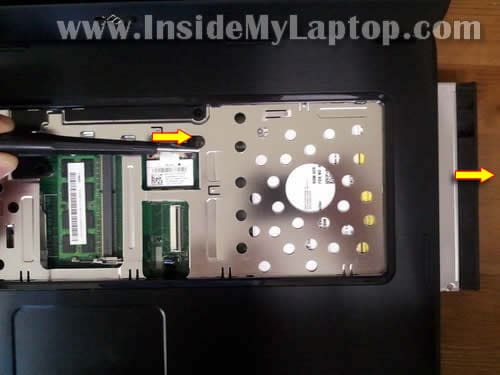
STEP 11.
Remove one screw securing the top cover assembly.
Disconnect the power button cable (left arrow).
Disconnect the touchpad cable (right arrow).
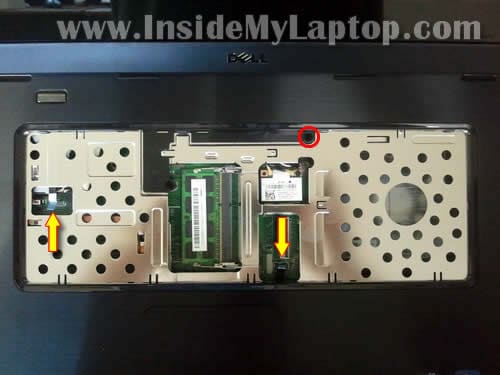
In the following two steps I explain how to unlock the power button and touchpad connectors.
Each connector has the locking tab (brown). Carefully slide the locking tab about 1-2 millimeters up, not more.
The locking tab must stay attached to the connector base.
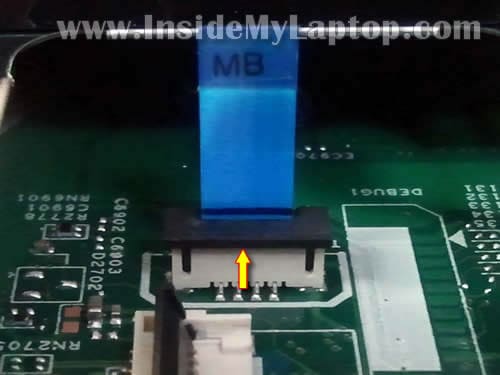
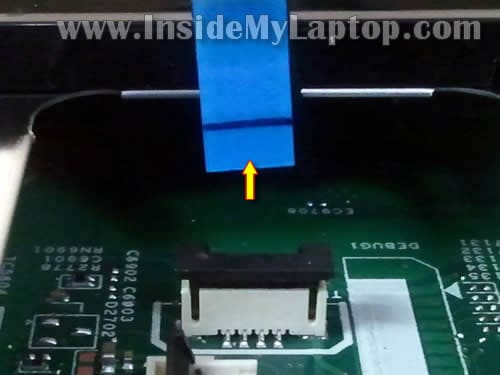
On the following picture you see the connector unlocked.
Now you can pull the cable from the connector.
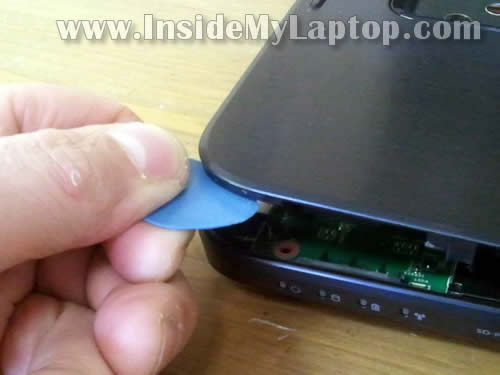
STEP 12.
Start separating the top cover assembly from the bottom case.
STEP 13.
Remove the top cover assembly.
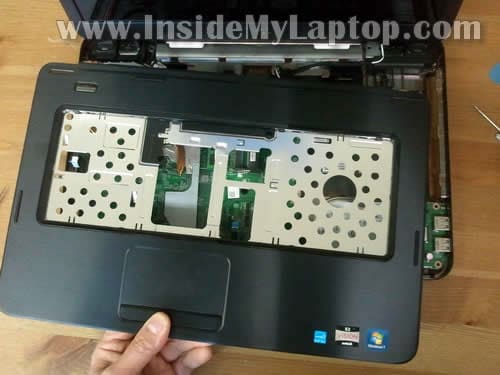
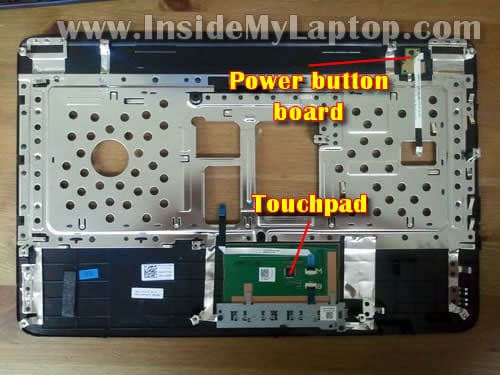
On the bottom side of the top cover you can access the power button board with cable and the touchpad with cable.
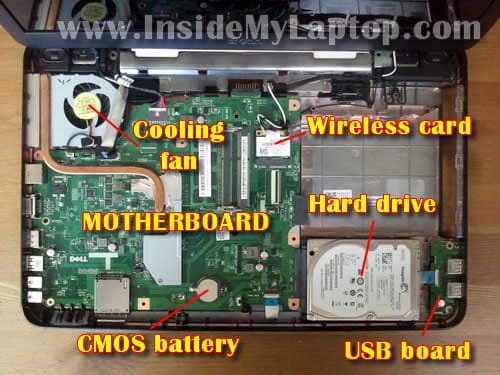
When the top cover removed you can get access to the following internal components:
– Cooling fan.
– Wireless card.
– Hard drive.
– CMOS battery.
– USB board.
– Motherboard.
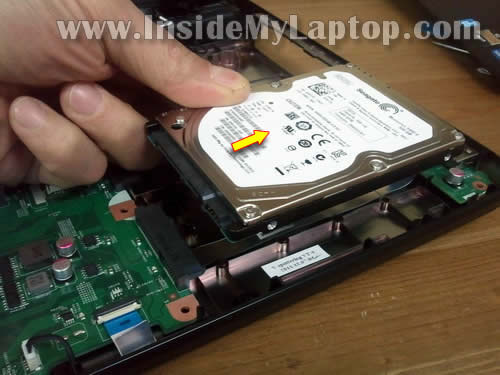
STEP 14.
In order to remove the hard drive slide it away from the motherboard.
After the hard drive is disconnected from the motherboard you should be able to remove it.
By the way, the hard drive was secured to the bottom case by two screws we removed in the step 8.
Dell Inspiron 15 M5040/N5040 laptop has a regular 2.5″ SATA hard drive installed. You can replace it with any other large capacity 2.5″ SATA hard drive or Solid State Drive.
swarup
thanku
schniggie
Can you say anything about replacing the display? i must repair a Inspirion N5040 for a friend, the display is broken, but the machine works fine.
IML Tech
@ schniggie,
Here are Dell Inspiron N5040/M5040/N5050 display disassembly instructions.
Bryce
This is a great step-by-step tutorial. But my processor has failed on the Dell inspiron n5040. I’m new to this computer stuff. How can I replace the processor? and were is it located?
IML Tech
@ Bryce,
The CPU socket should be located under the heatsink shown on the last picture in the step 13. It’s on the left side from the memory slot.
If it’s a regular CPU socket, you’ll have to turn the locking screw into the “OPEN” position. You can lift up and remove the CPU after that.
Cam
Thanks for making my day at work fly over. The user had managed to destroy the track pad buttons (Which are a terrible design flaw on this model) I was regretting the strip down due to the lack of screws on the back. After a quick read of your guide I had it done in 5 minutes.
I may have a different revision to the one you dismantled. In Step 11, I had to remove two screws that were securing the top cover assembly. The second screw was located to the left of the ram compartment.
Again, a million thanks for the guide.
– C
gabriel
hola me preguntaba si no tines una tarjeta madre para la dell inspiron 5040 y tambien si las tarjeta de la dell n5040 es igual ala m5040 xd salduos
LisaH
can you put up pictures and instructions of how to remove the heatsink?
Connor
where can i buy high rate processors. mine is the C-60 i want to know where you can buy ones like E-450 or something even more like E2-1800
Tesla
I am not getting any display on n5040, the power light stays on but no display at all. What could be the problem?
Kate
Is it possible to change my amd Processor to a better one? Sorry im kinda new at this.
ndawg76
Thanks for posting with detailed steps and pictures.
This was a big help taking apart a Inspiron N5040 and replacing the factory 2.5″ HDD with a 2.5″ Micron SSD.
PrinterMan
Thank you very much , God bless you
Marco
Thank you so much for this tutorial. Great step by step.
BOBKA
thanks fot the tutorial. Is the DVD drive 9.5 mm or 12.7 mm in height? I want to change it to the HDD case.
IML Tech
@ BOBKA,
I believe it’s 12.7mm drive.
9.5mm drives used mostly in ultrathin notebooks.
BOBKA
thanks. It’s really 12,7mm, I’ve already ordered an hdd case instead of the DVD drive and external USB case for the DVD.
Faltering five
When I replaced my memory to 8gig ram I accidentally unplugged the touch pad cable at the touchpad side so I had to take the top cover off like you showed. When I reattached the cable and put everything back together and started the PC the touchpad did not work! I took it all back apart and rechecked the connections they were all the right way you had them in your pics. I restarted and it still did not work. The touchpad icon is even missing from the tool bar. Any help would be great.
Jimmy
I am trying to put the screws back in the laptop. The problem is that when I was taking them out I did not notcie that some were shorter than others. So I am not sure where the short ones go and where the long ones go. Any help with this?
Thanks,
Jimmy
john
thanks for posting this, it was a big help.
one thing though; in step 9 the screw you have circled in red is for the wireless card. the correct screw is on the black plastic strip to the left of that, toward the bottom.
freddie
great help thank you
sebas
gracias!, me sirvio mucho!, sobre todo la parte de sacar la carcaza superior. Thanks!!
HubHikari
The two shorter back panel screws go above the hard drive on the Disk Drive side of the computer. The two holes look slightly different than the rest. they are right next to each other in a line parallel to the side of the laptop.
Video
I found this video more helpful!
Dan
just wanted to say thanks, this laptop design is stupid.
JoeCoolius
Thanks Bro!! Had to replace a power supply connector, went smooth thanks to this page!
Julix
it really helped me….TA
Arosh
Thanks……….
Ariya
What kind of CMOS battery is in a dell inspiron m5040?
Julio
Thanks!!! It’s really helpfull this guide
TamrahJO
Thank you very much – but wanted to let you know, I struggled some with step #13, because of the second screw still holding the cover from step #11, which is located to the lower left of the one screw highlighted by the red circle and almost directly right of the the left yellow arrow – – just thought I would mention it, if anyone else has problems. Thanks!
Chance R
I have a Dell Inspiron N5040. The headphone jack got busted up. I can sent you pictures for detail. My problem is that the jack doesnt work unless I hold the headphone cord in a certain spot. What I want to know is what the cheapest fix would be so that I can still listen to music/audio through headphones. It doesnt look like a simple fix to me. Is there a sound card I could add that would have audio out? Can I get it fixed by computer repair for a decent price? Can I fix it myself? What are your recomendations?
Elvis
many thanks – not sure i would have seen the 4 latches at the top of the keyboard, or the 2 recessed screws holding the top cover.
your diagram was spot on.
lippyrich
Thanks for the help. Looks like Dell went back to hard to fix designs like the very old Inspirons 5000 & 7000 from 20 years ago.
simba
I want to replace my power button.. Ryt from the mother board… Any instructions?
IML Tech
@ simba,
It’s not difficult to replace the power button on this laptop. After you remove the top cover assembly as it shown in the step 13 you can easily access the button board.
After that remove one screw securing the board and replace it with a new one.
CRC Dev
Hey this guide was really helpful. Thanks so much.
kris
Thank you so much for your guide, very helpful to not break anything which I’m known to do.
Wendy
I would like to remove my hard drive but I can’t seem to open up my laptop after I took all the screws away ???? Help
GrahamS
A very good tutorial. I wish more could be like this instead of the ‘OMG, look how clever I am’ videos on YouTube.
You should be a technician. Cheers.
Found the second screw by taking a step back and looking. No worries..
IML Tech
@ GrahamS,
I am a technician. 🙂
Naag
Thank you very much for this info, I was able to replace my cousin’s laptop harddrive with your help!
Keep up the good work!
DWalker
I had to remove three screws from the top, not just one, before I could remove the top cover. The other two are pretty close to the one circled in the picture, but the other two were not mentioned.
Kris Gilhespy
Used this as a guide to get to what I correctly suspected to be a loose connection to the screen.
Keep up the good work!ðŸ‘
techie
thank you for taking time putting this together! Cheers!
Colin Haworth
thank you for the guide.It helped me reseat the hard drive in my wife’s laptop and all working great now
Nikki
Very nice. I like taking things apart so it was nice having pictures telling me what’s what. My girlfriends power jack is a bit loose and it’s now saying it doesn’t recognize the AC adapter… I tried getting to it. Bottom panel started to come off… A bit tough. It didn’t wanna and since she told me not to do it I didn’t wanna break nothing in the process of doing it. Am I on the right track though? Take off the panel and just readjust the power thingy so it’s a snug fit once again?
Ian Harrison
Your explanation is exemplary and should make replacing the HD very simple. However the keyboard in my computer just refuses to lift up even with the tags pressed. It appears to have become stuck in the case in some way. Can you suggest a way of overcoming this? Would it be possible to remove the top of the case complete with keyboard from the bottom and access the connecting plug from the edge as it were so that the keyboard does not have to be removed? From a your pictures it does appear that the top cover only has the keyboard on it.
pedro
I have faulty dell n5050 mother board, how will i know the exact mother board to buy. Do i hv to check for the board number? if so hw
afuentes
you are the best, thanks a lot for share your knowledge. 100 points.
Zach Atkinson
Working on this laptop for a friend. I carefully removed the keyboard but when hooking it back up am only getting certain key presses. I have tried re-seating the cable several times to no avail. The locking mech. is still attached to the mobo, and the only thing I can think is the creases in the cable from when Dell installed it maybe screwed up the signal – but if that was the case wouldn’t the keyboard have been messed up before I removed it?
It was a real dick move by Dell to put the RAM under the keyboard and not in its own bay on the bottom of the machine, or at least somewhere more accessible then where it is. As is, I am probably now going to have to eat the $40+ shipping to get another keyboard, not knowing if that will even solve my issue. Any tips or comments on keyboards not acting correctly after being re-attached would be useful to me thanks!
bernard czech
excellent writeup + pics, went well. all i gotta learn is how to make a disc on my computer for the girlfriends N5040 that i replaced the hard drive. e-mail me your address for a thank you donation. thanks again bernie
Success
Thanks for the lesson… Pls how can i replace a damage vga
Yaba
Just super helpful
Foshenpoe Lira uganda
After seeing your presentation i took the courage to open up my n5040 which after booting wld say media test failure pxe HDD none kind of writing. i followed all the above steps and realized that the HDD installed was too short for the hdd space making the hdd to extract itself from the motherboard. i clip it back and it started working well. i put some plastic to compensiate for the empty space. congs for making me a technician.
Chris
The connector for my power button broke, so now my computer won’t turn on at all. What can i do?
Yaar
Sir
I have a problem with my laptop inspiron N5050.
Laptop shut down due to low battery.
After charge plug in I tried to turn it on.
All lights including indicator of capslock, on, charging. Led is black.
I checked device is on by a usb charging cable.
I have holded power button to turn off but it does not turn off laptop.
I tried removing batter and tries on power supply.
Laptop turn on itself after recieving power.
It does not produce any sound.
Fan is not running.
What is problem with it and how I can solve please help me.