

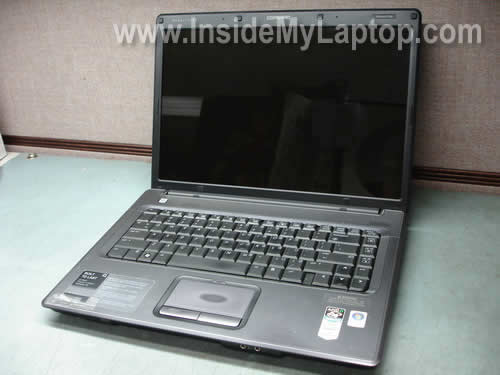
In this guide I explain how to disassemble a Compaq Presario F700 notebook. The guide might work for some other Compaq and HP models. I think the disassembly steps will be very similar for Compaq Presario F500 and HP G6000 notebook PC. If this guide works for your notebook, please mention the model name in the comments below.
In this particular guide I’m taking apart a Presario F730US notebook.
Before you start, turn off the laptop, unplug the power adapter and remove the battery.
COMPAQ PRESARIO F700 DISASSEMBLY GUIDE.
STEP 1.
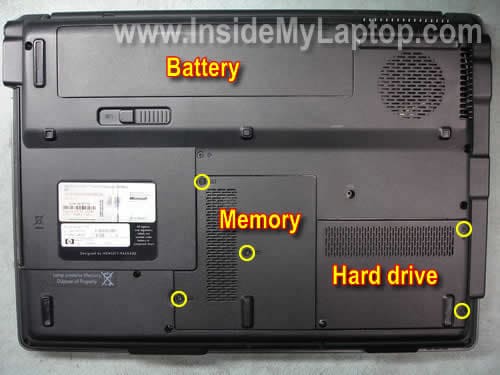
Remove three screws securing the memory cover and two screws securing the hard drive cover. Remove both covers.
STEP 2.
Lift up the right side of the hard drive by the plastic tab to disconnect it from the motherboard. Remove the hard drive.

STEP 3.
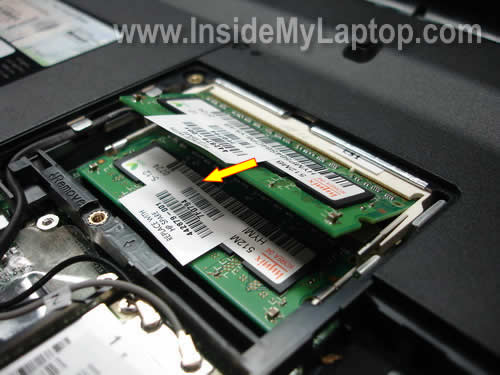
Remove both memory modules.
UPDATE (January, 2011):
Compaq Presario F700 specification says this laptop can support only 2GB RAM max (1GB per slot).
I just tested a Compaq Presario F700 (running Windows 7 Home Premium 32-bit OS) with two 2GB modules. I used Crucial DDR2 PC-6400 memory modules.
After I installed two 2GB modules the laptop started properly. In system properties I can see 3.19GB total RAM reported.
The BIOS shows all 4GB.
I think that 3.19GB is only limitation of a 32-bit OS. Most likely if you install a 64-bit OS, you can use all 4GB.
Were you able to upgrade your Presario F700 to 4GB? Please leave a comment.
STEP 4.
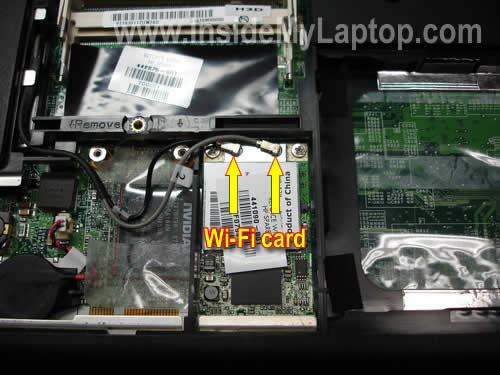
Disconnect both antenna cables from the wireless card. Remove two screws securing the wireless card in the top left and right corners. Pull the wireless card from the slot and remove it.
STEP 5.
Remove one screw securing the CD/DVD drive and pull the drive from the notebook. Remove the drive.

STEP 6.
Remove all marked screws from the bottom of the notebook.
Yellow screws securing the switch cover (keyboard cover).
Green screws securing the keyboard.
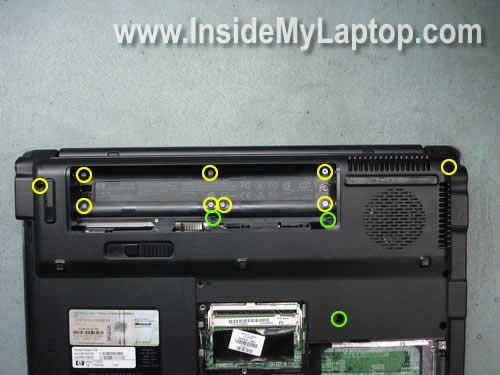
STEP 7.
Start lifting up the switch cover as it shown on the picture below. You’ll have to work with your fingers to disengage small plastic latches holding the switch cover.

Be careful, there is a thin ribbon cable running from the switch cover to the motherboard.

STEP 8.
Now you can lift up the top side of the keyboard and access the connector underneath the keyboard.

The keyboard cable connector is located above the touch pad. Before you pull the cable and remove the keyboard you have to unlock the connector.
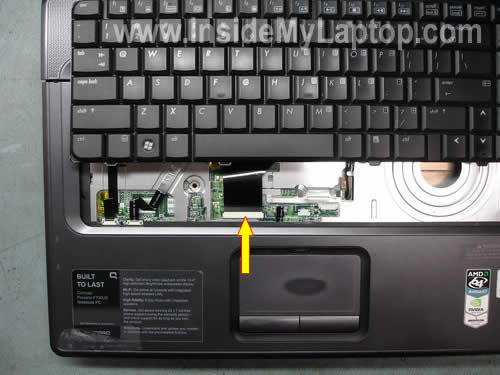
Move both sides of the locking tab about 1-2 millimeter up and release the keyboard cable. Now you can pull the cable and remove the keyboard.
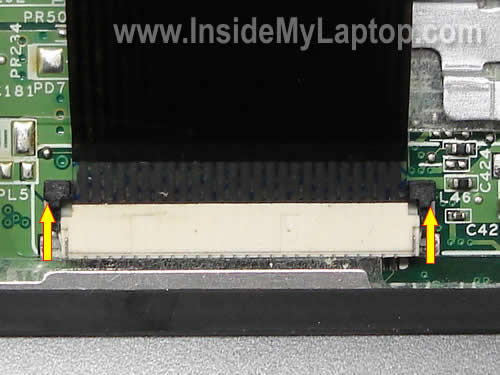
STEP 9.
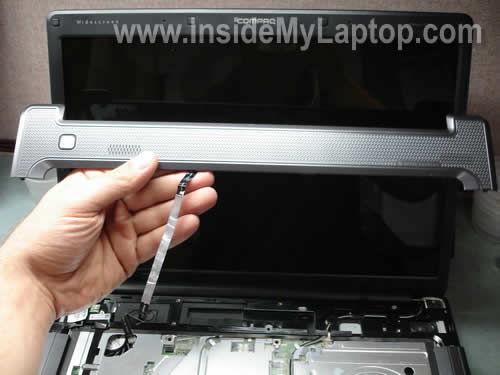
Disconnect the switch cover cable from the motherboard.
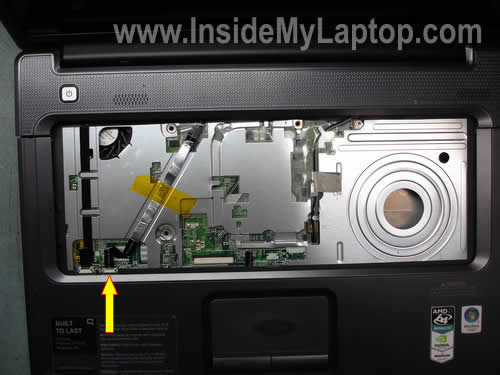
Remove the cover.
STEP 10.
Unplug the LCD cable from the motherboard.
Release the wireless card antenna cables. Pull them through a hole in the motherboard.
Remove four screws securing the display panel.

STEP 11.
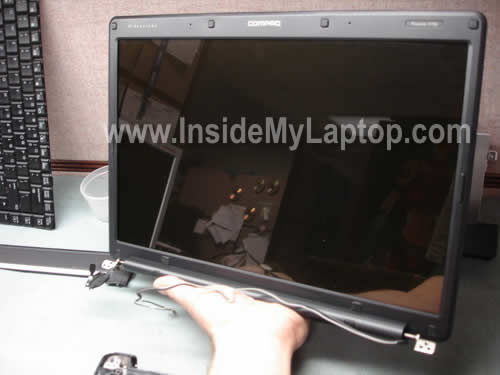
Lift up and remove the display panel assembly.
In the next guide I will explain how to access and remove the LCD screen with inverter board.
STEP 12.
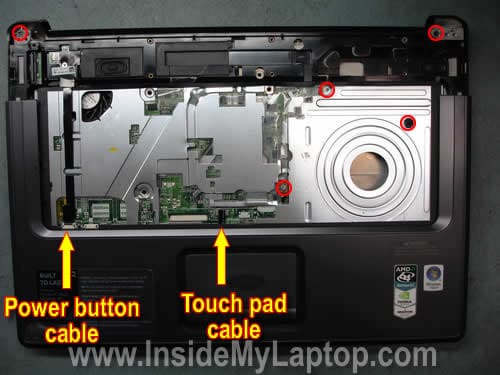
Remove four screws securing the top cover assembly.
Disconnect the power button board cable.
Disconnect the touch pad cable.
STEP 13.
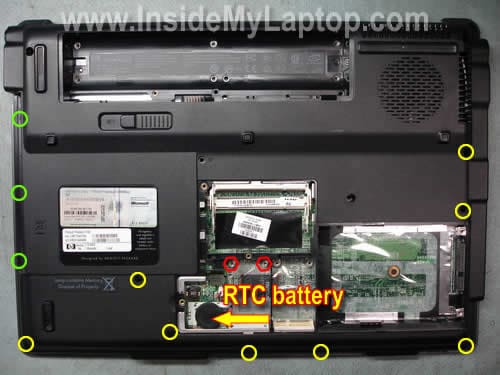
Remove all screws securing the top cover assembly from the bottom of the notebook. Do not forget three (green) screws in the CD/DVD drive bay.
Remove two hex studs located close to the memory slots.
By the way, the RTC (CMOS) battery can be accessed when you remove the memory cover.
STEP 14.
Start separating the top cover assembly from the bottom assembly. You’ll have to work with your fingers to disengage plastic latches securing the top cover.

Carefully lift up and remove the top cover assembly.

STEP 15.
Now I’m going to remove the motherboard.
Remove one screw securing the motherboard. In other Compaq/HP models there could be more then one screw securing the motherboard.

STEP 16.
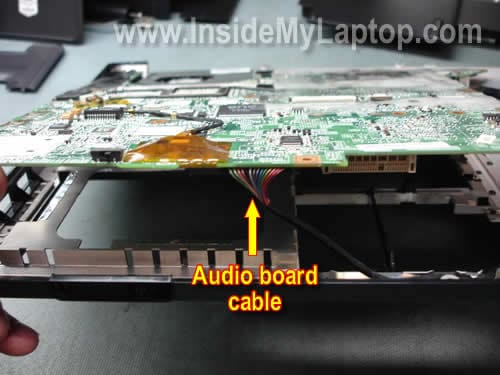
Lift up the right side of the motherboard as it shown on the picture below.

Before you remove the motherboard from the base assembly you have to disconnect the audio board cable.
STEP 17.
Remove the motherboard and turn it upside down. There are two more cables to disconnect.
These cables connect the motherboard to the USB/Power connector board.

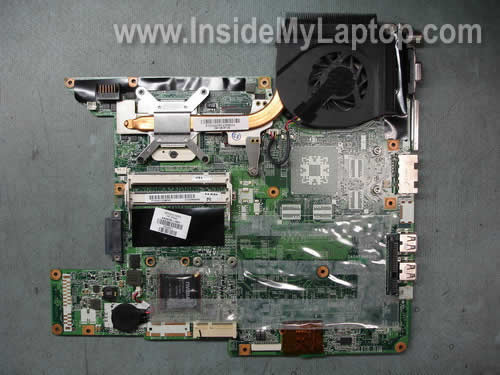
Finally, the motherboard is removed. As you see on the picture below, the audio board and USB/power connector board are secured to the base assembly.

The motherboard has been removed. Now you can access and replace the cooling fan if you have to.
You can access and replace the processor if you remove the heat sink.
Tuzilo
I can’t thank you enough! I stopped at the top cover assembly and couldn’t figure out why it wont separate. I was the the two hex studs that I didn’t notice. Simple things like that, how ironic is that.
Anonymous
i have a 750 that has problems .. so i have to open it up … since this is the first time i have attempted a repair on a notebook … i need a bit of help opening it up …. so i am very appreciative to you for posting this …. thank you
brown
thank you you make my live very simple with this
Dorian Miranda
works in v3617la
Pat
Great except missing the one thing I wanted: how to get that deuced cover off the battery compartment! Thanks anyway.
Zula
Thanks heaps! helped so much!~
mkb
Thanks for the instructions! This is a great resource for me. I repair PCs but hardly ever have to disassemble laptops (usually Windows OS probs). I’m going to bookmark this site for the future, you guys will be my first resource. Thanks again!
De Alwis
Very well and easy instructions. I do thank and appreciate your excellent work.
Cassandra
Thanks for the simple explanation on taking it apart. And you happened to pick the exact laptop I own. But, what about the fan and heatsink? These are what I need to replace on mine now I believe. Oh well I’ll just try and dig a bit deeper.
IML Tech
Cassandra,
In order to remove the cooling module you’ll have to remove the motherboard first. If you can remove the motherboard, replacing the heat sink with cooling fan shouldn’t be a problem.
Demetre
How do you take apart the LCD bezel to check the Inverter?
I have removed all the screws around but im afraid to pry it open for fear im prying in the wrong spot and will break it.
If you could send me instructions or publish photos i would appreciate it GREATLY
my LCD flickers when i open and close it. the screen does not turn off so i know its somthing to do with lamps.
Demetre
IM A MORON! Just went to your home page its like the second post you have on there from the top lol
Tom
need to know how to replace fan in compaq presario f700 thank you Tom
IML Tech
Tom,
1. Remove the motherboard.
2. Remove the cooling assembly (heat sink and fan).
3. Unscrew the bad fan and replace it with a new one.
I believe you can use this part number to search for a new fan/heat sink assembly: 449961-001
Tom
Thank You Thank You.
E Muzac
Wow Verry Happy Khanks
Levi
I have the f500 and it was exactly the same as this
thank you very much for posting this
Josh
Hope somebody can help me out with this, I have this exact laptop & when i try to turn it on all it does it show ( by power light only ) that it is trying to turn on & then shuts off. Just keeps repeating that step & never even turns the screen on. Anybody know where i should start to find the problem?
Thank you …
De Alwis
I do very appreciate and thank for the easy steps to disassemble the Compaq Presario F500.
It is possible show us how to make them back together step by step with out any problems.
Also I wish to know what is the problem of my Laptop F500 (GG199 PA#ABG) that it is sometime on and sometime does not start t all, sometime comes to bios check and disappear suddenly. If you can help me greatly appreciate.
IML Tech
De Alwis,
Instead of reading the guide from Step 1 to Step 17, do it backwards. Go from Step 17 to Step 1.
Randy
Thanks so much! I have built many desktops but never had a laptop apart and was stumped at how to get it apart.
Jamal
I was wondering if you knew a little about the problem Josh commented on. I’ve got the same model as the computer in your picture and it just won’t load. I’ll press the power button and the lights will turn on, the screen will flicker, and the fan will start turning, but after 5 seconds or so, it’ll just shut off. Then it’ll try to turn on by itself, but the same thing happens. Is there something I can do to fix this?
rc
I have this laptop & a month after my warranty expired, it started having trouble recognizing that it was plugged in (2 days ago. LOVELY!). I have to fiddle around with the connection for it to start charging. I’ve found the usb/power connector board online for $50. is it as simple as tearing it down per your directions, unplugging the old one & plugging in the new one? geeksquad told me it’s not worth the repair because the motherboard would need replacing, but the part I found & your pics make it appear to be a simple unplug-replug….no soldering.
THANKS!
IML Tech
rc,
Yes, if your problem is related to the power jack failure. You disassemble the laptop, remove the failed USB/power connector board and replace it with a new one.
Before you do that, make sure it’s not the power adapter failure. You can test adapter with a multimeter.
Mrs. L.
This tutorial is brilliant. However, I am not.
I am having the identical problem with the Compaq presario F700 as described by Josh and Jamal. Did either one of you figure out how to fix it? I had a friend suggest it might be a fuse on the motherboard? Like you, I don’t want to dump a ton of cash at geek squad as they will tell you the motherboard is deceased. However, I want to fix rather than buy a new one given the current economy and the relative newness of the machine. Any and all help will be appreciated. Thanks a million!
Geoff
rc, I’ve got this f730us laptop, same problem you describe and as I’ve found numerous other places on the web. It’s been collecting dust for months and I’ve tried all sorts of attempts to solve it and wondering if I should replace the motherboard.
I don’t suspect the power board is the culprit (HP is the dirty culprit, really) but please post any findings here; I’ll do likewise.
Tim
I have a F500 (just out of warranty). When the AC adapter cable is plugged in the lights are on as they should be. However, when you press the power button, the blue light on the power button comes on for 2 seconds and then goes out. Nothing else happens -no fans spinning no disc spinning -nothing. ANy ideas on what might be causing this? I’m thinking of replacing the fanto see if that does anything. Should it start even if the fan is faulty/stuck? I’ll post here if I get it working!
John
Works on F572US Thanks!!
Kevin Hyatt
I’d like to know where the graphics chip and the cpu are, and maybe some details on possibly upgrading. I know laptops aren’t normally meant to be upgraded but I’d still like to take a whack at it.
crazyone
this worked great on a F750us. had to take it apart for a power plug replacement. found the 2 screws i wasnt noticing before becuase of this. thansk alot for posting such a great blog
nick
Were can I get the mother board for the lowest price?
Nick
Bob
I had a HP laptop DV6607rs, it had starting problem and then it was repeating on/off cycle itself. I managed to solve that problem by putting RAM in to a single slot instead of both the slots. check for both the slot one by one.
Hope this should work on Compaq too.
Todd
I bumped the top of my LCD display by accident a couble of weeks ago. at first the screen started fading in and out but it still work for about a week. After that then the screen just wouldnt turn on and i havent gotten and desk top monitor to work with it either.
saravan
i am first time see in the web site very intresting
Burhanudin Suhaimin
Your website is very interesting..i want to know, my laptop is compaq presario F700. Currently, my computer cannot be started when i push on/off button. The light of the on/off button only appear for 3 seconds and after that turning off again.
Could you tell me how to repair this problem?
IML Tech
Burhanudin Suhaimin,
1. Test the AC power adapter. Make sure the adapter outputs correct voltage. It’s possible that your adapter is dead and the battery doesn’t have enough charge to start the laptop. Replace the adapter if needed.
2. Could be memory related problem. Try reconnecting memory modules. Remove them one by one if you have two modules installed. Test the laptop with each memory module separately.
If it’s not AC adapter or memory, most likely you have a problem with the motherboard.
Ryan
Burhanudin,
Try taking your battery out and starting the laptop with just the ac cord plugged in, if it works, then your battery needs to be replaced.
Tyler
Hi I REALLY need your help, how did you release the ZIF connector that has a cable going to the power button board?
It’s the one in step 12. did you just pull the cable out, or is there a latch that’s hard to get open?
Thank you so much if you can help.
I have looked everywhere.
IML Tech
Tyler,
I don’t remember this model of the top of my head. If this connector doesn’t have the locking clip (like keyboard connector has) you simply pull the cable from the connector.
Tyler
Okay, although i did do that, now i have a replacement cable, and when i try to push it back in, its going to bend the pins on the end of the cable….
Bre
Hi,
i have the model laptop and i was wondering if someone can help me fixing sound problem.
i rarely have sound on my laptop. is that a hardware problem or software problem.
i think if that was a hardware i wont have sound at all.
in the notification area there is red cross over the sound icon. No audio output device is installed.
may someone help me please
IML Tech
Bre,
It’s hard to tell if your problem is hardware or software related.
Back up all personal files and reimage the hard drive from the recovery disc. Running the recovery disc will reinstall everything back to factory defaults.
If you still missing sound even after running the recovery disc, it’s definitely a hardware related problem.
Terris
Hi, my compaq presario F700 has some trouble with powering up, When I press the power button, the blue light comes on. And you can hear the ‘breathy fanny’ noise it usually makes when it turns on. But the blue light just stays on, the screen doesn’t go to the compaq logo an the boot up screen. It just stays where it is -just a black screen-. Even if i turn it off and turn it back on its the same way. Or if i wait for even half an hour it doesn nothing. Did the screen burn out? or it overheated or what?
Jesus
My CD/DVD drive doesn’t work. I have the Compaq f700. I did a system restore thinking that was it and that a virus messed it up but when I go to my computer it doesn’t show my CD/DVD drive. When I go to burn a CD it says, “Connect Burner And Try Again.” I didn’t drop it or anything so why is it saying that I don’t have a CD/DVD drive? Can someone help me? This also didn’t tell me how to just get to the CD/DVD drive. I don’t want to take the whole thing apart, just the CD driver part to see if the cable came lose or something.
Jesus
Oh yeah, my email is jesusangeles01 @ yahoo . com if someone can help me with my CD/DVD drive issue.
Tyler
okay, my laptops video card, temp will not go below 68c, while playing GTA San Andreas, it gets up to 94c. i need to know the location of it, so i can buy a cooling pad with a fan that will blow right where it is located.
Thanks
Gerard
I’m having a big issue with this laptop, my dvdrw unit suddenly disappeared from the bios, and the dvdrw is working just fine, i tested with another laptop and i was able to burn discs so… many people told me in hp forums that probably the dvdrw connector has a problem, but when i turn on the laptop, the unit turns on but its not recognized by the bios.
Any of you has this issue please help!!!!!
IML Tech
Gerard,
If the DVD drive is connected directly to the motherboard, most likely you have a problem with the motherboard. Apparently fired IDE channel.
There is not much you can do besides replacing the motherboard or using an external USB DVD drive.
Tami
I have a Compaq Presario CQ50-139 WM. It has a similar set up to this laptop. I am replacing the LCD screen, but I am having trouble removing the keyboard from the laptop. I don’t want to take the whole laptop apart. What do you suggest, and how do I do it?
IML Tech
Tami,
I think you can replace the LCD screen without removing the keyboard. Try removing the screen bezel without separating the display panel. Take a look at the service and maintenance guide for Presario CQ-50.
To to “Removal and replacement procedures” – “Component replacement procedures” – “Display assembly”. The screen bezel removal instructions are on the page 59.
zero
IM HAVING THE SAME PROBLEM AS A LOT OF YOU ARE… my dvd drive won’t recognize any type of disks… It was working fine until a couple weeks ago… ????? (i havent dropped it)
HAVE ANY OF YOU FIGURED IT OUT??? plz help..
-zero
IML Tech
zero,
Can you see DVD drive icon in My Computer?
Can you see DVD drive in the device manager?
Can you boot from a bootable CD/DVD (recovery disc, Windows installation CD, live Linux CD, etc…)?
Dan
Thanks, man, worked like a charm!
nate
I have the f700 and noticed that bottom was hot when I used laptop and power cable was attached. Slowly the battery began to die and now its dead so I have to use the cable always. Now it is beginning to lock up. Sometimes it boots and works for awhile but eventually locks up. I suspect the heat is involved. Is it worthwhile to check processor to see if heatsink is seated properly? Perhaps add some silver stuff (can’t remember what its called) between processor and heat sink? Then a new battery. Thoughts? Ideas?
IML Tech
nate,
Take a look inside the heat sink assembly. It’s possible that the heat sink is clogged with dust and the laptop overheats because of that. You can blow off dust with compressed air. Clean the heat sink and test the laptop again.
Why? Did you drop the laptop? If not, most likely the heat sink is seated as it should be.
It’s called thermal grease or thermal compound. Your laptop is not too old and most likely thermal grease is still in good shape.
By the way, listen for the cooling fan. Does it spin at all? Maybe the fan is dead?
TheAlien
The wifi on my notebook quit working (hardware) and a couple weeks later it doesn’t turn on anymore.
Powersupply is providing power (tested with a voltmeter). The blue power button LED turns on for about 2 sec when pushed, and then it turns off again. Switched RAM, took out HDD, DVD, WIFI module, resetted bios (took out the battery) no change.
Bill
My daughters Compaq Presario c502us has the same problem as post # 35. Her husband had ordered a replacement battery and also a power supply and still the same problem. [they did say that when they inserted the new battery the computer started up for about 30 min but was not operating properly and then shut down again.This would make you think that the new battery had some charge in it and eventually ran down which would make you think that there is a problem in the cir that allows the power supply to furnish power to the computer and also charge the battery. I have checked the voltage output of power supply and it is 18.7 vdc right up to the terminal block behind the battery? I would like to check the battery voltage but I am not sure which of the 6 little knife blade connections is which? I have tried to remove the case on the bottom and I have removed the wireless card, the hard drive, the battery and everything I can find, but there is still something holding it together in the area of the fan? I have looked at the F-700 diss/ass guide and even though some things are the same it is not exactly. The whole back is loose except for the area around one corner of the fan which seems to be held with a screw from above possibly under the key board? I was an et in the navy and have worked on “stuff” my whole life but this has about stumped me. Any suggestions sure would be appreciated.
Bill
Just an update on my previous post regarding problems with my daughters Compaq Presario c502us, I finally was able to fully remove the back, [2 screws under the keyboard] I still was unable to determine why it will not start up with a working power supply? The only indication I get when I plug in the power supply is a little flashing light on the left front of the case [right below the lid] and when I pust the power button a little flashing light right in the middle of the button for a few seconds but nothing else? I found that the cooling fan was full of lint and etc. Does the power supply go straight to the battery/computer, or does it go thru the mother board or? and it controls the charge of the battery and etc? Again, thanks in advance for any info.
Cameron
I think im having the same or similar problem as Terris. When i attempt to power on my laptop the blue power light comes on, i can hear the fan and hard drive attempt to start up. Then it goes quiet, remains that way with the blue light still on for about 10 seconds, then powers down on its own. It then attempts to power on again and repeats this process over and over again if left alone. Ive tried manually restarting it many times but it has no affect. My online research thus far has been completly unhelpful with possible causes ranging from the mother board, to the hard drive, to the battery. (I tried pluggin it in and starting it without the battery but still same result, so i dont think its the battery).
IML Tech
Cameron,
This is not related to the battery or hard drive, that’s for sure.
1. It’s not likely but possible that one of the memory modules is bad. Try removing memory one by one and test the laptop with each module separately. This way you can find which one is causing the problem.
2. Most likely (I would say 95%) you have the motherboard failure. You’ll have to replace the motherboard.
Cameron
o and apparently the same problem as Josh, Jamal, and Mrs.L!!!!!!!!! Help us tech dude!!!! 🙁 🙁 🙁
TheAlien
Great, I ordered a new mainboard. I didn’t realize that it was coming from china when I ordered. I mean it’s okay, it was shipped to my door in less than 7 days and it was pretty cheap. I installed it and it seems to work (windows runs) . But it has the wrong Bios on it. It doesn’t recognize my CPU, WiFi module and some keys are not working. So I belive that this mainboard has a ‘chineese’ or whatever version of the Bios on it. (it is exactly the same mainboard as the original (same product, serial and HP replacement number)). So I downloaded the bios from the compaq website. But not matter what I try, it wont flash because the stupid flash program thinks it is the wrong bios file for the wrong PC (recognizes the wrong bios on the board and wants to flash the same crap only on it). But it’s not.
I don’t know how to use the swinflash.exe in vista to force it to flash. ANOYING ! And I cannot find a dos flasher that runs of from an USB stick…
I am so close to get this notebook running again…
GW
These instructions worked for my Compaq Presario V6000 model.
Bill
I was just about ready to tell my daughter that we probably ought to purchase a new motherboard for her Compaq Presario C502US when I read comment 61 from the “Alien” , so now I am not so sure? I have purchased a few things from Tiger Direct and they were fine and were reasonably priced, but I have not checked to see if they sell motherboards for this laptop. Any suggestions where I might get a good deal on a motherboard that would work right out of the box would be appreciated.
IML Tech
Bill,
Find the motherboard part number (probably on a sticker in the memory compartment) and google it.
Find the seller with good return and exchange policy.
Engr. Adekunle Olanrewaju
Really appreciate ur efforts.
All these manuals really assist me in my training and repairs.
more grace to ur elbows.
SOL
Alien, good luck with that fix. Sounds like it’s do or die.
Bill
Per your response to my comment #65
I removed the memory from the mother board of my Compaq Presario C502US looking for the “Motherboard” part number and I found a lot of barcodes and numbers on one sticker.
The bigger sticker had these numbers.
2064704701066
1 of 2
1BL30LA2 [in bold letters]
46145932L02
CT:OU003F21UU6YMH [also in bold]
The smaller sticker had these numbers
SPS441696
Date code 7J0724
Are any of these the motherboard part numbers or should I look somewhere else?
Thanks
Bill
IML Tech
Bill,
SPS:441696 is the part number.
Google 441696 or look up the same number on eBay.
Zig90tsi
I’ve been working on a Compaq f700 that also has a power issue, but this one is different. The laptop has not been charging the battery, but it would run off the AC adapter. The owner stated that it would “shut down” on him while he was using it. I have not been able to reinact that symptom(I don’t think he understands that it hibernates, because if you let it sit, it shuts the screen off), but I have discovered another symptom. First thing that happened was the plug on the AC adapter came apart, the wire was weak and worn out and the plug was pretty much dangling. After I unplugged it a few times trying to diagnose it, the plug just came apart. I thought I had figured it out, but replacing the AC adapter doesn’t seem to help. The laptop will run, but the battery never charged. According to Vista, the battery was charging, but the percentage would never go above zero. My first instinct now was that the battery must be dead, but I was wrong again. A new battery changed nothing. At this point, having the battery in it is almost worse than not having it. With the battery in, the laptop will never shut down, it only goes to hibernate because its trying to charge the battery, which never happens. I noticed that the HP battery checker was not working either, so I reinstalled that from the utility and now Battery Checker will open, but lists an “invalid battery” for both the batteries I have for it. As soon as I take the battery out, the laptop works like it should. If it were my laptop, I wouldn’t care because I never take mine anywhere. I feel terrible that I already ordered a battery that didn’t fix the problem, and now its still not fixed. Is it possible that the power board needs to be replaced? The laptop still works, so I figured if that was the case, the laptop would not work at all. Any ideas?
IML Tech
Zig90tsi,
New AC adapter, new battery and still same issue? Man, sounds like a problem with the motherboard. Apparently the battery charging circuit is not working properly anymore. That would be my best guess. Of course, I assume your new power adapter and battery are good.
Check the BIOS update. I know that on some Toshiba laptops had a similar problem and Toshiba fixed it with the BIOS update.
Here’s something else you can try. Remove the battery, start the laptop from AC and then insert the battery while the laptop is on. It might shock the motherboard and the battery will start charging.
I’m typing on a laptop with a similar problem right now (Satellite X205). I know it needs a new motherboard, but works absolutely fine from AC with the battery removed. There is no way I’m replacing the motherboard in this thing.
I really doubt that replacing the power board will make any difference. I think it’s just a board where the DC jack is mounted.
You shouldn’t. Without any test equipment I would do exactly the same. But when I’m not sure what the problem is, I always mention all possible needed parts upfront.
Just talk to the customer, explain what’s going on. If he’s going to approve a new motherboard, make sure to include the power board price into your quote for a new motherboard. I would.
gregk
For F700 series ( I have the F730US):
When it crashes and the screen won’t come on, unplug, remove all memory, remove hard drive, remove battery, hit the start button for a few seconds, plug lapttop to electricity, 3 beeps will sound, unplug, press start button, installl memory, plug to electricity, start laptop, screen comes on with message no hard drive, shut down, unplug , press start button for a few seconds, install hard drive, plug to power, start computer, all should be normal, maybe for a few minutes, maybe for hours or days…
Mark
Your site helped me replace the cooling fan in my F700 a few months ago. I’m having another problem with it now that I’d appreciate your opinion on: The WiFi switch on the front of the laptop has broken (switch just slides easily as if it’s not connected to anything), naturally in the “off” position and I can no longer use the WiFi. I think I can probably find a new switch and replace it without too much trouble, but wondered if there might be a “work-around” or some other way to just bypass the thing. I don’t need that switch and would be happier without it, anyway. Thanks so much for your great site and the help! Mark
IML Tech
Mark,
I don’t remember this model off the top of my head, but basing on your description I assume it’s a physical switch.
Is it an easy repair? Most likely not. The wireless switch is soldered to the motherboard and I think the plastic knob on the switch is broken and stays in off position.
Here’s what you can try to do. Disassemble the laptop and access the wireless switch. Move the knob on the wireless switch (actually whatever left from it) into the on position with a needle. This will enable wireless connection and it will be on all the time.
You can always turn it off through software.
Mark
Thanks a lot for the reply. It is a mechanical switch, and it must be attached to the motherboard as I don’t remember disconnecting it when I had the motherboard out to replace the fan. I was hoping I could just disable it through the wireless settings in the control panel, but the computer doesn’t even realize that it has any wireless capability at all with the switch turned off. I’ve never had more problems with a computer than I’ve had with this Compaq. Oh well, at least it’s probably easier to take apart the second time! Thanks again, Mark
Clay
I have a compac presario F700 lap top. The USB ports have stopped working after my girl unplugged her Ipod without logging it out! Is there a board or chip or something that I can buy and replace? I’ve tried new bios and new software with no luck. USB is not found! Printer not found! etc.! I was woundering about this USB power board that is shown in your lesson on taking my lap top apart!
IML Tech
Clay,
If ALL USB ports stopped working at the same time, it’s either corrupted software or motherboard problem. You said new software didn’t fix it, so, it looks like the motherboard problem.
I believe only one USB port is located on that board. There are two more ports on the left side of the notebook, correct. If those ports stopped working too, replacing the USB board will not help.
The circuit controlling USB ports is integrated into the motherboard.
I guess you can use a PCMCIA USB card now. You plug this card into the PC slot and get 2 or 4 USB ports instead. It’s better than replacing the motherboard.
laura
i have a presario f730us and the wireless light is amber, there is no wireless signal and the wireless driver does not show up under the device manager in networks.
so i wire to my router and get a signal. i downloaded the driver from the hp site and installed it.
it still didn’t show up in the device manager. then out of the blue a few days ago it started installling the wlan software and it started working again and the blue light was on.
the next morning i started the pc and back to the same problem. so i ordered a wireless card and replaced it. it is still not working. do you think it’s the motherboard? thank you and hope you have some suggestion(s).
IML Tech
laura,
Yes, there is a chance that you have a problem with the motherboard, but also it could be software related problem.
Back up all personal files and reinstall Windows from scratch using the recovery disc (or recovery partition on the hard drive if you have any).
If you still experience the same problem with newly installed Windows, this is the motherboard problem.
Let me know if reinstalling Windows fixes your problem please.
Dozia
Alien, make sure when you are downloading the correct driver.. the model numbers can vary from F700 – F790 or whatever.. mine is a F730US.. had to type in this exact model number to get the correct drivers. Plus, I’ve had some issues updating the BIOS to 1.F.. might want to try and find an older version (1.D , 1.C, 1.B, or 1.A) …
These directions are very helpful ! I am having an issue with my S-video .. I think I need to replace this part.. Something I may suggest is making the hex screws a little more obvious (i know they are circled in red but I don’t even have the right tool for those)
Danny
I have the presario f700, and am ready to shoot-drop from a high building-burn it. When I try to turn it on somtimes it will come on for a few seconds then shut off for a few then come on for a few…it will do this sometimes for a minute or two, once it happened for about a half an hour. When I do get it to come on, it will either stay on the black screen that says COMPAC, or it will go to the windows repair screen and stay there for a really long time scanning. It all started off with my cd/dvd drive not working, then the card readers not working. Oh yea it will get really hot then shut off in under an hour even though the fan is running. I had to get one of those tower fans and lay it down behind the laptop to cool it. I am a college student, and I have a lot of stuff that I don’t want to lose. Is there anything that I can do to save it, is it worth saving, or do I just shoot-drop-burn it?
IML Tech
Danny,
This could be memory related failure. Try removing memory modules one by one and test the laptop with each module separately. If one of the modules is bad (it’s very unlikely that both modules went bad at the same time), the laptop will start when the bad module is removed.
If playing with memory modules doesn’t help, most likely this is the motherboard failure and it has to be replaced.
AD
I have Compaq f700 I have it now about 1 year and 5 months. But now the DVD/CD it’s now working. When I insert DVD or CD it makes very loud sound like kir kirrrrrr, I think when the DVD is spininig it reach something. so what can you suggest me to fix this Problem?
I believe your suggesting will help me to fix the problem
many thanks
Abe
IML Tech
AD,
I guess you’ll have to replace the CD/DVD drive with a new one. I really doubt that you can fix the drive itself.
Tyler
Hey, Glad I found this! I’m probably taking my F500 apart to clean tomorrow, but I have a major problem here,
I can only use one Stick of RAM in it, One day it wouldn’t restart, does the thing where it shuts itself off, turns back on, repeats, I found out that taking the stick of RAM closest to the mobo “fixes” the problem and it starts up, but what could be causing it?
(I tried other RAM)
I looked at it real good and see no spots where it may have fried.
Could this be an easy fix or no? Thanks
IML Tech
Tyler,
If it’s not bad memory module then it must be bad memory slot on the motherboard. If that’s the case,, you’ll have to use the laptop as is with only one working memory slot OR replace the motherboard. You cannot fix the failed memory slot at home unless you have some special soldering equipment and skills.
Antonio
I have a Compaq F700 with no image in the screen.
I already have changed the inversor and nothing happen, so I changed the Backlight (It was not easy) and when I power it on I can see the light is working but the screen is nos showing anything, the screen is in black. When I power it on I note a change in the screen color because is black and when I power it on the screen changes to a black but closer to gray.
What is your oppinion? the cable? or I need a new screen?
By the way, If I use the computer with an external monitor it works but not with the screen.
Thank you
IML Tech
Antonio,
Did you have a chance to check connection between the video cable and motherboard? Maybe this connection is loose? Try reconnecting the video cable first.
Scott Park
I have a presario f700(f756nr) and there is no sound signal and the sound driver does not show up under the device manager.
Could you please teach me how to make sound work? Thanks
IML Tech
Scott Park,
Do you have any sound related entry in the device manager?
You can back up all personal data and reimage the hard drive back to factory defaults using the recovery disc. If you still have no sound even after reinstalling factory software, there could be a problem with the sound board.
Jason
What an amazing site you have! Thank you so much!. Now, I have a certain problem booting my f756nr. The lights, the fan and the hard drive would turn on for only a second then it would shutdown.
IML Tech
Jason,
1. Test the AC power adapter. It’s possible the adapter is bad and because of that the laptop will not start.
2. Make sure the memory module is seated correctly. It’s unlikely that your problem is memory related, but do it just in case. Try reseating memory modules. Test the laptop with each memory module installed separately.
3. Could be motherboard failure.
Jeff
I have a Compaq Presario V6000 series ( V6310US ) and the steps and pictures are essentially identical.
The problem I am having is that my laptop will not turn on at all. It was turned off the night before and the next morning it would not turn on. Nothing happens when the power switch is pressed or held down. No lights, no fan sounds, nothing. The only light that is on is the blue ring around the Power Input jack when the the power cord is plugged in. I probed the leads to the power switch and found not voltage at all across the open switch. Is there a fuse anywhere on the main board that may have blown? It looks like a power supply issue. The power jack seems well soldered to the board with no cracks.
The laptop was serviced for a non-working Wi-Fi under the HP/Compaq/nVidia exteneded warranty recall in October of 2008. It has worked fine ever since until now.
Any ideas would be appreciated.
IML Tech
Jeff,
Maybe memory failure? Try reseating both memory modules. Try removing them one by one and test the laptop with each module separately.
tomedvan
I am working on my son’s f700. If you push power button, it lights up for for a few seconds and then shuts off This happens about 1/2 the time. Other times it boots but nothing shows on the screen. Not sure if it’s a bad LCD screen or vid card. Are there known issues for the f700 in this respect?
william white
Hello everyone, I would like to say that your guide for the presario f700 was very good.I have a small problem i need some help on.I dropped my laptop and broke the screen.Using you’r guide i was able to remove screen.Before i buy a new one i was hoping to try and see if i can display image on television using the s video cord (without the laptop screen hooked up).The reason for this is to see if it is just the screen or is there a hardware problem.My question is does anyone know the button configuration to use so the laptop displays onto t.v without the lcd screen hooked up.Any insight on this would be appreciated.
PLEASE HELP ……THANK YOU
shawn kauker
im having a problem with my presario F700..! it turns on only when i dc my battery then slam it back in….then shuts off immediately!! this started when i broke my powercord while i using it. but it still worked til it went dead! i bought new cord didnt fix it! is it a battery prob or the motherboard??
Antonio
Thankyou for your response.. I already told you that I changed que inversor first and then the back light, I can see the lamp is working but the screen is in black, no video. You told me to check the video cable conection and its ok. Do you think is the cable? or maybe the screen?
Thankyou again…
Corinne
This is great. I am glad I found this. I have a f700 with a shattered screen and needed to replace it. Thanks for posting this site.
Maria
Thanks for the directions. I’m wondering if you have to disassemble the entire laptop in order to access the fan. It’s been working really hard and overheating so I want to go in and get rid of dust build up to see if that will help.
IML Tech
Maria,
If you want to REPLACE the cooling fan, you’ll have to disassemble the entire laptop.
If you want to get rid of dust build up, I think it’s not necessary to disassemble the laptop. Remove the keyboard and you’ll get access to the fan. Buy a can of compressed air and spray it inside the fan. This will remove most dust from the fan and heat sink. By the way, it’s not necessary to disconnect the keyboard. Simply follow steps 6-8. Lift up the keyboard and place it upside down on the palm rest. Clean the fan and install the keyboard back in place.
Marc
I have gotten the old motherboard out and I am trying to connect the new motherboard to the usb/power but there is no connector just loose contacts. The first squarish connection if fine the second rectangular connection has nothing to secure it. Purchased the mobo on ebay. How would I secure those loose connectors to the pins? is my mobo missing something?
Marc
That might have been a little unclear. The connector from Step 17 (the horizontal arrow) was covered on the original mobo what can I secure the contacts with?
Marc
Think i found the problem. The USb harness is not there. Can I buy one and place the connections or will I need a new usb/power connector board?
Jim
How do find out the EXACT part number for the coolong fan for a presario F762NR without taking it apart?
Where do I find a parts list?
Jim F.
I found this guide to be extremely helpful.
I recently purchased a used Compaq Presario (Model F712NR) with a few problems. It appeared that disassembly and cleaning would be beneficial. I’ve worked on and constructed quite a few desktops but had no experience with laptops. I made a note of any points of confusion and I’d like to share these in hopes that someone else might benefit. I’m stressing that there were no errors but just several points that I had to consider, not being sure that I wasn’t about to damage something or that I had overlooked something.
Here goes:
In STEP 3 simply pressing the latches (those in the little indents in the side of the memory modules) outward, allows the module to swivel up as shown in the photo. (Pretty basic but I had to look at it for awhile to figure this out)
In STEP 4 the antenna cable connectors just snap on I wasn’t certain that they didn’t unplug sideways.
In STEP 10 the LCD cable connector disconnects by pulling straight up. Very slight rocking, parallel to the edge of the case seemed to help it come loose.
In STEP 12 there are five (not four) screws to be removed. The photo shows this correctly.
In STEP 13 there’s a reminder to not forget the three screws in the DVD drive bay. These were just removed in STEP 12.
Also, in STEP 13 the screw located in the middle of the drive bay must be removed. It’s not shown circled in the photo as are the others.
In STEP 17 I removed the screws securing the USB/Power connector board and just removed this assembly with the motherboard. I had a bit of a problem figuring out how to disconnect one of the cables so this was easier.
That’s it. Like I said just a few minor things that someone might find helpful. I found the guide to be excellent.
I was able to secure a loose key cap when the keyboard was out. I was afraid that by simply pressing it hard would cause something to break.
Unfortunately, disassembly, cleaning and reassembly didn’t correct a couple of other problems. Connection of a monitor to either the VGA or S-Video ports results in erratic operation of both the laptop and external display. This may be a software problem and as I’m going to reinstall Vista I’ll see if that corrects this.
The one other problem is that Left Shift plus V doesn’t produce a capital V (or anything else). Right Shift plus “V” works fine. When I first got the computer, about 2 weeks ago, a capital V would result occasionally but now that doesn’t happen. I hadn’t checked it recently so I’m not sure that if my actions worsened the problem or not. If anyone has any thoughts on this I’d like to hear them.
And once more: THIS IS A GREAT GUIDE!
Jim F.
Marc
Thanks Jim F. I was stuck at step 17 but I see replacing the usb/power board is the best way to go.
Jim F.
Responding to Post #105 by Jim:
The Maintenance and Service Guide (c01295900.pdf) lists the part number as 449961-001in the Illustrated Parts catalog section. Googling this number may result in enough information to verify that this is correct for your computer.
Jim F.
Karen Tafe
I have Presario COmpaq F700. !3 months of owning, I tried to turn on & it shut right back off. It wasn’t dropped or anything like that. Paid to have checked out. Been told, its the power plug in thats attached to the motherboard & that has to be replaced to many other things. Can someone please help me. On disability & paid $600 or little more new. They want about the same amount to replace motherboard. Thank you all.
IML Tech
Karen Tafe,
I hope those guys checked the AC adapter. It could be just a bad AC adapter. Most likely they did but who knows.
In this model the power jack IS NOT attached to the motherboard. It’s located on a USB/power connector board as you can see on this picture: https://www.insidemylaptop.com/images/Compaq-Presario-F700/disassemble-notebook-25.jpg
If the power jack is bad, it’s not necessary to replace the entire motherboard. You’ll have to replace just the jack (requires soldering) or just replace the entire USB/power connector board.
The power jack is less than $10 on eBay.
Karen Tafe
Thank you Tech. Hubby did test power adapter & gets 18.5v -18.8 volts. So its good. He removed each memory module as well one at a time too, still don’t turn on. So would it best to purchase the USB/power board connector or try the power jack 1st? Also, thank you for letting me know the power piece isn’t connected to motherboard as the man charging me to check it out told me. Being on disability its hard to just buy another. We paid over $600 w/taxes for this one. Can these parts be bought locally? I live in Canton, Ohio. Thank you so very much.
IML Tech
Karen Tafe,
If your hubby knows how to solder, you can try replacing just the power jack.
You know how to disassemble the laptop and access the power board.
You can buy a new DC jack on eBay.
You can always replace the power board later if replacing the jack doesn’t work.
TASHA
i have a problem with my f700 that i really need your help with ..
when i try to turn on my laptop, the power button lights up and the light on the mouse pad lights up as well and then it is followed by a single BEEP sound and nothing happens .. the lights all end up shutting off … what can i do to fix this problem? please help me as my entire LIFE is in this computer
IML Tech
TASHA,
Maybe the AC adapter? Can you test the adapter?
If the adapter is bad and battery has no charge left, it’s possible that the single beep indicates no power coming to the laptop. Just a guess.
I would definitely test the AC adapter first.
Marc
Replaced the motherboard power and hard drive lights power on normally fixing the original issue. No power to monitor. Have reseated the LCD connection to motherboard several times with no results. Could anything other than a bad mobo or bad lcd be the cause?
Rkedz
My sister has a Presario f700. It fell off the table. The only thing that isn’t working is the DVD player. It dosen’t show up in device manager. It opens and when I put a dvd in I hear it spin for a little while and then stop. I removed it from the slot and put it back in to have PnP pick it up but nothing happens. It is running Vista. Any ideas I can try? Laptop shell is not damaged.
IML Tech
Rkedz,
Can you see DVD drive in the BIOS setup menu?
Can you boot laptop from a bootable CD/DVD (Windows installation CD, recovery disc, live Linux CD, etc…)?
rkedz
I just found this log. It reads the device, \devise\cdrom0, has a bad block
Any thoughts?
rkedz
Will not startup any CD/DVD. I see it in the boot list in bios.
IML Tech
Rkedz,
1. The DVD drive spins, so it gets power from the motherboard.
2. The DVD drive is listed in the BIOS setup menu, so it’s detected by the motherboard. It’s not just bad connection between the DVD drive and motherboard.
Sounds like the DVD drive was damaged when your sister dropped the laptop.
tristin
Hey,
I have a Comaq Presario F700, and one day the sound just didn’t work. On the home page where the volume is it shows the volume and it just has a red x on it. I’ve tried everthing and don’t know what to do; do you have any suggestions? Also when starting my computer the screen is black and the power button flashes, and to start the computer I have to unplug it and take the battery out, I think the problems might be corrilated some how? If you have any suggestions that would be awsome, thanks a ton.
IML Tech
tristin,
You can try reinstalling the sound driver. If it doesn’t help, backup all personal files and reinstall Windows from the recovery disc. If the sound still not working even after reinstalling the operating system from scratch, there is a problem with the sound card.
The sound card is integrated into the motherboard. It means the whole motherboard has to be replaced.
Does it work fine after you reconnect the battery? Will it run on the battery power only?
If yes, it sounds like the motherboard failure.
Matthew
Thank you so much for your detailed instructions on how dismantle and fix our laptop, a Compaq Presario. The instructions were excellent and easy to follow. The heat sink on our fan had gotten dirty and was causing the fan to make noise, not work properly and the computer to overheat.
After reassembling, our screen didn’t work, the problem turned out to be that I had not seated the memory modules 100%. After reinstalling them, everything worked great.
Again, thank you so much. Your site was a real life saver. I’m currently laid off and the expense of having to have the computer fixed would have been difficult. I’ll definitely donate to your site, once I’m back to work.
Riley
thankyou for the information !
my compaqs display screen turns fuzzy like a tv when i try to use it, i went to staples and they said it would be 370 dollars to repair this. Is there anything i could do to maybe fix this problem. The fuzzynes will go in and out, when i put a little pressure on the top of the screen it seems to work. Maybe the cords are loose? thankyou !
chandler
Hey i also have a compaq f700..and am wanting to upgrade for gaming. I currently try to play call of duty modern warfare 2. and the lag is terrible. i have 2gb of ram which i think is the max..and i was wondering if i could upgrade the processor and video card?
scott
is there a fuse on the motherboard anywhere mine will not charge or run with the power supply I know the supply is good it works on my other computer… thanks
Jim F.
Hi,
After cleaning and re-assembly of my F712NR I re-installed Vista Home Premium and upgraded to Sp1 and Sp2 I was in the process of installing AVG when my computer stopped recognizing the Broadcom Wireless card.
Searching on the internet showed this to be a common problem. The card has been intermittently recognized but not for the last several days. I tried various recommended solutions but nothing has worked so far. Any ideas? Anyone?
Thanks, Jim
Christy
On my F700 Presario I dropped it on it side. Right after that my screen stopped working. I can plug it into a regular monitor and can see everything fine. I called support and they told me it was probably my backlight and it would cost me $400 at least to fix. Does anyone have any suggestions as I don’t know how I would check everything on my computer to make sure. Also he said it might be a cord that may have became disconnected. When I plug it into the monitor my monitor on the notebook shows up a little but not much. I have adjusted the brightness so know that will not help it. Any suggestions?
IML Tech
Christy,
Yes, it’s possible that the LCD cable got disconnected from the motherboard. Reconnecting the cable would be the first thing to try.
The LCD cable connector is shown in the Step 10.
Jim F.
Replying to post 128 by Christy:
Hi,
I’m not sure but it sounds as though you can see a very dim image on the monitor LCD screen. It sounds as though the backlight may have been damaged when it fell.
That being the case I Googled “F700 backlight” and found it.
I’ve never changed one myself but if you attempt it I suggest taking pictures with a digital camera every step of the way.
I’m not sure how much the Shipping is but getting the backlight for $9.50 seems like a bargain considering the alternatives.
Incidentally, following the procedures outlined in this guide make removing the display panel a snap.
Good luck,
Jim F.
Mark Sellars
My son spilt beer all over his laptop – he’s nearlt 18 (that’s okay in the UK). Now it doesn’t work.
Your guide has helped me take apart and will help put it back together. Whether i can clean and dry it out thoroughly enough is another matter. Fingers crossed it will live again.
Trish
How do you remove the touchpad unit for the Presario F700? I got everything else taken off, but my touchpad doesn’t work and I want to remove it from the cover to make sure there is not damage on it or to replace it. Thanks.
IML Tech
Trish,
I haven’t done it myself, but I assume you have to remove the top cover assembly first. After that you should be able to access the touch pad from the bottom side of the top cover.
HexStud
help pls, how do you remove the two hex stud? is there some special kind of screw to remove it? what’s the alternate way of removing it if I don’t have that special kind of screw driver?
Jim F.
Replying to Hexstud post 134:
I used hemostats but I just checked and it looks like any needle nose pliers would work. They’re not very tight.
HexStud
thanks man, finally long nose pliers work
mike
Solution for the following problem (josh, jamal, others):
” … when i try to turn it (laptop) on all it does it show ( by power light only ) that it is trying to turn on & then shuts off. Just keeps repeating that step & never even turns the screen on. Anybody know where i should start to find the problem?”
I had the same problem on F700, and I fixed it thanks to this web site and this video : http://www.youtube.com/watch?v=ctHTF3oNdxI
It shows you how to repair the Nevida GPU (using a common heating lamp) .
Good luck
anon
First off I would like to thank IML Tech immensely for these guides. It makes taking laptops apart sooooo much nicer when you don’t have to play hunt and peck with screws forever.
I’m working on a relations F700 that originally I suspected was a loose/broken power jack. Now that I have the laptop in person to work on it, I’m pretty sure that the jack is good.
When I press the power button the laptop power LED lights for roughly 2 seconds and then goes out. No beep, no drive spinup, no backlight attempt, nothing. I tested the power brick and even the battery with a multimeter and they seem to be working.
Reading mikes post and the link to the nvidia GPU problems it fits the symptoms to a tee. I jury rigged up an alternative way to apply heat to the GPU while pressing it to the board. I’ll post back when I actually get the laptop back together to see if I instead just didn’t kill the motherboard more =)
IML Tech
anon,
Sounds like the motherboard failure.
Hopefully it works for you. You have nothing to lose anyway, right? Let me know if it works.
jake zoli
What is the way to fixed my cd/dvd drive for my laptop. The model of my laptop is presario f700….Because it is not reading the dvd or cd disk……..How much is the payment of fixing my cd/dvd drive………Thanks.
IML Tech
jake zoli,
It depends. I cannot tell if this is software or hardware related problem without testing.
Find a bootable CD or DVD (restore disc, Windows installation CD, live Linux CD, etc…) and try booting the laptop from it. If the laptop boots from a bootable CD/DVD but will not read it in Windows, most likely this is software related problem and reinstalling Windows will fix the problem.
If the laptop doesn’t boot from a bootable CD/DVD, most likely the drive is bad and has to be replaced.
Remove the CD/DVD drive from the laptop and search for HP part number on it. After that google the part number and find a replacement drive. You’ll see how much it is.
Turbo1dr
Step 15 and 16 shows a black wire running from the WIFI switch area to the middle of the left side of the motherboard. It is a 2 wire cable……can anyone tell me which wire goes where? Someone gave me a F700 after replacing the motherboard and from what I can see, this wire is missing. They may not have transferred it over to the new motherboard. Before I put any money in this PC I was going to solder some wires in myself to see if I can get the WIFI working again. The WIFI worked before replacing the motherboard.
Thanks!
IML Tech
Turbo1dr,
This cable doesn’t go anywhere. This cable is plugged into connectors on the motherboard on both ends. It’s like a jumper cable.
Turbo1dr
Thanks for your reply.
I know both ends connect to the motherboard. I’m needing to know where each of the two wires connect to which pin on each connector.
IML Tech
Turbo1dr,
I don’t know that. In my case I had only one black cable on the motherboard and both ends where keyed, so I didn’t have to guess the orientation of each end.
anon
Well it worked. This F700 lives again =0
So if your f700 is one that when you press the power button, and it shuts off after 2 seconds, or dies as soon as you get out of text mode it’s probably worth a shot to try to reflow the solder under the GPU.
If I can figure out a way to word/take pics of a “guide” for the torch method that doesn’t induce people to light their motherboards on fire, I’ll post back. I didn’t use the “heatlamp method” linked to by mike, so I can’t attest to the long term durability of that fix, but I can at least confirm that the method and idea of it is sound.
Ironically now, I’m having a similiar “DVD drive stopped working” problem, that might be similar to jake’s. The DVD drive/burner (AD-7561A) was working fine for me (i used to to boot various utilities) but… I just noticed the drive doesn’t show up anymore. I don’t think it’s showing in the BIOS … which argh someone needs to slap HP for hiding even the basic “what’s detected” in it’s bios. argh
I’m going to check, I know the DVD drive was working fine before i flashed the BIOS. I’m pretty sure this laptop had version 05, and I updated to 07. I’m going to see if i can revert back, and if that makes a difference. I doubt it (why would HP release a bios that won’t detect) but it seems awfully coincidental.
Shon
Hi there
I have a Comaq Presario F700 and the problem I am having with mines is it boots up but when it starts loading to Windows it loads very very slow now and I just end up cutting it off. Also I noticed that it started not showing all my 2GB memory, it now shows memory at 1983(It has always showed 2GB), but in bios it shows 2GB memory. Do I need to reflow the laptop or is it something else? I also checked my memory & hard drive and both are fine after running test on them, thanks in adavnce
Kahlil
i have an compaq f730us and the wireless stop working. it was on a table and i banged the table real hard. now the amber light stays on all the time. i sent it to an repair shop and they told me it was not the internal wireless card it but the motherboard. i followed ur instructions for dissasembly. my question to you is the gray and black wires lableled 1 and 2 that connect to the wireless card, also go to the lcd screen. what are these wires for. do you think there is something wrong with the inverter. does this have anything to do with the wireless not working?
Turbo1dr
IML Tech,
Let me further explain… in much greater detail. I don’t have a cable…at all.
The cable was missing when I got the laptop…in pieces….from a friend….who installed a motherboard in it and it still didn’t fix the laptop.
I have managed to get the laptop back together and working but the wireless card (that was working before he replaced the motherboard) does not work after the motherboard replacement.
Since the motherboard is missing this cable, I’m going to solder some wires where the original cables connect.
The problem is….. I don’t know which of the two wires to solder to which terminal that is located on the motherboard.
I am asking you…
1. Does the wires connect like the ones on the LEFT side of the picture or…
2. Do they connect like the RIGHT side of the picture?
Hopefully this explanation is simple enough to understand this time. Thank you for your time.
IML Tech
Turbo1dr,
Sorry, I cannot tell. I never removed the cable from the motherboard. I just look at the original (large) image and it’s not clear how these two wires are plugged in. The connector is covered with yellow tape.
Here’s the best picture I have: https://www.insidemylaptop.com/images/f700-mobo.JPG
I just searched though the service manual for this model: http://h10032.www1.hp.com/ctg/Manual/c01295900.pdf
and they don’t mention this cable at all.
Turbo1dr
Do you have a F700 laptop motherboard that you can peel the yellow tape back to take a peek at those connections?
IML Tech
Turbo1dr,
Nope, it was one of my customer’s laptop.
Shon
Any thoughts on what I asked??? thanks
Hi there
I have a Comaq Presario F700 and the problem I am having with mines is it boots up but when it starts loading to Windows it loads very very slow now and I just end up cutting it off. Also I noticed that it started not showing all my 2GB memory, it now shows memory at 1983(It has always showed 2GB), but in bios it shows 2GB memory. Do I need to reflow the laptop or is it something else? I also checked my memory & hard drive and both are fine after running test on them, thanks in adavnce
IML Tech
Shon,
If the memory is detected correctly on the BIOS level, there shouldn’t be any problem with memory.
It’s possible that your laptop boots slow because the hard drive is failing. Even though it passes test, the hard drive still could be faulty. Can you hear any weird noise coming from the hard drive when it loads Windows?
Also, take a look inside the heat sink. Maybe the laptop runs slow because the cooling module is clogged with dust and because of that the CPU overheats and runs very slow. Clean the heat sink and fan with compressed air.
Try reinstalling Windows XP from scratch. Maybe this is just software related problem.
Phil
I saw the pictures of how to take apart the laptop, I removed the screw for the dvd rw and it just wont slide out of the computer, not sure if have to take apart the whole assembly to remove the dvd drive, i unscrewed it, but still it wont come out.
IML Tech
Phil,
That’s strange. Just removing one screw on the bottom should be enough for removing the CD/DVD drive. At least, it was enough for the Presario F700 I was taking apart. Maybe you have a slightly different model? It’s possible that your drive is secured by one or two screws under the keyboard. If that’s the case, you’ll have to remove the keyboard and search for those screws. What is your laptop model?
Shon
Ok thanks When I bought Laptop it had Vista on it and now i think of it now i do hear from the hard drive,noises… also i know i need to put new thermal paste on the cpu also
thanks!
Ken
If it won’t power up, remove the battery, plug in the power and boot without the battery. I have had a Dell and a Compaq respond as dead only due to a failed battery in the circuit. Once the battery was gone or replaced with a good one all worked fine. I know that sounds too simple, but DUH on me twice.
chima
I have compaq presario f700. the problem is that when I switch it on nothing comes on the screen, and after a munite it switches off and come on just immediately. When it trys to load from the hard drive it makes a sharp hissing sound and switches of and on.
please help.
Chima
IML Tech
chima,
Try turning on the laptop without hard drive. Can you get video on the screen or it’s still doing the same?
F700
My wireless does not work and it has a code 31 error? I can plug in and internet works but, no wireless anymore? Everything else is working fine and wondering what the fix could be?
IML Tech
F700,
First of all, make sure the wireless card turned on, enabled, etc… Check the settings.
1. Try reinstalling the wireless card driver.
2. Try reseating the wireless card, maybe it’s not making good contact with the motherboard.
3. Reinstall the operating system and driver from scratch.
4. Replace the wireless card.
5. Replace the motherboard.
Sam Ali
Thanks so much for this easy to understand dissemblance guide.
I have a question and problem with my presario f700.
Lately I’ve been having extreme difficulty getting an image on my monitor when I open up my laptop. I have to constantly fine adjust the monitor up and down the (toward the keyboard and away from the keyboard) until I reach a point where the monitor screen allows me to browse normally. It appears the time required to find this positioning is changing and becoming more precise, to the point I feel sooner or later my monitor screen will just stay black .
Is this a mechanical problem? Is something loose? Or is my laptop just getting old….ITs working fine right now…but only after spending 15 minutes playing with the monitor screen, closing it halfway and opening it halfway until I got it to work while others around me in the library stared as if I was an idiot.
I’d appreciate any help, please ask questions if I wasn’t clear
-Thanks
IML Tech
Sam Ali,
It’s hard to tell what’s going on. Could be bad connection between the video cable and LCD screen/motherboard/inverter board.
In cases like that I take apart the display panel and reconnect all ends of the video cable.
Also, it’s possible the video cable is failing. Maybe there is a short somewhere inside the video harness. If that’s the case, the video cable has to be replaced.
Battery life
Great tutorial seeing all the parts. Upgrading the memory and you confirmed what I had to do. But with that said the battery life on the F700 is the worst I’ve seen. Only one slot for it, so is there an up grade in battery life or something else I can do to extend battery life, which is about 1 hour?
IML Tech
Battery life,
I think you can replace stock battery with more powerful 12 cell battery.
Kiu
I have this Presario F700 since 2 yrs back. Currently I’m facing a problem with the dvd drive. The cd icon is there while I insert a CD/DVD, but the driver won’t recognize it. The problem occurred after I manually ejected a CD while playing. I have tried the solutions given in Microsoft website, including editing the registry, but nothing solved the problem. Any help will be appreciated.
IML Tech
Kiu,
Try reconnecting the CD/DVD drive. Remove it from the laptop and install back in place. Maybe the drive is not making good contact with the motherboard.
Also, test the CD/DVD drive on the BIOS level. Can you boot your laptop from a bootable CD? You can use any Windows installation CD, live Linux CD, recovery disc for this test.
If reconnecting the drive doesn’t help and it will not boot from a bootable disc, most likely you have a bad drive and it has to be replaced.
gil
Hi all!
thanks for the great website
i own an f700 for some time now.
i’m gonna disassemble it like shown here but i wanted to share the problem i have with it
its overoveroverheating!
internet and simple task he can do with loud air fan sounds
games or movies is another thing. after several minutes it just shut itself off
what can be done beside cleaning the fan to better cool the CPU?
thanks!
Gil
IML Tech
gil,
Do not disassemble the laptop completely. Simply remove the keyboard and spray air into the fan until all dust is gone. Test the laptop after that. If it doesn’t help, I guess you ‘ll have to remove the top cover and clean the heat sink.
Replace thermal grease on the CPU. It’s possible that your original thermal grease dried out and has to be reapplied.
perobaja
Hi there,
I have a Compaq Presario F730US and more then 6 months is out of order. Problem is that it can not start up. Power cord I plug in show light, but when I press start button it gives one second light and nothing after that. I tried to restart memory and replace battery but nothing help. Can you give me advise what to do? Which type of motherboard is inside?
IML Tech
perobaja,
Do you have two memory modules inside? Try removing them one by one. It’s possible that one of the modules is bad and the laptop might start properly when the bad module is removed. It’s very unlikely that two memory modules failed at the same time, that’s why I’m asking to test the laptop with each module individually. If no help, probably this is the motherboard failure.
You can search for a replacement motherboard by HP part number from the old motherboard. Usually the motherboard part number is printed on a sticker in the memory compartment and looks like that: SPS # XXXXXX-001 (where XXXXXX is a string of numbers).
Find the part number and search on google or ebay.
ken
i have a compaq presario f700 and the problem am having is sometime the wifi comes on and sometime it dont if it dont come on at startup it dont come on at all not even if i turn the swicth on and of i replace the unit and nothing change con you help?
Steve
Step 9 says Disconnect the switch cover cable from the motherboard. These are small ribbon cable traps and I cannot figure out how to actuate them to release the cable
Oziruz
Hi All, I own 2 of the F500’s, both slightly different models, as well as a DV9000, and a F700. These are all identical. The boards, the guts, everything. The reason I make this point is the following.
If you have ANY of these laptops, especially the F500, chck your warranty. Those of you having issues with the Network Card not working, heres the solutions…..
The Network card itself, probably isnt bad. I pulled mine out tonight as a matter of fact and threw it into the F700, works no problem, now the one from the 700, is identical to the one in the 500, i put the 700’s wifi card into the 500, same issue, Amber light, No Wifi. Had to go out and buy a Netgear USB Wifi Adapter for net access on here.
Reinstalling the Drivers will not fix this. Here is the actual problem. Due to the design and manufacture of this laptop series, the Video Card, the Network card and the CPU are relatively close enough to gether to cause a problm ( this is comign from HP themselves by the way ) and something to do with the CPU getting a bit too hot, causes the video chip to run hotter, causing the network adapter to severely overheat.
I noticed the issue a couple months ago when i went to get online and it just lagged out for about 10 minutes. After I finally rebooted I found the bottom to be very very hot, and i now had no network. It came back a few days later, and I did find that if you drain, and i mean completely drain out the battery, ….. let me give full instructions on this in a second… Once it comes back on you probably dont want to turn it off. The switch is worthless anymore, run windows 7 on it and W7 will control it, no need for switch. ( that is if it even comes on.)
Here is another problem with these laptops ( regarding the battery) Should you run this on battery power instead of A/C power, and you run it below 20%, the network adapter will turn itself off to conserve energy… Problem is, if your laptop goes to sleep in this mode, when it tried to wake up it cant get the network card to come back up with it. So to continue from earlier, should you want to try this method, it may help. Drain the battery completely dead with the WiFi switch in the ON position. when the laptop finally dies ( jsut make sure youre not doing anything too important) you want to wait about 15 minutes, try to turn it on, if it turns on, keep doing this every 15 minutes until it no longer will, and the light just flashes at you. Once this happens, wait about 1 hour, ( i know a long time, but this works), then try the laptop again ( without power cord plugged in still). If you still get just the flashing lights, its finally dead, now you want to turn off the WiFi switch, and plug in the A/C adapter. Once plugged in, leave that bad boy there until the laptop is FULLY charged, not a moment sooner. Once its charged completely go ahead and fire it up, and wait for windows to boot, once it does, go ahead shut down as normal, power off, turn switch for WiFi back on, and power on, when windows comes up, you should have wifi again, if not, then you are a victim of the overheating issue, in which case unless you have the secondary slot inside for another minipci device, then you really cant change out the adapter, so buy a USB one. Shoudl you decide to do that and no longer wish to use the one built in, completely unhook if from the inside, and itll cut down on battery drain as well as heat.
Hope this helps someone, should you need any other help with drivers, bios updates, or general information and/or support for the models I listed (F500/F700/DV9000 from HP/Compaq) feel free fo email oziruz at oziruz dot biz and I will get bck to you as soon as i possibly can! Thanks for reading, sorry for typos, hope this helps!
Tyler
ive had my f700 for bout 3 years and its been good to me. Its had a trip off the top of a car going 30MPH,kid riped some keys off,and just about blown up cuz of hard core gameing,but only know is it giveing me a fit. getting like 5.00 up online and just feels like it laggs alot. Im going to clean it up a bit and see how it gos,but its been go to me so cant gripe to much…. Thanks hor this page realy made it a fun XP,
pgamarty
Similar power up problem as many mentioned here with my friend’s Compaq Presario F572US. On power up hear a very short whir of fan then nothing. Swapped out memory modules as suggested and no success. Disconnected WiFi antenna, nothing. Did hard reset and went through all suggested fixes and nothing. Is it time for scrap heap or does someone have another suggestion? Thanks for this site as it gave us a glimmer of hope 🙂
IML Tech
pgamarty,
I guess you’ll have to replace the motherboard.
jon
I have a compaq f557us and it turns on and gets to the desktop but then the screen because blurred with lines and stuff. could this overheating or inverter?
IML Tech
jon,
Nope, it’s not inverter related failure. The screen is still bright and you can see it, correct? That means the inverter works properly.
You’ll have to test your laptop with an external monitor and check out the external video. If the same problem appears on the external monitor, most likely this is the video card failure.
If the external monitor works fine all the time and the problem appears only on the laptop screen, it could be one of the following:
1. Bad connection between the video cable and LCD screen/motherboard.
2. Bad video cable.
3. Bad LCD screen.
Test your laptop with video output on the external monitor first to narrow down the problem.
Ozgur
Hi
I have a compaq presario f700. It worked quite fine for nearly two years but now there is a problem with the screen. Sometimes the screen goes completely black (I can see the backlight is functional but no information on the screen) or sometimes mostly horizontal lines. I opened the notebook according to the directions above and checked for the connector but it seemed fine. Additionally I am connecting the notebook to the TV by using a RGB cable could this cause a problem or is there another problem.
Thanks
IML Tech
Ozgur,
First of all, you’ll have to test your laptop with an external monitor (or TV) and find out if the external video still works fine even though the internal video stops working properly.
If the laptop loses video on both, the internal LCD and external monitor, there could be a problem with the video card.
If external video works fine all the time and the problem appears only on the internal LCD screen, it could be one of the following:
1. bad connection between the LCD cable and LCD screen or motherboard. Try reconnecting the cable.
2. bad LCD cable. Replace the cable.
3. bad LCD screen. Replace the screen.
Frustrated
Just trying to figure out where the bios chip is located exactly? I have the laptop completely apart and I’ve taken a good look at the motherboard, but I don’t see any chip that has the sticker with the bios manufacturer on it
svoledk
thank you OP. My f572us hp/compaq presario w/nvidia chipset had same problem, it failed just 27 days after expiration of warranty. Hp wouldn’t repair unless I paid $240.00 + shipping, which I did to avoid hassle. It failed again a week ago – just 8 months after it was returned. I followed your instructional using a hair dryer & instead of the penny applied a thermal pad OVER the copper shim that Hp assh*les had soldered onto the bottom of the heatsink rail. The thermal pad was same width of the penny which made up for the difference in reaching the top of the gpu. Its working okay so far. I formatted the vista home and installed xp pro and now am loading the last of the drivers. thank you again.
Thierry
Hey there,
I took apart my F 700 to get rid of the dust and after reassembling the laptop, the screen stays off but the power light is on. what can i do to fix that ?
Travoltaaaa
Hello my man, thanks for the arthicle, my laptop compaq pressario f700 has a problem, when i turn it on the lights are on and the screen is black , after 1 minute or less it restarts .. and nothing appears in the screen, i gone in a service and they told me that this is a motherboard, how the motherboard of the laptop is called and where i can find it? .. thanks a lot ..
cheerrsss!!!
IML Tech
Travoltaaaa,
Yep, it sounds like you have a bad motherboard.
The motherboard also known as system board or main board. You can use either one.
The best way to find a replacement motherboard is searching by the Compaq part number. In most cases you’ll find the motherboard part number printed on a sticker in the memory compartment. Remove the memory cover and memory modules and search for the sticker. The motherboard part number will look something like this: 461860-001. Most likely you’ll have a different part number but it will be in the same format: XXXXXX-001
Google the part number or search on eBay.
Warren
Presario f730, blue lights (start, two at front left, one above pad) flash on then off right away.
AC adapter just over 18V, CMOS battery just over 3V, no change on AC only without main battery, tried each memory card in both slots one at a time, tried no memory cards and no HD as previously suggested and no change. It seems like the motherboard. I watched the YouTube video on the GPU that got so hot it came unsoldered, however, I noticed he had lights but no screen. Is there any reason to think resoldering anything will fix this motherboard?
Is it always a good idea to use a cooler under a laptop? Do they not cool well enough even under ideal circumstances?
Thanks for your help, I’m really glad to have found this site. I have an electronics background but have nothing to go on when getting into a laptop.
IML Tech
Warren,
Sounds like a problem with the motherboard.
Could be the GPU separation. Last week I got a Compaq Presario v6000 with exactly same symptoms. The power light was turning on for a moment and then went off. I “fixed” the motherboard by baking it in an oven. Not sure if the fix is permanent, but the laptop still runs fine. I’ve been testing it for 2 days by playing DVD movies and it still runs fine.
I don’t know. Never had one.
If there is no physical switch, most likely this model has a magnetic switch hidden somewhere inside the laptop. The switch activates by a small magnet inside the display panel.
Warren
One more question, I read where someone had a stuck switch that stayed off when the laptop was opened. He freed it and it powered up fine. I can’t seem to locate the switch on the f730.
How do I get to it?
Thanks again
Warren
Thank you, LT Tech, for the info. Entering my mb part number on ebay brought up an ad for a repair place in FL. They stated most repairs on mb’s are quite simple. Interesting. If they can’t repair it, they’ll say so. I wonder how many are resolders. Repair is $80 plus shipping to them.
I’m going to attempt repair. If it fails, nothing is lost since I would have to replace it anyway. I’m tempted to send it to FL…repairing my mb rather than taking a chance on another not working right in my LT, as I have seen many posts experience.
Again, thanks. I’ll get a donation in as well, even though every dollar counts now. You’re providing a lot of help for a lot of people and not requiring anything. Thank you.
Warren
Wow. I just discovered your link to a list of 58 mb repair deals. I didn’t used to be so goofy as to miss things like that. What is happening? Thank you again for making so much info available on your site.
Warren's follow-up
The laptop is working again. Amazing. I used the “Compaq Presario F700 Disassembly Guide” and it went well. I would not have tried it without the guide. On step 13, the motherboard screw on the lower right open area is not circled, otherwise, every step is covered. As a suggestion, it would be good to include how all the connecters unplug, some were not explained and confusing at first.
Evidence indicates the problem is the GPU chip overheats (long, hi-demand video display) due to inadequate cooling in that area and it de-solders a connection. I examined the PC board with a hi-power magnifier and saw one definite de-soldered connection and several others that were marginal.
The repair involved re-flowing the solder around the GPU chip. Since these boards are typically wave-soldered, I took advice from “IML Tech” and a YouTube video to re-flow it. I placed the motherboard on four 1″ by 2″ short wooden blocks on an upside down cookie sheet to shield our dining room table below. With a cardboard as big as the mb, I cut a square hole to fit over the GPU chip area, about an inch beyond the chip on all sides. I then covered the cardboard with tin foil to protect other parts of the board and the cardboard, being careful that no tin foil contacted the circuits. I used strips of cardboard around the bottom edges to raise the foil backed cardboard off the mb, keeping the foil side up and away from the mb.
Then a 250 watt infra-red heat light was positioned about two inches above the board on the opposite side of the GPU chip, and run for a little over an hour. I placed a small oven thermometer on the edge of the cutout and it reached 350 degrees during the process.
I put it back together reversing the disassembly instructions and it worked. I had taken the CMOS battery out for the heat process, so it went thru some initializing steps.
The cooling fan only turns on when the CPU reaches a certain temp, leaving the GPU to burn. Adding to the problem was a plastic insulating shield over a part of the motherboard that covered the GPU chip and held in the heat. I cut around the top of the GPU to give it some air. I also bought a little finned aluminum heat sink from Radio Shack, cut it down to fit the height, and thermo bonded it to the chip to help cool it. So far all is well. I may also make a base unit with a small fan that blows into the ventilation opening closest to the GPU chip, powered on plug-in only since we never do high demand video or have it on very long on battery.
Hope this helps someone. It’s been a great experience.
IML Tech
Warren,
Thank you for your generous donation. I hope this repair will last for some time. 🙂
Warren
The laptop is working great, but no sound. When watching a video from the ‘net, the volume bar in the lower right corner of the screen is jumping up and down fine, but nothing from the speakers. I disassembled again and cannot see anything unplugged. It looks like the wires to the speakers come from the power button chip. The only connection is the ribbon cable and it seems to be plugged in square and straight. It was not easy plugging that one back in. Is there somewhere in the software to turn the speakers on and off? Any thoughts? Thanks for your help.
IML Tech
Warran,
Have you tried headphones? Can you hear sound in headphones?
If both, the external speakers and headphones have no sound, it’s possible that you have some kind of software or settings related problem. Maybe your sound is simply disabled or turned off. Where to turn it on? It depends on the model.
Check out all sound related settings in the control panel.
As a last resort, try reimaging the hard drive back to factory defaults. Use the recovery disc or run the recovery process from the hidden partition on the hard drive.
If you have no sound even after reimaging the hard drive, this is a hardware related problem.
Warren
Didn’t mention the OS is Vista
rafael
my cd/dvd drive is stuck and can’t eject.
Melinda
Having trouble with the cover i don’t see any screws missed but won’t come off is there a clamp near the touch pad that the only part that stuck
lena
who can help me .its switched on and i close it fol sleping when i open it doesnt switch on i have to move batery than to switch it from the egining again.who can help me pls.
MITCH
WHAT BUTTONS OR BUTTONS DO YOU PRESS TO BOOT TO THE HIDDEN PARTITION ?
IML Tech
MITCH,
Maybe F11 on HP laptops?
Dawn M
My F730 keyboard is not working right. First, the letter B wasn’t functioning and now it is others.
Your instructions are great, easy to follow and very clear and complete.
I have dissembled it to the Keyboard connector – Hoping that it had worked loose in my travels, but it seems tight (I can’t work it up).
Any other ideas to solve the problem?
Thanks
IML Tech
Dawn M,
Most likely you’ll have to replace the keyboard. It shouldn’t be very expensive.
calvin
i was just wondering how do you figure out which screws go where?
IML Tech
calvin,
You make notes when you disassemble the laptop.
Dawn M
Hi-
I just installed a new keyboard and followed your directions in reverse to put the F730 back together.
It ran a check disk, then Windows loaded (I was watching screen), right after the screen that says
“Welcome
Vista Home Premium”
the screen goes black. I turned it off and tried again, same thing.
Any idea about what is happening?
Thanks,
Dawn
IML Tech
Dawn M,
Did check disk started on its own? Possible hard drive problem.
Can you start the laptop in Safe Mode?
Dawn M
Thank for getting back to me.
It ran CHKDSK on its own.
Then on next startup – I put it back to last known good configuration and it went to black after “Welcome”
I ran sfc /scannow = showed corrupt files “see CBS.log”
I can start and run it in SAFE MODE
I have Vista Home Premium with SP2 build 6002. I have a set of 10 recovery cd’s that I made when computer was new, but I haven’t tried to use them.
Dawn
IML Tech
Dawn M,
I think it’s likely the hard dive failure.
Usually HP/Compaq laptops have hard drive testing utility in the BIOS. Enter the BIOS setup menu and run test on the hard drive. If it fails, you’ll have to replace the hard drive with a new one and run recovery CDs.
calvin
that makes absolute sense the problem is i was not using any sense when i followed the directions and took it apart without making any notes. if any one can help i have f730 just need to know where the black and silver screws go? please! and i won’t make this mistake again!
IML Tech
calvin,
Take a look at this service manual for Compaq Presario F700 series notebooks.
The service manual has disassembly instructions and shows where screws go.
Read removal and replacement procedures chapter.
Coach
Presario F500
INDEERA
work but it turn on (no appears to screen
) and then restart aoutomatically.what can i do ??
your disassemble laptop guide is great
i followed u but i can’t find the problem
jesse
My compaq presario F700 died in less than 1.5 years. First the screen went, then power. Can’t figure out if it is the power supply or mother board. Pressing the power button, caused the led on the power button to light on and off, and a faint short sound comes from some component that I can not figure out. The drive is fine, I removed it and attached it to another computer and it works fine. The battery is fine too.
I contacted HP 2 or 3 times since I found so many complaints on this model and there were rumors that HP was offering replacements, free repair, etc. All I could get from HP after writing to the CEO’s office, was an offer to repair the computer for $300. I figured I could buy a new computer for that much money.
Would you have any idea as to how much it would cost to repair this laptop. I took it to best buy and they gave me an estimate of $200 for the display, this was before the computer stopped powering on.
Is the power supply replaceable on a laptop? Do you think it would be possible and worth trying to replace the power supply? Also heard that I can purchase the screen separately,
don’t know how much that would cost either.
If you have any insight you can share I’d appreciate it.
Regards,
Jess
Wade Benge
You are the man……………………every step went just as you said. super instructions my friend keep up the great work.Have a super day. Thanks again for all your help.
EliSuperSaiyajinV12
Hi everyone;
Well in this situation i can say,HP/Compaq it’s just a waste of money and time.I used to have a presario F700 and it just last less than 2 years at full power everyday.The quality of this kind of PC’s is practicaly none,even i was very carefull hardcore mantainance day after day and for what?? just to die when i needed her more i spended to much money to try to put it back like normal but was useless.I’m very regrett of spend almost $800 on this crappy PC.First was the monitor display ,later the hard drive ,and finally the mother board.I disassemble it completely and i take out the RAM , the prossesor the cooling fan,and the rest to the trash,i never ,NEVER!! in my whole life buy another HP product again!! They have no quality,no performance,and soon no more bussiness if they still building crap like this PC’s.I recommend oviously Sony Vaio,i have 2 Vaio,pc’s the first one for almost 3 and a half years and running like new,the second a new one 64 Bit buyed on July 4th.Just discard HP and time to change to quality ,performance,and a great value for your money guys!
bewilderabeast
I’m not so sure that because HP might own or even manufacture the Compaq brand that they are the same machine. I have an HP V7200 I’ve had for at least 4 yrs and it’s tough as nails. I have this Compaq CQ60 that took a little bump and now I think the processor is either shot or unseated as I can’t get past the POST screen, can’t get into sys rec, BIOS, anything. It just stops at that point.
I think Compaq should change their marketing slogan from Built to last…to… Built to last a minute or 2 and then you buy another.
IML Tech
bewilderabeast,
I really doubt that your problem is related to the processor.
1. Try reconnecting memory modules. Try removing memory modules and test the laptop with only one module installed.
2. Remove the hard drive and try turning on without the hard drive. Maybe your drive is bad?
EliSuperSaiyajinV12
I’m very agree with that lol,but in my case i just preffer stay glued with Sony for better performance and reliability,great value for the money that’s it!! 😉
PresarioHater
I’ve got a Presario f700, and this thing is the bane of my existence. I’ve had countless problems with this heap of junk but I can’t afford another laptop. So the current and most difficult issue is that my Wi-fi card isn’t connecting anymore. This just randomly began, one morning the blue light just stayed orange even when the switch was turned to on. I’ve opened it up and made sure the antenna cables were connected and they are, so I have no idea what the problem could be. Anyone had this problem, or think then can help?
Shikura
Thank you for these wonderfully detailed instructions. Now I can finally clean my fan ^_^
And I’d just like to add that sometimes, when a computer doesn’t last that long, it’s not always the computer’s fault. I think that sometimes, the people using the computers are also partly to blame. Or maybe it’s just luck. Anyway, I’ve had my Compaq for nearly 3 years and haven’t had a single problem since I bought it. The only reason I want to dissemble it is to get to the fan and the heat sync; it’s starting to run a little hot. I have a friend who has a Sony Vaio (for less time then I’ve had my Compaq) and it runs incredible slow and has had a lot of issues. She also paid twice as much I did for my laptop. So in my case, the Compaq was a much better buy.
Ken
i just want to change my keyboard i dont think i need to remove all those parts do i?
deanna
i think my computer is retarded…a couple months ago the sound stopped working all of a sudden, one day it would work, the next it wouldn’t..then it’ll work for a week and now its completely gone..it says no audio output device is installed and there’s a red x next to the speaker icon..now i have a new problem; every time i turn it on, it stays on for a few seconds, then just cuts off and keeps doing that..until i press alt + f4 or take out the battery and press alt f4..i have no idea know why that works..my sister has the same computer and there’s nothing wrong with hers and i swear i take better care of mine than she does 🙁
do u think i should get a new computer? or is this fixable?! i have no sound, and it takes forever for me to get it to start up 🙁 please tell me what to do
Jose
I also have one of these..
But my problem is that i had dropped it..
And the screen no longer turns on..
There is sound and i know my harddrive wasnt damaged since i removed and tried it..
About the screen..
Should i buy a new one or have somebody look at it?
Any help is apreciated!
Thanks..
db scoodadilly
@ deanna you need a mother board to fix your sound according to hp. im having the same problem with mine & they said its costs $398 to fix or $224 for the part…so you can get somebody to fix it cheaper or get a new one…im getting a new one
Corey
I love you!
I actually found this article because I foolishly set the video frame buffer to “disabled”. I didn’t realize that would kill this machine. I thought it was referencing shared memory.
I had to clear and reset bios. HP in all of its wisdom doesn’t seem to address how to do this on their site. At least not how to pull the CMOS battery. That’s where your article came in so handy!
You told me where the CMOS was and now I have joy again!
I love you.
Thanks!
Michael IT Guy
My computer has been slowly but surely going to hell little by little. I take good care of my computer as well. First it was one of my USB ports, then it was my cd drive not even reading anymore. Now the ultimate with my sound reading “No Sound Device Installed”. I believe it is just a loose connection and i plan to open up the laptop just to check the audio connection (which is at the end of the disassembly process). Is it absolutely necessary for me to go through the entire process of disassembly just to reach the audio connections? And how is it that you access the bios on this machine? is it ?
IML Tech
Michael IT Guy,
I believe main sound processing chip is located on the motherboard. The audio board only has audio jacks and volume control.
If the laptop stopped detecting the sound card, most likely this is motherboard problem, not just audio board failure. I doubt that reconnecting the cable will fix the problem.
Yes, it’s necessary to go though all disassembly steps in order to get access to the audio board.
Michael IT Guy
Also my computer has startup problems similar to a car. I push the “ON button and then it turns on and a few seconds later it shuts off and repeats this process until I hold the power button or “Crank it up” by continuously tapping the ESC key. I dont know why this works, but when you continuously tap ESC it fully comes on…. I dont think I like this laptop anymore.
saj
hey i got compaq presario F700 from a friend. he was having same issue. The laptop turns on and restarts after few second but the screen stay black. i followed some of your suggestions. I used the heating gun for 3.5 minutes and heated up the Graphic chip that is on the motherboard. and pressed it down down little with towel and let it cool down. i put a penny on the graphic card along with some Thermal grease so it stays cool. i connected everything back. wow! there is goes i got the screen working. Not sure how long this going to last.
IML Tech
saj,
I saw this penny trick on youtube. I had a similar problem with Compaq Presario V6000 notebook. Same problem with the GPU chip.
saj
hey,
i need help with my compaq presario F730us. i fixed the motherboard. The touchpad is not working. i installed all the drivers, from compaq and synaptics website still no luck. when go to mouse settings I DO NOT see the touchpad. i checked all the cables already they are connected properly. External usb mouse works fine. But laptops touchpad doesnt. What should i do? any recommendations. Also i have seen used parts on ebay, is it worth buying or not? please let me know thank you..
Tyrone Barnes
I have one of these montrosities and have been going through the same issues everyone else has. First the sound went. I got an external sound card. The left USB port that’s farther from you won’t recognize any devices. I came to the point where, at times, when ever I turned it on, it would turn on and off automatically every two seconds unless I pressed the ALT button. Now I’m at the point when even if I push the ALT button, the power button will stay on, but the fan stops spinning after a few seconds, and it won’t boot. It won’t even come to the start up screen. What am I to do? I don’t have any money for a new one, so I have to stick with this. What manual procedures do you suggest I try? Should I reseat something?
saj
Tyrone Barnes Says:
August 22nd, 2010 at 6:19 pm
-you probably have to get an new motherboard. im am having same issue with my laptop. it turns on for few second than starts again, and the screen stays black the whole time. i tried to reflow it onces but few days later same thing happend again. so im looking forward to buying new motherboard. if you any good website that sells this mother for $50 or less, please let me know. i think this model was the worst that compaq ever made, everyone is having issues with it.
Seba
Hi! I have a Compaq Presario F585 and the motherboard needs to be replaced. Since the cost is to high to do it, I’m thinking about using some parts for my desktop, at least the hard-drive. Is it posible to do it? the connectors (SATA and Power Supply) are similar to the standard desktop ones?
Any other part can be used?
thanks!!
IML Tech
Seba,
Yes, both connectors are similar. If you have a desktop PC with SATA connectors, you can connect the laptop hard drive directly to those connectors.
Nope, all other parts cannot be used in a desktop PC. But you can sell them. The most expensive will be the display assembly.
Also, I think you can even sell bad motherboard on eBay. Someone may buy it for parts.
bill224
we have 3 HP notebook now (not including the last 20+years), F761usa is the shortest life I ever have –2 years 4 months and just…the worst that compaq ever made, everyone is having issues with it.
Another HP L2000 the oldest one still working for over 6 years, thanks God so I can have plenty time to find how to repair my broken one now..
I don’t think I treated my notebook differently. the only difference happened to me is when I was reading my email suddenly the screen went black and then whenever I pressed power on, it automatically off/on, off/on.. I even hardly could shout it down., no matter how hard I try to follow any suggestions such as CMOS battery,ESC, F10, alt F4…never brought back. I did follow HP instructions reseat Ram/HD/battery even connect to external monitor..just same. I am pretty sure my HD, battery, RAM are all OK, I spent $10 convert internal HD to external usb HD and could be used by another HP DV7 notebook (L2000 cannot accept F: G: 2 partitions).
now my question is should I buy “mother board repair $49 services” ? could I trust it ? what if I paid and not working and they tell me not just mother board problems ?….
bill224
L2000 cannot accept F: G: 2 partitions
–we formated the internal HD as 2 partitions C: and D: (for Microsoft backup only) so we believe we can avoid virus attacking caused serious problems.
———————
I wonder to clean my broken one’ FAN is necessary ? it seemed very difficult that have to disassemble totally after I watched this video (with my highly appreciation, thanks).
I never did anything to my oldest HP L2000.
bill224
saj Says:
i need help with my compaq presario F730us. i fixed the motherboard. The touchpad is not working…..
—–if you tell me what/how you fixed the motherboard.
I’m not expert but if I were you that have capability to fix the motherboard, I would try to using external mouse in stead of touchpad. I knew my broken one touchpad was very very hot comparing the one I used now–the oldest L2000. I’m not sure whether it is called –overheating that I saw many other people mentioned.
bill224
I am pretty sure my HD, battery, RAM are all OK….
—I could see my battery light is on wheneverI took it out for a while then put back, and after a whille the light off (should be fully charged).
we bought expansion RAM card, so we have 3, I did test all of them in each ram slot.
I also switch my power suply between L2000 and the broken one.
I notice the broken one didn’t warm up the power adpter–quite cold. but the same power supply plug into L2000 it warmed up as normal.
does it mean something ?
can “mother board repair $49 services†see my comment note here so they can give me guarantee it will work if I buy the services ?
bill224
I finally did diassembe job, and now my broken notebook has a bit differently, I’m not sure did I make it worse or better. right now after I press power button, the screen still black, there is 3 blue lights on/off as before (power button, power light and touch-pad)
the fan is working(you can feel it from vent) then silent and repeatedly..
the only change is I got SD-MS light on/off (blue colour),
the WI-FI light on /off (blue but immediately turn orange colour)
the DVD light on/off (yellow colour).
could “mother board repair $49 services†interest to take my order ?
————————————————————————————————-
During I did the disassemble job, I only found one hair in FAN, as I said only very minor dust there, however I still use dust-remover clean it.
ps. I didn’t see any silver stuff there, dried up ?
I found in STEP 4 I couldn’t remove two screws securing the wireless card.
in STEP 13 and 14, I found a 2-thin-wires(black, red) link between top cover and bottom which didn’t mention and seems can’t disconnect.
ps there is a cable original didn’t properly connect (beside the phone jack#2), I adjust it.
bill224
right now, I am highly suspect the computer store (Micro Center or Fry’s) sold the 2nd hand notebook instead of original to us. in the mother board I also saw at least 4/5 places have replace-paper mark there.
I would try to bring broken one back to the store we bought and see what they say.
I knew it won’t work neither HP nor the store care about, right now MONEY is the only thing they want. I did contact HP manager–Ana, she only passioned about whether we would pay $390 to send it back and repair. After I emailed her what our experiences including we found while disaasemble, she never response.
bill224
I got HP manager Ana responsed who wanted to give us 25% discount, i.e. $299 to repair.
my husband’s answer is : F700 value is less than $200, why should we spend $300 ? we are definitely buy other brand in the future.
I told Ana HP shouldn’t sell poor quality to us.
IML Tech
bill224,
I guess it’s time to move on and buy a new laptop.
It’s not worth fixing your laptop.
bill224
why HP freaky afraid of my comment in their HP Support document
HP Notebook PCs – Troubleshooting LED Blink Codes or Beep Codes During Startup or Boot
Content feedback : I tried paste it –the Caps, Lock/Num lights didn’t turn ‘ON” at all. you didn’t mention power button,power lights,touch pad lights on then off, on then off….
After I adjust a connection nearby phone jack#2 original didn’t properly connect I got 3 more (DVD,WI-FI,SD-MS lights on then off, on then off…
Guess what I got HP respose ?
We’re very sorry!
The page you requested can not be found.
We apologize for the inconvenience!
T tried Any other words than the above are all accepted !!!
even I inquired –why are you so freaky afraid your client to tell you the real problems symptons.
bill224
I followed the towel trick about 1 hour, hoping not cause any damage to CPU. it
did solve my 28 months old dead baby (compaq presario F761us) 3
lights on/off, on/off…problems, but didn’t solve black screen. And during the 3 lights hold “ON”, the Fan running, the power adpter warms up as normal. I can turn power off as normal.
I thoght after I pressed power button (turned off ) overnight, it would happen on/off, on/off.. again, next day but Amazing it didn’t , 3 lights hold “ON”.
ps towel trick found in– free fast fix for hp tx1000 no video or boot.
but not recommand by another smart guy–Permanent RROD Repair guide xbox 360.
bill224
Let me thanks you again. yours encourage me to disassemble my dead baby and keep looking for solving the black screen problem. without you I can do nothing because I already retired from my computer carrier, now I pick up it again.
J. Carrington Robertson
I didn’t think one could do such a great job w/online repair sites. You have. I have studied (hands on) desktop repair about 10-15 yrs. ago, and built top of the line computers from the MB up. Hand-picked each component from Fry’s electronics when they were in Sac., CA. I have Toshiba Sat. L355, (various probs. -touchpad scrambles words everywhere, Toshiba P25 with(power input broken), and a Compaq Presario F 700 with same prob. I plan to purchase a new Dell and fix these probs in short time and I really believe your site will be of great help. I’ll most definately be VERY happy to make a nice donation to your rather thorough site(s), as laptops have intimidated me when attempting repair (as opposed to desktops). Thanks for the encouragement! I hope others are as appreciative as I, and I would like to encourage them to make donations as well. Mine will be forthcoming asap. Yours in Electric-Ladyland, Carrington
mjc
I bought a used Compaq Presario f700 at Goodwill for $215. I had to load Vista on it, but it had the same problem with the wi-fi card. I googled for the problem and eventually found an answer. Not being a geek, I don’t recall the details…I had to reinstall the nvidia drivers and then download updates from broadcom. It’s been woring beautifully since then (September 2010). But today, I turned it on and it’s doing a new dance. Turns off automatically and when I press the “On” button, it lights up for a few seconds and then shuts off. Repeat, shuts off etc. I tried the alt/on and low and behold I have it running now. We’ll see how long it lasts. I love the machine compared to the old Dell 600 I’m typing from now, but who knows how long the Presario will last. Lots of probs found on internet…yada yada yada.
ReneeG57
DS got a new computer (student and gamer) and I got his “old” (but still faster & newer than my XP) F730US – 4gb RAM is much better than 1gb, 1.5 gb, or even the 2gb I upgraded the 1gb desktop to after the warranty period expired.
The onboard WiFi quit working. Tried replacing the card and it still didn’t work – the hardware no longer shows it listed when the computer turned on. I went to eBay and bought an N-class USB adapter – which is faster than the G-class built into the laptop, so I figure I might actually be ahead of the game. (I liked the faster speed so much that I got a PCIMIA card for my Dell notebook since we’d just upgraded our router to the N level).
As a work around on the keeps trying to turn on, blinking off, and restarting again (and again, and again, and………) – I have found that pressing the power button to a count of six and then letting go will work MOST of the time. Not always – sometimes I have to try counting to four, five, seven, and once in a while eight – but trying it at each number takes less time than waiting for it to try restarting 47 or 348 times until it finally “catches” and turns on by itself. (That number is a sarcastic guess, by the way, I didn’t bother to count how many times it TRIED to turn on in fifteen minutes for real.)
I have found that an external fan under it or keeping the room really cool helps the overheating problem.
Now – what is this towel trick that has been referenced?
mangpeps
Thanks for the disassembly help. My problem is my Compaq Presario F756NR can’t detect my hard drive. It says “operating system cannot be found”. ?
I wonder what is wrong, when I tried booting it on my Ubuntu desktop. It worked. Can you please help me on this one sir.
CYNTHIA
would you please tell me how i can over ride the password; i lost my password and cannot log in. please help
Amol Sangle
I had Compaq c505 laptop .
My scrren get yellow background . and right now the scrren get ctivated at every application.
I am able to see the content text but the yellow color isther in backgorund ..
Abby
This is a good blog detailing the steps in opening the laptop with good photos. This has helped me much in doing the process. No more trial and errors which might break parts and clips. Just a reminder it is always better to remove the battery first before doing anything else.
Jay
Hello,
I find this information very useful, and didn’t think myself one could post such detailed instructions like this on the internet like another reader said. Thank you for providing this. My compaq presario died last year. It’s an f500, and at first the signs were that the screen would keep blinking off and on, and then after a while it just showed no display, and keeps restarting. So I’m thinking of purchasing another mobo because it maybe a hardware issue, as I already replaced the ac adapter and battery.
Mick H
Excellent guide. Nice clear photos. Worked fine for a Compaq V6500 (6630) with the popular graphics chip problem. As mentioned in the text, a couple of extra screws on this model but pretty obvious. I found an old credit card useful for separating the top cover.
SHARON
REF: Presario F700
My lap top number lock & caps locks led lights wont light up.
I was wondering if that is a special circuit board that needs to be changed ?
IML Tech
SHARON,
It’s hard to tell without testing the laptop.
Both lights located on the keyboard and the keyboard connected directly to the motherboard.
Most likely it’s either bad keyboard or motherboard problem.
You can try replacing the keyboard, it might help.
sharon
What is the maximum memory & largest hardrive I can purchase for the Presario F700?
IML Tech
sharon,
I believe a Compaq Presario F700 can up to 2GB RAM, it means you can install up to 1GB memory module into each slot.
This model has a SATA hard drive installed. You should be able to install any large SATA hard drive in Compaq Presario F700: 320GB, 500GB, 640GB hard drives should work just fine.
Bri
Thank you so so so so so so much for the wonderful guide, but I have a question.
I’m looking to replace my motherboard, hard drive, and IDE cable. However I have a problem. I don’t know what kind of motherboard is compatible with my model. It’s the Compaq Presario F700 (something or other) but I’m assuming if it’s compatible with one version of this series it’s compatible with all versions. So the question is, what kind do I need, and does it matter if I get one with a new processor and video card, and if it does… back to the first question.. what kind do I need?
Any help would be most appreciated. I already know what kind of hard drive I need so I’m good there.
IML Tech
Bri,
I don’t think this laptop worth fixing. You need too many parts and there is no guaranty replacing them will fix the problem.
I would suggest just buying a new laptop.
Don’t waste your money.
TuxNerdGeekComputerGuy
@mangpeps
The motherboard connection to the hard drive could be bad bad (make sure it actually is connected), or you could have fried it with static electricity during physical contact with the connectors from the motherboard to the HD. Did you make sure to properly ground yourself if you took it apart? Ubuntu w00t!
Joe
Thanks for the info… I put the info up on my other laptop,,,, and looked at your guide step by step,,,. and got to my fan out that was clogged be on blowing it out Took the whole cooling system flushed it out with dish soap and hot water man it was really filled with a like tar substance. I guess cause i smoke lol well it works perfect now thanks to you. I also maxed out the ram to 2gig and 500 gig hardrive.7200rpm its a good unit i would recomend to any one ..It takes a beaten and keeps on jamming Am running Ubuntu 10.10 with Firefox and Coolirs 12.1 its a perfect match for this uint windows just slows this unit down from what it can really do take care my friend and happy T day.
Neil
Hello, what is the HP part number for the Mother Board for this laptop? (HP Presario F700)
Also, I know the audio chip is bad, do I need to replace the whole Mother Board?
IML Tech
Neil,
It depends on the laptop configuration. Different Presario F700 laptops have different motherboards. Take a look at sticker in the memory compartment. Usually motherboard part number printed on that sticker.
HP part number looks like SPS: 461860-001, though you might have a different one.
Even though this laptop has a separate audio board, I believe the audio chip located on the motherboard. The audio board used just for audio jacks.
Yes, if the audio chip failed, I believe you have to replace the entire motherboard.
PC Literates
Your site has helped me once again – once with replacing a broken, pushed in power connector on a Toshiba Satellite laptop and now with taking a client’s Compaq Presario F572 apart. I wore a static wristband, took the laptop apart, replaced the broken touchpad assembly (the whole top assembly actually) with one I purchased from eBay, put everything step by step back together and now the laptop will not start. I disconnected the touchpad and keyboard and still nothing, I get power but nothing happens if I hit the power button. I double and triple checked all connections, took everything apart again and put it back together. I don’t know if the reason for the laptop not starting at all could be the power button board or the system board. I’m about to order both – not sure what to do here. Do you have any advice for me ? PS: The humidity was very low in our office yesterday and I got zapped a few times, once when I picked the laptop up before I took it apart. Could that have caused it? I know that static electricity is any laptops biggest enemy.
IML Tech
PC Literates,
Did you check memory modules? Maybe one of the modules got dislocated. Try reconnecting both modules.
PC Literates
Thanks for your quick response !! Yes, I checked the memory and reseated it, still the same scenario. I unplugged the cmos battery for a little bit yesterday but that did not solve anything, maybe I didn’t leave it unplugged long enough. I’m going to leave it unplugged for a few hours and see what that does.
Kancerbero
Tengo un Compaq Presario F756LA el cual no me reconoce la unidad de DVD (La probe en otro pc y funiona) y la camara Web, desarme por completo el PC a ver si se debia a una conexion falsa ya que el dueño anterior me dijo que lo habia llevado a revisar y se lo delvolvieron asi, el problemas aún persiste que debo hacer?
PC Literates
OK, I got the one issue with the Compaq Presario F572US fixed, it was a faulty power button board (the one that has the black cable) and the replacement for around $ 15 which I ordered online worked like a charm (good thing I didn’t buy a new motherboard for around $ 110 yet LOL). Now there is another issue – the laptop screen used to show a scrambled and distorted desktop for a couple of days after about 1 hour of playing Solitaire – it is now at the point that it won’t show any video. I read about HP and Compaq laptops having issues with the NVIDIA graphics chip. Any ideas what I can do ? Thanks in advance for your (always great and much appreciated) help !!
grwise
My F700 will not power on. Battery charge light stays on when plugged in and AC jack lights up. When power button is pressed, power and hard drive lights on front light up for a second then off. I can hear a very quiet click. Removed battery and tried to power on with no luck. Removed hard drive and tried to power on also with no luck. Any suggestions for next step?
Thanks
IML Tech
grwise,
Try removing memory modules one by one. Test laptop with each module separately. Could be faulty memory.
If it doesn’t help, probably this is bad motherboard. Could be failed GPU.
Mike Weigandt
Thanks for your excellent site. I have a Presario F767NR that won’t fire up the inverter. Is there a lid switch in this model? If so, where. Thanks!
Mike
John
good morning and happy new year!
my son’s compaq presario F700 has a broken dc jack (the small metal piece in the middle has broken off) and the laptop will not power on, do you have any instructions of how to change the dc jack? btw, I’m calling it a dc jack, but its the part of the laptop where you plug in the AC adaptor.
thanks for any advice!
John
IML Tech
John,
Take a look at the comment 280.
Instead of replacing just the jack (requires soldering skills), I would suggest replacing the power connector board. It’s a small board where the power jack mounted. This board can be unplugged from the motherboard. You can buy it on eBay for about $15 and I linked to it in the comment 280.
Get a new board, disassemble the laptop and replace it.
Roger Proctor
I have a Compaq F700 that does not power up when connected to the electrical adapter the blue light just pulsates. I can get it to power up for a second or two but then I have to let it sit for awhile before I can get it too do it again. I have ordered a new power cord but am thinking that the power jack is defective. I have done some researching and it seems that it might be because of the power jack is bad so I thought I would buy one off ebay. Does the DC Power Jack just unplug or is it soldered in and does this sound like what the problem is with my laptop? I appreciate your site and will deeply appreciate your suggestions.
Thanks
Roger Proctor
IML Tech
Roger Proctor,
The DC jack soldered to the power connector board which can be unplugged from the motherboard.
You can try replacing the entire power connector board. You’ll have to disassemble the laptop, unplug the old power connector board from the motherboard and replace it with a new one. No soldering needed in this case.
If the problem still there, most likely this is motherboard failure. If that’s the case, the laptop not worth fixing.
Altascene
Greetings,
Thanks for the great information. I have an F730US with the NVidia problem. I used a local repair company to do a “reflow”. A word of advice; be sure to ask up front for any repair service’s warranty policy (and get it in writing before you use their service). The company I used repaired my laptop, but the repair only lasted for 7 days. When I attempted to return the unit for repair, I mistakenly assumed (my mistake) that the owner would redo the repair at no additional cost. He then proceeded to pull my paperwork and point to the “No Warranty on Reflow” clause.
I’m out $125, but wiser on who not to deal with in the future. I am now looking for a replacement mobo.
Leo
Hi,
My f700, when the on button is pushed, lights up a few blue leds for a second, then they turn off. Then they light up again, and turn off. While they are on the fan is spinning, but nothing else seems to be happening. I thought maybe a problem with the motherboard?
Any suggestions as to what could be the cause, and if its worth taking it apart right down to the motherboard?
IML Tech
Leo,
Here’s what you can try.
1. Remove the battery and try turning the laptop just from AC adapter. Maybe the battery is bad and shorting the system.
2. Try turning it on just on battery power (with AC adapter removed). Maybe the AC adapter is bad and shorting the system.
3. Try removing memory modules one by one. Maybe your failure somehow related to memory. Test the laptop with only one memory module installed. Try either one.
If nothing helps, the laptop still turns on and off by itself, most likely this is motherboard related failure.
Leo
Tried all of the above. Even tried removing the harddrive, and a couple of different combinations of battery/memory/harddrive removed.
Is it worth replacing the motherboard? Or are there any fixes that might work?
IML Tech
Leo,
Probably not but depends on how much you pay for it.
I really doubt that you can find a new motherboard out there. Most motherboard are pulled/refurbished and they are not cheap.
ZeroKool
Hi!!!!
I have a Compaq Presario F500 F550LE with the Motherboard damaged… could i upgrade it to 442875-001?
Thanks.
Edwards
Hey,
I am not sure what happened on my computer, when I turn it on, the light blinks 3 times fast and the shutdowns, no fan spin, or anything, any idea?
Thanks!
IML Tech
Edwards,
I would check the AC adapter.
It’s possible your adapter failed and the battery has no charge to start the laptop.
Test your AC adapter with a voltmeter. Make sure it outputs correct voltage. If not, replace the adapter.
ZeroKool
GOD!! THAT”S THE SAME PROBLEM WHAT I GOT!!! the wireless light glow in orange, and the others light glow in blue!! and the fan cooler doesnt run !!… all that i know is… the motherboard is f**ed !! well nvidia video chip is f**d so… fix it or do what i going to do bro… buy a new motherboard and instal a new way to turn my nvidia video chip get cooooll of weather ^^
alan
I have the presario f700 laptop. The screen begins to dim and then turns dark. I can barely see anything on the screen. I switched the inverter once before thinking that was the problem. Any idea on what the problem is? Loose cable or something? Would the battery cause the dimming in any way? The reason I ask is because the computer is saying to consider changing the battery. When the screen dims and turns dark, all I do to make the light go back on is to close to laptop lid and open is up. Sometimes it will last for a while, but sometimes the problem continues, it dims and the screen light goes dark again.
Any suggestions?
Carrie
I have a Presario F700. When I press the power button, the blue lights become illuminated, the wifi light is orange, and I can hear the fan, but the screen remains completely black. Also, the short musical tone that normally sounds as the computer is warming up when first turned on, does not sound. I also don’t hear any spinning noise from the hard drive. I don’t have a problem with the power turning itself on and off….it will stay “on” but the screen remains black and does not make any sounds. I tried plugging in my old desktop monitor to the laptop to see if a picture would show there, but the monitor screen remained “black” as well. Also, about two months before this problem started I noticed that the disk drive was not working. I put in a music CD and I could hear spinning, but the computer wouldn’t play the CD or recognize that a CD was in the drive when I searched for it under the control panel. I’m not sure if these two issues are related, but now the computer won’t work at all (just lights up, like I described). Any ideas on what to do or what you think the problem could be? Any help would be greatly appreciated!!!
LaLaJ
Hi!
This website rocks with soooo much great info!!!!
Do you think this disassembly will work for a HP g60?
HP G60 slid off of the bed & fell on the charder side. So, now the power jack is pushed wayyy up in the port. I KNOW it still works though. So Im trying to figure out if there is a way to just pull it back down & secure it or will I HAVE TO disassemble it….. *crosses fingers*
John
I have a compaq presario f500 that needs a new cooling fan. Is the cooling fan and heat sink one piece or can you replace just the fan. I have found just the fan that said it fits the f500 would they work.
Joe
Thanks for ur healp,i have presario v6500 with no backlights i replaced the inverter and the display screen and still no backlights could u tell me what is the problem?
ive been told to check lid switch but couldnt find it.Thanks
nyeguitarist
hi, I just recently got an f700 that has a broken disc drive. It spins up when I insert a disc but isn’t seen by my OS. I bought a replacement disc drive, and tried using that, it also spins up and blinks but the OS doesn’t see it either. have any idea what the problem is?
John
First off let me say these are some awhsome instructions on how to disassemble Compaq Presario F700 notebook with one exeption.
I’m not sure as how to remove the switch cover cable from the mother board in step 9. Nor the power button board cable and the touch pad cable in step 12. Do they just pull out or is there some trick to release them.
One more thing. Is there a good web sight to purchase a cooling fan for this unit?
Thanks for any help you can offer.
Hannah
Hi,
I have used this site before to replace my screen when I accidentally stepped on it &&it broke&& it worked great! Thanks much for the easy to follow steps along with pictures!
I’ve had a problem with my Compaq Presario F700 laptop for a while-I wanted to play Sims 2 one day, and I put the disk into my laptop, and the disk started to run, but then about 5 seconds later, the screen turned into a bunch of diagonal lines going across the screen that seemed to be the same color as the background. I had to restart my computer manually by holding in the power switch because it wouldn’t go back to normal.
My computer has fallen off the edge of my bed maybe twice, and I guess that’s when the problem really started..just haven’t gotten around to finding out how to fix what was wrong.
Will I have to replace the CD/DVD thing? The motherboard?
I would appreciate the help!
Thanks! 🙂
Jon
Next to the video cable in the upper left, under the switch cover (Steps 9 and 10) is another cable made of very thin wires. These wires have snapped on my F700. Can you tell me what the part is that I need to replace? And how do I take it off the piece that’s under the cover? I can’t find that information on this site, and it has disabled my ability to use the screen.
thanks,
-Jon
IML Tech
Jon,
You should be able to find a part number for this cable in the official service manual.
Find the part number and google it.
Terra K
Here is some GREAT news I found tonight while researching how to fix my Presario F500….
There is a class-action lawsuit against NVIDIA..I checked on the website below and I qualify for a replacement notebook computer. They will also refund your costs if you already paid to have your pc repaired. ****You have until March 14th 2011 to file your claim.
David
i have a f700 that was upgraded to windows 7 64bit. the cd drive does not work it says that the drive is working but does not read anything. and now my audio driver is messing up. it will work every now and then. when it does not work it says that there is no audio device installed. what can i do
IML Tech
David,
Try this. Go into the device manager, find the CD/DVD drive, right click on it and uninstall. Now reboot the laptop and let it re-detect the drive and install the driver.
Cannot tell what is wrong. Could be software or hardware issue. Try reinstalling the driver.
Rajeev giri
I’m using my compaq presario F733AU for 3 years with 3GB of RAM and Vista X64bit. operating system is also showing that much RAM and my application like Combustion using that much of RAM for caching. I use CAD type of applications that is working fine . HP people says maximum suport is 2GB. I didn’t tested 4GB but I’m sure that will also work fine.
IML Tech
Rajeev giri,
Yep, HP specification says 2GB max. As I mentioned in the post, I had a chance to test this laptop with two 2GB modules and it worked.
I guess if you have a 64-bit OS installed, it will detect all 4GB properly.
gwen
i have been sitting in front of my compaq presario f700 notebook for the past week forhours at a time, trying to figure out why i don’t have a sound device…
i got vipre premium for spyware, which i’ve had for years..not sure if that is what has caused my sound device to disappear. been to h/p.com… i just want a sound device.. my husband wants to take it apart; i said no, for now!!! any help would be so appreciated.
IML Tech
gwen,
First, I would test this laptop with Ubuntu live Linux CD.
Download latest version of Ubuntu and burn it on a CD. Boot your laptop from this CD and you’ll see interface very similar to Windows desktop.
In the upper right corner you’ll see a speaker. Click on the speaker and test the sound.
NOTE: not all sound cards supported by Ubuntu but it’s pretty good.
Can you get sound work in Ubuntu? If yes, there is a problem with your Windows OS. Try reinstalling the audio driver. If it doesn’t help, backup data and reinstall Windows.
Craigy
Thanks for the disassembly, a great help. I used it on an F500 (F551AU) which seems identical. Just watch out for Step 13 – there is one more screw not indicated on the image in the HDD bay that goes through the motherboard which must be removed.
All that said – I think my motherboard got cooked by the fan speed bios issue, but it ran for 5 years without trouble till then.
Thanks heaps, Craigy
Gummba
That was, just as all below posted, by far the best instructions! I have a HP F700 and two days ago it froze up and I attempted task manager and all other options I could think and finally I ended up just shutting it down. I now cannot get it to turn on.? I have it plugged into a power source, the lightsindicate it has power… When I push the power button the blue light around the button lights up as well as the ones on the front and then nothing happens (no fans no screen…nothing!) and the lights shut off immediately. Im willing to fix it myself following the instructions above… but I am not sure what it is I need to fix? Any suggestions?
JayBay
What an awesome guide!
I have a Compaq I just bought a new charger for because it wouldn’t turn it. Now with it, it still doesn’t turn on! I’ve gotten it to turn on for less than 2 seconds twice by finagling the cord a bit, but no go. I’ve done the ‘hold it up side down and press the power button for 30 secs without the battery or cord’ and it only worked once for 2 seconds. I’m at a loss. I don’t know what it could be and I’d follow these directions if only I knew what to look for!
shane
Man i swear when my presario f700 turns on for only 2 sec then off again i mash the keyboard and half the time it turns on. or maybe its constently restarting the damn thing. dunno if anyone has that problem (which it seems like everyone who has this model) than give it a try what do you have to lose? and yes it does sound stupid i am aware.
Gary Paul
I also was able (in my Presario F700 laptop) to install 2 x 2 GB memory DDR2 667 mhz and when started laptop, all 4 GB recognized. Using Vista.
Thanx again for your guide and for the incentive to try to exceed the recommended 2 GB limit.
…. Gary
Bill Wisniewski
I’ve reassembled my laptop and it boots-up fine and I hear Windows starting, but get nothing back to my display. I’ve taken it appart and reseated the monitor strip cable tightly, but still nothing…any ideas or suggestions?
Joe Huddleston
I have a Presario F700 with a bad DC power jack. Anybody ever tried to replace one of these? If so, do you have any advice? Is it more frustration than the machine is worth and I should just offer it on e-bay for parts? Thanks in advance!
Joe
I would not have attempted this level of dis-assembly without these detailed instructions. “HAD” the same “2 seconds of blue LED and a dead computer at start up” issue that appears many times in this site. Was able to diagnose my Compaq Presario F700GPU issue and reflow the solder. I used the aluminum foil covered cardboard with a hole to heat up the GPU from the back side method. Used a 125W floodlight about 1″ above the motherboard for an hour, then flipped the motherboard over with the GPU on top, used the same foil covered cardboard exposing only the top of the GPU and used my heat gun for 1 minute until it started to smell like something was happening. Let it cool for 1/2 hour, put it all back together and it has been working for 3 days so far. Without this fix, the laptop was headed for scrap. Thanks for the support!
hollywood94
hello guys and i just want to say that i brought an old compaq presairo f700 laptop computer from a neighborhood pawn shop in louisville kentucky and me myself upgraded this computer with windows 7 home preuim on a 32bit system and i must say it runs fine.with a gig of memory in the system. the video card drivers for my acer monitor have to be updated other than that this computer rus great.it really tripped me out how commputer experts and lovers had so many negitve things about this computer this computer just needs fresh memory and a new upgrade. the compaq presairo f700 laptop computer will let you down for a windows7 upgrade just as long as your laptop is in good shape it makes a good back up computer for me and maybe for you.
hollywood94
i really was saying that the compaq presairo f700 will not let you down and it does make a great backup computer so please do not misunderstand me this
is a great computer for those who are looking to rebuild a backup system and save money at the same time
Bruce
I was able to upgrade my presario f700 to 4 Gb no problem. The 3.19 Gb limit is the addressing limit of 32 bit operating systems.
What I have not been able to do is upgrade the hard drive. The disk is almost full. I cloned it to a 500 Gb drive but its like the machine does not recognize it at boot time. With the original drive in I can see all the files across the USB/SATA adapter. I cant get the new drive to even start the boot process. Any advice would be appreciated
IML Tech
@ Bruce,
Was the old hard drive still bootable?
Are you getting any error message while booting from the new 500GB HDD?
David Fernandez
I have a compaq and I breake the microphone internal connector, let me know in what pin goes the red cable and the black cable, tks a lot. (this one is te connector 4 in the switch card p/n 33A0030t8BB)
Bryan
I can’t thank you enough for this. HP doesn’t ship instructions with their replacement parts, which (a) is apparently industry standard and (b) blows dead soggy donkey chunks through a bendy straw.
What I’m trying to say, anonymous author, is thank you for your meticulous walkthrough, which may very well have saved my doctoral thesis.
IML Tech
@ Bryan,
Thank you for the warm words and your kind donation.
Compaq pressario f700
Hello , i had a compaq pressario f700 and my motherboard was off. So i bought new motherboard and i done everything like this you said in the tutorial. I transfered the cpu and the fan and the wireless card to the new motherboard. I puted thermal grease between cpu and the fan. I done everything again at the computer was as it was. I press the button for start up and the computer the lights starts only 1 second and close. What is going on now?
Bruce
Joe I replaced the DC jack in my presario F700 it was not to bad to do if you have a steady hand for sodering.
IML Tech I have made several clone attempts of Vista with several packages and all the same result. Operating system not found
IML Tech
@ Bruce,
Here’s something to try if you are getting an error after cloning:
1. Boot from the Vista installation CD.
2. Select repair OS.
3. Let the repair process finish and try booting from the hard drive again.
David
For Step 10 I cant see what the LCD Cable is and how to remove it from the motherboard. Please Help.
David
Ive done everything and my laptop is apart and now i want to know how to access the fan to clean it. Help would be appreciated.
Alex Roy
my lcd screen turns to graphics after 20 – 30 minutes operation, can you help me on what solution to take? thanks so much…
Mark
Magnificent write-up. THANKS very much.
On a Presario F500, in Step 13, there’s another screw that also needs to be removed… in the middle of where the hard drive used to be.
Mike Stiffler
8/21/2011 I was able to add 2 2GB (4GB Total) DDR2 PC2 -5300 RAM cards to my Compaq f730us Windows 7 64bit without issue. The laptop recognized and is using all the RAM. I verified this in the BIOS & System info. Wanted to share that it will work even though HP says that the Max RAM for this PC is 2GB or 2 1GB cards.
kong
hello guys… can you help me about my problem with my compaq presario F700 i don’t know what to do guys my DVD rom won’t work but i try my DVD rom at the other laptop same model its working. and second when i upgrade the operating system to windows 7 after 2 to 3 hours my laptop automatically turn off and when i try to open again it won’t continue, what do you think is the problem with my laptop… please help me out.. thank you very much…
ted
i need the wire sequence in step 17 for he 4 wire clip next to cpu. i pullled the wires out of clip on disassembley.. please help.
Warren
Hi, IML Tech!
Maybe 2 years ago I had the 1 sec “blue light of death” at power up. I used the F730US guide, baked the GPU with a heat light and it’s worked until now (blessed by my donation?). However, the 1 sec blue light is back. What was the answer to post #324? I thought of a new motherboard but don’t want his experience. Are there other areas on the board that desolder? I read about stripping the board and baking it in the oven, but not sure of temp and time. Thank you for your thoughts on this.
Trev
Thanks for very informative website. The guide for Compaq Presario F700 worked for my HP G6000, which had a horizontal flickering screen. I bought a 2nd hand screen, casing, VGA Cable and Invertor. Replaced screen, still same problem. Replaced invertor and used both screens with same problem. Then I swapped VGA cables over and my HP screen worked. Through process of elimination I have resolved the problem using your tutorial. Once agin, thank you.
windower
thank you for info. you give me that i search all day
Travis
I accidentally melted my wife’s laptop took the covers off and seems only the plastic covering is melted. Any1 know if it will still work we don’t have a power cord to see dog ate it lol this laptop gone thru hell if it works be an awesome feat and a testiment to compaq laptops. we gonna see if a computer repair shop will let us see if it works without charging us to use their cable for 2 secs. any1 else do this know if it will work?
IML Tech
@ Travis,
You’ll have to find the power cord to test the laptop. There is no other way.
Go to a small local repair shop. Most likely they will help without charging you.
Karynb
Hi there!
We could really use your help! The power adapter cord died on our Compaq Presario F700, we had a cheap replacement cord but that one broke. We think it may have left a piece inside the power adapter jack. How do we get to the jack to replace it? We have started following the directions on disassebly but are not sure if we have to go through all the steps to get to the power adapter jack. Thanks!
IML Tech
@ Karynb,
You follow disassembly steps 1-15 to remove the top cover assembly. You can skip step 2 – hard drive removal and step 3 – memory removal. You can leave the connected to the motherboard.
After the top cover removed, you’ll be able to access the DC jack board. You can see the board in the upper right corner in the step 15.
The DC jack soldered to this board. Instead of replacing just the DC jack (which requires soldering) I suggest replacing the entire DC jack board. You simply unplug it from the motherboard and replace with a new one.
You can buy a new DC jack board for Compaq Presario F700 laptop on eBay.
bob
can not find drivers for brcm1020 wifi card for presario f700 dose not recognize card in device manager.
Abubakar Sattar
hi, i ve read your article thats are very helpful.. i have a problem with my Presario F500. 1st issue is Wifi card light is always orange and no drivers shown in device Manager but some times may be in a month or later it goes to blue but for a little time…. what can i do for this problem…. 2nd problem is that often when i play any video after some time it goes Hang…. this is major Issue… plz help me for this and tell me can i replace my vga card or not.. thanx
IML Tech
@ Abubakar Sattar,
It’s likely that both issues (wireless failure and video failure) are related to the graphics card failure. It’s a known issue with some HP/Compaq laptops.
You cannot replace the VGA card because the video chip is integrated into the motherboard. If the video chip fails, the entire motherboard has to be replaced.
John
I tried upgrading my F730US’ memory to 4Gb using 2 DDR2 PC-6400 memory modules from PNY and it would not boot. Kept repeating a pattern when I turned it on: accessing the DVD and hard disk and then the power light would flash twice. Put old 1GB modules back and no issues. I have the latest BIOS on as well.
Any ideas? Should I have used PC-5300 instead?
Thanks!
IML Tech
@ John,
PC-6400 suppose be backward compatible with PC-5300.
But I’ve seen some laptops working properly with PC-5300 modules but failing to boot with PC-6400. Not sure if your laptop is one of those.
Make sure memory module properly connected to slots.
According to HP, F730US should be able to run with 4GB.
What happens if you install only one 2GB RAM module? Will it boot?
John
I’m good now – must not have seated a module properly 🙂
BTW, any processor upgrades you feel are worthwhile on this machine?
Again,
Thanks!
Chad
Yes, about step 9. You didn’t specifically say how to remove the power button ribbon. I don’t want to fiddle with it too much and break it. How do you do it?
IML Tech
@ Chad,
This connector doesn’t have any locking tab. In order to disconnect the cable you just carefully pull it from the connector. When assembling it back together, push the cable into the connector.
PAGONENDJI
This do-it-yourself is very helpful to me because I have a compaq presario f750 notebook pc that wasn’t working since 1 month.
Daniel
Hi, I followed all the steps to replace the power jack (succesfully, thanks to you), I put all the stuff togheter again but it didn´t showed video, it doesn´t make any sound; the hard disc drive indicator flashes twice, so the cdrom light and the lan indicator. I tried to plug the vga output to an external monitor but nothing happened, still no video, I tried to reset bios, I took out the battery of bios and leave it unplugged around 16 hours (I took the main battery also) but nothing happens still the same result, if you have an idea please let me know, thank you
IML Tech
@ Daniel,
There is no way I can tell what went wrong without looking at the laptop but this could be assembly related problem. Maybe you didn’t plug some cables correctly.
Did you check memory modules? Have you tried reseating them?
Adrian
I upgrade from 2gb to 4gb with no problem 4 35$.
but now i need to disassemble it to change the cooling fan 🙁
IML Tech
@ Adrian,
Just follow steps 1-17. 🙂
DC
Well presented, good production! Thanks for the guide. Do you do PayPal?
IML Tech
@ DC,
Thank you. Yes, I do. The PayPal button located after each post.
elyas
i would like to upgrade 4GB but would’nt effect other parts?
sid
hi everyone
ive got 2 2gb modules (4gb, hynix ddr2 pc2-6400 sodimm) after i installed them on my HP G6000 it turns on but i get a blank screen and nothing happens. When i put the old ones back in it boots up like normal. Do i have to do something else to make it work or are the modules not compatible.
IML Tech
@ sid,
Probably your HP G6000 laptop can support only 2GB RAM.
What happens if you try only one 2GB RAM stick at a time? Try different slots.
Ed
I’ve got a Presario F700 with a broken processor. I just go ta new one from ebay and I’m confused as to how to replace it. Do I need to remove the screen and everything, or is there an easier way to get to it. thanks
IML Tech
@ Ed,
Just to confirm, by processor you mean the CPU, correct?
There is no easier way. The processor attached to the bottom part of the motherboard.
You’ll have to go though all disassembly steps and remove the motherboard as it shown on the last picture.
After that you do the following:
1. Disconnect cooling fan from the motherboard and remove screws securing the heatsink.
2. Lift up the heatsink and separate it from the processor.
3. Unlock the socket (there is a screw). Lift up and replace the processor.
When you assemble it back together do not forget to lock the processor socket and apply some fresh thermal grease on the CPU.
Myrrh
The laptop screen has started flickering. It remains stable if opened at a certain angle, but will jump and flash when opening and closing, and if it’s not at it’s ‘perfect’ place. Someone told me that there might just be a loose connection…? If that might be so, what would I be looking for when I disassembled it? Many thanks for any helpful tips you could give!
Barry B.
I have a F730US with Win 7 Professional X86 installed. I have uploaded every driver that I could find (no thanks to HP) and all the Win 7 updates from Microsoft. My problem is ‘NO WIFI’ from this unit. The light by the switch on the front edge is always amber no matter where the switch is set. The device manager shows nothing wifi. It works perfectly with an Ethernet connection, but NOT as wireless. I have removed the wireless board and cleaned all the contacts with alcohol with no result. I wonder: Could the switch be ‘open’ and defective and would a simple jumper across the contacts solve that problem and keep the wifi enabled at all times? My next step is to disassemble the F730 and check out the switch and any connections to the Motherboard. However, it appears that many, many people on the web have had this problem and found the only solution beside a new motherboard is to use a USB wifi adapter. Are you familiar with this problem and can you offer any suggestions? Please respond to my email: barry AT writerpro.biz. I haven’t done it yet, but I appreciate your providing these disassembly instructions online. Thank you. Barry B. 04-23-12 @ 3:55 PM PDT.
Scott
Thank you for this post. I needed to access the motherboard to repair the heat sink. I found the directions easy enough to follow however I had one mishap. When I removed the LCD there was the display set of wires and another very very thin pair of black and red wire wrapped in black tube. These were also on the left side of the LCD display. These ripped when I tried to remove the plug from the holder. Any idea what these are for? Thanks, Scott
Zach
i have a Presario F700 that i’m currently fixing up and when i turn it on it must have the power cord plugged no matter how long its charged. When it is booted it seems like it is constantly restarting but the screen always stays black, so i was wondering if this is a monitor problem or its not booting far enough for the screen to start? Also the friend i got it from mentioned the wireless card was out too so i don’t know if that affects it.
Mike
Hi, I have an F700 laptop, model kw065ua with 2gb installed, would like to go 2×2 =4 any recommendations for modules and where to get? Thanks for the great instructional wow! Kinda hard to figure out since it’s not standard equipment on these…
Vincent Gagnon
Thank you for this tutorial, it really helped me restore a dead F700 into a fully working laptop. Thanks!!
Ug
Bonjour
Parfait sur Pressario F700 – Pour combien de temps ?
Beau travail – Merci
Hello
For Pressario F700 work fine – For how much time ?
Good job – Thanks
HERBERT
I have a hp compaq presario f700, if i press the power button the light was blink once then the fan was ON a second then off, ,what is the problem of my f700? thanks and god blessed!
IML Tech
@ HERBERT,
First, remove the battery and try starting the laptop just from the AC adapter.
Second, test the laptop with another AC adapter. It’s possible the AC adapter failed and cannot power up the laptop properly.
Third, try removing memory modules one by one and test the laptop with each memory module separately. Maybe memory failed.
If nothing helps, probably this is motherboard related issue. If that’s the case, the laptop not worth fixing.
Giovanni
Hi, thank you very much for this post. When I went to assembly my f500 it didn’t start. With battery inserted if I insert AC adapter too, battery’s light (the second one) turns on, but when I push start button laptop doesn’t work. If I remove battery and I insert AC adaptor, battery light is off, and when I try starting laptop, it doesn’t work. What could I wrong during assembly? AC adapter is good, I tried with onother one but with same result. Ram memory is ok. I don’t know what could it be, I think something during assembly. Thank you for all.
Fett
Thank you for the” How to Ariticle” My cooling fan was making a horrid noise and needed to be changed, great step by step info on how to get my old Presario f700 apart so i can replace the cooling fan and give it a good cleaning ;)…. Dont forget the thermopaste after you replace the cooling fan or the whole heatsink assembly with fan as you broke the seal on the thermopaste on top of processor because you took it apart, awesome step by step! You saved me pulling out my hair or breaking stuff taking it apart, 5 Stars! *****
denzel candyman
i disassembled my Compaq laptop and after reassembling it i face a problem with the touch pad. the right click job is done by the left click button and the same applies to the left click button. tapping the touch pad automatically opens a drop-down menu.(right click.) please help. anything will be useful.
Abhijit Pathak
Hi :
My old Compaq Presario F730 has a problem. The front switch for wireless is ON, but there is no light and wireless does not work. I suspect the wireless switch is internally broken. Can I open the Laptop and either replce the switch os short it by a wire (using soldering iron). I want internet alays ON. Where can I get this switch? how much does it cost? Can I use wire to short it?
Abhijit
JoniFili
Hi,
Just changed the CMOS battery (dime shape battery), for a new one and the laptop does not start!!
Nothing else changed. Any ideas?
Thanks,
JF
Pablo Luis
Para que sirven dos cables finos que salen al lado del power boton y siguen para dentro del display de una Presario F 700 Gracias.
Jim
Do you see the photo showing the USB/power connector board (3rd picture up from the bottom)? I think that I damaged the connection for the connector on the right. I hope that I did not destroy my motherboard by doing this. Are both connections required to power the board or is only one (hopefully the one on the left) required. Is the one on the right only for the USB? thanks
Gabriele
Thanks for the help: the pc wasn’t boot anymore (just a brief led and then restart). I disassembled it and re-soldered with a Dremel Versatip the GPU. It now work (I don’t know for how long, but at least I can recover the content with tranquillity)
Susie
To those of you who are having a problem with HP laptops especially the HP compaq presario f700 because of the sound card STOP RIGHT NOW. You will not be able to fix this problem if you have tried everything and it says no sound card installed even after going through all the safe mode steps. Let me tell you how you can fix this nasty little problem that was made on purpose by HP manufacturer in order to make more money through tech support selling warranties ok? Go to amazon and buy a virtual 5.1 channel USB sound card for under $5 right now. Get it in 3-5 days and plug it in and it will work to get you sound. You wont have a speaker but you can use a $1 pair of headphones or buy a $5 speaker at Walmart. You can fix this. Dont grow any more gray hairs over this dumb problem. God knows I have. My ethernet plug in port went out, my sound card port went out and one other thing too. These are suppose to happen because of the way HP made the laptops though!! They did this on purpose. All you need is the USB sound card. Just type in the search on amazon — 3d sound card usb — . God bless you all and have fun.
malcolm
This laptop is crazy. When the plug is in the power jack it lights up but nothing happens when the power button is pressed. The battery charging light is on so the board is getting power. The ram is good, tested in another computer. There is also a little button under the touchpad, what is that for?
chriskaytonmam
I got to try this. Just to clean my heat sink before buying another laptop. Thanks.
M Johnson
After disassembling the Compaq Presario F700 notebook I discovered that three almost microscopic capacitors of values of 220P50V/G looked as though they were toast. Can components this small be bought and replaced? Or is the motherboard un-fixable and needs replacing?
IML Tech
@ M Johnson,
I doubt you can replace them at home. Also, there is good chance that some other components are damaged too.
I think the motherboard has to be replaced.
Gene
Susie, God bless you! I have been trying to fix this problem for months and finally decided to go the external sound card route. Just reading your confirmation of the problem makes me feel all fuzzy inside to know I made the right decision before tearing apart my computer.. You should make this a general post somewhere out on the www. saving other poor suckers trying to find out why their sound no longer works. Have a rousing day and treat yourself to ice cream and cookies.
robotleg
JoniFill **IMPORTANT = the FLAT side goes UP on the CMOS battery
you MUST see the biggest FLAT level side must be UP on CMOS Battery when you looking down
at it in its round plastic holder..
So if you see the raised smaller center part of this CMOS Battery is facing UP= It is In WRONG!
– and + are backwards if the smaller raised center we see on 1 side of this battery is facing UP
The correct way and ONLY way this round CMOS battery correctly goes is with the FLAT side UP!
and Remember=
we MUST reset the TIME and Incorrect Year of 2006 that it revert back to by DEFAULT =
It ALWAYS resets back to 2006 when battery is removed or changed
at power on..press and release over and over “F10” to enter BIOS
and then F5 changes day/year/time #’s DOWN and F6 raises #’s hit ENTER after each section of each changed area is corrected. every time enter is pressed it saves correct info and moves to the NEXT part you need to Change to be current on Time and Year and date.. or IT WILL NOT Start correctly on the Next power up!! AAAaaaarrrgh!! but NOW we KNOW That ! = SUCCESSS
Tracy
I just got one of these, second-hand, and it was filthy. I used these instructions to take it apart and clean it. Thank you SO much! However, I have a question about the die-cut clear plastic tape that’s on the motherboard. It’s got stuff all over underneath it. Can I safely remove this tape and not replace it?
SK VERMA
When power button pressed it starts on/off,on/off but no display. Is it worth to change motherboard.It is F700 model
Philippe
Hi,
I just changed the two genuine 1 Go RAM memory sticks of my Compaq PRESARIO F730EF
for two Corsair VALUE SELECT 2 Go PC5300 sticks. It runs Windows SEVEN (64 bits Arium version).
The BIOS found 4 Go (without flashing it), and Seven found the same, 4 Go. Yeeepah !
Thanks for this very instructive and well illustrated webpage.
harold
I can attest that this model supports 4GB of RAM.|
Ray Lewis
I have a Presario F700 with a corrupt BIOS. I need to know if there is some way to update/repair the BIOS. The system boots up and informs me it can’t load because it can not see the hard drive. Going into the setup program, you see there is no drive listed and the bios info is messed up. Appreciate any help you can provide.
Brian Harris
Would a F500 Cloned Hard Disc work in a F700?
Steve
On my F572US, it appears the ‘On-Off’ slider that moves the wireless switch doesn’t ‘reach’ the switch. Looking at your guide, it seems the switch is a simple A-B type. Is there a shortcut in the disassembly to remove the plastic slider? I’m thinking I could move the switch with a probe or maybe a pencil. Thanks!
Roger
Having ordered a touchpad assembly the stripdown was going well until I tried to disconnect the wifi cable(?), snakes to the r/h side.
The wires have pulled out of the connector.
This has stalled me and I am now wary of proceeding further.
Is there a recommended method to releasing these?