

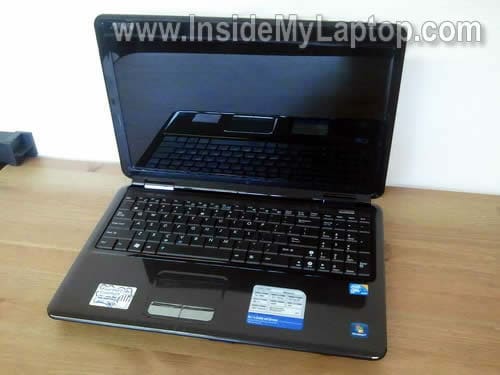
In this post I explain how to disassemble Asus K-series notebook and get access to main internal parts.
As an example I took a Asus K50IJ model. I believe disassembly steps will be same or very similar for all models in Asus K line.
Let me know if this guide works for you. Please mention the model number in comments below.
Make sure the computer is turned off before you start taking it apart.
ACCESSING MAIN PARTS UNDER THE BOTTOM COVER.
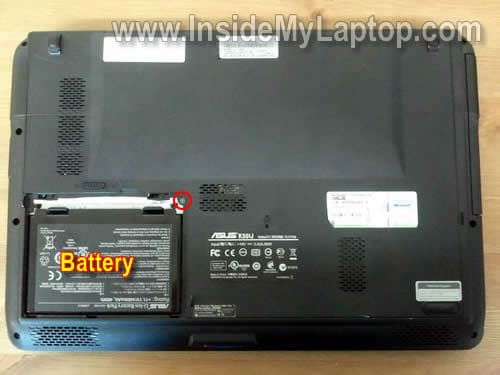
Remove the battery.
Remove one screw securing the bottom cover.
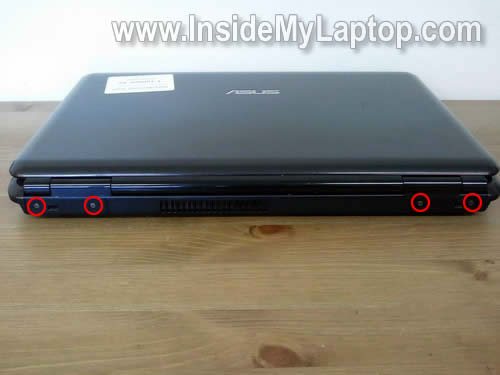
Remove four screws securing the bottom cover on the back side.
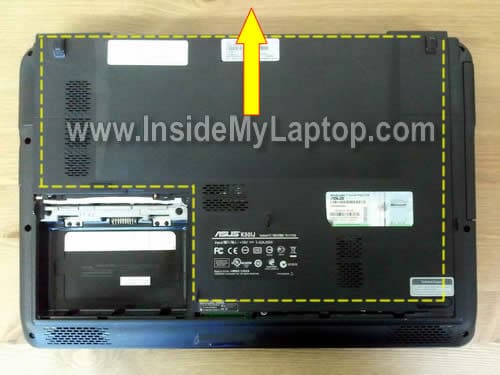
Slide the bottom cover to the shown direction.
Remove the bottom cover.
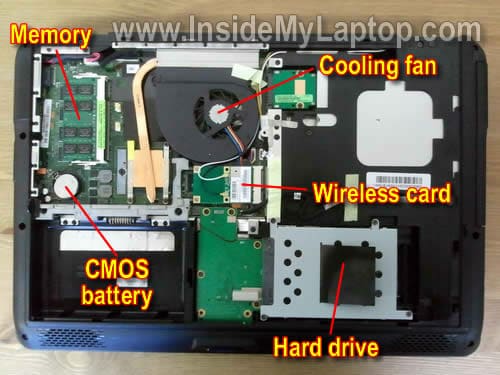
Under the bottom cover you’ll get an easy access to the memory module, hard drive, CMOS battery, cooling fan, DVD drive, wireless card and heat sink with processor.
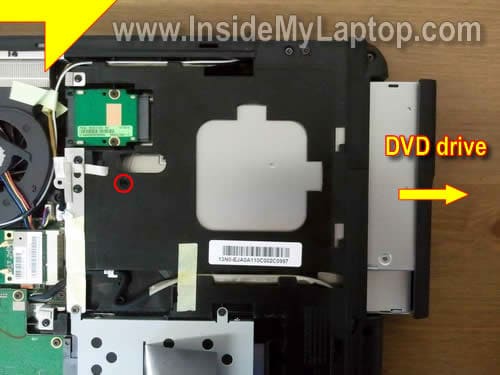
Remove one screw securing the DVD dirve.
Slide the DVD drive to the right and remove it.
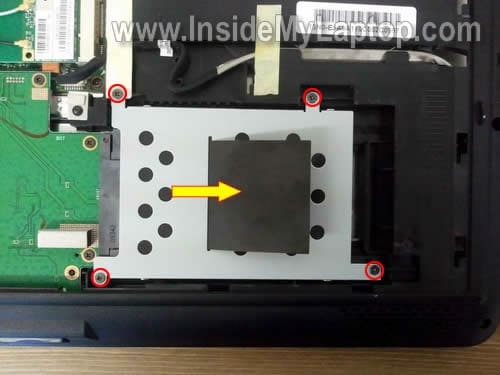
Remove four screws securing the hard drive assembly.
Slide the hard drive assembly to the right to disconnect it from the connector on motherboard.
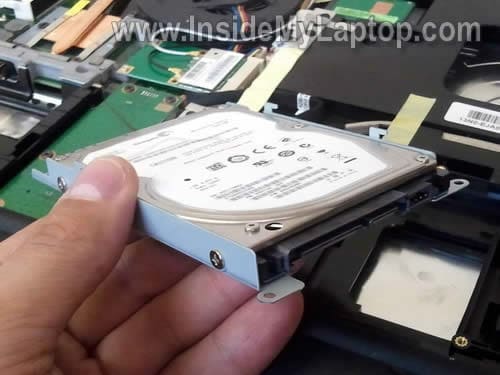
Remove the hard drive assembly.
Now you can separate the HDD from the caddy and replace it with a new one if needed. As you see, it’s a regular 2.5″ SATA HDD.
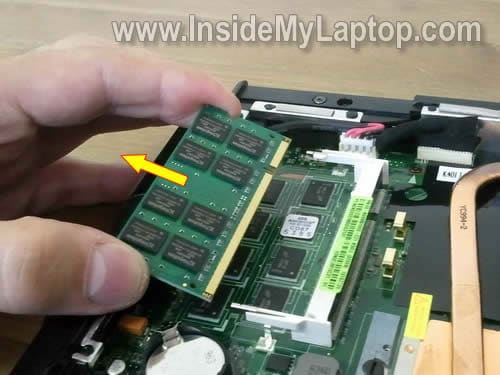
Spread latches on both sides of the memory module and after the module pops up at a 30 degree angle, carefully pull it from the slot by the edges.
In this particular notebook I found only one memory slot. It looks like some memory was integrated into the motherboard.
I’m not sure if all Asus K series notebooks have only one memory slot.
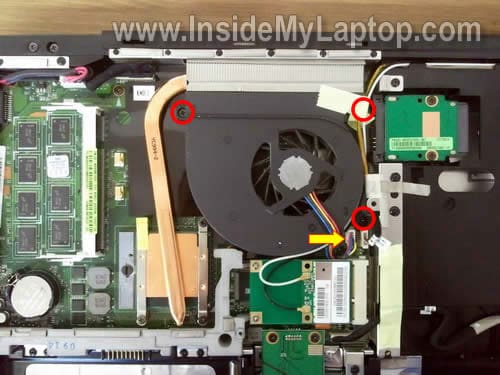
Remove three screws securing the cooling fan.
Unplug fan cable from the motherboard.
Now you can remove the fan.
REMOVING KEYBOARD.
In order to remove the keyboard it’s not necessary to go though all previous disassembly steps.
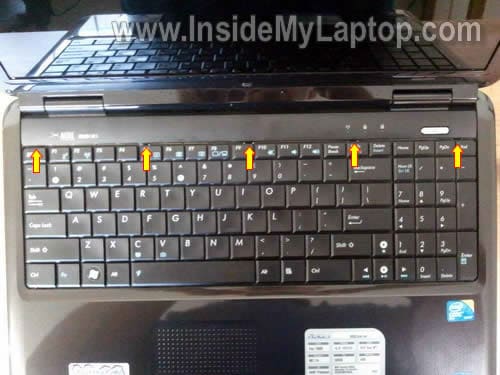
There are five small spring loaded latches securing the keyboard.
I pointed to them with yellow arrows.
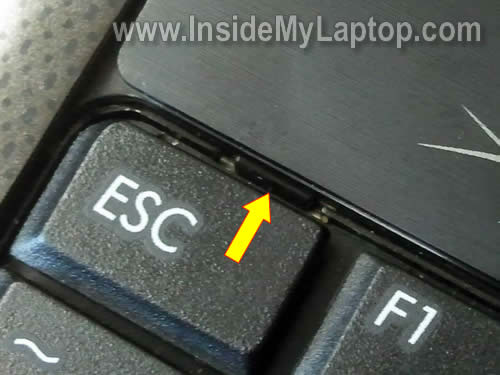
In order to unlock the latch, simply press on it with a sharp object.
At the same time pull the keyboard upwards.
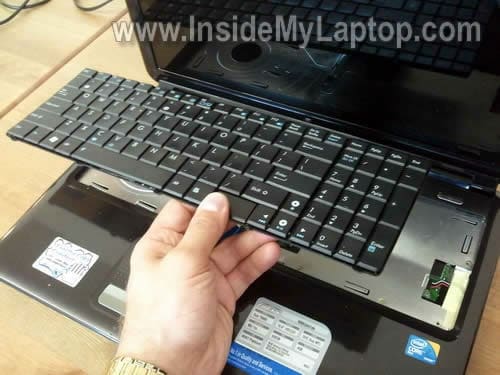
After all latches unlocked, you can lift up the keyboard as it shown on the picture below.
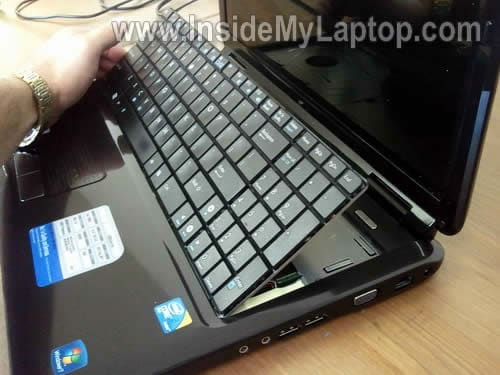
Carefully place the keyboard upside down on the palm rest.
Before you can remove the cable, you have to unlock the connector.
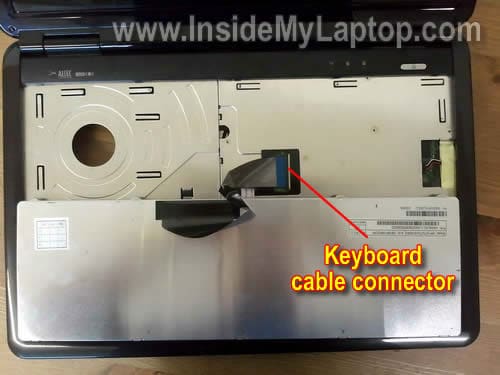
The keyboard cable is jammed between the white connector base and brown locking clip.
On the following picture the connector is shown in locked position.
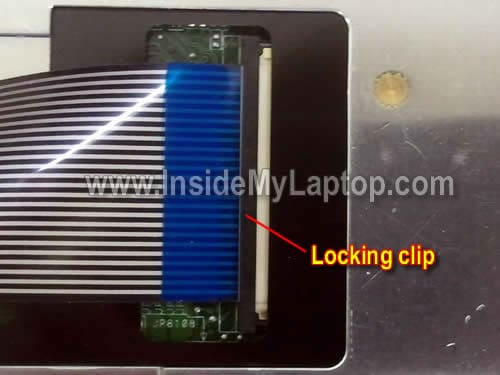
Move the locking clip about 2 millimeters to the left (do not move any further).
The locking clip must stay attached to the white base.
On the following picture the connector is shown in unlocked position. Now you can pull the cable from the connector.
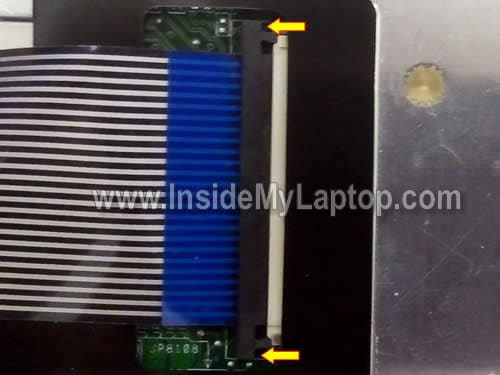
Finally, remove the keyboard and replace it with a new one if needed.
domogled
thanx for the walkthrough 🙂
Following your description and pictures i opened an Asus k50 ij. Do you have any idea how to reset de bios password? I spotted the battery and i removed it but no success so far, i cannot access the bios . If you have any idea if there is any place to short two pins or something please let me know.
Also do you have any idea where to find a service manual? I was wondering that in such a manual a bios rest procedure should be mentioned… as it is the case with some Toshiba laptops
Hameau
This description also applies to Asus X5 series (X5DIJ).
Thanks for your very useful stuff.
darren
can u guide us to tighten the hinges of the lcd ?
Sangelion
My ASUS K50AB have a weird problem.. When I pressed ON button, only fan sound (on). Other part such as LED and Hardisk are not on. What is the problem? How to unplug CMOS battery? Do I need to unplug other parts also??
IML Tech
Sangelion,
Could be memory module failure.
If you have memory module installed into the external slot, try removing it and test the laptop.
kokos
can you help me out on how to disassemble a k42 model?
Eric Schwarz
Some of the pics don’t load. Can you get that fixed?
IML Tech
Eric Schwarz,
Refresh the page (F5). All pictures are there.
Ben
Hi,
I was just wondering whether you could please provide instruction on how to replace the LCD screen on this model laptop.
Kind Regards
IML Tech
Ben,
Probably LCD screen replacement steps will be similar to this HP laptop: https://www.insidemylaptop.com/replace-broken-lcd-screen-hp-pavilion-dv3-laptop/
Martin
Awesome, thanks for your time showing us 🙂
Darron Blignaut
Hi mate….I urgently need to replace the touchpad on this model laptop…I have disassembled up until the end of your tutorial but something is still catching and I am at a bit of a loss and do not want to break anything??Yor help would be greatly appreciated!!
Justin
I have a K50IJ and when it attempts to power on, the power button light and the power light on the front of the laptop turn on for about 1.5 seconds. Then it shuts off. This happens on battery or AC. I get no display at all. I remove the hard drive, memory, and disconnected the wireless network card, and it still does the same thing. I also tried removing/replacing the battery, and several combinations of holding the power button. The cooling fan does not turn on, but I’m not sure if it should be on at that point or not. Do you have any suggestions (replace cooling fan, replace MB)? And possibly a suggestion on where to buy parts?
IML Tech
Justin,
I don’t think this problem is related to the cooling fan failure. You should get video on the screen even with bad fan.
If you have two memory modules installed, try removing them one by one (not both at the same time). Test your laptop with each module separately, try different slots. This could be memory failure.
If it doesn’t help, most likely this is motherboard failure.
As a last resort, you can try taking it apart completely and test just barebone system: motherboard, memory, CPU with heatsink. Test it with an external monitor. If it starts in basic configuration, start adding parts.
Mike
Is it possible to access/replace the graphics module on an X5DIJ?
Thanks,
Mike.
IML Tech
Mike,
Most likely it’s not possible.
I just checked specifications for ASUS X5DIJ-SX468V and it says:
Graphics: Integrated (Intel® GMA X4500 3D Graphics with up to 384MB Shared Memory)
Integrated means built into the motherboard. Cannot be removed/replaced.
criss
Hello. Is it possibile to install a secondary HDD (a 60GB SSD to be precise) in a K50ID ?
IML Tech
criss,
I don’t think so. I believe this laptop has only one hard drive connector.
Tom
Hello!
First thx for the very good manual, it´s great.
My question regards the wireless card:
I want to replace the wireless card of my asus K50ID with a “Intel Ultimate N WiFi Link 5300” card, but i don´t know which typ i need to buy, the PCIe* Mini Card or the Half Mini Card.
Look here:
http://download.intel.com/products/wireless/319982.pdf
respectively
http://www.intel.com/products/wireless/adapters/5000/index.htm
Is this possible and if yes, can you help me choose the right one?
Thanks!
szabog2000
Hi,
could you help me how can I repair the touch pad? How can I remove the all bottom cover?
Thanks in advance!
IML Tech
szabog2000,
Here’s my guess.
Remove keyboard as it shown in this guide.
Remove all screws on the bottom of the laptop.
Remove all screws under the keyboard (if there are any).
Disconnect all cables under the keyboard.
Separate top cover from the bottom cover.
Mitko
Hello,
What is the best way to clear the fan on my laptop with some households material, like vacuum cleaner?
Because everytime i play, the laptop gets very hot and games start getting slow…
And do i must wear an anti-static wrist strap to open my laptop and don’t touch anything inside, just clear the fan with vacuum cleaner?
IML Tech
Mitko,
Some people say that vacuum cleaners create static and you can damage the motherboard if you use a vacuum for cleaning the fan.
Instead, I would suggest using compressed air for computers. It’s static free and you can buy a can in any local computer store.
You can try cleaning the cooling module without opening the laptop case. Just blow air into the fan grill on the bottom and then into the grill on the side.
If you have an easy access to the fan (as shown in this tutorial), simply remove the cover and blow air directly into the fan.
Midhat
Here the bottom cover is divided into parts and is not a single piece like your example.
It has all those 5 screws you have mentioned. I remove them and tried to slide the bottom cover but it wont slide. I tried to lift it up a little and slide it, but it seems it is stuck somewhere near the battery compartment, to the very left side of the picture.
Are there any more screws or attachments that I need to open, or I just need to use more force. I am suspecting a loose video cable and just want to reattach it firmly. Am I even looking at the right place in the latptop?
IML Tech
Midhat,
I really cannot tell because your cover is a little bit different.
In my case I had to apply some force to slide the cover but not sure if this will apply to your laptop.
Just use common sense. Take a closer look at the cover and look for any hidden screws. It shouldn’t be very difficult to remove the bottom cover.
adi
Hi,
thanks for the tutorial,
I have asus k40in with no Bluetooth,
how can i add Bluetooth in my k40’s
and where can i buy internal Bluetooth adapter.
FYI I’m in indonesia.
thanks
IML Tech
adi,
Is there any reason you don’t want to go with an external USB Bluetooth adapter.
You can find a very small adapter.
Evan
Thanks worked on a K60 to replace my hard drive
Jenny
This worked for removing the DVD drive from a K50IJ, although I had to apply a fair bit of pressure when sliding the DVD drive to the side after removing the holding screw. Thanks so much – I was trawling the net for ages about to give up when I found this page.
shaider
tq for the tutorial..
I have asus k40IN. I just want to ask you:
1. Is the tutorial applicable to my k40in?
2. should I remove dvd drive –> hard drive –> memory before I can remove the cooling fan?
3. How can I re-attach the thermal paste on the CPU and GPU?
IML Tech
shaider,
I don’t know. Compare your laptop with one in my tutorial. If it looks similar, most likely you can use the guide.
If your laptop same is mine, you don’t have to remove anything. The cooling fan is located under the bottom cover and can be easily removed.
Are you taking it apart just to clean the cooling fan? If that’s the case, you don’t have to remove the heat sink. Just remove the fan and blow it off with compressed air.
spacebar
Sir, can you make a tutorial on how to replace the lcd bezel on Asus K series notebook?
Thanks.
spacebar
Sir, can you make a tutorial on how to replace the lcd bezel on Asus K series notebook?
I’m afraid to disassemble my lcd bezel wthout looking at any instruction.
Thanks.
Jakeman97
Have an ASUS X52F-X2 laptop with no issues. I’m wondering fo the X series and the K series are interchangeable.as they look alike and according to the latest Belarc Advisor my X52F has an ASUS K2 v1.0 motherboard. I wish to upgrade the processor to an i7 640M and increase the memory to 8GB
My question is can the K disassembly instructions work on the X52F series?
Thanks for your great site.
Jakeman97
Ibadulla
Thanks a lot very useful guidance
Eric
I’m trying to remove the power jack as I’ve traced a charging issue to a loose wire coming from the plug. I’m trying to remove it so I can re-solder the wire to the plug, but I can’t figure out how to get it out. I have taken the back cover off, but it seems as though I need to remove the entire top cover (and probably the keyboard). Any advice? Thanks in advance, and excellent write-up!
IML Tech
Eric,
You are correct. Removing the back cover is not enough.
You’ll have to disassemble the whole thing.
Remove screws from the bottom, remove keyboard, remove screws located under the keyboard and separate the top cover from the base.
Take a look at other guides to get the idea. Most laptops share same disassembly steps.
grim
Great tutorial , thank you for sharing it. I understand that you don’t know how to remove the back cover but my questions is how to open the front cover (I mean the plastic cover below the keyboard.The one with the touch pad on it and the core 2 duo sticker which can be seen in this picture: “https://www.insidemylaptop.com/images/Asus-K-series/disassemble-laptop-01.jpg ). I removed the seven screws from the back cover (4 on a side and 3 on the other side (the one with the DVD-Rom) but it can’t seem to open something holds it in place. Do I need to open it from beneath and do all the steps you previously showed or is there a way to open it from the front. Thank you in advance.
Djile
I want to clean cooler of my ASUS. I tried to remove cooling fan but I can’t do it. I remove 3 screws which hold fan, but it’s still firmly held. My ASUS is a little different than your. My cooler remove heat from processor and graphics card. Here is link to pictures of my ASUS so please look, and if you have any idea let me know. Sorry for my bad english. Thanks.
Bob Plummer
Grim,
to answer your question, you need to remove the half round hinge covers first then remove the screw on each hinge. remove the screen this will reveal 2 more screws under the screen. you should be able to take it from there.
Bob
JasonV
Another satisfied customer! Wife would have bought another laptop due to keys that didn’t work. 35 dollars later and it’s good as new. Thanks!
paulkev09
Hello.
Sir, can you make a tutorial on how to replace the LCD on an Asus K50IJ (same unit you have used in this article). I’m afraid to disassemble it without looking for a proper guide.
Thanks in advance…I’ll recommend this site to my friends because I find this site very helpful to those who want to save money from expensive repairs.
IML Tech
paulkev09,
Unfortunately, I don’t have this laptop anymore so I cannot take pics and make a guide.
You can use another guide as an example: https://www.insidemylaptop.com/replace-broken-screen-acer-aspire-3810t-laptop/
It’s not the same model but you’ll get the idea how to disassemble the display panel.
paulkev09
@IML Tech
OK, Thanks!
I found that the disassembly details in your link gave me a hint on how to disassemble the LCD Bezel on ASUS K50IJ. Fortunately, some of the steps are very identical and everything went fine.
Thank you very much for the help.
sal
thank you for the help u helped me remove my keyboard to clean it 🙂
Colemannn
Hey I am trying to replace my Asus screen and I was wondering what screw driver should I use?
RomaniHelp
If you have asus k61ic is one more screw under the cover of hdd, remove the cover from hdd , and there `ll find another screw, after remove that , the back cover will be very easy to remove it,like in the pictures
ACep
In k61 bottom cover has one more screw under hard drive cover.
Allison
Thanks for the post! Helped me in restarting my CMOS battery. =)) I’m a newbie. I was stuck how to open the thing :)) I didn’t realize I had to slide it hahaha stupid of me.
May I ask. Is it alright if I keep on restarting the cmos forever? cause I kind of poured soda on my laptop (keyboard side) so now the only thing that reopens it when I haven’t used it for a few hours would be to restart the cmos . . . your reply would be much appreciated (^^)
justin
Hallo,
Could you give a picture or a solutions for clear cmos….
Thanks!
alin
please, give us a solution to clear cmos, i forgot my bios password and i don’t know what to do…pls heeelp
Aaron
Woe this really helped! Thanks!
ADC
Thank you very much, it helped a lot!
Laptop Asus K50AB
babx
thanx
very useful indeed
Perry
I’m having the same problem with my K61, the solution should be to unscrew a screw under the hdd cover, but how do I take this cover off? I’ve unscrewed the screw under the battery cover but it still won’t give in.
SANKET
Hi
I have ASUS K52 JR laptop. My CD Rom drive stop working, cant open it nor it is detected in Bios
can u give me any clue what is really happening.
I will be very thank full to you if you will show me some favor.
emmeke
Thank you, the instructions and photos were great, and it worked for me, K50 series.
Ramon
How to:
asus k50i, DC jack replacement
jason
I have a k60ij and its missing the hinge covers I never had any. I’m wondering if any of the k series would fit and where I could find some. I want to sell the laptop but without the covers it just looks bad. Any help is appricatied.
Jason
Jeff
Do you have disassemble guide for k43sv?
Kyle
Asus K60.
Everything is almost identical.
I’m trying to replace the touchpad on mine, but cant get the bottomcover? off. I can get it to come off all the way around, except for the corner near DC charge input.
any ideas?
Heather
I have a K50I and it is just about the same.
My internal webcam is installed upside down. When I Skype I am upside down. How do I pop off the cover on the monitor?
IML Tech
@ Heather,
I don’t think the webcam installed upside down. Most likely it’s just software settings.
Try to find the webcam software installed on your laptop and check the settings.
spargarepa
I have a K50ij, can you told me are there an mxm plug on the motherboard?
sorry for my bad english
IML Tech
@ spargarepa,
Sorry cannot help. I don’t know.
Rob
Great guide, I am looking to get in deeper and re-solder the DC jack. Does that require the removal of the mother board? If not, how can I get to it?
IML Tech
@ Rob,
Yes, you’ll have to disassemble the laptop completely.
But it’s possible the DC jack is not soldered to the motherboard. I don’t remember that off the top of my head. It’s likely the jack is attached to the power cable which can be unplugged and replaced with a new one.
Search for a new DC jack on eBay using your laptop model number. You’ll see if this jack is available with the harness.
Cedric
Hello, I wondered how I could disassemble this laptop. Super guide.
thank you very much
best regards
Cedric From France
Rich
Thank you!! got everything out but the keyboard. This definitely helped.
Janusz
I have a dead K40IN, The layout is almost exactly the same – it has 2 spring clips holding in 2 removable ddr2 ram modules.
Joe Comte
This here site is such a great help!
Even ASUS Netherlands could not tell me how to go about adding more memory to my K70A.
Have a merry and a happy…
Reuben
The best instructions for a K60IJ EVER!!!! Thx
Chris
How do you remove the palm rest on K50IJ..
Thanks Chris
IML Tech
@ Chris,
I think you disassemble the laptop as it shown in this guide.
After that you remove all screws from the bottom of the laptop.
If there are screws under the keyboard remove them too. Also disconnect all cables found under the keyboard.
Finally, separate the palmrest assembly from the laptop base.
Jo Anne Wright
What do I need to do to replace the LCD screen? Model is K72JR-XN1
IML Tech
@ Jo Anne Wright,
I have many LCD screen replacement guides on this site. They are for different laptop models but they are very similar.
Read though a few guides and you’ll get the idea.
Tom
Asus K50IJ exactly the same.
changed keyboard due to broken P/0/-/= f11 12 pause break home numlk and ?
thanks for your help!.
the new keyboard is slightly different but everything works as it should b.
Brian piner
A great responce, its is nice to get some good help
thanks very much
Justin
So, which one is the GPU?
I have a ASUS K501 which is almost identical to this. I am hoping the GPU is in the same location.
Where is the GPU?
If anyone could tell me it would be amazingly helpful.
I actually just got off the phone with ASUS tech support. After bouncing me around 4 times, no one could tell me where the GPU in my laptop was.
Thank you for your help.
IML Tech
@ Justin,
Most likely it’s soldered directly to the motherboard. In order to access it you’ll have to remove the motherboard from the case.
Justin
Wow thanks!!
But uhm, I feel like this might be a stupid question but…
Which one is the motherboard?
Is it the whole thing underneath the memory and CMOS battery?
IML Tech
@ justin,
This is correct. The motherboard is the main circuit board in the laptop.
Justin
Ok, gotcha. That seems like a big project but I think I can handle.
Just one last question then I’ll leave you in peace.
How will I know my GPU when I see it? What does it look like?
By the way, this is the only place in all the internet I’ve found that helped me. I am eternally grateful.
Cyrille
Hi,
works perfectly with an K70IC, with the additional screw under the HDD cover to hold the back cover (so you need to remove the battery, remove one screw holding the HDD cover, remove the HDD cover, then remove the final screw holding the back cover).
However, I can’t remove the fan, I removed the 3 screws holding it, but it doesn’t move…
Best regards
Cyrille
Matt
What Cyrille said also goes for K60IC.
Gecko92
You should also follow what Cyrille said if you have an X66IC / K61IC
Node88
I have Asus PRO66IC (according to the label) but according to windows it’s a “K61/71”-model, it looks very similair to the one in your pics so I assume it’s a K-series laptop.
Either way, there seems to be some bad connections between the screen and the mobo/nvidia chip, I get a lot of white screen flickering, especially when the screen is showing a lot of black, however, I can make the flickering go away by pressing firmly from underneath, in the mid section about the location of where the U-I-O and 7-8-9 keys are located, and the screen works just fine. I was trying to get an idea of what might cause this by looking at your pics, but I’m a little confused as there’s no apparent culprit. Any suggestions before I open up and have a look?
Node88
I decided to have a look at it anyway. There was a cable running over the processor fan outlet that then connected to the motherboard, the cable was well insulated and thus fairly stiff, it was also a bit too long so it ran across to the plastic GPU connector before doing a 180 degree turn down to its connector situated between the processor fan and the GPU connection, this seems to have slightly pulled it out of its socket, and simply pushing it back in again and move the cable solved my problem. I figured I should post my findings here incase anyone else comes across a similair problem in the future.
Thanks for your guide!
Kathie
I replaced the keyboard and now the computer says Start up repair is checking for system problems. Doesn’t look good
IML Tech
@ Kathie,
Maybe you forgot to turn off the laptop before stating taking it apart? Was it in sleep mode?
Finish the repair. Hopefully it will start properly after that.
carlosalbarran
where i can find the motherboard for my ASUS k50Ij :C
Alex
Is it possible to unmount the touchpad?
…i have an ASUS X5DIJ and the procedure is the same for all the parts
Donno
Super good instructions on how to take this laptop apart, etc. My friend has Assus K50i which apparently had been bumped at the ac connector and would not power on. The inside female a/c connector was loose so I took it all part to see what was wrong. The power cord connector seems to make good contact showing 15v at the motherboard end. At one point the laptop did start up and stopped at the BIOS screen. I put it mostly all back together and exited the BIOS but it did not power on and is dead again. I checked all connectors and the power button seems to work OK. The BIOS battery read 2.3v so I changed it out but still nothing. I’m stumped – any suggestions now?
Gowen
I have the same problems Matt and Cyrille has (85 and 86), i unscrew the 3 screws of the fan but it doesn’t move. I tried in all directions, even up/out. I’m afraid about making too much force and break something. Model K5oin. Have you any clue about which moves to do?
Thanks
Donno
Add to post #94 – I ordered and installed a new dc power jack with wiring harness which plugs into the motherboard. Can’t believe it was only $3.39 incl shipping..haa. Tested for 15.v dc power OK up to motherboard. Put laptop back together, checking every part and connection, etc. since at one point it did power on which seems to suggest a loose connection? Still will not power on. Power button seems to work fine but nothing I do gets power on. I’m stumped. Any suggestions? Is there a fuse somewhere I can’t see?
Next step? – take laptop completely apart and motherboard out and test it ? Recall seeing a post on here with picture showing the mb all laid out, etc. ugghhhhh. Thanks. Anyhow know how we contact the original author of this post?
IML Tech
@ Donno,
Yes, I’m still here. I just don’t have time to answer all comments. Too busy writing new guides. 🙂
I would probably test the motherboard outside the laptop case. Maybe the motherboard not installed correctly and it’s shoring somewhere.
chessaus
Thanks or the excellent guide.
My model was the k50ie
Donno
As I posted on #94/96 I would like to contact the author of this article to possibly get additional help. Does anyone know how to do that? I am sure they are busy but does the author ever check this thread? I am willing to ‘donate’ if I get specific help. Thanks.
Denis
Hi, thanks for the best material. Can you send me on e-mail/give me link that describe how to disassemble ASUS F5GL ? Thanks for your answer
Geovicsha
Hey.
Certain keys on my ASUS K50 ceased working. I took it off thanks to this guide, detached it and reattached it without too much hassle. I bought a new keyboard and it arrived yesterday. I took the old keyboard off and attempted to attach the new one, but the cable won’t stay attached. Now even trying to attach the old one it remains loose. Have I done something wrong to the clip or am I just doing bring stupid in my painful attempts?
Geovicsha
Addendum: The keyboard that arrived had some odd button under the space bar that doesn’t seem to fit despite being advertised as a keyboard for the K50.
Eric
Hi is there anyway to replace/ install/ upgrade the graphics card in this series laptop
P.s Awesome guide it totally helped me fix my keyboard and saved me tons on other repairs
🙂
retsu
i have a problem, my notebook got a splash a water when im working, and the type is K 43U, and i want to try dissassemble it to dry it, can u give the instruction to dissassemble?
Laptop Guy
@ retsu,
Take a look at this guide for Asus K53U.
https://www.insidemylaptop.com/how-to-disassemble-asus-k53u-laptop/
Asus K53U could be similar to Asus K43U.
jeck
hi! thanks for this guide, I found this quite handy! recently I’ve thought about replacing the motherboard. I currently have the k40IJ and I’m wondering if I could fit in a motherboard meant for the k40IN. I believe it is theoretically possible since they have the same body, right?
And, do they have the same motherboard for the k50 counterparts? (eg K50IN and K40IN). I’d think that we can’t fit boards from successor k4X series right?
Thanks!
Pete
Hi,
Great guide.
Is there a fuse on the motherboard for this laptop?
I can’t switch mine on and the power supply is ok.
Cheers
Pete
Cured, not exactly sure what the problem was, I pulled the power supply connection plug off, checked the connections, plugged it back in and it powered up. Could it have been a self resetting fuse that required the battery to be removed (powered down) to reset??
Thanks for the confidence to start pulling the machine apart!
IML Tech
@ Pete,
Sometimes removing and reinstalling the battery can fix the problem. How? I don’t know but it works.
Trevor
Where’s the rest of the instructions? I need to get the top and bottom case separated so I can access the lcd to motherboard cables.
IML Tech
@ Trevor,
I don’t have complete laptop disassembly instructions for this model.
After you go though all steps in this guide you’ll have to do the following in order to open up the laptop case:
1. Remove all remaining screws on the bottom of the laptop.
2. Disconnect cables on the bottom of the laptop.
3. Remove screws located under the keyboard.
4. Disconnect all cables located under the keyboard.
5. Separate the top cover assembly from the bottom cover.
rinky
Can you post pics to disassemble ASUS X42JY laptop ?
IML Tech
@ rinky,
When I get this laptop for repair, I’ll take pics and make a guide.
andrew
thank you heaps needed this for my k50ie
Saqib
Thank you, great help.
Glen Kjaer
Though been a tech for years sure is nice to just follow instructions once and a while. concice and helpfull. Thanks
knox
once the keyboard get wet is there a posibility that it wont work anymore or not functioning?it would need to be replace?t.y
IML Tech
@ knox,
If you spilled something on the keyboard there is a good chance the keyboard will stop working properly.
If that’s the case you cannot fix the keyboard. You’ll have to replace it with a new one.
Bast
Worked a treat on Asus K series. Thank you!
jason walsh
Hi, thanks for the tutorial.
I have a Asus k53u.
Unfortunately i have managed to get a dvd
stuck inside the laptop (not the dvd drive)
How i can i get this out in the simplest way?
Many thanks.
Rio
Thanks for this tutorial. Where can I find the gpu? I have the same laptop, and it tends to overheat a lot, so I’m going to disassemble it, but I can’t find any service manual on the internet.
Me
The Fan isn’t that simple to disassemble. It isn’t hold just by those 3 screw.
JH
“The Fan isn’t that simple to disassemble. It isn’t hold just by those 3 screw.”
To elaborate on this, in some models (like mine apparently!) the copper bar that runs from the processor heat sink to the fan is hard fixed to the fan. In order to remove the fan, you need to remove the heat sink and bar screws (4 on the CPU attachment, one on a sort of metal “bridge” at the “elbow” of the bar), and also may have some glue or something under the bar.
..
Anyone have a guide how how to replace the DC jack?
karp
hi , i have problem with power button , how to fix it ?
Aleš
Hello. I have a K50IJ and my drive is dead. What do I have to look for when buying a new one (what specifications) besides what size (500GB) I want? Thanks so much for you help!
Pavulon
Thank you! Guide helped me a lot! 🙂
Good luck!
cyb81
Nice tutorial, i need to change the speakers, do you know if i need to get the motherboard out? thanks
john minor
I checked power at power supply and at motherboard both were fine you showed everything but the fuse on the asus k501j please let me know.a picture would be great then i know i will be checking the wright thing.also let me know my options if it turns out to be the motherboard.thankyou very much.
kevin
i have asus k601. the power jack needs replacing. i have the bottom off but cant get the top off to access the power jack. do i need to remove the keyboard to get to screws holding the top?
Chrisq
I have K43U. Immediate difference. The battery on mine is along the back taking the entire width and slides out when the catches are released
Ted
So great guide, kudos on that. Here’s the question though regarding Memory Upgrading:
Every website I’ve looked at from Crucial and others for memory upgrades say that this computer has 2 memory slots. Yet, the slot on the board when you remove the bottom cover only holds one memory chip. This slot is already filled with a 2GB chip.
Here’s where it gets weird. This computer is allegedly upgradeable to 4 GB of DDR2 memory, and you are supposed to install it in a pair of 2GB chips. Now, it would make sense if part of the memory is on the board, and you add the second chip to make 4GB, but when you open the System Preferences, the computer says that only 2GB is installed. So what gives?
IML Tech
@ Ted,
What is your laptop model?
Eric
Hi,
I have an asus X5DIJ (about 10 years old). Until two weeks ago it was working find. Then the wifi stopped working. I reinstalled the driver and deactivated it and activated it. Nothing worked. The wifi light went on and off as it normally would but no connection.
I just bought and installed a new used wifi card and replaced the old one. Same problems but the wifi light does not go on at all any more. (Connected the cables as original)
Also deactivated and reactivated the card and reinstalled the driver.
Internet via the Ethernet cable works fine.
Any ideas?
Thanks
Eric
Matt
hi, I have a k450j ….is it possible to upgrade ram and graphics card?
I currently have a GeForce 745m and 8 gb ram
ALF
How do you remove the screen to access display cables?
Robert
Hi Can you upgrade the video graphics card for the K40IN? And also If you can replace the wifi chip and antenna?
Matt C
I have a k53e-××× While I have taken off the front underside panel to access HDD, RAM and the CMOS Battery. I can’t see a simple way to remove the DVD drive, I am going to replace it with a new SSD.
Thanks, Matt
IML Tech
@ Matt C,
In your laptop the DVD drive is secured by one screw which is located under the keyboard.
After you remove that screw you’ll be able to pull the DVD drive out.
Take a look at this guide for Asus N53S laptop as an example.
The DVD drive removal shown in the step 19.
joanita nakku
I splashed water into my Asus laptop keyboard and some keys stopped working what can I do for the keyboard to work again model of laptop is AsusX502C model number RALINK/RT3290
James
Sir I have a k40ij laptop just like on the picture and my problem is it is not booting..When switching power on button the asus logo appears and maybe 5 to 7 seconds it turns off then asus logo appears again just like when it turns on then turns off again and again..i can still open the bios setup by pressing F2, set to manufacturers default but still not working..I think maybe problem with the hard drive, but before i dismantle it i just want to ask an opinion from you,maybe there is other way to fix this..your help will be much appreciated.
Tyler
Where would you find the bluetooth adapter, if you have one, inside of a k53e bd4td?
Peter
Model asus x5dij
Thank you, the instructions and photos were great, and it worked for me
JIM
I have K60U with bad power port. How do I replace???
JIM
is there anyone who can help with this situation for replacing the power port on my K60U
Isobel
Thank you so much! Worked for my X5DIJ and now I can use ‘r’ again!
nvu54876
Thank you, the instructions and photos were great
nhà cái lô Ä‘á»
That’ amazing. Your writing is really impressive, I hope to see more of this wonderful writing from you
web đánh bà i online
Though i have learned about it but after read your articles, i just realized the amount of knowledge that i missed. Thank for your shared.