

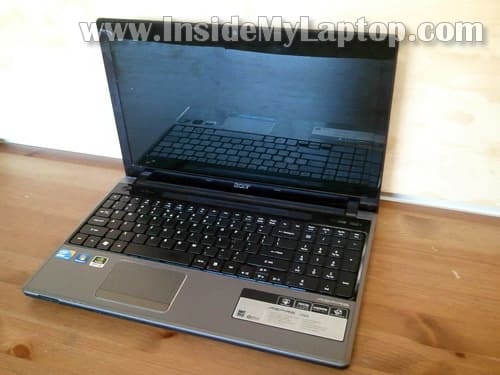
In this guide I explain how to disassemble an Acer Aspire 5745 series laptop (I’m taking apart Acer Aspire 5745G-6726).
The guide might work for some other Acer Aspire models.
I’ll go though the following major disassembly steps:
STEP1-4: Removing the hard drive, memory. Accessing the CMOS battery and wireless card.
STEP 5-11: Disconnecting and removing the keyboard.
STEP 12-15: Removing the top cover assembly.
STEP 16-21: Disconnecting and removing the display panel.
STEP 22-25: Removing the motherboard.
STEP 26-27: Accessing the cooling fan and DC jack harness.
Before you start, make sure the laptop is turned off and battery removed.
STEP 1.
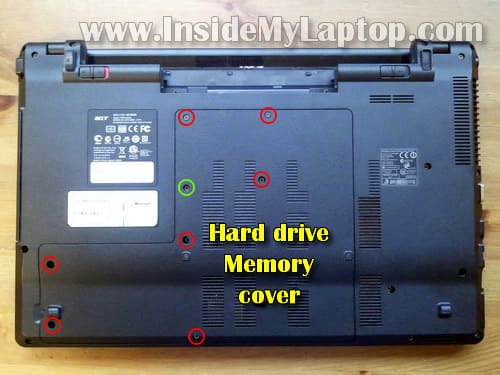
Remove eight screws securing the hard drive and memory cover.
One of the screws (green) securing the DVD drive.
Lift up and remove the cover.
STEP 2.
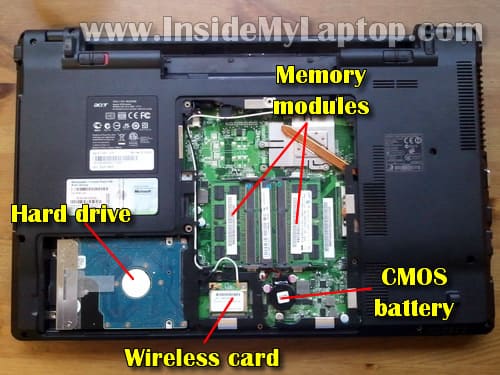
Under the cover you’ll find the following components:
– Hard drive.
– Memory modules.
– CMOS battery
– Wireless card.
For the purpose of my guide it’s not necessary to remove memory modules, CMOS battery and wireless card. You can leave them connected to the motherboard.
By the way, Acer Aspire 5745 has FOUR memory slots. It can handle up to 16GB RAM total (4GB RAM module in each slot).
Acer Aspire 5745 takes PC3-8500 DDR3-1066 memory. In order to take advantage of all 16GB RAM you’ll have to run a 64-bit OS.
STEP 3.
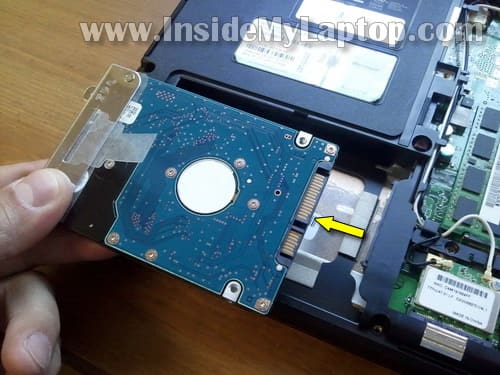
Remove the hard drive.
Simply slide it to the left to disconnect from the motherboard and lift up.
This is a regular 2.5″ SATA HDD.
STEP 4.
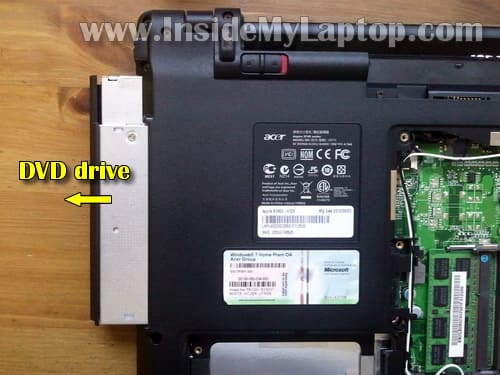
Pull the DVD drive to the left and remove it.
The DVD drive was secured with one screws (green) which we removed in the step 1.
STEP 5.
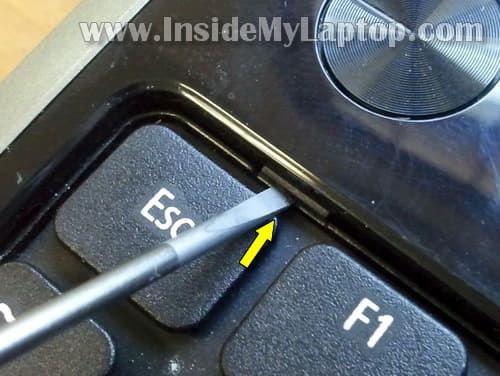
The keyboard is secured by six spring loaded latches.

STEP 6.
In order to remove the keyboard you’ll have to push in all six latches.
Push on the latch with a small flat head screwdriver. When the latch pushed in, the keyboard will lift up a little bit.
STEP 7.
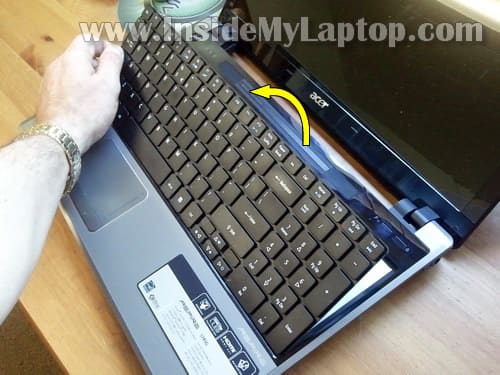
Lift up the top side of the keyboard and place it upside down on the palm rest.
STEP 8.
Now you can access the keyboard cable connector. You’ll have to unlock the connector and release the cable before you can remove the keyboard.

STEP 9.
On the following picture the connector shown in the locked position.
In order to unlock it lift up the right side of the brown locking tab. It will open up at a 90 degree angle.

STEP 10.
On the following picture the connector shown in the unlocked position.
Now you can pull the cable from the connector.

STEP 11.
Remove the keyboard.

STEP 12.
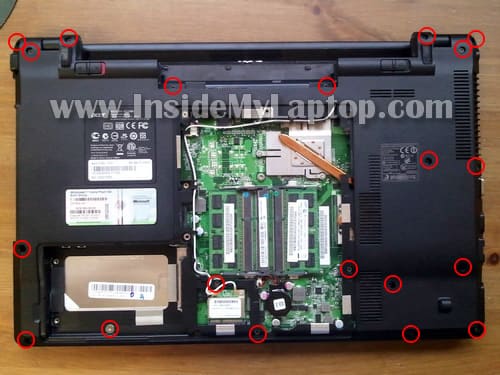
Remove all screws from the bottom.
STEP 13.
Remove nine screws securing the top cover assembly.
Disconnect four cables.
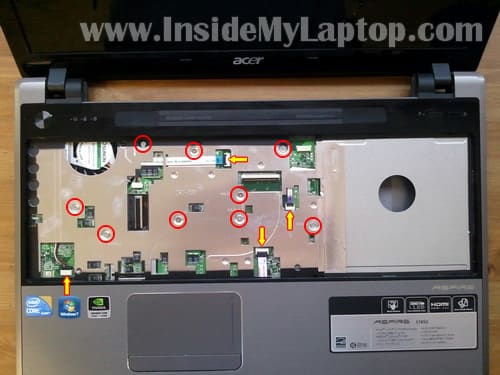
STEP 14.
Start separating the top cover assembly from the bottom case as it shown on the following picture.

STEP 15.
Remove the top cover assembly.

STEP 16.
In the following part of the guide I’ll be removing the display assembly.
The wireless card antenna cables are mounted inside the display panel.
In order to separate the display panel from the laptop base it’s necessary to disconnect the wireless card antenna cables.

STEP 17.
Carefully disconnect both wireless card antenna cables (white and black) from the wireless card.
Unroute both antenna cables from routed path on the bottom.
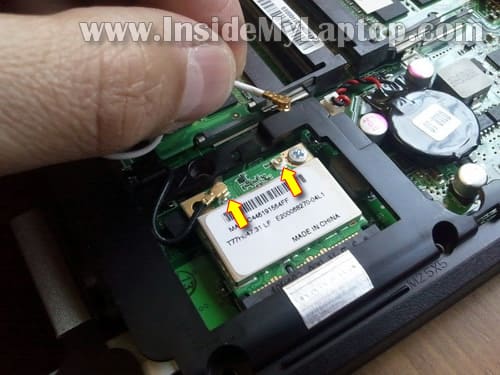
STEP 18.
Release both antenna cables.
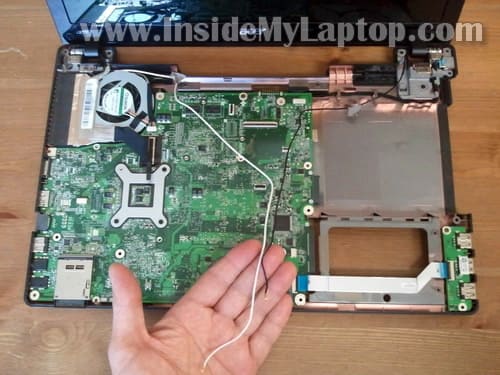
STEP 19.
Disconnect the video cable connector from the motherboard.
Unplug the web camera cable.
Both cables are glued to the cooling fan assembly. Carefully lift up and unglue both cables.
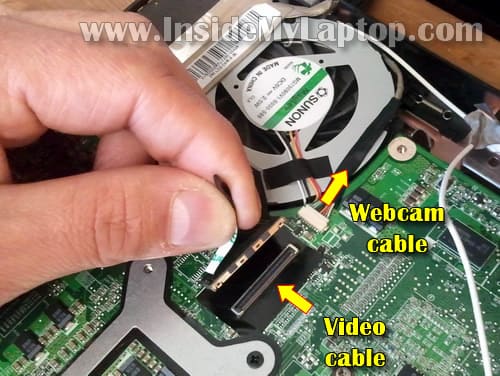
STEP 20.
Remove two screws securing display hinges.
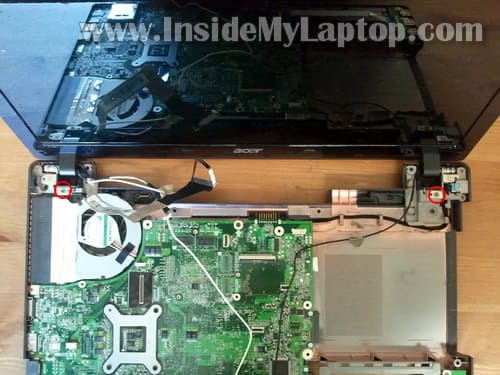
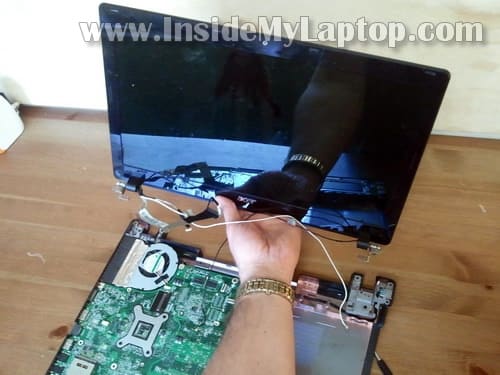
STEP 21.
Lift up and remove the display panel.
In one of the next guides I’ll explain how to replace the LCD screen.
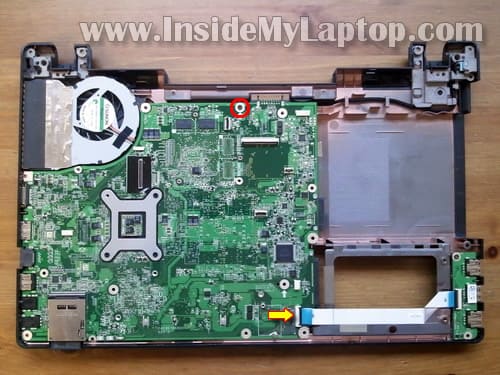
STEP 22.
Remove one screws securing the motherboard.
Disconnect the USB board cable from the motherboard.
STEP 23.
Before you can remove the motherboard you’ll have to unplug the DC jack cable. This cable located under the cover we removed in the step 1.

STEP 24.
Lift up the left side of the motherboard and start removing it from the bottom case.
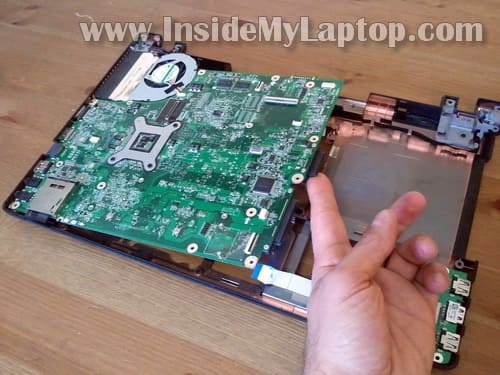
STEP 25.
The motherboard has been removed.
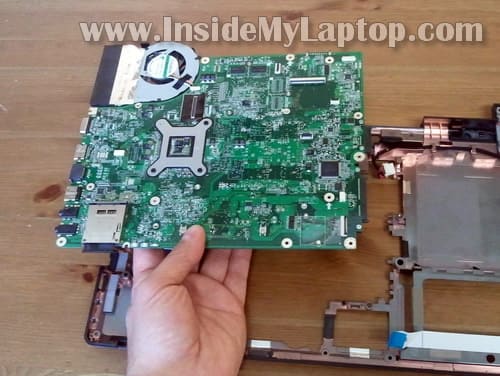
STEP 26.
You can remove the cooling fan assembly following these steps:
– Remove/loosen seven screws securing the heat sink.
– Disconnect fan cable from the motherboard.
– Carefully lift up and remove the cooling fan assembly.
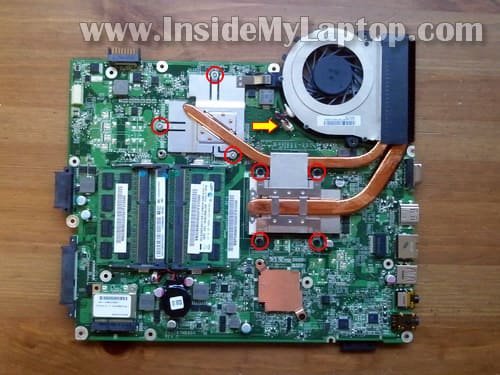
STEP 27.
In Acer Aspire 5745 laptop the DC jack is not soldered directly to the motherboard.
The DC jack attached to the harness.
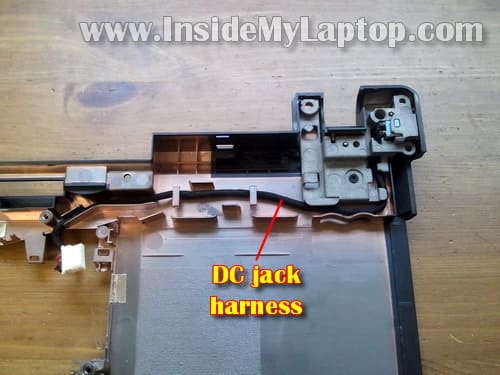
zubair
how to disassembled the hp vostro 1310 laptop
IML Tech
@ zubair,
Follow instructions in this Dell Vostro 1310 laptop service manual.
Vic
Thanks for an excellent guide, could you please do one for Acer Aspire 5750.
Ashwin
Hi buddy, nice article. I have a question in mind and i hope you can find me a answer.
Is it anyway possible for me to install an ssd and a hdd both in my 5745g. The hdd gonna be the same oem one.
With regards,
Ashwin
M Tran
@Ashwin: Check out the Ebay. Or do an internet search on the phrase “2nd drive caddy 5745” to find other vendors.
Wayne
First off….Thant you very much for such a clear and detailed set of instructions!!! I just bought an Acer 5742Z-4601 at Radio, and my wife spilled a large coffee on the key board! Is there possibly a fuse I can check? After using your Acer 5745 guide to disassemble ( the 2 models are very similar…thanks again) it doesn’t appear there was any leakage onto the motherboard, or internal components. The battery charges, but there is no power otherwise….got any ideas?
Thanks again for such a great write up.
-Wayne-
Rinku
Hi, my laptop HP dv5 bluetooth-WLAN driver is installed during the os setup, i also downloaded the driver and installed but even after that, there is driver installation searching and installation failed displayed, it is working but it is not being possible to get internet connection using mobile through laptop bluetooth wireless connection. What is the problem i dont know. How can i solve the problem ??????
Im in big trouble….
IML Tech
@ Rinku,
Are you sure your laptop has Bluetooth module installed? Usually it’s an optional module and laptops do not have it by default.
Can you see Bluetooth in the device manager?
Nathan
This is a great guide, i was thinking of disassembling my laptop to see if the DC jack may be fried, as it does not seem to be charging. – i was also wondering if it is safer to clean a fan this way?
and is it as easy to put back together as it is to pull apart?
Julian
Hi, i wondered if you know if I can access the thermal module of an Aspire 5251-1805 by removing the keyboard, or if i would have to disassemble the entire top cover? thanks
IML Tech
@ Julian,
The thermal module (heatsink assembly) attached to the bottom side of the motherboard. It’s on the same side where RAM slots are located.
If you cannot access this module through the door on the bottom of the laptop (not sure if it has this door), you’ll have to disassemble the entire laptop and remove the motherboard.
Let me ask you why you want to access the thermal module? Do you want to replace something or just clean it?
For cleaning it’s not necessary to disassemble the laptop. Just use compressed air.
Andreas G
hey, my computer has started to get realy hot. think it’s because of some dust in the fan, but i don’t know how to clean it at MY laptop Acer Aspire 5745g. pliz help me.
IML Tech
@ Andreas G,
You can remove the keyboard as it shown in steps 5-8 (it’s not necessary to disconnect keyboard from the motherboard).
After the keyboard removed, you’ll see the cooling fan.
Buy a can of compressed air and blow air into the fan until all dust is gone. It should do it.
Gerald Humphries
Very good instructions. My son’s laptop is Acer Aspire 5745PG – 5978. It will not power. The AC cord is working. The dc jack harness needs to be replaced. Looks very straightforward. Replacing it myself will save $$ and will be a nice Christmas present for my son.
I have followed the steps above and am currently at step 15.
What I need from you is the next step to removing and replacing the power jack. Also need to know where I can buy a replacement dc harness or one compatible.
Merry Christmas!
IML Tech
@ Gerald Humphries,
Search for a new Acer Aspire 5745 harness on eBay.
I haven’t replaced the DC jack on this model myself, but I think after you removed the top cover it should be straightforward.
The harness is not soldered to the motherboard. You just disconnect the bad one and replace it with a new one.
Jens
Hi , the headphone jack of my 5742 R4F02 PEW1 (i3 processor) is broken. I learned, this part is solded directly on the main board. Could you help me to find the exact part number/ supplier of the jack I need ? Thank you !
IML Tech
@ Jens,
Search on eBay for “Laptop I/O Port Headphone Jack”
Someone selling Lot of 10 Gateway / Acer Laptop I/O Port Headphone Jack for $10. Two days left. Hopefully that’s the one you are looking for.
Jens
@ IML Tech,
thank you for advice, the jack is from Singatron, Typ 2SJ-0960-C01. Its a special SMT jack, I did not found any source to buy them. The photo on the link you sent me does not show very clear, if this the correct one. Thanks
ezio
can you please do the same procedure for ‘acer 5742G’
good explanation for each steps…nice work
IML Tech
@ ezio,
Take a look at this guide:
https://www.insidemylaptop.com/disassemble-acer-aspire-5251-5551g-5551-series-laptop/
Could be very similar to your laptop.
Alternatively, you can look at this manual for Aspire-5742-5742G laptops.
The laptop disassembly procedure start at the page 46.
Hope it helps.
ezio
thanks man.
you helped me a lot.
Tessa
Hello, I have an Acer Aspire 5810TZ and it would not turn on properly, or if it does it would give me the blue screen. I was just wondering how I can find out if it’s an issue with the motherboard, or if it’s an issue of overheating that I can fix by cleaning out the fans. Would it also be possible to have a tutorial on how to disassemble it?
Any help will be greatly appreciated. Thank you for your time.
IML Tech
@ Tessa,
If you get a blue screen error, most likely it’s not related to overheating.
This could be hard drive or memory issue.
If you have two memory modules installed try removing them one by one. Test the laptop with each memory module separately.
Wayne Bjorken
Nice article. When upgrading memory, make sure your 5745 is populated with four sockets before buying four sticks. My system only had two sockets installed.
james
Hi,
I followed your instructions, however since putting the cd drive back in, there is an extremely loud vibration when the cd is in use.. I mean i don’t put anything in incase iit rattles something loose on the motherboard.. Is there anything you know what might be causing this?
I have replaced all the screws.
Cheers
Chandra Prakash
Hi,
Hats off to you for writing such a detailed write of disassembly of acer aspire 5745 laptop, clearly showing each and everything.
My Problem: Right side of my laptop hinge is displaced from its position and when I try to open the laptop the border layer covering the screen from bottom attached to hinge gets separated, after adjusting it somehow I am able to open the laptop, the laptop works fine except that closing and opening of the screen lid. Could you advise me do I have to disassemble the complete laptop or It can be done just by removing the upper frame and adjusting the hinge, or do you thing the hinge has to be replaced.
Your valuable advise really matters, Waiting for it to get it soon.
Thanks,
Chandra Prakash
IML Tech
@ Chandra Prakash,
There is no way you can tell what’s wrong without laptop disassembly.
This could be one of the following:
1. Loose screws.
2. Broken hinge.
First, I would remove the top cover assembly as it shown in the step 15 and take a closer look at the hinge. If screws are loose, tighten them and see if the problem is fixed.
doggie015
Thanks for the guide! I was able to get a truckload of dust out of the cooling fan and get my system back to a non-overheating state! (My games will thank me for it!)
AL
Hi, is it possible to just remove the entire back casing only without removing the front portions so that I can just clean the fan and the areas around the heat sink?
Chris Sorrell
Can the Keys on my ACER Aspire 4575 be safely reomoved for cleaning under them and then refitted without causing damage?
Harshad
Hello, very nice article. I have acer aspire 5745 laptop. it works nicely except a noise coming from sound while playing songs or videos. This is so detailed article but I don’t found any details about speakers. How can i fix this problem???
Your valuable advise really matters, Waiting for it to get it soon.
Thanks,
Harshad B.
Andy K
I have exactly the same Acer model here. Recently, I have been experiencing unexpected shutdown. It just happened recently and I was monitoring the temperature and it was hovering at about 60+ C and doesn’t make sense to be overheated? I have also ran memory test for a few hours and didn’t seem to be any problem. Any other ideas?
Ankit Chauhan
My acer aspire 5745G heats up very soon when Im playing heavy games and then it’ll suddenly shutdown by itself. The place under the cooling fan gets heated up the most and also the temperature goes upt 90 deg C(I saw using a software).
So I wanted to open up my laptop, do the cleaning n make holes in the outer plastic body under the fan so that the heat can go outside and the laptop doesnt shutdowns suddenly.
Any suggestions how to open up easily and do that??
Jamiex
I also got an Acer Aspire 5745G and I had the overheat problem. I tried several time to clean the fan to make it run cooler, but the thing that fixed my problem was to update the bios. This fixed so that my laptop doesn’t suddenly shut down anymore. Just something you with overeheating problems should try.
Jamiex
Sorry for double posting, but i forgot the reason I came here in the first place. Does your model of the 5745G come with bluetooth. If it does, do you know where it is? I have disassembled my 5745G many times now and suddenly my bluetooth doesn’t work anymore. I am sure I have the model with bluetooth since I remeber connecting my phone to it, but since it doesn’t show up and when i try to install drivers it says no device connected. Is there any disconnected cables or such that could cause this problem?
Matthias
Thanks for this, it helped me get a piece of plastic (left in by manufacturer) out of the fan assembly where it was causing chaos. I can hardly believe the fan was so inaccessible!
Just a heads up, on the AA 5745PG model, there is an extra screw on the bottom of the laptop, between the DVD drive and the hinge. Also, there’s another connection to the motherboard exactly where the DC jack connection is, but on the other side of the motherboard. It too must be disconnected and can be done in step 23 as well.
Stefano
Hello, very nice and interesting article. I have acer aspire 5745g laptop. I have both hinges broken. Can then replaced them? Some suggestion where I can buy them? Thanks in adavance
IML Tech
@ Stefano,
Take a look at this guide for Acer Aspire 5745g laptop:
https://www.insidemylaptop.com/replace-broken-screen-acer-aspire-5745g-laptop/
The guide explains how to take apart the display panel and you can access hinges using this guide.
New hinges for Acer Aspire 5745g laptop available on eBay.
Stefano
Hi, and thanks for the first answer.
I have started to disassemble my laptop to replace the two hinges. To remove the top cover, have I to remove before the screws of bottom cover?
Thanks again.
IML Tech
@ Stefano,
In order to replace the hinges you’ll have to separate the display panel from the laptop first. You’ll have to go though steps 1-21 in this guide.
After the display is removed, you’ll have to open it up and replace the hinges. Here’s display disassembly guide.
Graig
Hi, this is a very good disassemble guide.
is it possible to change the processor as well?
I have an i7 720QM for the laptop and want to change it any 3rd gen i7 processor.
In your opinion, which i7 processor suitable for the aspire 5745G motherboard?
IML Tech
@ Graig,
Is it possible to remove the processor from the motherboard? Yes. You’ll have to remove the motherboard as it shown in the step 26 and after that remove the heatsink.
Is it possible to upgrade the processor to a better one? I don’t know. I don’t do laptop upgrades except installing more memory and faster hard drive. You’ll have do your own research if the motherboard can support a better processor.
Emil
Very nice guide! I have two questions 🙂 Is the keyboard after you have removed it washable and do i have to put in new thermal compound if i want to do step 26 and remove the cooling fan assembly? I Disassemble and reassemble my laptop yesterday and forgott to put in the audiocable so have to do everything again, so i thought i do a little bit of cleaning this time.
theclevelander
Thank you for this very detailed description. If I want to clean out my fan and heat sinks, do I have to go through all 26 steps? Is there and easier way to access the sinks and fan without the full disassemble?
Victoria
Okay i need some help now.
I saw this site by an accident and thought I would just check it out….
When I then saw the one where you took out the keyboard I thought it would be interesting to do it my self. At this point I had not seen that you should turn off your computer when you did this.
I then did it with my computer turned on and when I had lifted up my keyboard my computer just went out. I can’t turn it on now….
Do you think it’s broken?
IML Tech
@ Victoria,
It says right at the beginning of the guide: Turn off the laptop and remove the battery.
Did you break anything? Do you get any lights when the AC adapter plugged in? What happens when you push on the power button?
Debbie
My acer aspire 5745g touchpad stopped working I have tried EVERYTHING ioncluding a complete restore to factory settings! Still no touchpad! Any suggestions?
IML Tech
@ Debbie,
Enter the BIOS setup menu and try loading default settings.
If this doesn’t help, probably you have hardware related failure.
You can try reseating the touchpad cable under the keyboard.
If reseating the cable doesn’t help, the next step would be replacing the palmrest assembly. The touchpad is part of the assembly.
Jacob
Is there a way to upgrade the Nvidia Graphics card in this laptop? or at least upgrade the memory for the graphics card? both would be nice. Thanks for any help.
haider2r
need your help .. i have a acer 5745g i7 with corrupt bios and the system is dead i just need a bios .rom file to re-flash the bios which i cant get. I believe you can get a copy of .rom bios file from a running system using
universal bios backup toolkit.
Nicolai
When you have to push the six latches back in the keyboard and replaced it with a new. How do you pull the latches back again? I can’t push it again, because it seems to be stuck. It’s pretty urgent.
IML Tech
@ Nicolai,
Look closely at the latches before installing the new keyboard. Are they moving freely? If latches are stuck inside, try using a needle to release the latches.
Jules
Hi,
Im having a nightmare that started with the all to common problem of the “Acer Blackscreen of death” The first time this happened to me, I managed to fix after watching a google video on the problem and then downloading a BIOS file from the acer website and then rebooting from a flash drive. This time that didnt work the bios became corrupted and when i took it in to a local repair they basically said it cant be fixed!!! (Mind you this is Thailand, and computer engneers like the easy option) Theres so much data on my hardrive I simply cannot afford to simply forget it. Can Acer technicians or others fix a corrupted bios and restore the computer with all its data intact?
DrumSergio
Hey, nice description. I do own this laptop and I’m very happy with it. I’m considering upgrading the RAM, but in the sheets that came with the laptop didn’t talked about how much RAM could you add.
I wonder if you could tell me (If you know) the max. RAM I can add. Up to 8GB? or even 12GB? because I want to add 8GB (4GB already, + 8GB) or shoud I only add 4GB? (4GB + 4GB)
Thank you very much.
Joost
My pc keeps getting overheated in the red part
Does anyone know what part it is and how to fix it?
nav
Hello, Ive owned this laptop for about 3 years now and everytime i play this game called Dota 2, it would get rly hot and id be forced to turn on the aircond. even after turning the aircond on, my computer still gets realy hot and decides to overheat. My procescors is the first gen i7 and ive seen many people having this problem. So i was wondering If you could teach me/us on a way to clean the fans for example to reduce the overheating problem. thks reply asap plox <3
IML Tech
@ nav,
You can lift up the keyboard as it shown in the steps 5-8.
After that you’ll get some limited access to the cooling fan located in the upper left corner.
Buy a can of compressed air or find an air compressor. Spray air into the fan until all dust is gone. While blowing off the dust I would block the fan with something (you can use a paper clip) so it doesn’t spin like crazy.
This should help.
Bill Riley
I have an aspire and I think bumped it too hard where the audio out plug is while the audio plug was plugged in. Since then my audio output is mono at best. If I hold the plug with a little tension on it I can get stereo. Is there a tool I can get to adjust the tension on the contact with out taking it apart? I also appears it is connected to the mother board. Is it possible to fix without replacing the motherboard? I appreciate anything you might have as a solution.
Abdullah Kacar
ey.
im searching for a
acer aspire 5745G lcd rear case
Part Number: 3DZR8LCTN00 or EAZR8002010
i have been looking everywhere but cant find it.
do anyone know where i can buuuy it???
Akshay
Hey great tut, i have a acer 5745 g, i wanted to know is it possible for me to upgrade few things like i have
4gb ram
i5 processor
i do know that i can upgrade my ram till 8gb but can i upgrade my processor and video card?
thanx
IML Tech
@ Ahshay,
It came with i5 processor installed originally, correct? Probably you can upgrade it to a faster i5 but I cannot tell which one will work.
You cannot upgrade the video card. It’s integrated into the motherboard.
No
Thanks a lot fort the tuto
harpreet Singh
my acer aspair 5740 not power on problem
IML Tech
@ harpreet Singh,
Does it turn on at all? Can you hear if the hard drive spins up when you push on the power button?
samiam790
My headphone jacks won’t work on my laptop, very similar to this model. Is there a way i can replace an input jack or something, or would i have to replace the whole motherboard?
IML Tech
@ samiam790,
Technically it’s possible to replace the audio jack but it’s not easy. The jack is soldered to the motherboard.
You can try using an external USB audio card. They are cheap. It’s not very convenient but should work.
parag dalal
i am facing problem of all off a sudden power off some time charger showing lite bur on laptop power is not showing i have change charger also but after a week same problem is arise.
even my i remove battery and than connect to power point it work for 1 to 2 months but now that also not work. now technician say may motherboard need to be change but not sure in future again same problem will arise or not and motherboard is too costly approx 13 k to 17 k ….. so please anybody can guide me from where should i get 2 best and reliable part .
parag dalal
please it’s little bit urgent so please guide me from where should i get acer genuin part @ best price
Rishank Kumar
@ samiam790
probably your head phone plug is thinner, try to by pass your head phone jack connect directly to terminals of the jack on mb also test connectivity of jack to mb basically to check dry solder.
Noah M.
After disassembling, I had no sound. Is there anything that can be removed that may mess with the speakers/sound?
Noah M.
Also, was this computer available with different CPUs? There’s people mentioning that they have i5s and i7s, mine came with an i3.
Kultured Yobbo
A great guide. This is the second time in the last twelve months I have used this guide for my Acer Aspire 5745G laptop. The problem I have is dust getting to the extremely inconveniently located CPU, leading to overheating and random crashes. By using this guide and then applying compressed air from a can to the CPU I am able to purge the dust from it and my laptop is running as good as new again. It seems that I will need to do this once a year, as the week previous my laptop crashed twice which it had nor done for a year since my first dust purge of the CPU in November last year (2013).
Henrik noerager
Is it the same screen there sitting in the 5745 and the 5745g
Mark
For those experiencing overheating remove the tape on the cover removed in step one. It has tiny holes in it bit it is easily clogged. Simply remove this plastic tape and your overheat problems will be greatly reduced
Prashant
very nice article. i have acer 5745G for which you have demonstrated the disassembling. tough my issue is that my battery doesn’t get charged and laptop have to be always plugged in while i am using it. i have tried changing the battery but no success.
Can you please suggest what may be the issue and what steps should i take to correct it. i have checked with acer service center and they told to change the motherboard which of course i didnt do.
j.visser
the headphone jack 5745 is also an TOS link (optical mini/jack) for digital audio
so replacement can be difficult
omid
i am from iran.thanks you verrrrrrrrrrrrrrrrrrrrrry verrrrrrrry and very .you solve my probelem.