

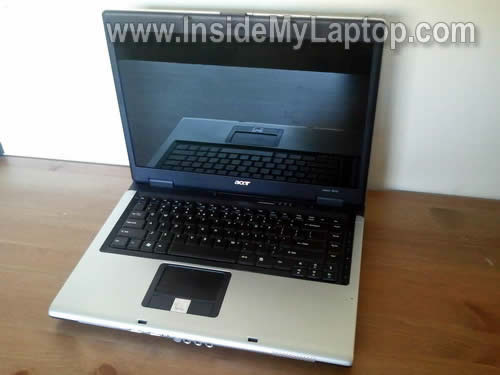
In this guide I show how to disassemble an Acer Aspire 5610z laptop (also says Model BL50 on the bottom).
Most likely this guide will work for some other Acer Aspire 56XX models. If this guide works for you, please mention the model number in comments after this post.
Before you start, make sure the computer is turned off and battery removed.
STEP 1.
Remove eight screws securing the memory and hard drive covers on the bottom. Remove both covers.
There is one more cover on the bottom and there is nothing under it. I called it Blank cover and removed it too.

STEP 2.
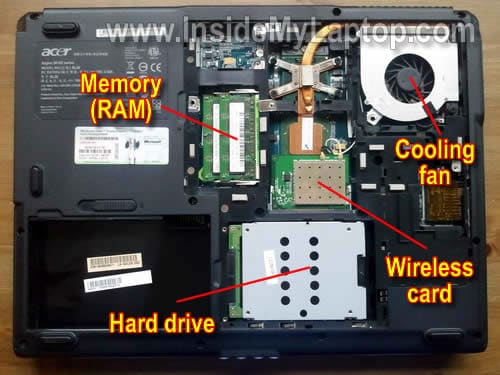
When all covers removed, you can access both memory (RAM) modules, hard drive assembly, cooling fan, wireless card, heat sink and CPU.
In the following steps I’ll remove some of these parts.
STEP 3.
In Acer Aspire 5610z both memory modules can be accessed from the door on the bottom.
In order to remove the memory module, carefully spread latches on both sides of the memory slot. After the memory module pops up at a 30 degree angle, carefully pull it from the slot by the edges.
Use same steps to remove the second module.
This laptop can take up to 2GB RAM total. Each slot can take up to 1GB RAM module. Use DDR2-533 SODIMM memory modules.

STEP 4.
Slide the hard drive assembly to the right and disconnect it from the motherboard.
Now you can remove the HDD assembly.

STEP 5.
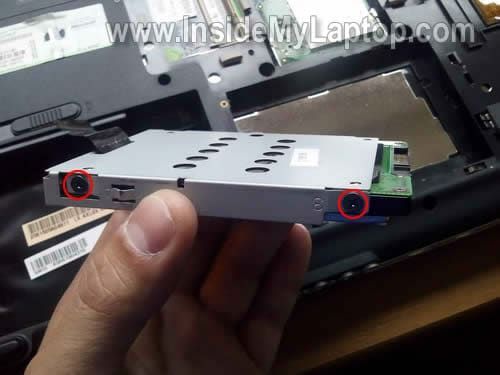
If you are replacing the hard drive, you’ll have to transfer the caddy to the new one.
Simply remove two screws from each side of the caddy and separate it from the drive.
As you see, this is a regular 2.5″ SATA HDD.
Any 2.5″ SATA HDD should work fine in Acer Aspire 5610z.
STEP 6.
Remove one screw securing the DVD drive.
Slide the DVD drive to the left and remove it from the case.

STEP 7.
Remove two screws securing the cooling fan.
Disconnect the cooling fan cable from the motherboard.

STEP 8.
Now you can remove the fan.
If the cooling fan and heat sink clogged with dust, blow it off with compressed air.

STEP 9.
Carefully disconnect both antenna cables from the wireless card.

STEP 10.
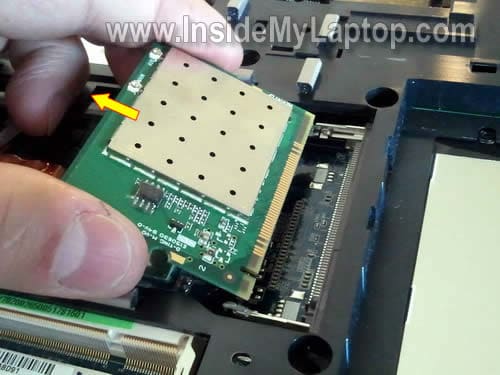
Remove the wireless card same way you removed memory modules.
In the following seven steps I explain how to remove the laptop keyboard.
In order to remove the keyboard it’s not necessary to go through steps 1-10.
STEP 11.
Lift up the right side of the power button board/hinge cover. I’m using a guitar pick.
Continue removing the cover with your fingers.

STEP 12.
The cover has been removed.

STEP 13.
Remove two screws securing the keyboard.
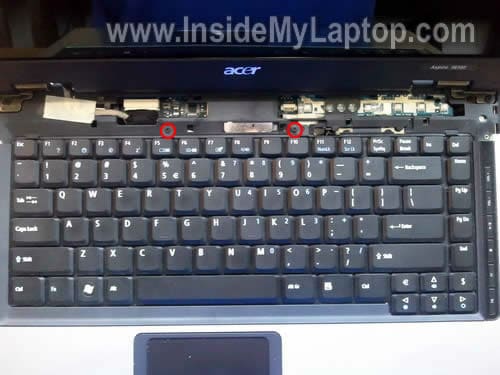
STEP 14.
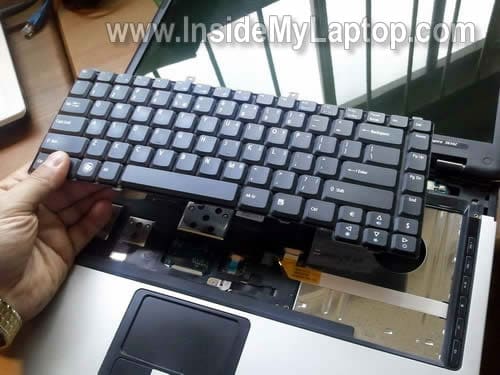
Lift up the top side of the keyboard and carefully separate it from the top cover.
Be careful, it’s still connected to the motherboard.

STEP 15.
Now you can access the cable connector and unlock it.

STEP 16.
In order to unlock the connector you’ll have to move the brown clip about 2-3 millimeters towards the laptop display.
The brown clip MUST stay attached to the white connector base.
On the following picture the connect is shown in the unlocked position. Do not move the brown clip any further.

STEP 17.
When the connector is unlocked, you can release the cable and remove the keyboard.
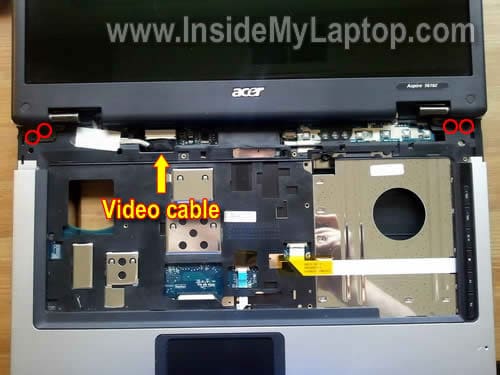
In order to remove the display panel you’ll have to disconnect the video cable and remove four screws securing the display hinges.
In one of the previous guides I explained how to remove the screen.
Luis Marrero
Regards;
Great article. Possibly can be upgraded to add removal of the upper case that is kind of fragile and needs to be exchanged once in a while (cost is $53 bucks).
Thanks for your great instructions
Massimo
Hi,
I’m Massimo and I have an Acer Laptop 5613 AWLMi.
I have a problem with the internal clock so I have to change my CMOS Battery but I can’t found it.
Please, where is the CMOS battery?
Thanks for your great article and for all the pictures!
Massimo
Ric
Hi,
Could you please tell me where the BIOS chip is situated in the MB of Aspire5610z.
IML Tech
Ric,
It’s somewhere on the motherboard 🙂 but… I cannot show where. I didn’t disassemble the whole laptop.
Luis
I have this same laptop (Acer Aspire 5610Z) and I was wondering if I could upgrade the processor, Intel Pentium dual-core processor T2060 (1.60 GHz, 533 MHz FSB, 1 MB L2 Cache), to an Intel core i7?
Thank you!!
IML Tech
Luis,
Acer Aspire 5610Z motherboard has Intel 945GM Express chipset.
Here are specs for this chipset: http://www.intel.com/assets/pdf/datasheet/309219.pdf
The processor support info located on the page 23 and it says:
I think you can upgrade your CPU to T7600 maybe? Not sure 100%.
Munsaka Billy
P lease where do i connect the black from the monitor to the motherboard. Is it to J1 or J2?
Max
Hi,
I’m Massimo and I have an Acer Laptop 5613 AWLMi.
I have a problem with the internal clock so I have to change my CMOS Battery but I can’t found it.
Please, where is the CMOS battery?
Thanks for your great article and for all the pictures!
Massimo
Steve
Hi,
I had to replace the power port of my Aspire 5610, but on putting the laptop back together the screen/display isn’t working. Do you have any ideas what i may have done wrong or suggestions as to what i should look for when i disassemble again?
Thanks
Steve
IML Tech
Steve,
Does the laptop turn on? Can you get image on the external monitor?
If the laptop turns on but there is no image on the internal or external screens, check memory modules. Could be just loose memory.
Max
Can someone answer me, please?
IML Tech
Max,
Take a look at this motherboard for Acer Aspire 5610 laptop.
The CMOS battery soldered to the motherboard and I circled it.
In order to replace the battery you’ll have to disassemble the laptop and remove the motherboard.
Max
Thank you for your answer.
So I must remove the motherboard….I think I will spend a lot of time for it!
Thanks, thanks a lot!
Ke'lona
Hi,
I have an Acer Aspire 5610-4537 and the fan is making very loud grinding noises at certain times. It occasionally stops if I bang it, but I don’t want to damage the laptop.
1.Should I simply replace the fan or do I need to look into other possible problems?
2. On the ebay link you provided for replacement fans, there are options for a 1-vent fan and 2-vent fan, how do I know which one I need?
3. Lastly, do you know how I can find out if my laptop is still under warranty?
Thanks!
Colleen Harris
Hi. I have an Aspire 5610Z and my wireless card stopped working. It used to somehow disconnect itself and when I would re-screw it back together reconnect itself but now it won’t connect at all. Do you have any advice? Thanks!
Grrr Power
I have just started a project to breathe new life into my 5612WLMi, and stumbled across this site.
Thanks for putting the effort into publishing these guides!
On my model the wireless card occupies the “empty” top left corner, above the memory.
Theoretically, it should also be upgradeable to 4GB.
Then again, the specifications state that the hard drive is SATA, and the drive I have just removed is quite plainly an IDE (Hitachi 80GB Model HTS541080G9AT00), so not sure who to trust now. Will also make the upgrading a little more pricey, I’m sure!
Hope these morsels of info will help somebody out…. 🙂
Ivan
Hi,
I have an Acer Aspire 5612AWLMi. It makes 5 beeps sound (1-2-2) when I turn it on, then it does not boot and it turns straight off. The fan start to work, but soon after stops. Then the power light indicator is on all time, but neither image nor sounds is detected.
It has a Phoenix bios, therefore
Looking at beeps error code for phoenix bios
I think of likely failure is
1-2-1-1 Initialize Power Management.
How I do to Initialize Power Management?
Any other suggestion?
Thanks you in advance
lino
Salve sapete dove posso collocare una scheda blutooth interna ( no minipci) in un aspire 5610
ha un attacco strano tipo connettore di alimentazione, e poi un altra cosa io ho una scheda vga
nvidia da 256mb con innesto mini pci la potrei utilizzare, visto che quella interna fà vomitare,
ho già cambiato la cpu e ho messo un T7200 core duo 2. e quindi volevo completare l’upgrade.
grazie e saluto a tutti.
Lino
Lino Vole prejudice are asking me this laptop and I have the mini pci slot
free I can install a dedicated video card (Nvidia 8400gt) that
Integrated sucks?
thanks
IML Tech
Lino,
Do you mean install a dedicated card into the PCI slot and disable the integrated card?
I don’t think you can do that.
EODmike
Hey there,
I’ve purchased an aftermarket Bluetooth module for my Acer 5610. I think it’s the correct module; it the Bluetooth Module Foxconn BCM92045NMD-95 (printed on the little board) & cable. The connector/dongle has 8 slots, but only 4 pins. Ok, the million dollar question… Where does it go? I removed the keyboard only to find a thin sheet of black plastic or something covering the MoBo. Therefore, I can’t access the MoBo. Got any ideas?
Thanks for any help in advance.
Mike
Mitchell
Thanks! I needed to replace the hinges on my 5610z after a kick off the table. Great info and photos. Everything went better than expected!
Marco
Thanks!
alfons
Hallo wer kann helfen,habe einen Acer Aspire 5100 Laptop das ding geht an läuft auch aber Bild
kann man nur schwach sehen .
bitte hilfen.
Danke.
Lauren
My Acer Aspire 5610Z has a touchpad problem. The arrow moves but I cannot click so have to now use an ordinary mouse. PLEASE help and tell me what can I do to remove the touchpad and clean it, or replace it. Your instructions for how to open this laptop are very helpful but no mention of the touchpad. I hope mine isn’t the only one with this problem. Thanks a lot.
Paolo
Hi! great tutorial! but I have touchpad problem, doesn’t work! I press Fn+F7 but nothing, please how I can look the conector of touchpad?
IML Tech
Paolo,
The touch pad cable connector located under the keyboard. You can access it after the keyboard is removed.
Before you disassemble the laptop, test it with any live Linux CD (Ubuntu, Knoppix, etc…)
If the touch pad works when your laptop booted from a Linux CD but doesn’t work in Windows, this is Windows related problem.
If the touch pad doesn’t work in Linux, most likely this is hardware failure.
Check if you have touch pad software installed. Usually you can find it in the control panel. Make sure the touch pad is not disabled.
asif
Thanks a lot for the tutorial dude.I hav an acer aspire 5610 very same as above.The problem is that it does not start.When i press the power button the button lights are on but the screen is off.The first light beside the power button comes for a few seconds and then goes off.any help would be appreciated
IML Tech
asif,
Maybe memory failure? Can you remove memory modules one by one and test the laptop with each module separately?
asif
Thanks for your reply,as you said about removing the memory module i did that but no luck.One thing i observed is that when the laptop is turned on the brown metal strip to the left of the cooling fan becomes very hot in seconds.It is so hot that i cant even touch it.Plz help dude
john
Your pictorials are great, saved me a load of hassle.
I changed the keyboard on an Acer aspire 5611 using this. I bust the brown clip on the keyboard connector though. Boy is that fragile.
Never mind , I sorted it with some bits of cardboard and gaffer tape. works fine.
Thanks
fRoD
Awesum guide dude juz loved it…….
Also can you plz take some time and post the method to reset BIOS on this laptop……/I heard its RISKY so a pictorial guide would assist me greatly……
Peter Corless
Thank You ,I followed instructions to fix my flickering Screen.Used them to dismantel Acer Aspire 3694.Worked fine.
James
Brilliant guide. Had a laptop which lid-sensor-button was sticking, simply removed it and its ok again.
Thanks for the guide.
SlamDunk
I’m looking at changing my Mainboard cause the thing has a short in the front left corner and when pressure is applied it restarts. Your guide here only show a part of the procedure to removing the keyboard. How do I get this chassy open so I can change the board?
James
Stunning guide, saved a visit to the repair shop, top job!!
Helpz
Where CMOS battery at?
IML Tech
@ Helpz,
Most likely attached to the motherboard. It means you’ll have to open up the laptop case in order to access the battery.
victor c.
my problem is i will press the power button the power button lights up but black screen have to turn off (cold boot) and do it again about the 3rd try it will boot up fine and run great so was googling it and found myself here learned something….
SlamDunk Says: September 9th, 2011 at 2:20 pm
I’m looking at changing my Mainboard cause the thing has a short in the front left corner and when pressure is applied it restarts
so i press on my left corner while it is up and running and it freezes no mouse movement nothing so i do another cold boot this time applying pressure on the left bottom corner while it is in bios screen and it freezes aha so now i know where to look i had thought the same thing before as others here bad memory switched out- same problems with intermittent booting switched processors same problem will disassemble and check that part of the board
IML Tech
@ victor c,
Could be memory failure.
Try reseating both memory modules. Maybe it’s just bad connection.
Try removing memory modules one by one. Maybe one of them failing.
Paolo
Hi! I’m having troubles with my touchpad, yo know where is the cable to connect the touchpad?
IML Tech
@ Paolo,
You can see the touchpad cable in the step 15. It’s on the right side from the keyboard cable.
Vic
Great work, very useful, Thank you.
Ashley
I have a aspire5610z and when u power it on the power button lights up but the screen is still black as if I didnt turn it on how can I get it to come on?
IML Tech
@ Ashley,
I would check laptop memory first. Maybe one of the modules failed.
Try removing memory one by one and test the laptop with only one module installed. Try different slots.
Eric
The 510z that I have was given to me by my sister, worked for about a week. Now when I turn it on I can get to the ACER screen and then nothing, when you push the f2 all you do is wait and nothing. I can do nothing with this I have been told a lot of different things but most say bring it in and we will take a look at it. I don’t have that kind of money, I am a little tech savy got any ideas that I can try.
Joerg
I can’t find CMOS battery. I have noe idea anymore! Any hint?
Shredder11
I have just upgraded my sister’s Acer Aspire 5612WLMi (5610 series) from the original spec it had back in August 2006 when she bought it..
It previously had a Core Duo T2300 1.6GHz, 1GB DDR2 533MHz with Win XP Home 32-bit, and now it has a Core 2 Duo T7200 2.0GHz and 3GB DDR2 667MHz on Win 7 Ultimate 64-bit. The only other thing I did was upgrade the BIOS to 3.60 and then again with a modified BIOS with SLIC 2.1 data so Win 7 could be installed. It all performs beautifully and should give this laptop another few years of daily use.
The weird thing is that it now boots up much slower than before, despite the fact that I have installed Win 7 very cleanly without OEM junk on a few IBM Thinkpads of the same vintage; they all more or less share the same chipsets and components but the IBM models kick the crap out of the Acer, even though the Acer has the more powerful CPU! However the Acer does have a 5400rpm IDE drive and the IBMs have either 5400 or 7200 SATA 1 drives. The Acer booted up in around 45 seconds with Win XP Home 32-bit (six year old installation!), but it is now double that on Win 7 Ultimate 64-bit.
Anyway thanks for your 5610z tutorial as it was quite helpful and your website is great. Keep up the good work!
Vic
Hi IML Tech,
Could you please let me know the position of the CMOS battery in my 5610z, I need to change it due to it’s age. My task bar clock gets stuck and I experience lags while surfing. Thanks in advance.
IML Tech
@ Vic,
The CMOS battery is soldered to the motherboard. In order to access the battery you’ll have to remove the motherboard from the laptop.
Take a look at the third picture. Do you see the sign: Wireless Card? The CMOS battery located under that sign, under the bottom cover.
Vic
Hi IML Tech,
Thanks a lot for the quick and very useful help, much appreciated.
Munawwar
This was Quite helpful but i needed to know if the processor can be separated from the motherboard as i want to replace the processor. thank u in advance
MB
Hi. Is it possible to replace the sound card in this laptop? I think mine is already busted. No sound coming out of it. And Windows is no longer able to detect it.
IML Tech
@ MB,
I don’t think so. The sound card integrated into the motherboard.
Ryan
Hi IML Tech,
Do you have a part number for the video cable connecting the motherboard to the LCD display? Just want to make sure I order the right part. I appreciate the guides, I’ve already replaced a keyboard using one.
IML Tech
@ Ryan,
francoP
Siete stati veramente fantastici nelle spiegazioni Ho un acer aspire 5610 , ho tutte e quattro porte USB a KO , se sostituisco la motherboard potrei risolvere il problema? e se no cosa dovrei sostituire?
Mike
Hello there. Great post. I was wondering if i can upgrade the Intel CPU with an AMD Athlon. Thank you very much!
Vic
Hello there. Great post. I was wondering if i can upgrade the Intel CPU with an AMD Athlon. Thank you very much!
No, you can’t do that.
Alex
How many ram cards can fit in this laptop. Can you upgrade the hard drive.
IML Tech
@ Alex,
This laptop has two RAM slots (shown in step 2).
Yes, you can upgrade the hard drive. Make sure to use SATA hard drive or SSD.
BILAL
my problem when click on button and press F2 setup so pasword regured but forgot it
pls solve this probliems quecly
IML Tech
@ BILAL,
Acer Aspire 5610z has a BIOS password reset jumper.
It’s located in the RAM compartment, close to the RAM slot.
1. Short this jumper using a small flathead screwdriver for 30 seconds. Try turning on the laptop. If the password is still there, try method 2.
2. Short the jumper using a screwdriver. While shorting it, turn on the laptop. Wait until it bypasses the BIOS password request. After that you can stop shorting the jumper.
Let me know which method works for this model.
Leonidas
Is it possible to upgrade the CPU and what kinds of processors do they fit? Also I have put 2,5GB RAM, and although you say that it takes up to 2GB, the system recognises all 2,5GB but it says that only 1,99GB are usable. Should I take out the 512MB?Thank you.
IML Tech
@ Leonidas,
It looks like the CPU is upgradable. I believe this motherboard takes Intel Core Duo processors. To research possible upgrade you’ll have to find CPUs supported by Intel 943GML Express.
I did some search and found that some sites mention only 2GB max. Other sites say it will support up to 4GB.
I guess it might support 4GB but in order to use it all you’ll have to run a 64-bit OS.
Should you remove 512MB stick? It’s up to you. If it works with 2.5GB just leave it as is.
Julie
I have an aspire 5610z and I think the cmos battery has went on it. It does not keep time and date anymore. Is it possible for me to replace this battery. If so where can I buy one and how can I do it.
Thank you
IML Tech
@ Julie,
It is possible but not easy.
1. The battery is soldered to the motherboard.
2. It’s located deep inside, on the bottom side of the motherboard. You’ll have to remove the motherboard for that.
calvin
i have a acer aspire 5610z and it shows to have a blue tooth switch mine dosn’t light up when i move the switch i call around to a few compuer tech stores and all they tell me is i have to buy a blue tooth-wifi card but when i looked up the card it shows that there is 3 wires on the one with blue tooth and on my wifi card theres only 2 wires and i was wandering if the 3rd wire is hidden in my computer or is there something extra that i have to buy to install and how do i install it
HÃ¥kan
Just wanted to know the specs of your Acer Aspire 5610z BL50
have the exactly the same computer but no specs for it and cant find em anywhere. Do you know?
serge
On my Acer Aspire 5610Z on the left side is big slot i have not idea what is it for..