


In this guide I explain how to clean up or replace the cooling fan assembly in a Dell XPS M1530.
The fan can be accessed from the door on the bottom of the laptop and removing procedure takes only about 10 minutes.
In my XPS M1530 it started making noise and had to be replaced.
STEP 1.
Turn off the computer, unplug the power adapter and remove the battery.
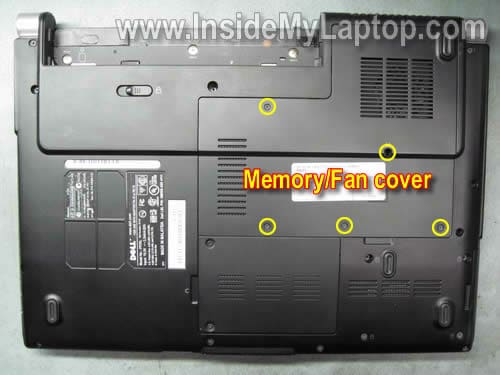
Unscrew five screws securing the memory/fan cover and remove the cover.
STEP 2.
Remove six screws securing the heat sink assembly to the motherboard.
Disconnect the cooling fan cable from the motherboard.

STEP 3.
Carefully lift up and remove the heat sink assembly.

STEP 4.
Remove four screws securing the fan to the heat sink.

STEP 5.
Lift up and remove the fan.

STEP 6.
The heat sink was clogged with dust and had to be cleaned up.
You can use canned air to blow off dust from the heat sink.

STEP 7.
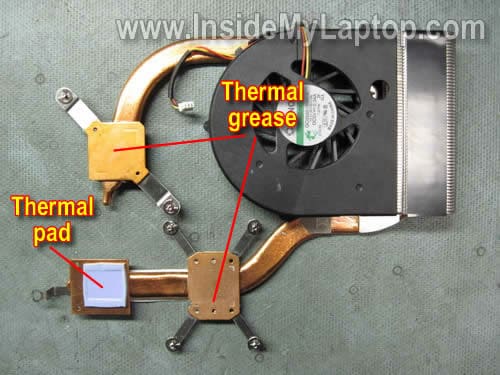
Before installing the heat sink assembly back on the motherboard, take a look at thermal grease on the processor and video chip.
If thermal grease dried out, it has to be replaced.
Remove old grease from the heat sink using a piece of paper towel soaked in 99% alcohol.
Do not remove thermal pad. It can be reused.
STEP 8.
Using same paper towel remove old thermal grease from the processor and video chip.

STEP 9.
Apply a small drop of fresh thermal grease on the processor and video chip before installing the heat sink assembly.
I’m using Shin-Etsu gray thermal grease.

In the next post I explain how to remove sceen from a Dell XPS M1530 laptop.
Allan
Hey thank you so much for this.. A few days ago my laptop overheated and now I have to use my old one. I don’t know which one I have to replace, the lcd screen, the fan, or both. I opened up the back and my fan isn’t working, but my lcd screen when turned on stays black, which do I need to replace? Than You so much..
Katherine
Hi,
I would like to know exactly what size of phillips screwdriver that I need to use to remove the heatsink?
And just in case if the screwdriver type doesn’t work, how should I deal with stubborn screws for the heatsink?
Thanks,
Katherine
Edward
Thea heatsink panel that is connected to my graphic card sticks really bad and I can’t remove it.
All of the screws and the other heatsink came off easy except for this one.
Did you experience the same problem? What happened here? Did the thermal compound dried up and stick like a glue? Do you have any idea how to fix this?
Jason
Hi, I was looking through this post, and it looks like it’s very well done. Is there any chance you can do the same type of post on how to clean or replace cooling fan in Dell Inspiron 1525 laptop?
It would be awesome of you, if you did.
Thanks
IML Tech
Jason,
It looks like in a Dell Inspiron 1525 the cooling fan cannot be easily accessed from the bottom. If you would like to replace the cooling fan with a new one, you’ll have to disassemble the whole laptop.
You can follow these disassembly steps for Dell Inspiron 1525/1526 laptops:
http://support.dell.com/support/edocs/systems/ins1525/en/SM/index.htm
Jessica
Hi, sir. This was probably the worst ever laptop experience I have ever had. My old Toshiba had less problems than this ish. Mine had an erratic touchpad, recalled gpu, overheating unit, very hot palm rest area, and more. Sigh.
Anyway, do you know where I could buy the heatsink screws only? I manage to botch the screws after so many thermal paste replacements I did!!! The GPU kept dying down on me. 🙁
I didn’t want to buy a new heatsink as it still works fine, I just needed new screws. Do you know where I could obtain those? THANKS!
Frederick
I did exactly what you described but the top part of the processor stuck to the heatsink and came off with it.
So now I’m stuck with a clean fan but a laptop that doesn’t switch on anymore.
Any tips?
IML Tech
Frederick,
Did you push the CPU back into the socket while it still connected to the heatsink? Man! I hope you didn’t damage CPU pins.
Now…
1. Remove the heatsink again.
2. Separate CPU from the heatsink.
3. Unlock the CPU socket on the motherboard (there is a screw on the socket).
4. Install the CPU into the socket. Make sure to position it correctly, do not apply force.
5. Lock the CPU socket.
6. Install the heatsink back in place and try turning it on.
Frederick
Thanks for the quick reply.
The cpu pins are intact, I just need to reapply thermal grease.
Todd
I had the same thing happen as Frederick, but with no happy ending.
When I removed the heatsink my CPU stuck to it and came out of the socket. I cleaned everything out and replaced everything… no luck. Went back in and tried again, this time properly unlocking the socket, placing CPU, locking socket. No luck.
We re-seated just about everything in there, examined the pins on the CPU several times (no visible damage). Unlocked, locked etc, 5 times each, at least, and still no luck.
When starting up I can see the first DELL screen, I can hear things gettin started… and then it fails after about 10 seconds. I was able to see the SETUP screen once and it seemed to have recognized the CPU, but after several attempts we gave up. The LED codes (hold ‘function’ key while hitting power button) initially said bad CPU and later said bad motherboard, among other codes. We pulled out the harddrive and hooked it up via USB to another computer and it is in tact, so that’s good.
Anyways… this tutorial was nice & clear but in the end my laptop is dead and it wasn’t worth getting the fan clean (obviously). Be aware of the risks before performing an action like this.
The major helpful point would be to note that there is a risk that your heat sink and the thermal grease may have bonded to the CPU chip and/or the video chip. If the heatsink doesn’t come up with ZERO effort, don’t pull on it AT ALL. Let it be, live w/ the heat and get a new laptop in a year or so (instead of today, ugh.)
Renee Werner
This was very helpful! Thanks for taking the time to post it.
Jennifer
I’m also having trouble removing the screws for the heatsink. Would very much appreciate advice on the screwdriver needed or from anyone else who’s had similar problems.
Thanks
Jennifer
Subin
Hello,
I’m in quite a bit of frustration. Screw #5 will not unscrew and it seems like i’ve worn down the cross on the top of the screw to the point where it’s now a circle…..
I’ve seen some advice as to removing such screws, such as superglue-ing the screwdriver to the screw. If I were to do that, what is the right size and where can I find the replacement screw???
Please reply as soon as you can!
Thanks so much
Hassnaa Mohamed
REAAAAALLLYYY THANK YOUU!!!!!!!!!!!!!!!!!!!!!!!!!
u have no idea how this helped!!!!
tin
nice#! thx
Mike Roberts
Brilliant guide! Easy to follow, and effective advice – my XPS1530 now running considerably cooler. Thanks!!
Chris
Brilliant guide and almost at the end of my tether trying to work out what was wrong 🙂
Thanks M1530 back in buisiness
Seth
Thanks for the guide–very easy to follow. But screw number 5 is a little bugger!!! It didn’t want to unscrew at all! After trying a few different sizes of screwdriver, I finally got it to break loose…but now there’s no amount of pressure I can apply to get it to screw back in. It simply won’t catch, and just spins freely. Why did they make the thing so short!?
Christian
Thanks for this guide. My m1530 was running warmer and warmer and had started to shutdown by itself when I was playing FPS game. Just like the fan in picture 6, my fan had collected a lot of dust. My m1530 is back to normal after following this guide.
Dave
Good guide – my XPS M1530 was running hot with a lot of fan noise and the picture of the heatsink clogged with dust made me investigate further. I could see with a torch without dismantling the heatsink assembly that the heatsink was clogged with dust. Rather than disassembling everything, I simply attached a drinking straw to a vacuum cleaner nossle with some sellotape, and carefully passed the straw through the fan and hoovered out the dust on low power. Laptop now working fine again, with much reduced fan noise and heat.
IML Tech
@ Dave,
LOL. That was a smart idea. 🙂
Petter
Thank you for the guide!
I had to replace my fan because the old one had a defective bearing and was massively noisy. The thermal paste was pretty hard to get off after almost four years. *g*
Most of the screws Dell used for my computer are just plain bad quality and won’t survive one more try I’m afraid — I hope I won’t have to open the case again in the future.
IML Tech
@ Petter,
It’s not screws, it’s your screwdriver. Use a good quality screwdriver and you’ll never have this problem.
I’ve been using same Wiha screwdriver on daily bases for over 6 years and the tip still like new.
Michiel
Thanks for this perfect instruction guide!
I took out a lot of dust and its a lot better now
In my XPS M1530, there was one more screw to take out in step 3 that is not marked in your picture.
KUDOS !!
Allan Phillips
An excellent guide.
I have a different problem. I believe I’ve blown the power input circuit on the laptop – Dell XPS1530. The laptop itself worked ok off the battery until the battery charge was exhausted. Dell tell me the power input circuit is integrated within the motherboard. but I have read elsewhere that a plug-in card is available. I cannot find any guidance on the web for motherboard access / replacement. Can you help.
Many thanks.
Allan
Jamie
I’m typing on my iPod because my laptop isn’t currently working! Whenever I attempt to turn it on the Dell page comes up and so does the loading bar. Then it takes me to a black screen (still lit up) with a flashing small dash in the top,left corner. It stays like that…just flashing. I tried pressing f1 and f12 to get to the setting page. The page comes up…but there seems to ne nothing that would help. I ran an option that ran rests on my computer. A blue screen came ip making beeping noises and first said to press y or n if colors were appearing. Then the page ran a series of tests that took approximately 1hr. After it was finished the page just froze. I’m desperate for A solution and I can’t spend the money it would take to fix it. Will this tutorial fix the problem I’m having?
PJ
My fan and the heatsink area got clogged up with dust. Gave me plenty of warning and groans before it died. I opened it up when it died, removed the dust, but the fan wouldn’t spin up. Possibly because the fan spindle bearings lubricant had fried with the heat. Lifted the fan spindle out, and put a dab of silicone spray lube in the receptacle, and put the fan back in place. Fan spun up, nice and silent – ie no replacement was needed. Temperature stays nice and cool.
Silicone lube is one of the wonders of modern tech, along with duct tape, araldite and WD-40.
SpaceDog
Brilliant guide, I just followed it and cleaned all the gunk and cat hair out my fan. Laptop back together and working brilliantly, hopefully it’ll run a little cooler now.
Thanks for putting this guide together.
SpaceDog
Oh, but you missed a screw in Step 2 — on my machine the one at the very end of the heat sink (bottom middle of the picture) was there. But it’s obvious from the pictures that it needed to come out.
After reading the comments, yes — get a proper screwdriver designed for the job. I started with my multipurpose and quickly realized I was going to strip the screw irreparably if I didn’t go and find the correct one. With that in hand it was a breeze.
Kim
Thank you very, very much for such a great set of instructions. Just finished cleaning the dust from the fan and the side of the heat sink. Your step-by-step guide was easy to follow and the photos helped a lot. Previously I thought a new thermal control unit was going to be needed, but this repair did the trick. Thank you again!