

In this guide I explain how to upgrade RAM (memory) in a Toshiba Satellite A45 laptop.
If you search for memory slots on the bottom of the laptop, you will not find any because both slots are hidden under the keyboard.
In order to access both RAM slots you’ll have to remove the keyboard. Don’t worry, it will take about 5 minutes even for inexperienced users.
Before you start, turn off the computer, unplug the power adapter and remove the battery and of course, proceed at your own risk. 🙂
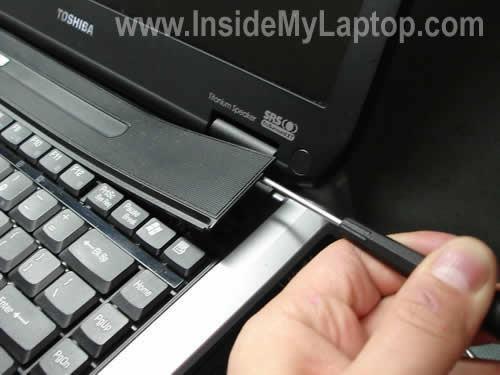
STEP 1.
Insert a small flat head screwdriver under the keyboard bezel and lift it up.
STEP 2.
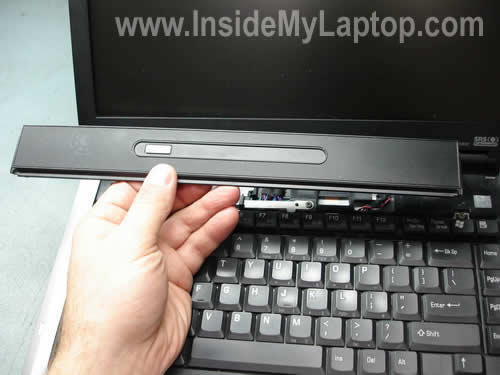
Continue removing the bezel with your fingers until it’s completely separated from the top cover.
STEP 3.
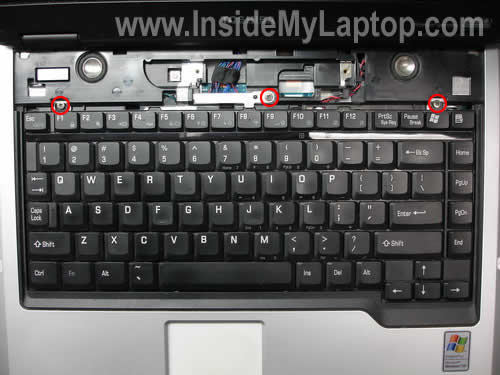
Remove three screws securing the keyboard. Also, remove the metal plate/bracket under the screw in the middle.
STEP 4.
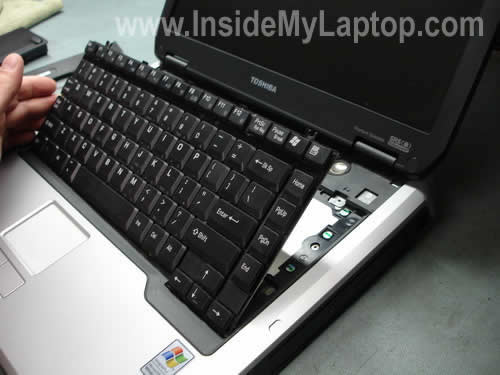
Lift up the keyboard as it shown on the picture below and place it upside down on the palm rest.
STEP 5.
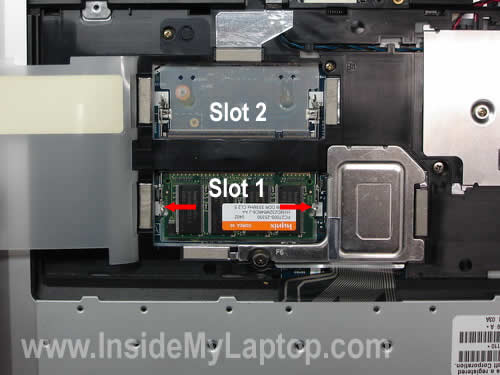
On the picture below you can see both RAM slots. The slot 1 has one memory module installed. I’m going to remove the original module and replace it with a larger one.
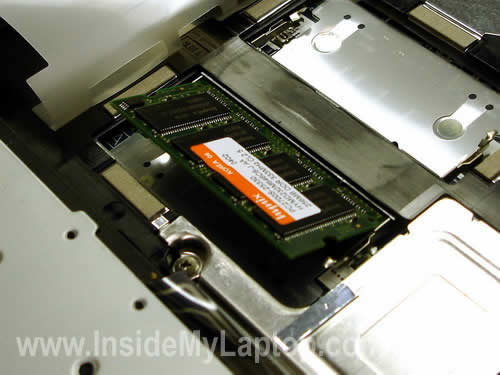
In order to remove the module from the slot you’ll have to spread latches on both sides of the module until it pops up at a 20-30 degree angle.
The memory module popped up.
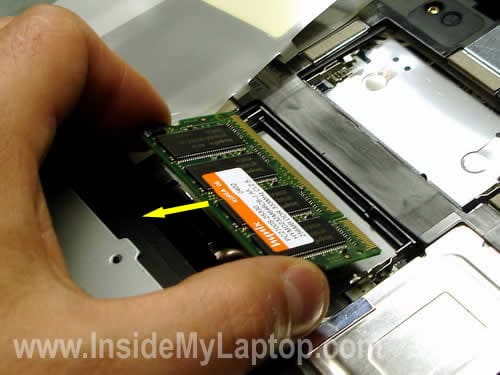
STEP 6.
Now you can grab the module by the edges and pull it from the slot.
On the picture below you can see the original 256MB module that I had installed.
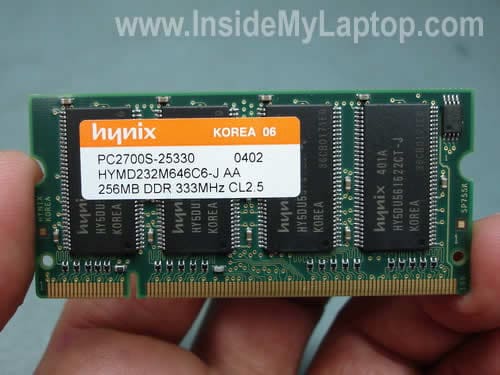
Toshiba Satellite A45 can be upgraded to 2GB RAM total. You can install up to 1GB module into each slot. You should use PC2700 (DDR333) SO-DIMM RAM modules.
You can use different size memory modules in different slots. For example if you have an original 256MB module in the slot 1 and install an additional 1GB module into the slot 2, the laptop will detect 1.25GB RAM total. No additional configuration needed. You simply install new memory and start the laptop, it will be detected by the BIOS automatically.
If your laptop will not start after you added more memory, make sure the module is seated correctly.
Alfredo
Hi: I seen your address in a Fujitsu disassembly guide, I will like to share with you this problem in case you have any suggestions…Thank you for this great guide, I was trying to open my laptop, I will send some picture later, in my model there are some variations, ex, in the plate that holds the keyboard there is a metal plate just ahead the support of the screen, half circle shape that you need to remove and will show a screw that you need to remove before the plate is removed.
I’m opening it sionce I do have a problem that my laptop doesn’t want to do a restore, everything looks OK, memory, ps, no errors, BIOS ok, had replaced the drive but it did fails to restore, I did format the disk etc. all ok.
I will really apreciate any suggestions about it, I also did try to install other windows but when doing so the system comes with the error that not drive is installed, however remember it does all the steps and get to the point to it says remove the restore disk and press Y to start windows, when this happens I get the windows logo and stops forever.
Thank you
Alfredo
IML Tech
Alfredo,
Did you check if the new hard drive is supported by your laptop? Maybe your new hard drive is too large and the laptop just cannot handle it properly.
Last morning I had a similar problem with a Satellite A45 laptop. I attempted to replace the original 40GB dirve (failed) with a new WD 120GB drive. The restore process ran smoothly and it looked like everything was going to work just fine, but the laptop couldn’t boot from the new 120GB drive. I don’t know why, I guess it was too large and the older laptop just couldn’t handle it. The restore process went through from the beginning to the end and asked me to remove the CD and restart the laptop. I did but the laptop didn’t boot from the hard drive.
I installed a smaller 80GB hard drive and reimaged it again. The laptop started properly with a 80GB drive.
By the way, did you run diagnostic tests on both hard drives? If you are getting errors on both drives (including a new one), there could be a problem with the IDE controller on the motherboard.
Lorena Puentespina
how i can add additional ram to hp compaq presario V6000
IML Tech
Lorena Puentespina,
In a Compaq Presario v6000 memory modules could be accessed through the door on the bottom. There are two memory slots.
You can find step-by-step instructions in the maintenance and service guide. It’s about 4MB pdf file, so it might take some time to download. Take a look at the page 126.
You can install 2GB RAM total, up to 1GB RAM into each slot. You should use DDR2 PC2-5300 (667MHz) SO-DIMM modules.
Kml
Cheers for the guide ! Quiet informative…
Can the same procedure be applied for Satellite M70 215?
IML Tech
Kml,
It should be way easier for a Satellite M70 laptop. You’ll find both memory slots on the bottom.
tom newman
Morning,
I was sonfering if you would be able to tell me where the CMOS battery is located in an A45 toshiba satelite laptop. I can’t get past the boot up password and I wanted to try removing the battery. Thanks for any help you could provide!
IML Tech
Tom Newman,
Removing the CMOS battery will not clear the BIOS password.
Alejandro
Great guide. I have decided to add RAM to my laptop (toshiba satellite A45) and now I know how to do it. The problem now is that stores in my area only have 1 Gb DDR 400 Mhz memory modules. Would this module work?
IML Tech
Alejandro,
DDR 400 memory also known as PC3200 should be backward compatible with DDR333 PC2700 memory. I think you can use PC3200 module in your laptop.
Courtney
Thank you for this walk-through. I had no troubles popping off my keyboard and replacing my ram. Thank you! 🙂
Amre
Can you post instructions for a Toshiba Tecra M10? I can’t find the 2nd memory module!
Thanks,
IML Tech
Amre,
That’s a newer laptop and I haven’t seen it yet. It must have two memory slots. If there is only one memory slots on the bottom, most likely the second one somewhere under the keyboard.
emsi
hi i am emsi and i have the satelite a45 but on the 1st step when you remove the speakers thing i have buttons next to the power button will this make a diference?
also does the plastic speaker thing just snap back in place? if not how do you install it
IML Tech
emsi,
It shouldn’t make any difference.
Do you mean the speaker cover? Yes, it just snap back in. There are small plastic latches holding it in place.
Brian
Where is the best place to get ram for the Toshiba a45-s151. Also, how much should I get. I currently have the standard 512 that it came with.
Thanks in advance,
Brian
Wes
How do you install ram in a Satellite 1800-S204? Thanks
IML Tech
Wes,
In a Satellite 1800 both memory slots can be access through the bottom of the laptop.
This model will take up to 512MB of RAM. You can install up to 256MB RAM module into each slot.
You’ll have to use PC133 SDRAM SODIMMs.
Martin
Hi
I have a Toshiba SA40-231, which seem to be built pretty much the same as the one in the article. I found this article while looking for a description on how to get access to the fan, in order to change it. Your article is the closest I have got that describes how to access at least the memory slot.
Could you please discribe how I could continue to remove the keyboard, the motherboard and other things needed to get access to the fan? Must I remove the memory slot, keyboard with cable and other things from the motherboard first?
I would really appreciate it. I’ve had my Toshiba for years now and I love it.
I got a system warning about problem with the fan system and the computer starts to work extremely slow. Have already cleaned the hetsink and other things. But I still get a system warning about the fan system and the computer begins to work extremely slow after a few minutes. Installed SpeedFan. All values seems to be okej now, cpu, hard drive and ACPI. However, three tiny grey plastic pieces dropped out from within. They may come from the fan, but don’t manage to detect this. The fan seems to work okej.
May it be an erroneous message that still makes the system to work slower. I updated the bios, but it didn’t change anything. I also looked for the cmos battery to reset the values, but could find it.
/Martin
jaime
i replaced my ram on my toshiba u305-s5077. i replaced it with ddr2 which is correct according to the internet info i got. but i forgot to turn off the computer before i removed the old one and replaced it with a new one, when i started it the screen would not show anything the power buttons are on but nothing on the screen, did i kill my computer? if i did, is there anything i can do to “revive” it? thanks
IML Tech
jaime,
Probably not.
Turn off the laptop and reconnect memory modules.
Make sure that both memory modules are installed correctly. Test the laptop again.
mike
Hi,
I have a Kingston memory, DDR, Size 1024 MB, Speed 400 MHz, PC3200, CAS Latency 3 ms, 200 pin memory in my hand. Can I install it to the Toshiba Satellite A45 on which the original memory is DDR333 PC2700 256MB (X2)? Can I combine 1 DDR333(256MB) and 1 DDR400 (1GB) together? thanks a lot.
MARCI DAIBAC
hi, i have a problem with my toshiba satellite sa40. when windows loading/booting. it autimatically turn off and restart again. what is the problem of my laptop? i did’nt change anything its all stock. please help me, i have a new 1 but i love this most and this is very important to me. thanks
IML Tech
MARCI DAIBAC,
It’s hard to tall what is causing the problem without testing the laptop.
Can you boot your laptop in Safe Mode? Will it stay on in Safe Mode?
Also, enter the BIOS setup menu and leave the laptop in there. Will it shut down while in BIOS?
todd
how ot access the BIOS is it f2 or what i cant get to the BIOS Thanks
i found memory on ebay easy to find 200 pin DDR2 memory
IML Tech
todd,
Try ESC or F1 keys.
Lechero
Hello
my laptop when i switch on screen is black, i cant seen anything what could be the problem
JUAREZ RIBEIRO
Hi, I had 2 1 giga RAM in my laptop (2 giga total) and my laptop was supposed to accept until 4 giga RAM, i bought 2 2giga RAM and installed it in my laptop, but when i check my laptop information it shows 3 giga of RAM memory. How is this possible?
joe
hi i upgraded the ram in my toshiba tecra m3 with 2 gig and only 1 gig is showing up i have reseated the ram twice and still the same any ideas it is running xp pro serice pack 3 thanks for any help joe
Rock Bottom
WTF? That is the WORST case design I’ve ever seen on a laptop. I opened every panel on the bottom (also shittily designed) looking for the memory.
And you should see the cooling setup on this thing. There are literally three copper pipes running from the CPU to a heat sink at the back. What’s in them I don’t know.
THANKS FOR THIS GUIDE, THOUGH.
Makeba
Hi, I’m trying to replace the RTC CMOS battery on my A45 S120 but I can’t find the freakin’ thing!!! I know I’m fully capable of doing this myself, as handy as I am:) I’ve already found out how to upgrade my own memory. If you could just either point me in the direction of where the CMOS battery is or better yet make a video, I would greatly appreciate it. PLEASE RESPOND! I’ve searched high and low for repair/service manuals and can’t find a thing. You’re the closest that I’ve come to it so far.
luis
tengo una toshiba a45-s150 desde hace años y querido desmontarle el ventilador y nunca he podido llegarle quisiera saber como debo hacerlo.
IML Tech
@ luis,
It’s not easy to replace fans on a Toshiba Satellite A45 laptop. Fans mounted deep inside the laptop, under the motherboard.